
1. Introduction
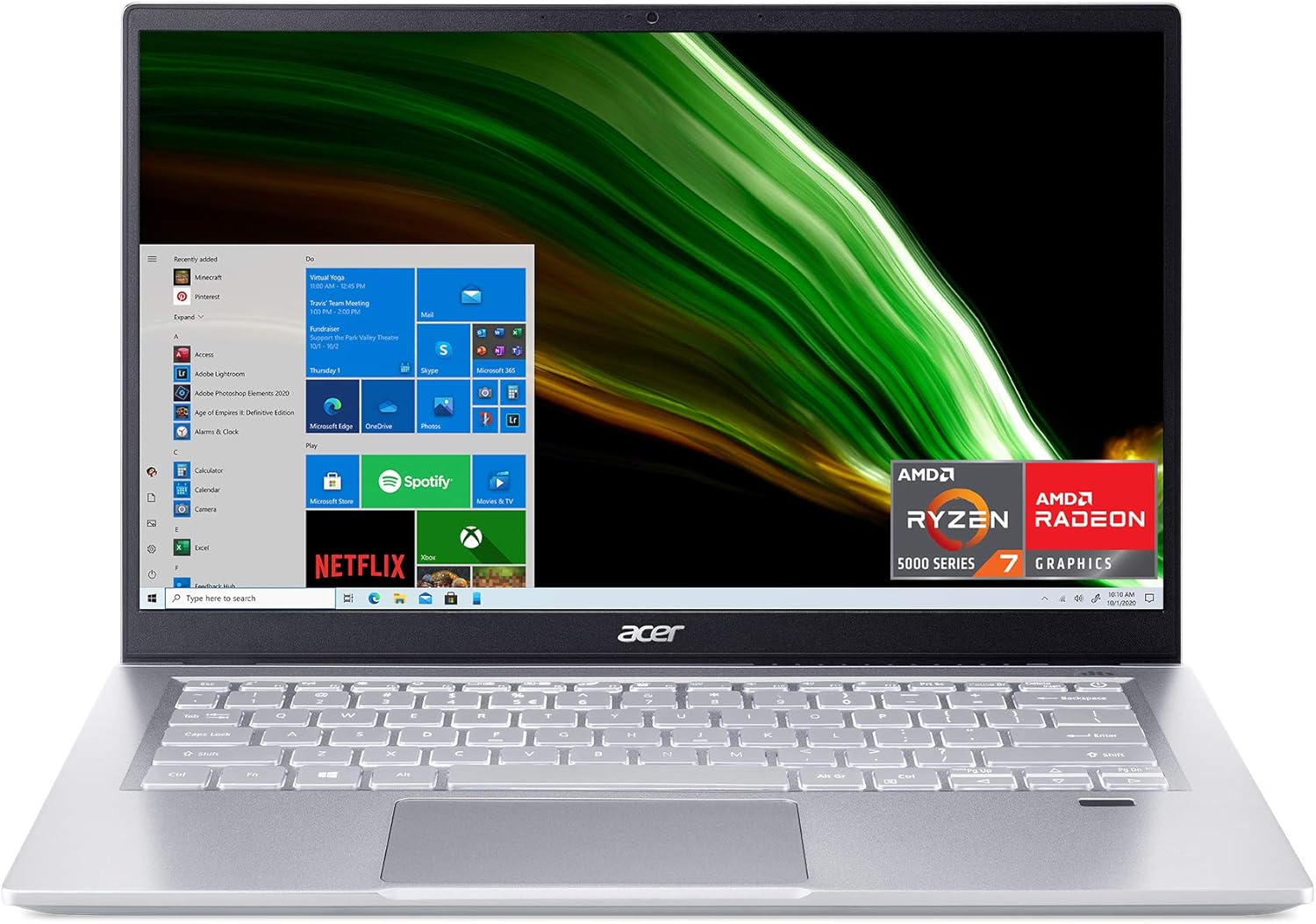
This manual provides essential information for setting up, operating, maintaining, and troubleshooting your Acer Swift 3 SF314-43-R2YY laptop. Please read this manual thoroughly to ensure proper use and to maximize the performance and longevity of your device.
2. Package Contents
Verify that all items are present in your product package:
- Acer Swift 3 SF314-43-R2YY Laptop
- AC Adapter
- Power Cord
3. Product Overview
3.1 Components and Features
The Acer Swift 3 SF314-43-R2YY laptop is designed for portability and performance. Key features include:
- Display: 14-inch Full HD (1920x1080) IPS LED-backlit display with 100% sRGB color gamut and narrow bezels.
- Processor: AMD Ryzen 7 5700U Octa-Core Processor with Radeon Graphics.
- Memory: 8GB LPDDR4X on-board memory.
- Storage: 512GB NVMe Solid-State Drive.
- Connectivity: 802.11ax Wi-Fi 6 Dual-Band (2.4GHz and 5GHz) with MU-MIMO technology, Bluetooth 5.2.
- Security: Biometric fingerprint reader with Windows Hello support.
- Audio: DTS Audio, Acer TrueHarmony, and Acer Purified.Voice technology with dual microphones for enhanced communication.
- Keyboard: Backlit keyboard.
- Battery Life: Up to 12.5 hours on a full charge.
3.2 Ports and Connectors
Familiarize yourself with the available ports on your laptop:

- USB 3.2 Type-C (Gen 2): Supports DisplayPort and USB charging.
- USB 3.2 Gen 1: Two ports, one with Power-off Charging capability.
- HDMI 2.0: For connecting to external displays with HDCP support.
- Headphone/Microphone-In Jack: For audio input and output.
- DC-In Jack: For connecting the AC adapter.
4. Setup
4.1 Initial Power-On and Charging
- Connect the AC adapter to the laptop's DC-In jack and then to a power outlet.
- Open the laptop lid. The laptop may power on automatically, or you may need to press the power button.
- Allow the battery to charge fully before initial use.
4.2 Operating System Setup
Follow the on-screen instructions to complete the Windows 10 Home setup process. This includes selecting your region, language, and setting up your user account.
4.3 Fingerprint Reader Setup (Windows Hello)
The laptop features a fingerprint reader for secure login. To set it up:
- Navigate to Settings > Accounts > Sign-in options in Windows.
- Under 'Windows Hello Fingerprint', click Set up.
- Follow the on-screen prompts to register your fingerprints.

5. Operating Your Laptop
5.1 Power Management
- Power On: Press the power button located on the keyboard.
- Sleep Mode: Close the lid or select 'Sleep' from the Windows Start menu.
- Shut Down: Select 'Shut down' from the Windows Start menu.
5.2 Display Settings
Adjust display brightness, resolution, and other settings through Windows Display settings (Right-click on desktop > Display settings).
5.3 Wireless Connectivity
Wi-Fi: To connect to a wireless network, click the Wi-Fi icon in the taskbar, select your desired network, and enter the password if prompted.

Bluetooth: Enable Bluetooth in Windows Settings to pair with Bluetooth devices such as headphones or mice.
5.4 Audio Features
The laptop features DTS Audio and Acer TrueHarmony for enhanced sound. Acer Purified.Voice technology with dual microphones helps reduce background noise during calls and improves voice clarity.
5.5 Using Amazon Alexa
Your laptop includes Amazon Alexa built-in. To use Alexa, simply speak your commands after enabling the feature. Alexa can assist with tasks such as checking your calendar, creating lists, playing music, and answering questions.
5.6 Fan Control
You can adjust the fan speed to optimize cooling or reduce noise. Press the Fn + F keys simultaneously to cycle through Silent, Normal, and Performance fan modes.

6. Maintenance
6.1 Cleaning the Laptop
- Use a soft, lint-free cloth to clean the screen and exterior surfaces.
- Avoid using harsh chemicals, solvents, or abrasive cleaners.
- Ensure the laptop is powered off and unplugged before cleaning.
6.2 Battery Care
- To prolong battery life, avoid fully discharging the battery frequently.
- Store the laptop in a cool, dry place if not used for extended periods.
- The laptop offers up to 12.5 hours of battery life, and a 30-minute charge can provide approximately 4 hours of video playback.

6.3 Software Updates
Regularly update your operating system and drivers to ensure optimal performance and security. Windows Update can be accessed via Settings > Update & Security > Windows Update.
7. Troubleshooting
If you encounter issues with your laptop, refer to the following common troubleshooting steps:
- No Power: Ensure the AC adapter is securely connected and the power outlet is functional. Try a different outlet.
- Display Issues: If the screen is blank, try connecting an external monitor to verify if the laptop is functioning. Adjust brightness settings.
- Connectivity Problems: For Wi-Fi issues, restart your router and the laptop. Ensure Wi-Fi is enabled in Windows settings. For Bluetooth, ensure the device is in pairing mode and Bluetooth is enabled on the laptop.
- Slow Performance: Close unnecessary applications, check for malware, and ensure your system is updated.
For more complex issues, consult the Acer support website or contact customer service.
8. Specifications
| Feature | Specification |
|---|---|
| Model Name | SF314-43-R2YY |
| Processor | AMD Ryzen 7 5700U Octa-Core (4.3 GHz Max Boost) |
| Graphics | AMD Radeon Graphics (Integrated) |
| RAM | 8 GB LPDDR4X |
| Storage | 512 GB NVMe SSD |
| Display | 14-inch Full HD (1920 x 1080) IPS, 100% sRGB |
| Operating System | Windows 10 Home |
| Wireless Connectivity | 802.11ax Wi-Fi 6, Bluetooth 5.2 |
| Ports | USB 3.2 Type-C (DisplayPort, USB Charging), 2x USB 3.2 Gen 1 (1 Power-off Charging), HDMI 2.0, Headphone/Microphone Jack, DC-in |
| Battery Life (Average) | Up to 12.5 hours |
| Dimensions (LxWxH) | 12.71 x 8.35 x 0.63 inches |
| Weight | 2.6 pounds |
| Color | Silver |

9. Warranty and Support
Your Acer Swift 3 SF314-43-R2YY laptop comes with a standard manufacturer's warranty. For detailed warranty information, please refer to the warranty card included in your product packaging or visit the official Acer support website.
For technical assistance, driver downloads, or service inquiries, please visit the Acer support portal:
When contacting support, please have your laptop's serial number and model name (SF314-43-R2YY) readily available.