1. Introduction
This manual provides detailed instructions for the Cable Matters USB-C to USB-A Data Transfer Cable, Model 201367. This cable facilitates direct file and folder transfers between two computers, supporting both Windows and macOS operating systems. It is designed for secure and efficient data migration without relying on network connections or cloud storage.
The cable includes an adapter to ensure compatibility with various USB port types, including USB-A and USB-C, and is compatible with Thunderbolt 4 ports.

Image: Cable Matters USB-C to USB-A Data Transfer Cable with integrated control unit and adapter.
2. Package Contents
- Cable Matters USB-C to USB-A Data Transfer Cable (Model 201367)
- Integrated USB-A to USB-C Adapter
- Software License Key (for Easy Computer Sync, printed on the cable)
3. System Requirements
- Operating Systems: Windows XP, Vista, 7, 8.1, 10, 11, and macOS (OS X and later)
- USB Ports: Available USB-A or USB-C port on both computers. Compatible with Thunderbolt 4 ports.
- Internet Access: Required for software download.
4. Setup Instructions
4.1. Software Download and Installation
- Connect the Cable: Plug one end of the data transfer cable into a USB port on your first computer and the other end into a USB port on your second computer. Use the included USB-A to USB-C adapter if necessary to match your computer's ports.
- Download Software: Visit the official Cable Matters website (www.cablematters.com). Navigate to the support section or search for product model 201367.
- Select Software: Download the appropriate software for your operating systems:
- Easy Computer Sync: For Windows-to-Windows transfers. The license key is printed on the cable's central unit.
- PClinq5: For Windows-to-macOS, macOS-to-Windows, or macOS-to-macOS transfers. No registration code is needed for PClinq5.
- Install Software: Install the downloaded software on both the source and destination computers. Follow the on-screen prompts to complete the installation.
- Activate Easy Computer Sync (Windows only): If using Easy Computer Sync, locate the product key printed on the central unit of your cable. Enter this key when prompted during the software setup to unlock full functionality.

Image: Close-up view of the cable's central unit, highlighting the location of the Easy Computer Sync license key.

Image: The data transfer cable showing its USB-C and USB-A connectors, the USB-C to USB-A adapter, and LED indicators on the central unit.
4.2. Connecting the Cable
Ensure both computers are powered on. Connect the cable to an available USB port on each computer. The LED indicators on the cable's central unit will illuminate, indicating a successful physical connection.
Video: Demonstrates the physical connection of the Cable Matters USB-C to USB-A Data Transfer Cable between two laptops and the software installation process. It shows how to download the software from the Cable Matters website, install it on both computers, and enter the product key for Easy Computer Sync. The video also illustrates the file transfer process and highlights the 5Gbps data transfer speed.
5. Operating Instructions
5.1. Using Easy Computer Sync (Windows)
- Launch Easy Computer Sync on both connected Windows computers.
- The software will detect the connected cable and establish a link between the two computers.
- Follow the on-screen wizard to select whether each computer is the 'old' or 'new' computer.
- Browse and select the files and folders you wish to transfer. The software supports drag-and-drop functionality for ease of use.
- Initiate the transfer. The LED indicators on the cable will flash, signifying active data transfer.

Image: A visual representation of migrating personal data directly between two laptops using the transfer cable, bypassing network or internet dependencies.
5.2. Using PClinq5 (Windows & macOS)
- Launch PClinq5 on both connected computers (Windows or macOS).
- The PClinq5 interface will display the file systems of both computers side-by-side.
- Simply drag and drop files or folders from one computer's pane to the other to initiate a transfer.
- Monitor the transfer progress within the PClinq5 application.

Image: An illustration emphasizing the simple drag-and-drop method for transferring files between connected computers.
5.3. Data Transfer Speed
The Cable Matters Data Transfer Cable supports USB 3.0 speeds, allowing for data transfer rates of up to 5 Gigabits per second (5Gbps). This enables rapid transfer of large files and multimedia content.
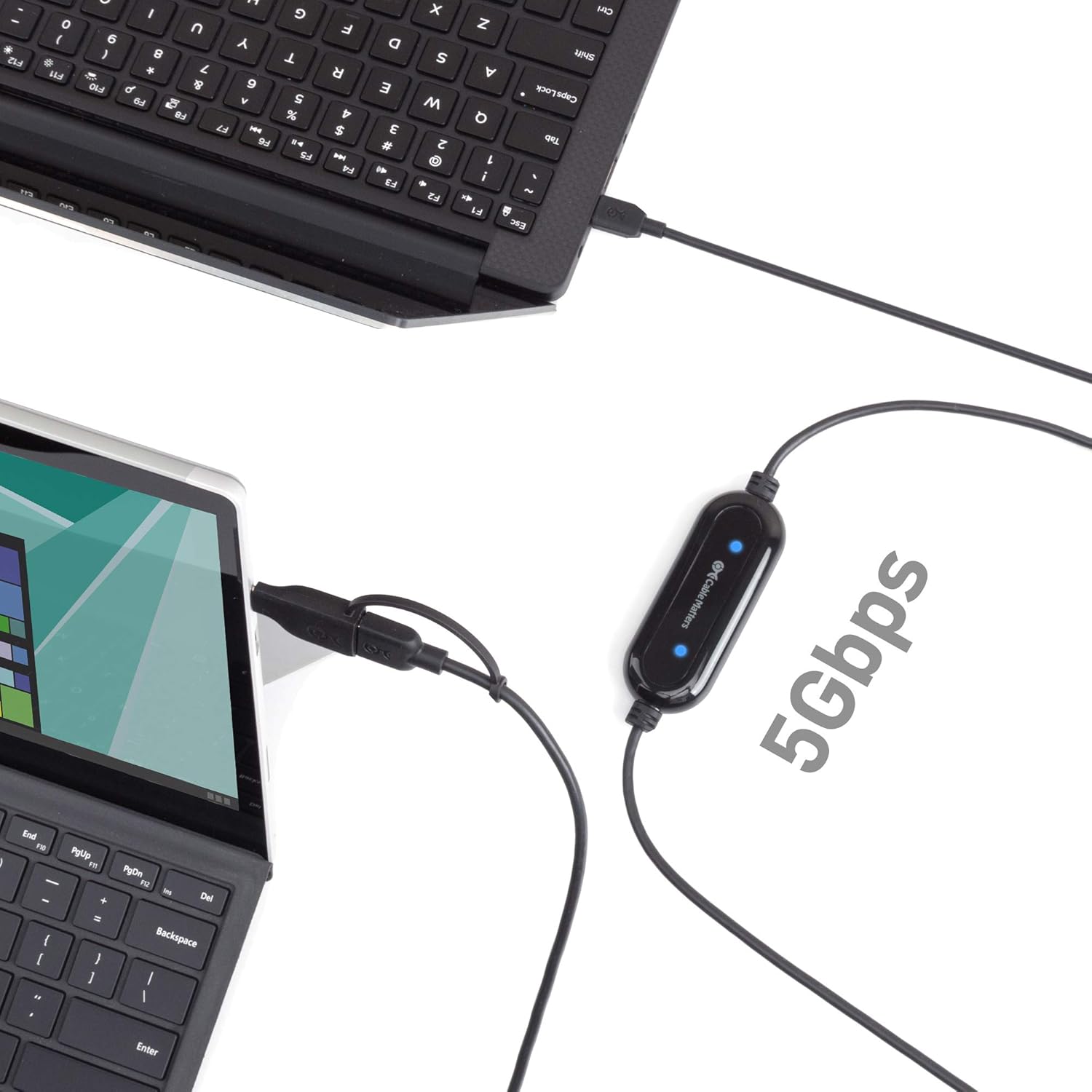
Image: Visual representation of the 5Gbps data transfer speed achieved by the cable, connecting two laptops.
6. Compatibility
- Operating Systems: Fully compatible with Windows XP, Vista, 7, 8.1, 10, 11, and macOS (OS X and later).
- Port Types: Features both USB-C and USB-A connectors, along with an included USB-A to USB-C adapter, ensuring broad compatibility with various computer models.
- Thunderbolt: Compatible with Thunderbolt 4 ports.

Image: Diagram illustrating cross-platform compatibility, showing data transfer between Windows and macOS systems.
7. Maintenance
- Store the cable in a cool, dry place away from direct sunlight and extreme temperatures.
- Avoid bending or kinking the cable sharply, especially near the connectors, to prevent internal damage.
- Keep connectors clean and free of dust or debris. Use a soft, dry cloth for cleaning.
- Do not expose the cable to liquids.
8. Troubleshooting
8.1. Software Not Connecting
- Verify Installation: Ensure the transfer software (Easy Computer Sync or PClinq5) is correctly installed on both computers.
- Check Cable Connection: Confirm the cable is securely plugged into a functional USB port on both computers. The LED indicators on the cable should be illuminated.
- Restart Software: Close and restart the transfer software on both computers.
- Restart Computers: If issues persist, restart both computers and try again.
- Firewall/Antivirus: Temporarily disable any firewall or antivirus software that might be blocking the connection. Remember to re-enable them after the transfer.
8.2. Slow Transfer Speeds
- USB 3.0/3.1/3.2 Ports: Ensure you are using USB 3.0 (or higher) compatible ports on both computers for optimal speed. Connecting to a USB 2.0 port will result in slower transfer rates.
- Other USB Devices: Disconnect other high-bandwidth USB devices from the computers during transfer to avoid interference.
- File Fragmentation: Highly fragmented files or a large number of small files can naturally slow down transfer speeds.
8.3. Programs Not Transferring
Please note that the data transfer cable is designed for migrating files and folders (documents, photos, videos, music). Programs and applications installed on the source computer cannot be transferred directly using this cable. They must be reinstalled on the new computer from their original installation media or downloaded again.
9. Specifications
| Model Number | 201367 |
| Brand | Cable Matters |
| Connector Type | USB Type C, USB Type A |
| Cable Type | USB |
| Compatible Devices | PC, Tablet (Windows & macOS) |
| Special Feature | Data Transfer (up to 5Gbps) |
| Cable Length | 6.6 ft (2 meters) |
| Item Weight | 3.53 ounces |
10. Warranty and Support
Cable Matters products are backed by a limited warranty. For specific warranty details, technical support, or any questions regarding your data transfer cable, please visit the official Cable Matters website or contact their customer service directly.
Website: www.cablematters.com


