
HAIZ HZ-1100DW
Haiz HZ-1100DW Wireless Barcode Scanner User Manual
1. Introduction
This user manual provides detailed instructions for the Haiz HZ-1100DW Wireless Barcode Scanner. This device is designed for efficient and reliable scanning of various 1D and 2D barcodes, including QR codes. It is suitable for a wide range of applications, from retail point-of-sale systems to inventory management. Please read this manual thoroughly before operating the scanner to ensure proper use and optimal performance.
2. Package Contents
Please verify that all items listed below are included in your package:
- 01 x Haiz HZ-1100DW Barcode Scanner
- 01 x Link Cable (for charging and wired connection)
- 01 x Nano USB Receiver (for wireless communication)
3. Product Overview
Familiarize yourself with the components and features of your Haiz HZ-1100DW Barcode Scanner.

Figure 3.1: Haiz HZ-1100DW Wireless Barcode Scanner and USB Receiver.
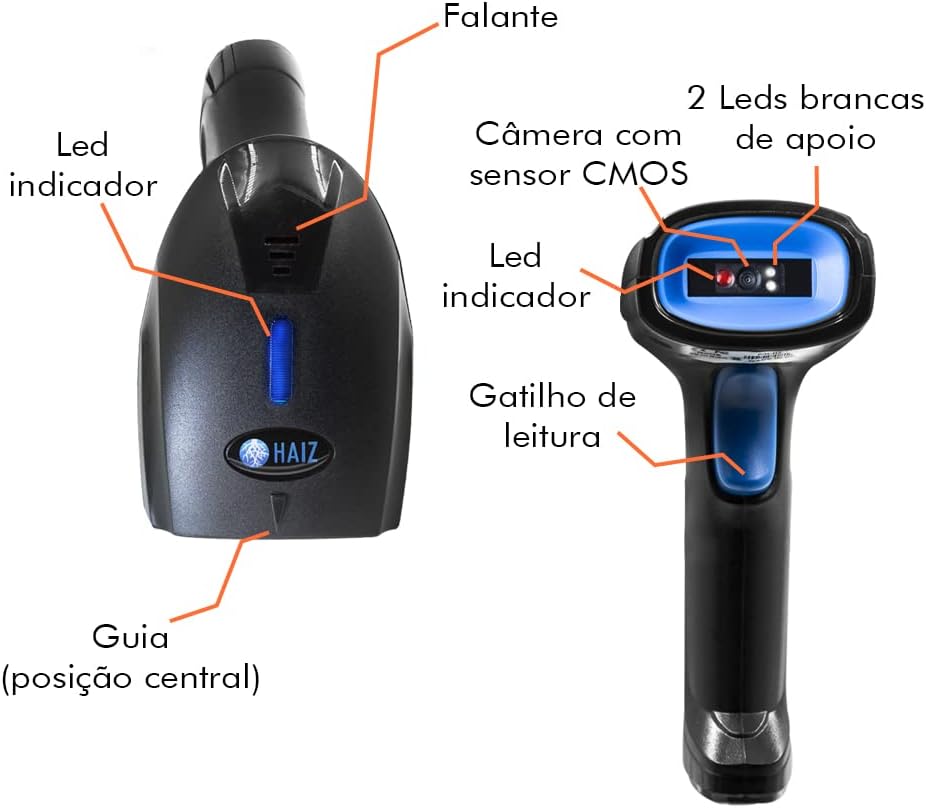
Figure 3.2: Labeled components of the Haiz HZ-1100DW scanner, showing the indicator LED, speaker, CMOS sensor camera, white support LEDs, reading trigger, and central positioning guide.

Figure 3.3: Dimensions and weight of the Haiz HZ-1100DW scanner. The scanner measures 160mm in length, 75mm in width at the base, and 30mm in width at the top. The scanning window is 30mm wide and 27mm high. The total weight is 161g.

Figure 3.4: Close-up view of the cable connection port located at the base of the Haiz HZ-1100DW scanner.

Figure 3.5: The Haiz HZ-1100DW scanner connected via its charging cable, illustrating its capability for both wireless and wired operation.

Figure 3.6: The Haiz HZ-1100DW scanner, its USB receiver, and the included 1.60m charging cable.
4. Setup
4.1 Charging the Scanner
Before first use, fully charge the scanner. Connect the provided link cable to the charging port at the base of the scanner (refer to Figure 3.4) and the other end to a USB power source (e.g., computer USB port, USB wall adapter). Charging typically takes 1-2 hours.
4.2 Connecting the USB Receiver (Wireless Mode)
- Insert the Nano USB Receiver into an available USB port on your computer or host device.
- The system should automatically recognize and install the necessary drivers.
- The scanner will automatically pair with the receiver. A successful connection is usually indicated by an audible beep from the scanner and/or a change in the indicator LED status.
4.3 Wired Mode Connection
The scanner can also be used in wired mode. Connect the provided link cable directly from the scanner's port to a USB port on your computer. The scanner will function as a wired device and charge simultaneously.
4.4 Smartphone Compatibility
The scanner supports Android smartphones with a USB Type-C port when used with an OTG (On-The-Go) adapter. Connect the USB receiver to the OTG adapter, then connect the adapter to your smartphone.
5. Operating Instructions
5.1 Basic Scanning Operation
- Ensure the scanner is powered on and connected to your host device (via USB receiver or cable).
- Point the scanning window at the barcode you wish to read.
- Press and hold the reading trigger (refer to Figure 3.2). The scanner will emit a laser or light beam.
- Position the scanner so the beam crosses the entire barcode. A successful scan will be indicated by an audible beep and/or a flash of the indicator LED.
- The scanned data will be transmitted to your connected device as keyboard input.
5.2 Scanning Performance
- Reader Speed: The scanner operates at a speed of 220 scans per second.
- Fixed Trigger Mode: The scanner supports a fixed trigger mode for continuous scanning.
- Batch Scanning: Capable of reading up to 200 codes at once before transmitting to the terminal.
5.3 Supported Barcode Types
The Haiz HZ-1100DW scanner supports a wide range of 1D and 2D barcode symbologies, including but not limited to:
- UPC/EAN (with Complimentary UPC/EAN)
- Code 128
- Code 39
- Code 39 Full ASCII
- Codabar
- Industrial / Interleaved 2 of 5
- Code 93
- MSI
- Code 11
- ISBN
- ISSN
- China Post
- FEBRABAN Code Scanning
- QR Code (2D)
Note: While the product description states "QR Code Reading: No", the product title and other specifications indicate 2D/QR Code capability. For optimal performance, ensure the scanner firmware is up to date if experiencing issues with specific 2D codes.
6. Maintenance
6.1 Cleaning
To maintain optimal scanning performance, keep the scanning window clean. Use a soft, lint-free cloth, slightly dampened with water or a mild, non-abrasive cleaner. Do not use harsh chemicals or abrasive materials, as they may scratch the window.
6.2 Battery Life
The scanner's battery life depends on usage patterns. On average, a full charge can provide approximately 2 days of typical use. To prolong battery life, ensure the scanner is fully charged before extended use and store it in a cool, dry place when not in use.
7. Troubleshooting
If you encounter issues with your Haiz HZ-1100DW scanner, please refer to the following common problems and solutions:
- Scanner not responding:
- Ensure the scanner is charged.
- Verify the USB receiver is securely plugged into the host device.
- If using wired mode, check the cable connection.
- Try restarting the host device.
- Barcode not scanning:
- Ensure the barcode is not damaged or smudged.
- Check if the barcode type is supported by the scanner (refer to Section 5.3).
- Clean the scanning window (refer to Section 6.1).
- Adjust the distance and angle between the scanner and the barcode.
- Ensure sufficient lighting for the barcode.
- Scanned data is incorrect or incomplete:
- Verify the input method on your host device is set correctly (e.g., keyboard input).
- Ensure the barcode is fully within the scanning area.
- Try scanning the barcode multiple times.
- Wireless connection issues:
- Ensure the scanner is within range of the USB receiver.
- Avoid strong electromagnetic interference.
- Try re-pairing the scanner with the USB receiver if applicable (refer to scanner's quick start guide for pairing instructions, if any).
If the problem persists after trying these solutions, please contact customer support.
8. Specifications
| Feature | Specification |
|---|---|
| Model Number | HZ-1100DW |
| CPU | Arm 32-bit Cortex |
| Scanner Type | Two-Way Laser (CMOS Sensor Camera) |
| Reader Speed | 220 scans/sec |
| Fixed Trigger Mode | Yes |
| Batch Reading Capacity | Up to 200 codes |
| Connectivity | Wireless (Nano USB Receiver), Wired (Link Cable) |
| Smartphone Support | Android with USB Type C (via OTG adapter) |
| Charging Time | 1-2 Hours (average) |
| Battery Lifetime (Typical) | 2 days of use (depends on usage) |
| Decoding Types | UPC/EAN with Complimentary UPC/EAN, Code 128, Code 39, Code 39 Full ASCII, Codabar, Industrial / Interleaved 2 of 5, Code 93, MSI, Code 11, ISBN, ISSN, China Post, FEBRABAN, QR Code (2D) |
| Dimensions (approx.) | 160mm (Length) x 75mm (Base Width) x 30mm (Top Width) |
| Weight (approx.) | 161g |
9. Warranty and Support
HAIZ is committed to delivering quality products. While specific warranty details are not provided in this manual, if you encounter any problems or require assistance with your Haiz HZ-1100DW Barcode Scanner, please contact our after-sales customer service channels. Our team is dedicated to providing prompt support and resolving any issues you may experience.
For support, please refer to the contact information provided with your purchase or on the official HAIZ website.
Related documentsHZ-1100DW


Ask a question about this manual
Ask about setup, troubleshooting, compatibility, parts, safety, or missing instructions. Manuals+ will review the question and use this page’s manual context to help answer it.