1. Introduction
This manual provides essential information for the installation, operation, and maintenance of your PowerColor Fighter AMD Radeon RX 6700 XT Gaming Graphics Card. Please read these instructions carefully before proceeding with installation to ensure proper functionality and to prevent damage to your system components.

Image 1.1: PowerColor Fighter AMD Radeon RX 6700 XT Graphics Card and its retail packaging.
2. Product Features
- Video Memory: 12GB GDDR6
- Stream Processors: 2560
- Game Clock: 2424MHz
- Boost Clock: 2581MHz
- Memory Clock: 16 Gbps
- Memory Interface: 192-bit
- Digital Max Resolution: 7680x4320
- Powered by AMD RDNA 2 Architecture
- Supports Raytracing technology
- PCI Express 4.0 Interface
- HDMI 2.1 Connectivity
- Features AMD Infinity Cache
3. Package Contents
Verify that all items are present in the package:
- PowerColor Fighter AMD Radeon RX 6700 XT Graphics Card
- Quick Installation Guide (this document)
Note: Additional accessories such as driver CDs or power cables may vary by region or retailer. Drivers are typically downloaded from the official AMD website.
4. Specifications
| Feature | Specification |
|---|---|
| Graphics Processor | AMD Radeon RX 6700 XT |
| Video Memory | 12 GB GDDR6 |
| Memory Speed | 16 Gbps |
| Max Screen Resolution | 7680x4320 |
| Interface | PCI Express 4.0 |
| Video Output Interface | DisplayPort, HDMI |
| Item Model Number | AXRX 6700XT 12GBD6-3DH |
| Item Weight | 1.44 pounds |
| Product Dimensions (LxWxH) | 9.49 x 5.08 x 1.54 inches |
5. Setup and Installation
5.1 Pre-Installation Checklist
- Power Supply Unit (PSU): Ensure your PSU has sufficient wattage (minimum 650W recommended) and the necessary 8-pin and 6-pin PCIe power connectors.
- Motherboard: Verify your motherboard has an available PCI Express x16 slot (preferably PCIe 4.0 for optimal performance).
- Case Clearance: Check your PC case for adequate space to accommodate the card's dimensions (9.49 x 5.08 x 1.54 inches).
- Drivers: Download the latest AMD Radeon drivers from the official AMD website before installation.
5.2 Physical Installation
- Power Off: Shut down your computer completely and unplug the power cord from the wall outlet.
- Open Case: Remove the side panel of your computer case.
- Locate PCIe Slot: Identify an available PCI Express x16 slot on your motherboard.
- Remove Slot Covers: Remove the necessary expansion slot covers from the back of your PC case.
- Insert Graphics Card: Carefully align the graphics card with the PCIe slot and press down firmly until it is securely seated. You should hear a click from the slot's retention clip.
- Secure Card: Fasten the graphics card to the case with screws or the case's locking mechanism.
- Connect Power: Connect the 8-pin and 6-pin PCIe power connectors from your PSU to the corresponding ports on the graphics card. Ensure a snug fit.
- Close Case: Replace the side panel of your computer case.

Image 5.1: Front view of the PowerColor Fighter RX 6700 XT, showing the dual fan design.
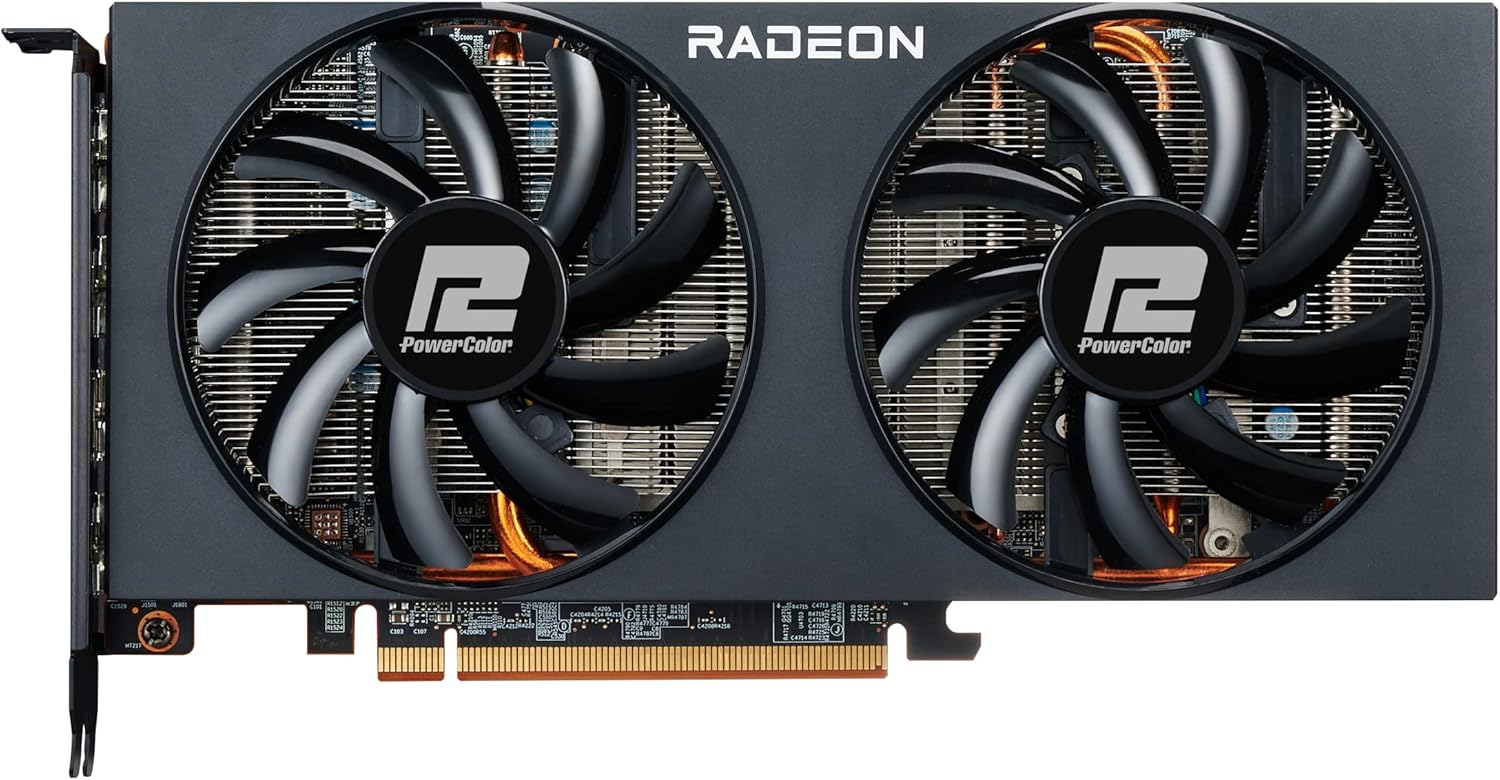
Image 5.2: Top view of the graphics card, highlighting the PCIe power connectors.
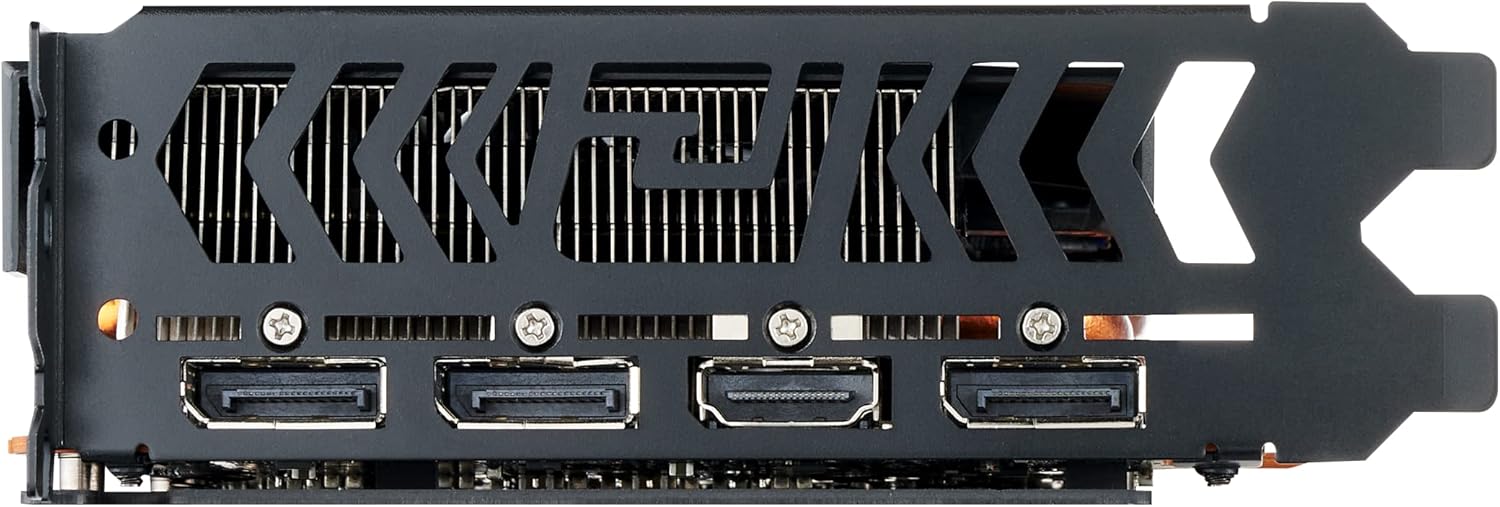
Image 5.3: Rear view of the graphics card, showing the DisplayPort and HDMI output interfaces.
5.3 Connecting to Display
Connect your monitor(s) to the graphics card using DisplayPort or HDMI cables. The card supports multiple displays.
6. Operating Instructions
6.1 Driver Installation
- Power On: Reconnect the power cord and turn on your computer.
- Initial Boot: Your system may boot into a low-resolution display. This is normal before drivers are installed.
- Install Drivers: Run the AMD Radeon Software installer you downloaded earlier. Follow the on-screen prompts to complete the installation.
- Restart: Restart your computer after the driver installation is complete.
6.2 AMD Radeon Software
The AMD Radeon Software provides a comprehensive interface for managing your graphics card settings. Here you can:
- Adjust display resolution and refresh rates.
- Configure game-specific graphics settings.
- Monitor GPU performance and temperatures.
- Update drivers.
- Access features like Radeon Anti-Lag, Radeon Boost, and FidelityFX Super Resolution (FSR).
7. Maintenance
7.1 Cleaning
Regular cleaning helps maintain optimal performance and longevity of your graphics card.
- Power Off: Always power off your computer and unplug it before cleaning.
- Dust Removal: Use compressed air to gently blow dust from the heatsink fins and fan blades. Hold the fans in place to prevent over-spinning.
- Exterior: Wipe the exterior of the card with a soft, dry, anti-static cloth.
7.2 Software Updates
Keep your graphics drivers updated to ensure compatibility with new games and applications, and to benefit from performance improvements and bug fixes. Check the AMD website regularly for the latest driver releases.
8. Troubleshooting
8.1 No Display Output
- Ensure the monitor cable is securely connected to both the graphics card and the monitor.
- Verify that the graphics card is fully seated in the PCIe slot.
- Check that all PCIe power connectors are properly attached to the graphics card.
- Confirm your monitor is set to the correct input source.
- If using an integrated GPU, ensure your BIOS is configured to use the dedicated graphics card.
8.2 Performance Issues / Low FPS
- Ensure the latest graphics drivers are installed.
- Check GPU temperatures using monitoring software (e.g., AMD Radeon Software). High temperatures can lead to thermal throttling. Ensure adequate case airflow.
- Verify that your system meets the minimum requirements for the game or application.
- Adjust in-game graphics settings to a lower preset.
- Confirm that your power supply unit (PSU) is providing stable and sufficient power.
8.3 Excessive Fan Noise
While some fan noise is normal under heavy load, excessive or unusual noise can indicate an issue.
- Dust Buildup: Clean the fans and heatsink as described in the Maintenance section.
- Fan Profile: Adjust the fan curve settings in the AMD Radeon Software or a third-party utility (e.g., MSI Afterburner) to find a balance between cooling and noise.
- Case Airflow: Improve overall case airflow to reduce the need for aggressive fan speeds.
- Physical Obstruction: Ensure no cables or other components are interfering with the fan blades.
8.4 Driver Crashes / Instability
- Perform a clean installation of the graphics drivers. Use AMD's cleanup utility to remove old drivers before installing new ones.
- Ensure your operating system is fully updated.
- Check for any conflicting software or background applications.
9. Warranty and Support
For warranty information and technical support, please refer to the official PowerColor website or contact your retailer. Keep your proof of purchase for warranty claims.
For the latest drivers and additional support resources, visit the official AMD website: www.amd.com/en/support


