
thinkcar THINKDIAG
Contents
thinkcar ThinkDiag OBD II Scanner User Manual
1. Introduction
The thinkcar ThinkDiag is a professional vehicle diagnostic tool designed to connect to your smartphone via Bluetooth. It provides comprehensive diagnostic capabilities for various vehicle systems, offering full system diagnostics, numerous reset functions, advanced ECU coding, and bi-directional control. This manual will guide you through the setup, operation, maintenance, and troubleshooting of your ThinkDiag device.

Image 1.1: The thinkcar ThinkDiag OBD II Scanner device and its packaging, highlighting key features like All Systems Diagnostic, 15+ Service Reset, Bi-directional Test, ECU Coding, and Key Coding.
2. Setup Guide
Follow these steps to set up your thinkcar ThinkDiag device:
2.1. Step 1: Download and Install the App
- For Android users: Download the "THINKDIAG+" application from the Google Play Store.
- For iOS users: Download the "THINKDIAG" application from the Apple App Store.
- Note: Ensure your smartphone has sufficient storage space for the application and future updates.
2.2. Step 2: Register and Log In
- Open the ThinkDiag app and create a new account using your email address.
- If you do not receive a verification code, please check your email's spam or junk folder.
2.3. Step 3: Activate Your Device
- Upon launching the ThinkDiag app, you will be prompted to activate your device.
- Enter the activation code provided with your ThinkDiag device (typically found in the packaging or a small card).
- If your activation code appears expired, please contact thinkcar customer support for assistance.
2.4. Step 4: Connect to Your Vehicle's OBD2 Port
- Locate your vehicle's OBD2 diagnostic port. This port is usually found under the dashboard on the driver's side. Consult your vehicle's owner's manual if you cannot locate it.
- Plug the ThinkDiag device firmly into the OBD2 port.
- Start your vehicle's engine.
2.5. Step 5: Connect via Bluetooth in the App
- Open the ThinkDiag app on your smartphone.
- The app will automatically search for activated ThinkDiag devices. Select your device from the list to establish a Bluetooth connection within the app.
- Important: Do not attempt to pair the ThinkDiag device through your phone's system Bluetooth settings. The connection must be initiated and managed directly within the ThinkDiag application.
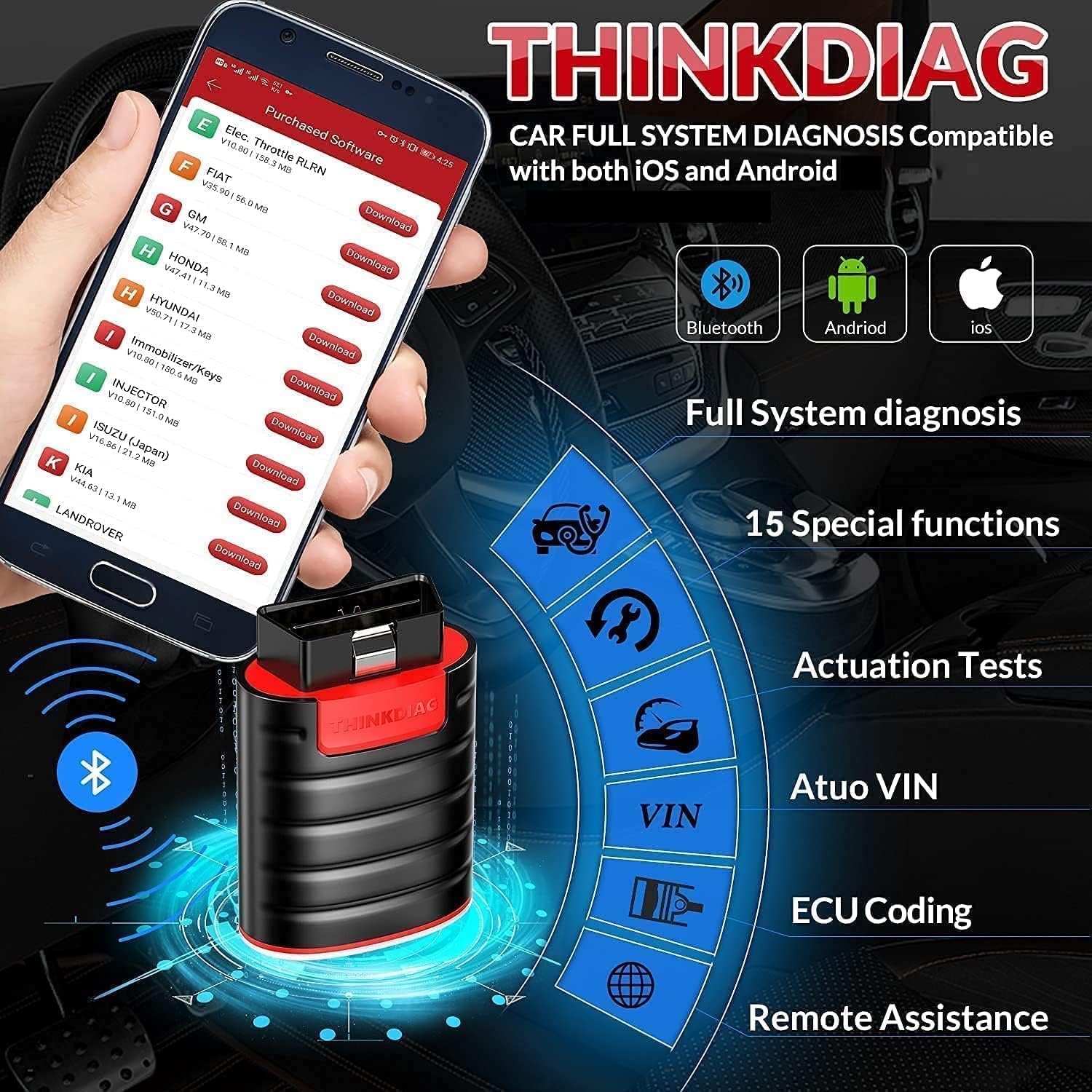
Image 2.1: The ThinkDiag device connected to a smartphone, illustrating the app interface for full system diagnosis, special functions, actuation tests, auto VIN, ECU coding, and remote assistance.
2.6. Important Notes on Setup
- Tablet Compatibility: Using the ThinkDiag app on tablets is not recommended due to potential compatibility issues. For optimal performance, use a smartphone.
- Dongle Size: The ThinkDiag device has a standard size. For some vehicles, such as the Audi Q5, you may need to remove a flap near the OBD2 port or use a separate OBD2 extension cable for proper fitment.
3. Operating Instructions
The thinkcar ThinkDiag offers a wide range of diagnostic and maintenance functions:
3.1. Full System Diagnostics & Scan
This function allows you to access and diagnose all available electronic control units (ECUs) in your vehicle. This includes, but is not limited to, the Engine, Transmission, ABS (Anti-lock Braking System), SRS (Supplemental Restraint System), SAS (Steering Angle Sensor), Suspension, Car Radio, Air Conditioning, Headlamp, HVAC (Heating, Ventilation, and Air Conditioning), and EPS (Electric Power Steering) systems.
- Read and Clear Fault Codes: Identify and clear Diagnostic Trouble Codes (DTCs) from all supported systems.
- View Live Data Streams: Monitor real-time data parameters from various sensors and components.
- Retrieve ECU Information: View specific information about the vehicle's control modules.

Image 3.1: Diagram illustrating the comprehensive full system diagnostic capabilities of the ThinkDiag, covering various vehicle modules like Immo, DPF, SRS, Throttle Valve, Battery, HVAC, TPMS, and more.
3.2. 15/16 Reset Functions
The ThinkDiag provides access to commonly required maintenance and reset services. The exact number and availability of functions may vary by vehicle make, model, and year.
- AFS Reset: Adaptive Front-lighting System Reset.
- BLEED: ABS (Anti-lock Braking System) Brake Bleeding.
- BMS Reset: Battery Management System Reset.
- BOX Reset: Gearbox/Transmission Adaptation Reset.
- BRAKE Reset: Electronic Parking Brake (EPB) Reset.
- DPF Regeneration: Diesel Particulate Filter Regeneration.
- EGR Reset: Exhaust Gas Recirculation Reset.
- ETS Reset: Electronic Throttle System Reset.
- IMMO Reset: Immobilizer Matching/Key Programming.
- INJECTION: Injector Coding.
- OIL Reset: Oil Lamp Reset/Service Light Reset.
- SAS Reset: Steering Angle Sensor Calibration.
- SUN Reset: Sunroof Initialization.
- SUS Reset: Suspension Calibration.
- TPMS Reset: Tire Pressure Monitoring System Reset.

Image 3.2: Visual representation of 16 common service reset functions available with the ThinkDiag, including EGR reset, ABS bleeding, battery match, DPF regeneration, injector coding, and TPMS reset.
3.3. ECU Coding
The ECU Coding function allows you to optimize vehicle performance and customize certain features. This includes:
- Unlocking Hidden Functions: For supported vehicle brands (e.g., Volkswagen, Audi, Mercedes-Benz, BMW, Porsche), you can activate hidden features such as auto side mirror folding, deactivating the seat belt buzzer, and more.
- Adaptation: Perform adaptations after replacing certain vehicle parts to ensure they function correctly with the vehicle's system.
- Note: ECU coding capabilities are specific to certain vehicle models and may not be available for all vehicles.
3.4. Bi-directional Control / Active Test
This advanced function allows you to send commands from the ThinkDiag app to specific vehicle systems or components to test their functionality directly. This helps in quickly pinpointing faulty components.
- Examples: Turn on the radiator fan, modulate the throttle, open/close windows, operate mirrors, test injector cumulative, cycle the AC clutch, test door lock actuators, and more.

Image 3.3: Examples of ECU coding functions like auto side mirror folding and auto engine start-stop, alongside a table detailing various actuation tests such as injector tests, turbo charger boost tests, and radiator fan relay tests.
3.5. Live Data Stream & Vehicle Health Report
- Live Data Graphing: Visualize real-time data parameters in graph format for intuitive monitoring and analysis of vehicle performance.
- Vehicle Health Report: Generate comprehensive diagnostic reports after a scan. These reports can be saved, printed, and shared for record-keeping or further consultation.
3.6. VIN Scan
The Auto VIN (Vehicle Identification Number) scan function allows the ThinkDiag to automatically identify your vehicle's information, streamlining the diagnostic process.
3.7. Remote Assistance
The ThinkDiag app can generate a 6-digit code, enabling experienced technicians to remotely diagnose your vehicle, providing expert assistance regardless of your location.
3.8. Community Features
Access a built-in community platform within the app to share vehicle maintenance experiences, learn from other users, and engage in discussions.
3.9. TPMS Extension Support
The ThinkDiag device supports TPMS (Tire Pressure Monitoring System) extension functions, including activation, checking, diagnosis, programming, and relearning of TPMS sensors. This functionality requires the optional thinkcar G2 TPMS programming tool (sold separately).
3.10. Supported Languages
The ThinkDiag app supports multiple languages, including Russian, English, French, German, Spanish, Italian, Portuguese, and Japanese.
4. Compatibility and Important Warnings
Please be aware of the following compatibility considerations and warnings:
- FCA Group Vehicles: For vehicles from the Fiat Chrysler Automobiles (FCA) group (including Fiat, Chrysler, Jeep, Dodge, Ferrari, Maserati, Alfa Romeo, Lancia), diagnostics may require an FCA account.
- Renault Vehicles: Some Renault models require a specific Renault gateway for diagnostics. The ThinkDiag device does not support this Renault gateway.
- BMW, Mercedes-Benz, and Volkswagen Group Vehicles: Certain models from BMW, Mercedes-Benz, and the Volkswagen Group (including Audi, Volkswagen) utilize the DOIP (Diagnostics Over Internet Protocol) protocol. The ThinkDiag device does not support the DOIP protocol.
- Older Vehicles (Pre-2004): Vehicles manufactured before 2004 might be equipped with an OBD (On-Board Diagnostics) interface rather than the OBD2 standard. While ThinkDiag is an OBD2 device, it can be compatible with OBD vehicles if an appropriate OBD adapter cable is purchased separately.
- Always confirm compatibility: If you are unsure about your vehicle's compatibility with the ThinkDiag device or a specific function, it is highly recommended to contact thinkcar customer service for confirmation before use.
5. Maintenance
5.1. Software Updates
- The ThinkDiag device includes one year of free access to all features and software updates from the date of activation.
- After the initial year, a subscription renewal is required to continue accessing all advanced features and updates. Without renewal, the device will revert to basic OBD2 functions only.
5.2. Physical Care
- Keep the device clean and free from dust and moisture. Use a soft, dry cloth for cleaning.
- Avoid exposing the device to extreme temperatures, direct sunlight, or corrosive substances.
- Store the device in a safe place when not in use to prevent physical damage.
6. Troubleshooting
If you encounter issues while using your thinkcar ThinkDiag, refer to the following common solutions:
6.1. App Not Found or Download Issues
- Android: Ensure you are searching for "THINKDIAG+" on Google Play. If you still face issues, contact thinkcar support for a direct installation package.
- iOS: Ensure you are searching for "THINKDIAG" on the Apple App Store.
6.2. Activation Code Expired
- If your activation code is reported as expired upon first use, please contact thinkcar customer support immediately for a new code.
6.3. No Bluetooth Connection
- Ensure you are attempting to connect via Bluetooth directly within the ThinkDiag application, not through your smartphone's system Bluetooth settings.
- Verify that the ThinkDiag device is properly plugged into the vehicle's OBD2 port and the vehicle's ignition is on.
6.4. Vehicle Not Supported or Specific Functions Not Working
- Review the "Compatibility and Important Warnings" section (Section 4) to check if your vehicle falls under any known limitations (e.g., FCA account, Renault gateway, DOIP protocol).
- Some advanced functions (like ECU coding or specific resets) are highly dependent on the vehicle's make, model, and year. Not all functions are universally available for all vehicles.
- If issues persist, contact thinkcar customer support with your vehicle's make, model, year, and VIN for detailed assistance.
6.5. Injector Coding Issues (Digit '9')
- Some users have reported issues when coding injectors if the IMA code contains the digit '9', where the application may not process it correctly. If you encounter this, please contact thinkcar support for potential software updates or workarounds.
7. Specifications
| Feature | Specification |
|---|---|
| Brand | thinkcar |
| Model | THINKDIAG |
| Power Source | Electric Cable (via OBD2 port) |
| Product Dimensions (L x W x H) | 11.9 cm x 7.6 cm x 3.7 cm |
| Operating System (App) | Android, iOS |
| UPC | 756029668447 |
| Manufacturer Part Number | SP164-O |
| GTIN | 756029668447 |
8. Warranty and Support
8.1. Technical Support
thinkcar provides 24/7 technical support for its products. If you require assistance with your ThinkDiag device, have questions about its functionality, or encounter any issues, please contact thinkcar customer service through the platform where you purchased the device (e.g., Amazon).
8.2. Warranty Information
Specific warranty duration and terms are subject to the retailer and region of purchase. Please refer to your purchase documentation or contact thinkcar customer support for detailed warranty information.
Documents and downloads
Ask a question about this manual
Ask about setup, troubleshooting, compatibility, parts, safety, or missing instructions. Manuals+ will review the question and use this page’s manual context to help answer it.