
1. Product Overview
The NEJE 3 Max A40640 is a versatile laser engraver and cutter designed for DIY enthusiasts and professionals. It features a powerful A40640 double spot laser module with 10W+ continuous pulse output, capable of precise engraving and cutting on a wide range of materials. Its large engraving area and robust all-metal construction ensure stability and durability for various creative and industrial applications.
This machine supports popular engraving software like LightBurn and LaserGRBL, and offers convenient app control for wireless operation. With its advanced features like auto air assist and smoke control, the NEJE 3 Max provides an efficient and high-quality engraving experience.

Figure 1.1: The NEJE 3 Max A40640 Laser Engraver, showcasing its large working area and examples of intricate engravings and cuts on various materials, including a detailed lion portrait, a wooden church model, a panda clock, and a sign.
2. Key Features
- High Engraving and Cutting Capability: Equipped with an A40640 double spot laser module, offering 10W+ continuous pulse output power. Capable of engraving grayscale images on stainless steel and cutting materials up to 20mm thick with air assist and precise focus. Engraving speed can reach 20000mm/min.
- Large Engraving Area: Standard working area of 460x810mm, expandable to 1030x810mm with optional accessories.
- Wide Material Compatibility: Engraves and cuts over 100 materials including balsa, wood, plastic, leather, and black acrylic.
- Robust and Modular Design: Features an all-metal structural frame for enhanced stability and durability. Modular design facilitates easy assembly, repair, and future upgrades. Basic frame assembly requires only 6 screws.
- Extensive Software and OS Compatibility: Compatible with LaserGRBL and LightBurn software. Supports Windows (7/8/XP/10), Mac, and iOS systems. Includes APP wireless control for offline use after image upload, and low light display function in LightBurn.
3. Setup and Assembly
The NEJE 3 Max is designed for straightforward assembly due to its modular components. Follow these general steps for initial setup:
- Unpacking: Carefully remove all components from the packaging and verify against the packing list.
- Frame Assembly: Assemble the main frame components. The basic frame typically requires securing with 6 screws. Refer to the included assembly guide for detailed diagrams.
- Laser Module Installation: Mount the A40640 laser module onto the gantry. Ensure it is securely fastened and properly aligned.
- Cable Connections: Connect all necessary cables, including power, USB, and motor cables, to their respective ports.
- Software Installation: Install the required software (LaserGRBL, LightBurn, or NEJE software) on your computer or mobile device.

Figure 3.1: Exploded view of the NEJE 3 Max components, illustrating its modular design for easy assembly and maintenance.
4. Operating Instructions
Operating the NEJE 3 Max involves preparing your design, setting up the machine, and initiating the engraving or cutting process.
4.1 Software and Connectivity
- Software Choices: The machine is compatible with LaserGRBL (for Windows) and LightBurn (cross-platform). NEJE also provides its own software and mobile application.
- Connectivity: Connect the engraver to your computer via USB. For wireless control, use the NEJE APP. Once an image is uploaded via the NEJE software, the USB cable can be unplugged for offline operation.

Figure 4.1: Various software interfaces compatible with the NEJE 3 Max, including mobile apps for Android, iPhone, iPad, and Macbook, as well as desktop software like NEJE Win Software, LaserGRBL, and LightBurn.
4.2 Preparing for Engraving/Cutting
- Material Placement: Place your material flat on the working surface. Ensure it is stable and does not move during operation.
- Focus Adjustment: Adjust the laser focus according to the material thickness and desired effect. The A40640 module features precise focus capabilities.
- Air Assist (Optional): For cutting thicker materials or achieving cleaner edges, connect and activate the air assist system.
- Design Import and Settings: Import your design into the chosen software. Adjust parameters such as laser power, speed, and passes based on the material type and desired outcome.

Figure 4.2: Illustration demonstrating the NEJE 3 Max's capability for longer depth of field and thicker cuts, resulting in high verticality and clean edges compared to other systems.

Figure 4.3: A close-up view of a detailed engraving produced by the NEJE 3 Max with the A40640 laser module, highlighting the clear detail achievable even with direct engraving without air assist.
4.3 Starting the Process
Once settings are configured, initiate the engraving or cutting process from the software. Monitor the operation closely, especially during initial runs on new materials.
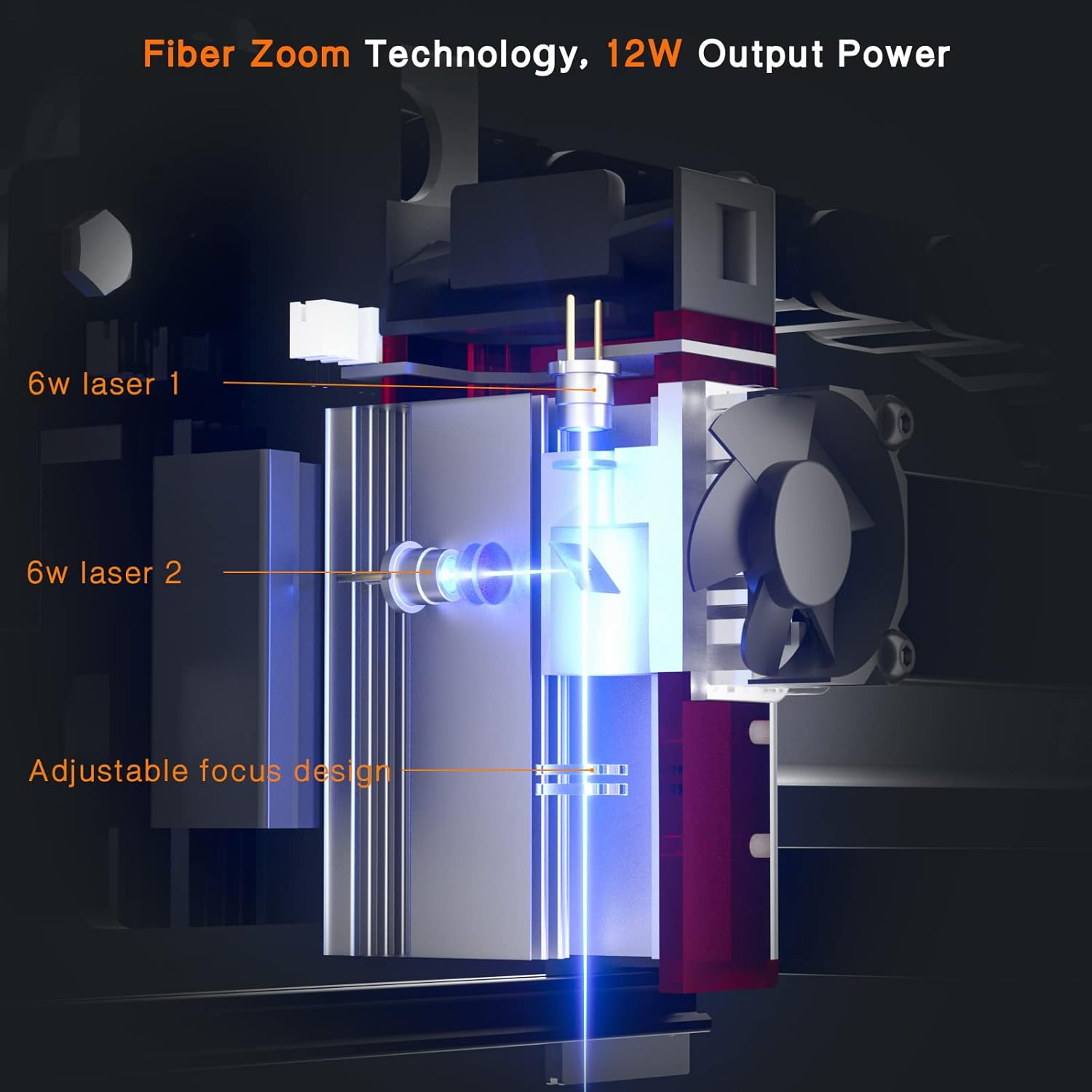
Figure 4.4: An internal diagram of the NEJE laser module, illustrating the Fiber Zoom Technology and its 12W output power, with components like 6W lasers and adjustable focus design.
5. Maintenance
Regular maintenance ensures the longevity and optimal performance of your NEJE 3 Max laser engraver.
- Clean the Laser Lens: Periodically clean the laser lens with a soft, lint-free cloth and appropriate lens cleaning solution to prevent residue buildup that can affect laser performance.
- Inspect and Clean Rails/Belts: Check the guide rails and belts for dust, debris, or wear. Clean the rails and ensure belts are properly tensioned for smooth movement of the laser module.
- Ventilation: Ensure the working area is well-ventilated to dissipate smoke and fumes, which can also help keep the machine components cleaner.
- Firmware Updates: Check the official NEJE website for any available firmware updates to ensure your machine operates with the latest features and improvements.
6. Troubleshooting
This section addresses common issues you might encounter and provides basic troubleshooting steps.
| Problem | Possible Cause | Solution |
|---|---|---|
| Laser not firing or weak output | Loose connection, dirty lens, incorrect power settings, laser module issue. | Check all cable connections. Clean the laser lens. Verify power settings in software. Contact support if issue persists. |
| Poor engraving/cutting quality | Incorrect focus, wrong speed/power settings, material issues, dirty lens. | Adjust laser focus. Optimize speed and power settings for the material. Ensure material is flat. Clean the laser lens. |
| Machine not connecting to computer/app | USB cable issue, driver problem, software conflict, Bluetooth/Wi-Fi issue. | Try a different USB port/cable. Reinstall drivers. Restart computer/app. Ensure Bluetooth/Wi-Fi is enabled and paired for app control. |
| Abnormal noise during operation | Loose components, debris on rails, worn belts/bearings. | Inspect for loose screws. Clean rails. Check belt tension. If noise persists, contact technical support. |
7. Specifications
| Feature | Detail |
|---|---|
| Brand | NEJE |
| Model Number | NEJE 3 MAX |
| Laser Module | A40640 Double Spot Laser Module |
| Output Power | 10W+ Continuous Pulse Output |
| Engraving Area | 460 x 810 mm (expandable to 1030 x 810 mm with optional accessories) |
| Max Cutting Thickness | 20 mm (material dependent, with air assist) |
| Engraving Speed | Up to 20000 mm/min |
| Product Dimensions (L x W x H) | 99 x 40 x 19 cm |
| Item Weight | 6.15 kg |
| Frame Material | All-metal structural frame |
| Software Compatibility | LaserGRBL, LightBurn, NEJE Software/APP |
| Operating System Compatibility | Windows 7/8/XP/10, Mac, iOS |
| UPC | 782938609271 |
8. Warranty and Support
NEJE stands behind its products with comprehensive support and warranty services.
- Warranty: NEJE offers a 2-year warranty on products sold.
- Technical Support: For any questions, technical assistance, or troubleshooting beyond this manual, please visit the official NEJE support website for professional technical support.


