
Sunbox BL-XK01
Sunbox BL-XK01 Galaxy Star Projector User Manual
Model: BL-XK01
Introduction
This manual provides detailed instructions for the safe and effective operation of your Sunbox BL-XK01 Galaxy Star Projector. Please read this manual thoroughly before use and retain it for future reference.
Important Safety Instructions
- Do not disassemble the device. Refer all servicing to qualified service personnel.
- Keep the device away from water and moisture.
- Avoid direct eye exposure to the laser light.
- Use only the provided power adapter.
- Ensure proper ventilation; do not cover the device during operation.
- This device is intended for indoor use only.
Package Contents
Verify that all items are present in your package:
- Sunbox BL-XK01 Galaxy Star Projector
- Remote Control
- USB Cable (Power Adapter not included)
- User Manual (This document)
Product Overview
Familiarize yourself with the components of your projector.

Image 1: Sunbox BL-XK01 Galaxy Star Projector. This image displays the main projector unit, a remote control, and a smartphone connected via Bluetooth, illustrating the device's primary functions.
Main Unit Controls and Ports:
- Power Button: Turns the projector on or off.
- USB Port: For power input.
- Mode Button: Cycles through projection modes.
- Volume Up/Next Track: Increases volume or skips to the next song in Bluetooth mode.
- Volume Down/Previous Track: Decreases volume or skips to the previous song in Bluetooth mode.
- Bluetooth/White Noise Button: Toggles between Bluetooth mode and white noise mode.
Remote Control Functions:
- Power: On/Off.
- Laser Switch: Controls the star projection.
- Nebula Switch: Controls the nebula projection.
- Brightness Adjustment: Adjusts projection intensity.
- Color Selection: Changes nebula colors.
- Music Mode: Activates sound-activated light mode.
- Volume Control: Adjusts audio volume.
- Timer Settings: 1H, 2H, 4H auto-off.
Setup
1. Power Connection
- Connect the provided USB cable to the projector's USB port.
- Connect the other end of the USB cable to a 5V/2A USB power adapter (not included) or a compatible USB port.
- The projector will power on automatically or can be turned on using the power button on the unit or remote.
2. Remote Control Battery Installation
The remote control requires 2 AAA batteries (not included). Open the battery compartment on the back of the remote and insert the batteries, observing correct polarity.
3. Placement
Place the projector on a stable, flat surface. For optimal projection, position it in the center of the room or area where you wish to display the galaxy and stars.
Operating Instructions
1. Power On/Off
Press the Power Button on the projector or the remote control to turn the device on or off.
2. Projection Effects

Image 2: The projector showcasing various light colors and effects. This image illustrates the 10 available light colors and 20 lighting effects, demonstrating the versatility of the projection.
- The projector offers 10 multi-color patterns using 4 base colors: Blue, White, Green, and Red.
- Use the Nebula Switch on the remote to cycle through different nebula patterns and colors.
- Use the Laser Switch on the remote to turn the star projection on or off, or to make them sparkle.
- Adjust the brightness using the Brightness Adjustment buttons on the remote.
3. White Noise Function

Image 3: The projector highlighting its 15 white noise options. This image shows two children relaxing in a room illuminated by the projector, with icons representing various white noise sounds like ocean waves, summer night, and thunderstorms.
The projector includes 15 soothing white noise sounds. Press the Bluetooth/White Noise Button on the unit or remote to switch to white noise mode. Cycle through the sounds using the Volume Up/Down buttons.
4. Bluetooth Speaker Function

Image 4: The projector demonstrating its Bluetooth music speaker feature. This image depicts people enjoying a party atmosphere with the projector's lights synchronizing to music played via a connected smartphone.
- Press the Bluetooth/White Noise Button on the unit or remote until you hear "Bluetooth Mode".
- Enable Bluetooth on your smartphone or other audio device and search for "BL-XK01".
- Select "BL-XK01" to pair. Once connected, you can play music through the projector's speaker.
- The projection lights can synchronize with the music's beat when Music Mode is activated via the remote.
- Adjust volume using the Volume Up/Down buttons on the unit or remote.
5. Timer Function
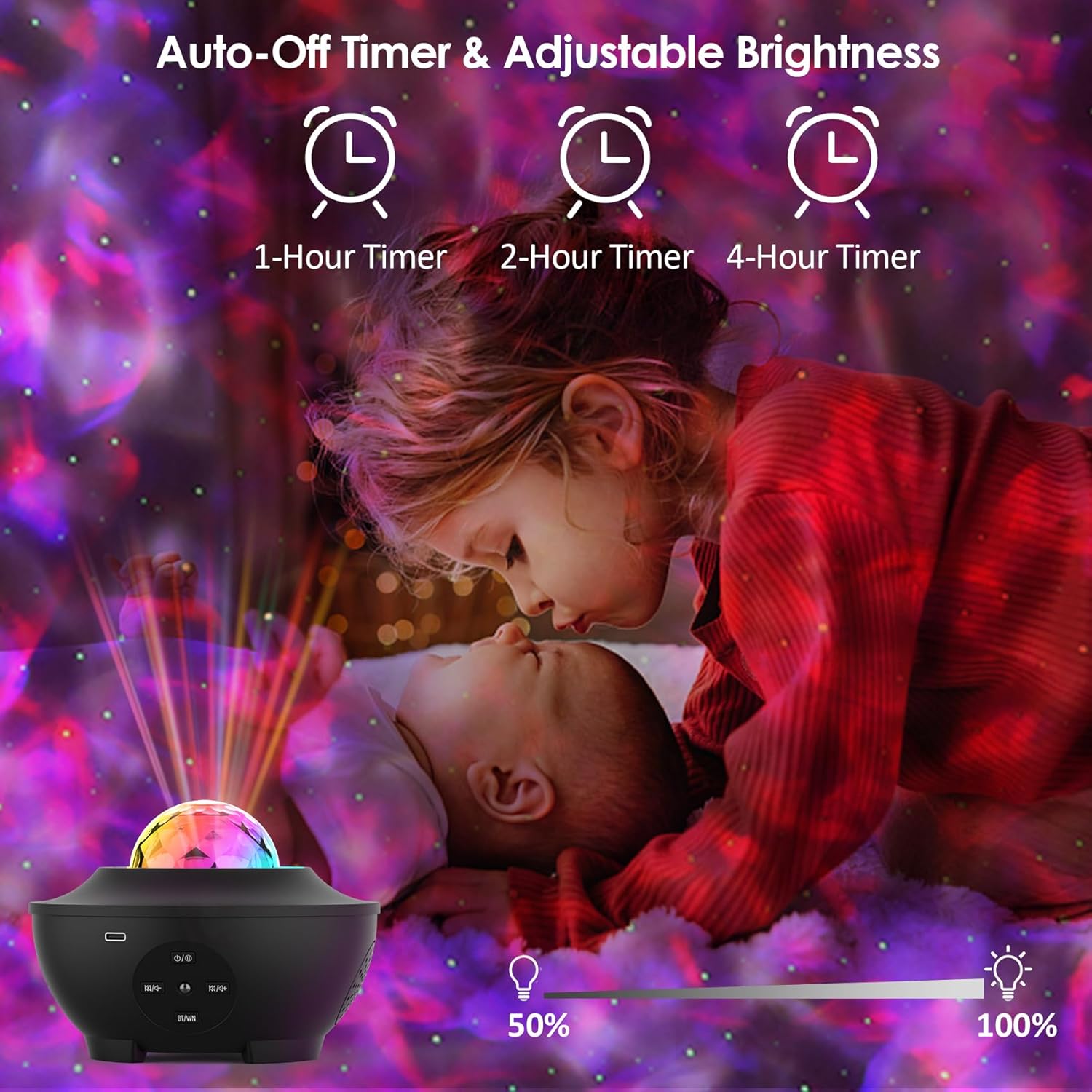
Image 5: The projector illustrating its auto-off timer and adjustable brightness features. This image shows a child sleeping peacefully under the projector's light, with icons indicating 1-hour, 2-hour, and 4-hour timer options, and brightness levels from 50% to 100%.
The remote control allows you to set an auto-off timer. Press the 1H, 2H, or 4H buttons on the remote to set the projector to automatically turn off after 1, 2, or 4 hours, respectively.
6. Voice Control (Sound-Activated Mode)
In this mode, the projection lights will change patterns and flicker with the beat of music or other sounds. Activate this feature using the Music Mode button on the remote control. You can also activate it by clapping your hands near the device.
Maintenance
Cleaning
- Ensure the device is powered off and unplugged before cleaning.
- Use a soft, dry cloth to wipe the exterior of the projector.
- Do not use abrasive cleaners, solvents, or harsh chemicals.
- Gently clean the projection lens with a soft, lint-free cloth to maintain clear projection quality.
Storage
When not in use, store the projector in a cool, dry place, away from direct sunlight and extreme temperatures. It is recommended to keep it in its original packaging to protect it from dust and damage.
Troubleshooting
| Problem | Possible Cause | Solution |
|---|---|---|
| Projector does not turn on. | No power, loose connection, faulty adapter. | Check power connection. Ensure USB cable is securely plugged in. Use a 5V/2A power adapter. |
| Remote control not working. | Dead batteries, remote not pointed at sensor, obstruction. | Replace remote batteries. Point remote directly at the projector's IR sensor. Remove any obstructions. |
| Bluetooth connection fails. | Projector not in Bluetooth mode, device too far, already paired. | Ensure projector is in Bluetooth mode. Keep devices within range (approx. 10m). Disconnect from other devices if already paired. |
| Projection is dim or blurry. | Lens dirty, brightness setting low, ambient light too high. | Clean the projection lens. Increase brightness via remote. Reduce ambient light in the room. |
| "Bluetooth Mode" announcement is annoying. | This is a standard voice prompt. | This is a design feature and cannot be disabled. You can lower the volume immediately after powering on. |
Specifications
| Model Name | BL-XK01 |
| Brand | Sunbox |
| Power Source | Corded Electric (USB 5V/2A) |
| Light Source Type | LED |
| Light Colors | Blue, White, Green, Red (10 multi-color patterns) |
| White Noise Sounds | 15 Nature-inspired sounds |
| Control Method | Remote Control, On-unit Buttons, Voice Control (Sound-activated) |
| Timer Function | 1H, 2H, 4H Auto-off |
| Connectivity | Bluetooth Speaker |
| Material | Acrylonitrile Butadiene Styrene (ABS) |
| Product Dimensions | 5"D x 5"W x 4"H |
| Item Weight | 1.08 pounds |
| Indoor/Outdoor Usage | Indoor |
| Manufacturer | Shenzhen Bolong Technology Co., Ltd. |
Warranty and Support
For warranty information or technical support, please refer to the contact details provided with your purchase or visit the official Sunbox website. The manufacturer is Shenzhen Bolong Technology Co., Ltd.
We value our customers and aim to ensure every customer has a great experience. Online customer service is available for assistance.
Ask a question about this manual
Ask about setup, troubleshooting, compatibility, parts, safety, or missing instructions. Manuals+ will review the question and use this page’s manual context to help answer it.