
1. Introduction
The HealthTree Bluetooth Fingertip Pulse Oximeter is a compact, portable device designed for non-invasive spot-checking of arterial oxygen saturation (SpO2) and pulse rate (PR). This device is suitable for use at home, in sports, or during travel. It features Bluetooth connectivity for data synchronization with a mobile application, allowing for convenient tracking and sharing of health data.
2. What's Included
Your HealthTree Bluetooth Fingertip Pulse Oximeter package includes the following items:
- 1 x HealthTree Bluetooth Pulse Oximeter
- 2 x AAA Batteries
- 1 x Lanyard
- 1 x User Manual

Image: All items included in the HealthTree Pulse Oximeter package.
3. Setup
3.1 Battery Installation
- Open the battery compartment cover on the back of the device.
- Insert the two AAA batteries, ensuring correct polarity (+ and -).
- Close the battery compartment cover securely.
3.2 Lanyard Attachment
To attach the included lanyard for convenient carrying:
- Thread the thin loop end of the lanyard through the small hole on the side of the pulse oximeter.
- Pass the thicker end of the lanyard through the thin loop, then pull gently to secure.
Video: Instructions on how to attach the lanyard to the pulse oximeter.
4. Operating Instructions
4.1 Taking a Measurement
- Open the clamp of the pulse oximeter.
- Insert one of your fingers (preferably the index or middle finger) into the rubber opening of the oximeter. Ensure your finger is placed correctly and completely inside.
- Release the clamp. The device will automatically power on and begin measurement.
- Keep your hand still during the measurement. Readings for SpO2, Pulse Rate, and Pulse Waveform will appear on the display within seconds.
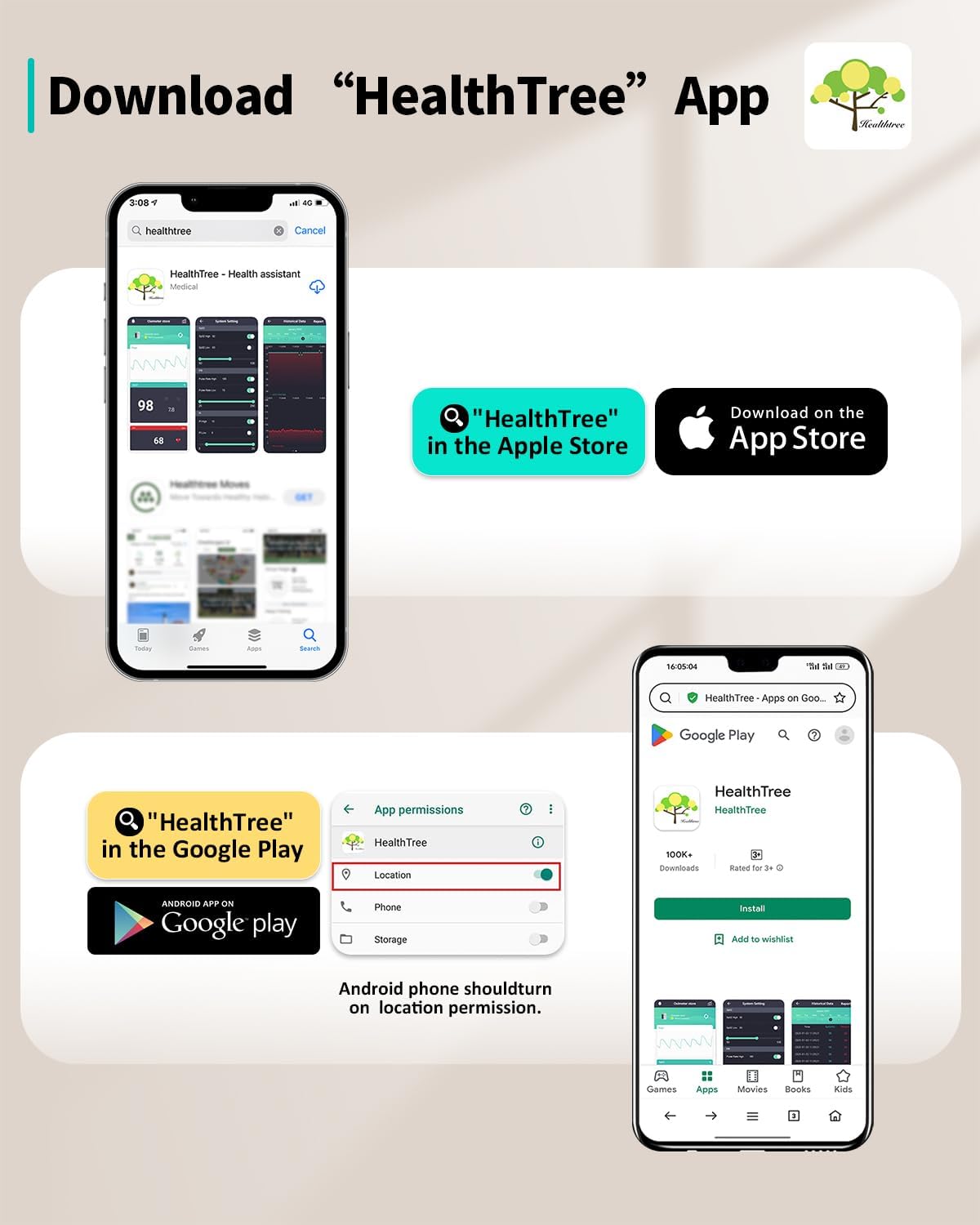
Image: The pulse oximeter displaying current SpO2 and Pulse Rate values.
4.2 Auto-Shutdown Feature
The HealthTree Pulse Oximeter is designed to conserve battery life. It will automatically power off after approximately 10 seconds of inactivity (when no finger is detected).

Image: The pulse oximeter automatically shutting down after finger removal.
5. App Integration
Enhance your monitoring experience by connecting your pulse oximeter to the HealthTree mobile application via Bluetooth. The app allows for real-time data viewing, graphic reports, and historical data tracking.
5.1 Downloading the App
- Search for "HealthTree" in the Apple App Store (for iOS devices) or Google Play Store (for Android devices).
- Download and install the application.
- For Android users, ensure location permission is enabled for the app to function correctly.

Image: Guide to downloading the HealthTree mobile application.
5.2 Connecting via Bluetooth
- Ensure Bluetooth is enabled on your smartphone.
- Open the HealthTree application.
- Power on your pulse oximeter by inserting your finger.
- Within the app, follow the prompts to search for and connect to your "OxySmart" device (model 3689).
Video: Demonstrating how to connect the pulse oximeter to the mobile app via Bluetooth.
5.3 Viewing Data and Reports
Once connected, the app will display real-time SpO2 and Pulse Rate data. You can view graphical reports, track trends, and share your health data in various formats (e.g., PDF, image) with healthcare professionals or family members.

Image: Detailed historical data reports available in the HealthTree App.
6. Maintenance
6.1 Cleaning
- Clean the surface of the pulse oximeter with a soft cloth dampened with medical alcohol (70% ethanol or isopropanol).
- Do not immerse the device in water or other cleaning solutions.
- Ensure the device is completely dry before reuse.
6.2 Battery Care
- Replace batteries when the low battery indicator appears on the display.
- Remove batteries if the device will not be used for an extended period to prevent leakage.
7. Troubleshooting
- No Reading/Inaccurate Reading: Ensure your finger is fully inserted and still. Avoid excessive movement, nail polish, or cold fingers.
- Bluetooth Connection Issues: Verify Bluetooth is enabled on your phone and the oximeter is powered on. Restart both devices if necessary.
- Screen Flashing Alert: If SpO2 or Pulse Rate values exceed preset limits, the value will flash. Pay attention to these alerts and consult a healthcare professional if concerned.
8. Specifications
| Feature | Specification |
|---|---|
| Model Name | Bluetooth LED Fingertip Pulse Oximeter |
| Measuring Range (SpO2) | 70% - 100% |
| Power Source | 2 AAA batteries (included) |
| Connectivity | Bluetooth |
| Auto-Off | Yes (after 10 seconds of inactivity) |
| Manufacturer | HealthTree |
9. Important Safety Information
Statements regarding this device have not been evaluated by the FDA and are not intended to diagnose, treat, cure, or prevent any disease or health condition. Consult with a healthcare professional for any medical concerns.
10. Warranty and Support
For warranty information, technical support, or customer service inquiries, please refer to the contact details provided on the product packaging or visit the official HealthTree website. Keep your purchase receipt for warranty claims.


