
Brydge 10.2 MAX+
Brydge 10.2 MAX+ Wireless iPad Keyboard Case Instruction Manual
Model: 10.2 MAX+
Brand: Brydge
Introduction
This manual provides comprehensive instructions for the Brydge 10.2 MAX+ Wireless iPad Keyboard Case. It covers setup, operation, maintenance, and troubleshooting to ensure optimal performance and longevity of your device. The Brydge 10.2 MAX+ is designed for iPad 9th, 8th & 7th Generation, offering a multi-touch trackpad, MIL-STD-810G 4-foot drop protection, and a durable polycarbonate/rubber construction.
What's in the Box
Upon opening your Brydge 10.2 MAX+ package, please verify that all the following components are included:
- 1 x Brydge 10.2 MAX+ Keyboard
- 1 x Protective Case with Apple Pencil holder
- 1 x USB-C Charging Cable
- 1 x User Manual (this document)
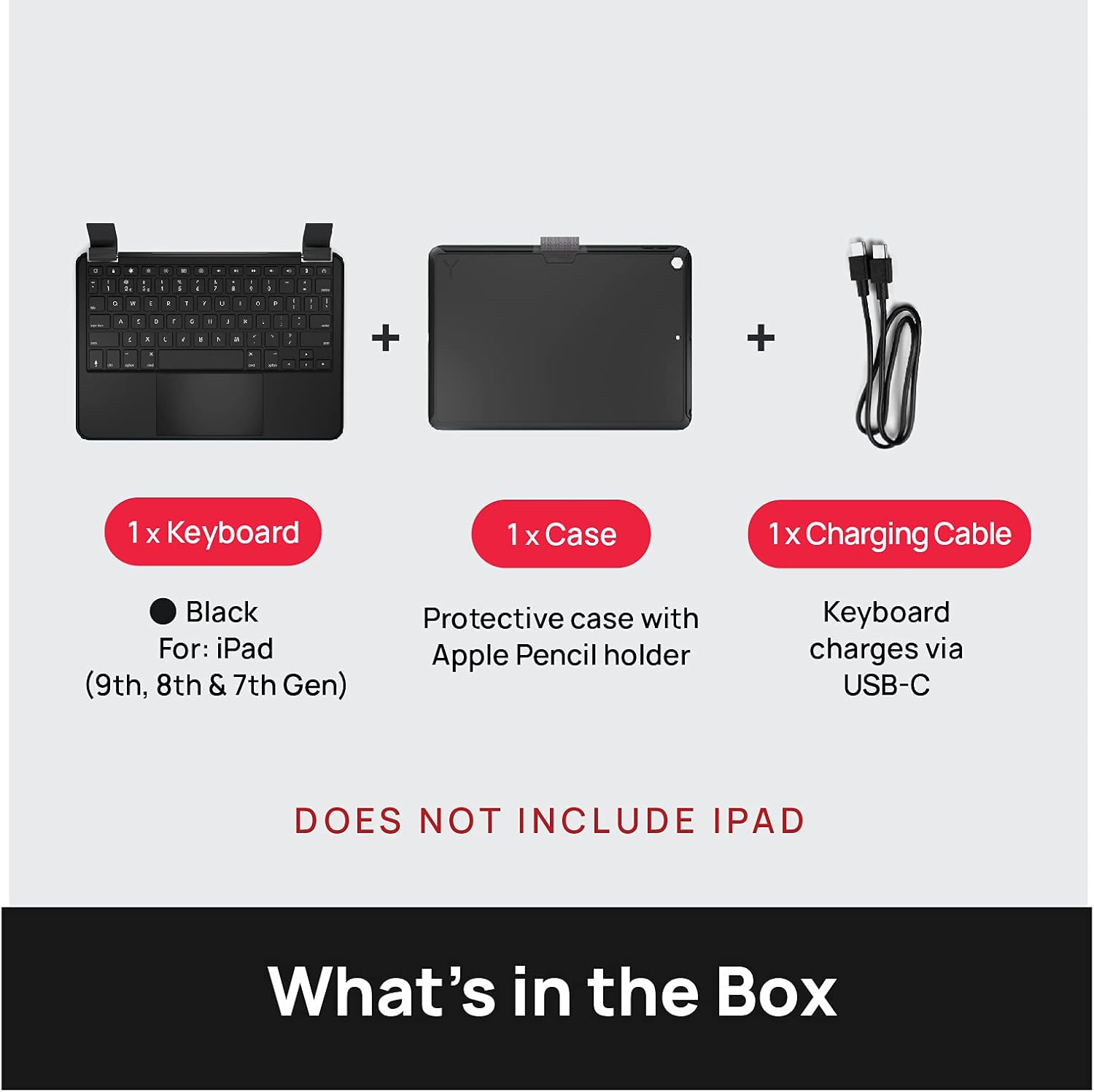
Image: The Brydge 10.2 MAX+ package contents, including the keyboard, protective case with Apple Pencil holder, and a USB-C charging cable. The iPad is not included.
Product Features
The Brydge 10.2 MAX+ combines a full-featured keyboard with a robust protective case, enhancing your iPad's functionality and durability.
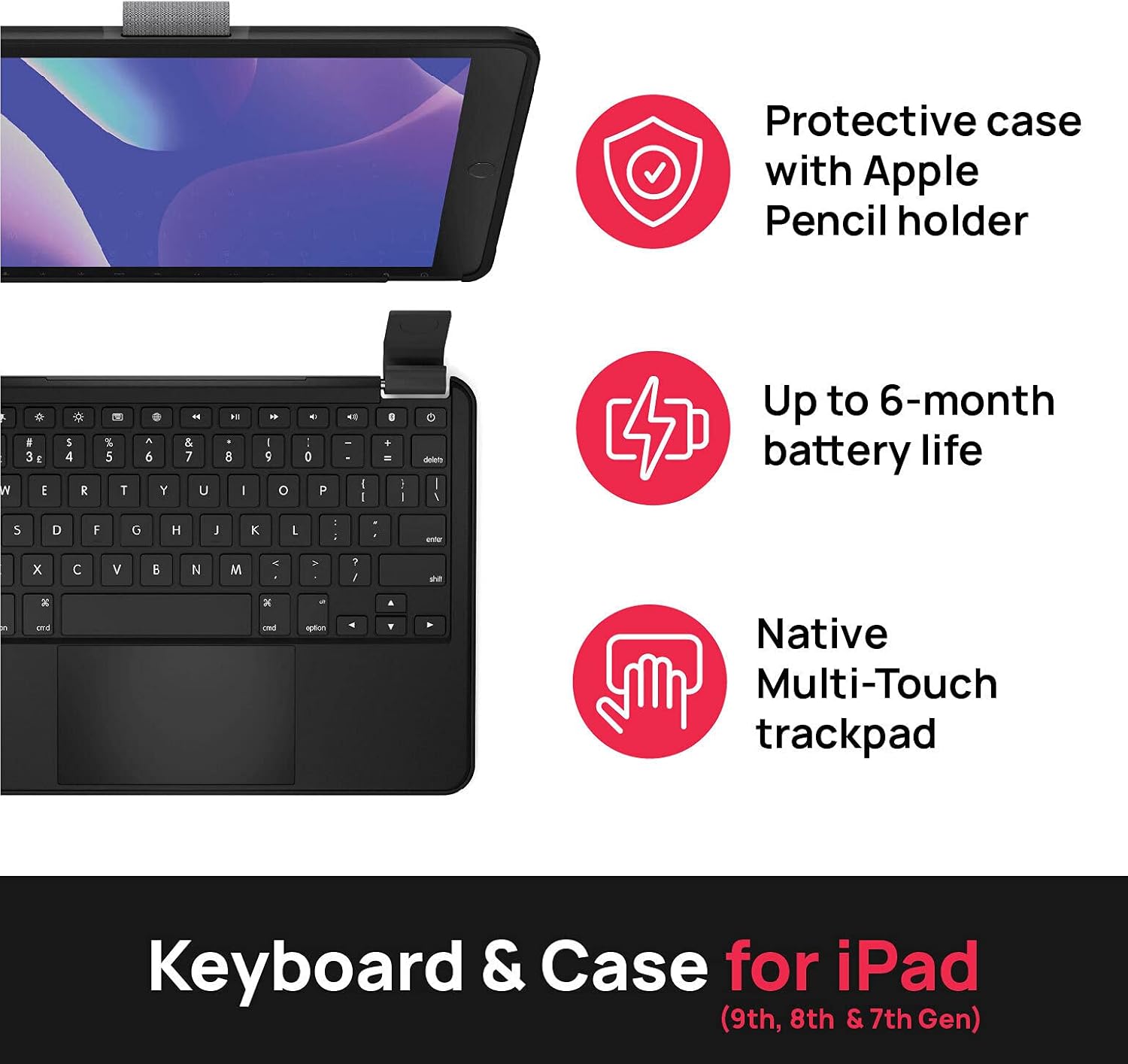
Image: Visual representation of key features: a protective case with Apple Pencil holder, up to 6-month battery life, and a native Multi-Touch trackpad.
- Integrated Protective Case: Designed to fit iPad 9th, 8th, and 7th Generation 10.2-inch models. Features MIL-STD-810G 4-foot drop protection.
- Large Multi-Touch Trackpad: Provides ample space and functionality for precise navigation and gesture control.
- Long Battery Life: Equipped with a large battery for extended use, reducing the need for frequent charging.
- Magnetic SnapFit Clamps: Securely holds your iPad in place while allowing for easy attachment and detachment.
- Backlit Keyboard: Enhances visibility in low-light conditions.

Image: A detailed view of the magnetic SnapFit Clamps, highlighting the secure attachment mechanism for the iPad and the overall robust design of the case.
Setup Instructions
1. Attaching Your iPad
- Align your iPad with the protective case.
- Gently press the iPad into the case until it snaps securely into place. Ensure all edges are properly seated.
- To attach the keyboard, align the iPad (in its case) with the magnetic SnapFit Clamps on the keyboard. The magnets will guide the iPad into the correct position.
- Ensure the iPad is firmly seated in the clamps before use.

Image: An overhead view showing the Brydge 10.2 MAX+ keyboard and the separate iPad case, illustrating how the iPad is placed into the case and then attached to the keyboard.
2. Charging the Keyboard
Before first use, fully charge your Brydge keyboard. Use the provided USB-C cable to connect the keyboard to a power source.
- Connect the small end of the USB-C cable to the charging port on the keyboard.
- Connect the large end of the USB-C cable to a USB power adapter (not included) or a computer's USB port.
- The charging indicator light will show the charging status.
3. Bluetooth Pairing
- Ensure your Brydge keyboard is charged.
- Turn on the keyboard by pressing the power button.
- On your iPad, go to Settings > Bluetooth.
- Make sure Bluetooth is turned On.
- The Brydge keyboard should appear in the "Other Devices" list. Tap on its name to connect.
- If prompted, enter the pairing code displayed on your iPad using the Brydge keyboard, then press Enter.
- Once connected, the keyboard will appear under "My Devices" as "Connected".
4. Firmware Update
For optimal performance and to experience full multi-touch functionality, it is important to update your iPadOS and Brydge firmware.
- Download the Brydge Connect App from the App Store on your iPad.
- Follow the in-app instructions to update your keyboard's firmware.
- Ensure your iPad's operating system (iPadOS) is updated to the latest version via Settings > General > Software Update.

Image: A visual reminder emphasizing the importance of updating both iPadOS and Brydge firmware for full multi-touch trackpad functionality.
Operating Instructions
Keyboard Functions
The Brydge 10.2 MAX+ keyboard features a standard QWERTY layout along with dedicated iPadOS function keys.
| Key/Function | Description |
|---|---|
| Power Button | Turns the keyboard on/off. |
| Brightness Keys | Adjusts iPad screen brightness. |
| Keyboard Backlight Key | Cycles through backlight brightness levels or turns it off. |
| Search Key | Activates iPad's Spotlight Search. |
| Home Key | Returns to the iPad Home screen. |
| Media Control Keys | Play/Pause, Next/Previous Track, Volume Up/Down/Mute. |
| Lock Key | Locks the iPad screen. |
Trackpad Gestures
The integrated multi-touch trackpad supports various iPadOS gestures for intuitive navigation.
- Single Finger Tap: Select an item or click.
- Two-Finger Scroll: Scroll up or down on web pages and documents.
- Two-Finger Pinch: Zoom in or out on content.
- Three-Finger Swipe Up: Go to the Home screen.
- Three-Finger Swipe Left/Right: Switch between open apps.
- Three-Finger Pinch In: Open the App Switcher.

Image: The Brydge 10.2 MAX+ with an iPad, illustrating its compatibility with 10.2-inch iPad models (9th, 8th, and 7th Generation).
Maintenance
To maintain the performance and appearance of your Brydge keyboard case, follow these guidelines:
- Cleaning: Use a soft, lint-free cloth slightly dampened with water to clean the exterior surfaces. Avoid harsh chemicals or abrasive materials.
- Storage: When not in use for extended periods, store the keyboard in a cool, dry place. Ensure it is fully charged before storing to preserve battery health.
- Handling: While the case offers drop protection, avoid unnecessary drops or impacts. Do not force the iPad into or out of the clamps.
Troubleshooting
If you encounter issues with your Brydge 10.2 MAX+ keyboard case, refer to the common solutions below:
| Problem | Solution |
|---|---|
| Keyboard not connecting via Bluetooth |
|
| Trackpad lag or unresponsiveness |
|
| Keys not responding |
|
| Hinges feel loose or break |
|
Specifications
| Attribute | Detail |
|---|---|
| Product Dimensions | 10.09 x 7.13 x 0.34 inches |
| Item Weight | 1.4 pounds |
| Manufacturer | Brydge |
| Item Model Number | 10.2 MAX+ |
| Country of Origin | China |
| Compatible Devices | iPad (9th, 8th & 7th Generation) |
| Connectivity Technology | Bluetooth |
| Keyboard Description | Standalone |
| Color | Black |
| Number of Keys | 78 |
| Keyboard Backlighting | Single Color |
| Material | Aluminum, Polycarbonate |
| Included Components | User Manual, Keyboard, Case, USB-C Cable |
| Number of Batteries | 1 |
Official Product Video
Watch the official product video for an overview of the Brydge 10.2 MAX+ features and functionality.
Video: This video showcases the Brydge 10.2 MAX+ keyboard case, highlighting its compatibility with iPad 9th Generation, magnetic snap-fit hinge design, large multi-touch trackpad, long-lasting battery, and 4-foot drop protection.
Warranty and Support
Brydge products are designed for durability and performance. For warranty information, technical support, or service inquiries, please visit the official Brydge website or contact their customer support directly. Details regarding specific warranty periods and terms are typically provided with your product documentation or on the manufacturer's website.
For further assistance, you may refer to the Brydge Store on Amazon.
Related documents10.2 MAX+


Ask a question about this manual
Ask about setup, troubleshooting, compatibility, parts, safety, or missing instructions. Manuals+ will review the question and use this page’s manual context to help answer it.