
1. Introduction
The ViewSonic ID2455 is a 24-inch ViewBoard Education Touch Display designed for interactive learning and collaboration environments. This interactive device integrates seamlessly with myViewBoard software, providing intuitive writing, drawing, and annotating capabilities for an enhanced whiteboarding experience. Its advanced in-cell touchscreen ensures a smooth and responsive user experience, while the ergonomic design offers comfortable adjustability.
This manual provides detailed instructions for setting up, operating, maintaining, and troubleshooting your ViewSonic ID2455 display. Please read this manual thoroughly before using the product to ensure proper and safe operation.
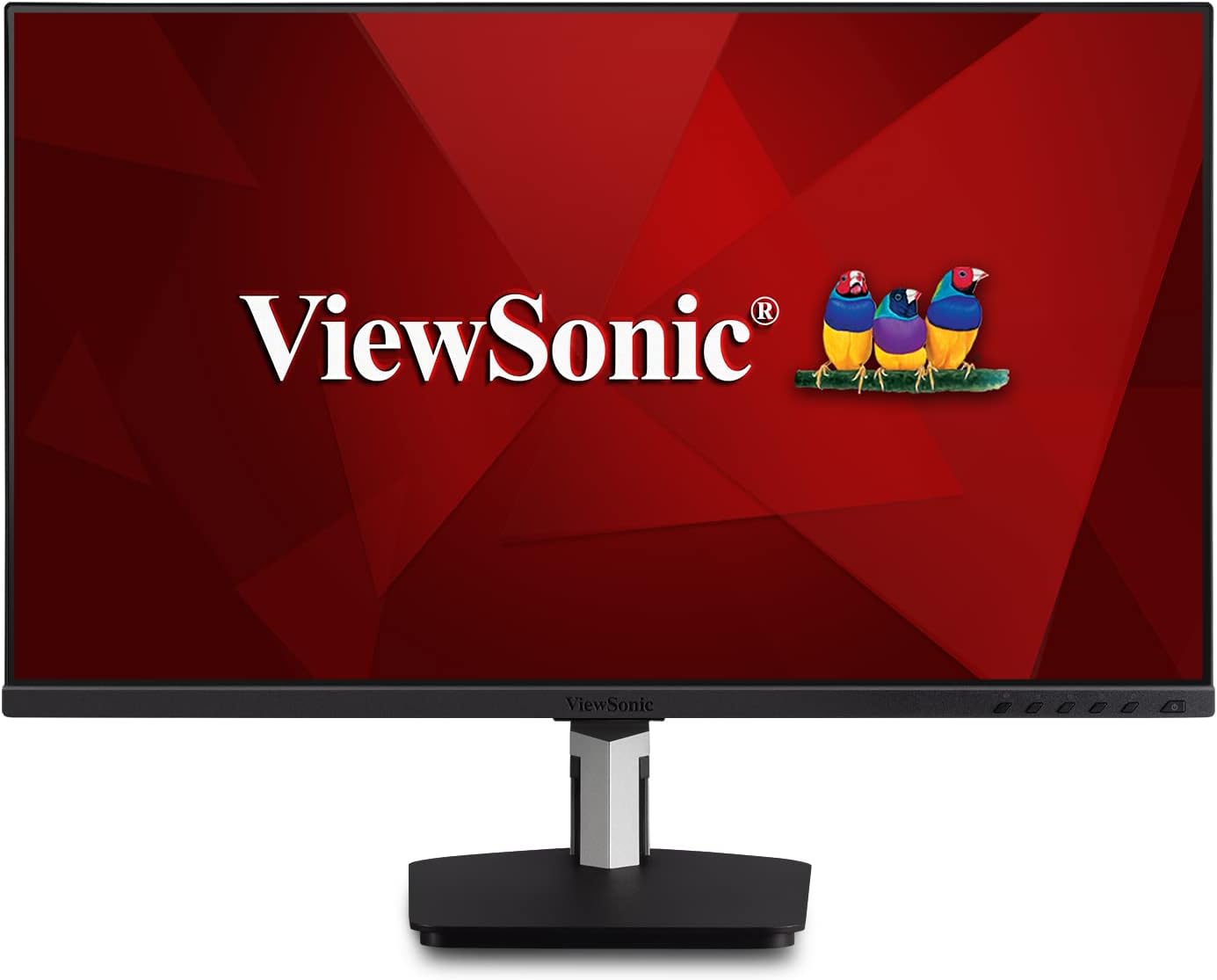
Figure 1.1: Front view of the ViewSonic ID2455 display, showing the screen and stand.
2. Package Contents
Verify that all items listed below are present in your product package. If any items are missing or damaged, please contact your retailer or ViewSonic customer support.
- LCD PCT Touch Display (ViewSonic ID2455)
- Power Cable
- DisplayPort (DP) Cable
- USB 3.2 Cable
- Passive Touch Pen
- Passive Touch Pen Head
- Quick Start Guide
3. Setup
3.1 Assembling the Display
The ViewSonic ID2455 comes with an ergonomically advanced dual-hinge stand. Attach the display panel to the stand base securely. Ensure all connections are firm.
3.2 Connecting to a Device
The display offers multiple connectivity options for various devices.
- USB-C (Single Cable Plug-and-Play): Connect a compatible PC, laptop, or Chrome system using a single USB 3.2 Type-C cable. This cable delivers charging power, video, and audio.
- DisplayPort (DP): Use the provided DP cable to connect to a device with a DisplayPort output. The DisplayPort output also supports multi-stream technology for daisy-chaining multiple monitors.
- HDMI: Connect to devices using an HDMI 1.4 cable.
- USB 3.2 Gen 1 Type A: Two USB-A ports are available for connecting peripherals.
- USB 3.2 Gen 1 Type B: One USB-B port is available, typically used for upstream connection to enable touch functionality from your computer.
- 3.5mm Audio Out: Connect external speakers or headphones.

Figure 3.1: Rear view of the display, highlighting the various input and output ports.
3.3 Powering On
After connecting all necessary cables, plug the power cable into the display and then into a power outlet. Press the power button located on the display to turn it on.
3.4 VESA Mounting
The display is VESA compatible (100 x 100 mm), allowing for alternative mounting solutions such as wall mounts or monitor arms. Ensure the VESA mount is rated for the display's weight (approximately 8.2 lbs / 3.7 kg without stand).

Figure 3.2: Back view of the display, illustrating the VESA mount compatibility.
4. Operating Instructions
4.1 Touch Capabilities
The ID2455 features a 10-point projective capacitive touch screen, providing a highly responsive and accurate touch experience. It supports gestures such as tap, pinch, and swipe.
- Stylus Use: The included passive touch pen can be used for more precise tasks like drawing, writing notes, or detailed annotations. The stylus easily attaches to the magnetic base of the display for convenient storage.
- Cross-Platform Touch Support: Touch functionality is compatible with Windows (7, 8, 10), Android (7, 8), Chrome, and Linux (Ubuntu 15.1 to 19.04, Fedora 23 to 31), and Raspbian (Jessie, Stretch, Buster).
- macOS Compatibility: vTouch 3.1 works with both Intel and M1 processors and is MacOS Monterey compatible. Note that touch is not supported on iOS devices such as the iPad or iPhone.

Figure 4.1: Side view illustrating the display's ergonomic tilt capabilities for comfortable touch interaction.
4.2 On-Screen Display (OSD) Controls
The display features physical control buttons (1, 2, 3, 4, 5, 6, Power) to access and navigate the On-Screen Display menu. The OSD allows adjustment of various settings:
- Auto image adjust
- Contrast/Brightness
- Input Select
- Audio adjust
- Color Adjust
- Information
- Manual Image Adjust
- Setup Menu
- Memory Recall
4.3 Eco Mode
The display includes an energy-saving Eco-mode feature to reduce power consumption.
- Eco Mode (Conserve): 11.3W
- Eco Mode (Optimized): 14.5W
5. Features
- myViewBoard Integration: Seamlessly works with myViewBoard software for interactive whiteboarding, enabling intuitive writing, drawing, and annotating in various settings.
- Advanced In-Cell Touchscreen: Provides a smooth and responsive touch experience with high accuracy, supporting multi-touch gestures.
- Ergonomic Dual-Hinge Stand: Designed for comfort, allowing the display to be tilted from 5° forward to 60° backward for optimal viewing and touch interaction.
- SuperClear IPS Panel Technology: Ensures accurate and vivid colors with consistent brightness and image quality from wide viewing angles (178° horizontal, 178° vertical).
- USB-C Connectivity: A single USB 3.2 Type-C cable provides power, video, and audio, transforming the display into a powerful hub for connected devices.
- Multi-Stream Technology: DisplayPort connectivity supports daisy-chaining multiple monitors with a single cable, simplifying multi-display setups.
- Internal Speakers: Equipped with two 2W internal speakers for audio output.
- Kensington Lock Slot: For physical security of the display.
6. Maintenance
6.1 Cleaning the Display
To clean the display, gently wipe the screen and exterior surfaces with a soft, lint-free cloth. For stubborn marks, lightly dampen the cloth with water or a mild, non-abrasive screen cleaner. Avoid using harsh chemicals, abrasive cleaners, or spraying liquids directly onto the screen. The panel surface is anti-glare type with a hard-coating (3H).
6.2 Disposal
Please dispose of the product and its components in accordance with local, state, or federal laws and regulations. Do not dispose of electronic waste in general household waste.
7. Troubleshooting
If you encounter issues with your ViewSonic ID2455 display, refer to the following common troubleshooting steps:
- No Power: Ensure the power cable is securely connected to both the display and a working power outlet. Check if the power button is pressed.
- No Image: Verify that the video cable (USB-C, DisplayPort, or HDMI) is securely connected to both the display and your source device. Ensure the correct input source is selected via the OSD menu.
- No Touch Functionality:
- Ensure the USB 3.2 Type B cable (for upstream touch data) is connected from the display to your computer.
- Confirm your operating system is supported (Windows, Android, Chrome, Linux, Raspbian).
- For macOS, ensure you are using vTouch 3.1 and that it is updated to the latest version if experiencing issues. Note that touch is not supported on iOS devices.
- Poor Image Quality: Adjust brightness, contrast, and color settings via the OSD menu. Ensure the display resolution on your source device matches the native resolution of the ID2455 (1920 x 1080).
- No Audio: Check the audio cable connection (if using 3.5mm audio out) or ensure audio is being transmitted over USB-C/DisplayPort/HDMI. Verify volume settings on both the display and your source device.
If the problem persists after attempting these steps, please refer to the Quick Start Guide or contact ViewSonic customer support for further assistance.
8. Specifications
| Category | Specification |
|---|---|
| Display Size | 24 Inches (23.8 inches viewable) |
| Panel Type | IPS |
| Resolution | 1920 x 1080 (Full HD) |
| Aspect Ratio | 16:9 |
| Static Contrast Ratio | 1,000:1 |
| Dynamic Contrast Ratio | 50,000,000:1 |
| Brightness | 250 cd/m² |
| Response Time (Typical GTG) | 14ms |
| Response Time (GTG w/OD) | 6ms |
| Viewing Angles | 178° horizontal, 178° vertical |
| Refresh Rate | 60 Hz |
| Panel Surface | Anti-Glare type, Hard-coating (3H), Haze 25% |
| Light Source | LED |
| Backlight Life | 30,000 Hours (Min.) |
| USB Ports | 2 x USB 3.2 Gen 1 Type A, 1 x USB 3.2 Gen 1 Type B, 1 x USB 3.2 Gen 1 Type C |
| Video Inputs | 1 x HDMI 1.4, 1 x DisplayPort, 1 x USB Type C |
| Video Outputs | 1 x DisplayPort Out |
| Audio Output | 1 x 3.5mm Audio Out |
| Internal Speakers | 2W (x2) |
| Touch Technology | Projective Capacitive |
| Touch Points | 10-Point Touch |
| Power Consumption (Typical) | 19.6W |
| Power Consumption (Max) | 23.6W |
| Stand-by Power | 0.3W |
| Voltage | AC 100-240V (universal), 50-60Hz |
| Physical Dimensions (with stand) | 21.2 x 16.8 x 11.3 inches (539.0 x 426.0 x 286.0 mm) |
| Physical Dimensions (without stand) | 21.2 x 12.6 x 2.0 inches (539.0 x 320.0 x 52.0 mm) |
| Net Weight (with stand) | 14.2 lbs (6.4 kg) |
| Net Weight (without stand) | 8.2 lbs (3.7 kg) |
| Tilt (Forward/Back) | 5° / 60° |
| VESA Compatible | 100 x 100 mm |
| Operating Temperature | 32-104° F (0 - 40° C) |
| Operating Humidity | 20-90% (non-condensing) |
| Regulations | cTUVus, FCC-B, ICES003, Energy Star, EPEAT, CEC, MX-CoC, Mexico Energy |
9. Warranty and Support
9.1 Product Warranty
The ViewSonic ID2455 display is backed by a Three-year limited warranty on parts, labor, and backlight. This warranty ensures peace of mind regarding the quality and reliability of your ViewSonic monitor.
ViewSonic also offers one of the industry's best pixel performance policies. For detailed warranty terms and conditions, please refer to the documentation included with your product or visit the official ViewSonic website.
9.2 Customer Support
For technical assistance, product inquiries, or warranty claims, please contact ViewSonic customer support. Contact information can typically be found on the ViewSonic website or in the Quick Start Guide provided with your display.


