
ALFAJR CW-15
ALFAJR CW-15 Automatic Islamic Azan Prayer Clock User Manual
Model: CW-15 | Brand: ALFAJR
Introduction
This manual provides comprehensive instructions for setting up and operating your ALFAJR CW-15 Automatic Islamic Azan Prayer Clock. Designed for both wall mounting and table placement, this digital clock automatically calculates and plays the Azan five times a day based on your set location. Please read this manual carefully to ensure proper use and to fully utilize all features of your new clock.
Package Contents
Please verify that all items are present in the package:
- 1 x ALFAJR CW-15 Azan Clock
- 4 x AA Batteries
- 1 x Instruction Manual (this document)
Product Features
- Automatic Azan for all five daily prayers.
- Multiple Azan reciters (Makkah, Madina, Egypt, AlQuds, Riyadh).
- Automatic Azan time adjustment after initial city/time setup.
- Gregorian and Hijri calendar display.
- Temperature display in Celsius or Fahrenheit.
- Daylight Saving Time (DST) option.
- English and Arabic display languages.
- Wall-mountable or table-standing design.
- Dimensions: Approximately 9 inches (width) x 8.5 inches (height).
- Powered by 4 AA batteries (included) or USB-C (cable not included).
Setup Guide
1. Battery Installation
The ALFAJR CW-15 clock operates on 4 AA batteries. These are included in your package.
- Locate the battery compartment on the back of the clock.
- Open the battery compartment cover.
- Insert the 4 AA batteries, ensuring correct polarity (+ and -).
- Close the battery compartment cover securely.
Alternatively, the clock can be powered via a USB-C cable (not included) connected to a compatible power adapter.
2. Initial Power On and Display Overview
Upon inserting batteries or connecting USB-C power, the clock will power on. The display will show the current time, date, and temperature. Familiarize yourself with the buttons on the side/back of the clock: UP, SET, and DOWN.

Figure 1: Front view of the ALFAJR CW-15 clock, showing the digital display with time, date, and temperature. The speaker grilles are visible at the bottom.
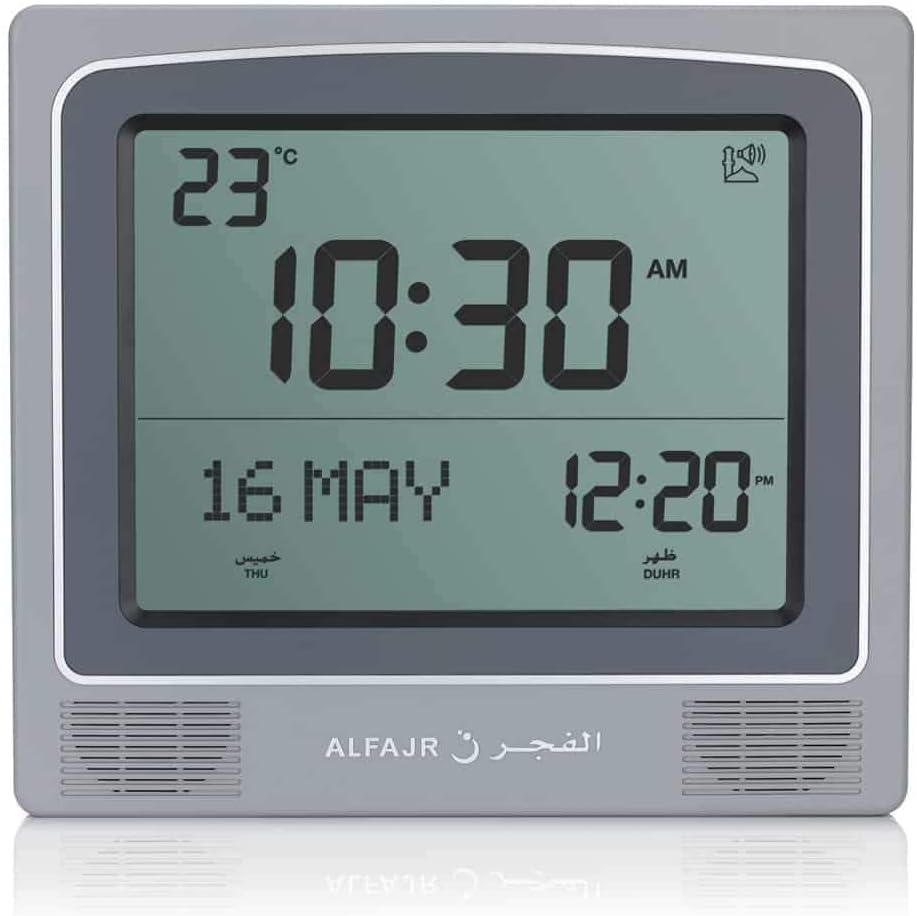
Figure 2: Front view of the ALFAJR CW-15 clock, similar to Figure 1, but with the ALFAJR brand logo visible at the bottom center.
3. Setting Time and Date
- Press and hold the SET button for approximately 3 seconds until the time display starts flashing.
- Use the UP and DOWN buttons to adjust the hour. Press SET to confirm and move to minutes.
- Adjust minutes using UP and DOWN, then press SET.
- Continue this process to set the year, month, and day.
- After setting the date, press SET to exit the time/date setting mode.
4. Setting Location (City or Coordinates)
Accurate Azan times depend on correct location settings. You can select a pre-programmed city or enter latitude/longitude.
- Press the SET button once (short press) to enter the main menu.
- Use UP or DOWN to navigate to the "CITY" or "LOCATION" setting.
- Press SET to enter the location setting.
- Option A: Select Pre-programmed City: Use UP or DOWN to scroll through the list of cities. Once your city is displayed, press SET to confirm.
- Option B: Enter Latitude/Longitude: If your city is not listed, select the option to enter coordinates. Use UP and DOWN to adjust the values for latitude, longitude, and time zone offset (GMT). Press SET after each value.
- After confirming your location, the clock will automatically calculate the Azan times.
5. Azan Calculation Method
The clock supports various Azan calculation methods. Consult local Islamic authorities for the recommended method in your region.
- From the main menu (short press SET), navigate to "CALC. METHOD".
- Press SET to enter.
- Use UP or DOWN to select the desired calculation method (e.g., Muslim World League, Umm Al-Qura, Egyptian General Authority of Survey, etc.).
- Press SET to confirm.
6. Daylight Saving Time (DST)
If your region observes Daylight Saving Time, enable this feature.
- From the main menu, navigate to "DST".
- Press SET.
- Use UP or DOWN to toggle between "ON" and "OFF".
- Press SET to confirm.
7. Temperature Unit
You can choose to display temperature in Celsius or Fahrenheit.
- From the main menu, navigate to "TEMP UNIT".
- Press SET.
- Use UP or DOWN to select "C" (Celsius) or "F" (Fahrenheit).
- Press SET to confirm.
8. Calendar Display
The clock can display either the Gregorian or Hijri calendar.
- From the main menu, navigate to "CALENDAR".
- Press SET.
- Use UP or DOWN to select "GREGORIAN" or "HIJRI".
- Press SET to confirm.
Operating Instructions
1. Adjusting Azan Volume
The clock features adjustable Azan volume. The volume buttons are typically located on the side or back of the unit.
- During an Azan, press the UP or DOWN buttons to increase or decrease the volume.
- Alternatively, some models may have a dedicated volume switch or buttons on the back. Refer to the physical clock for exact button placement.
2. Changing Azan Reciter
You can select from five different Azan reciters.
- From the main menu (short press SET), navigate to "AZAN VOICE" or "RECITER".
- Press SET to enter.
- Use UP or DOWN to cycle through the available reciters (Makkah, Madina, Egypt, AlQuds, Riyadh).
- Press SET to confirm your selection.
3. Daily Alarms
The clock includes daily alarm functions in addition to the Azan. These can be set for specific times.
- From the main menu, navigate to "DAILY ALARM".
- Press SET.
- Use UP or DOWN to set the desired alarm time (hour and minute).
- Press SET to confirm and enable the alarm.
- To disable, navigate back to "DAILY ALARM" and set the time to "OFF" or a similar option.
4. Display Modes
The clock typically cycles through different display information or allows manual switching.
- The default display shows time, date, and temperature.
- Short pressing the UP or DOWN buttons outside of menu mode may cycle through additional information like next prayer time or Qibla direction (if available on this model).
Mounting Options
The ALFAJR CW-15 clock is designed for versatile placement, either on a wall or a flat surface.
1. Wall Mounting
To mount the clock on a wall:
- Locate the keyhole slot on the back of the clock.
- Choose a suitable location on a wall.
- Install a screw (not included) into the wall, leaving a small portion protruding. Ensure the screw head fits into the keyhole slot.
- Carefully hang the clock onto the screw, ensuring it is securely seated.
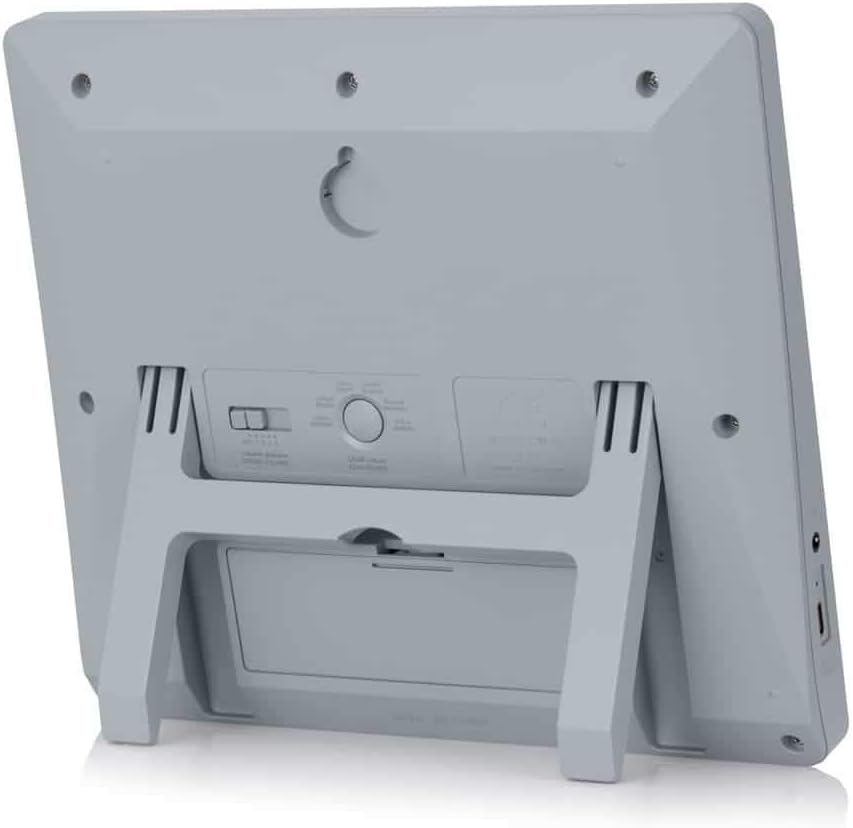
Figure 3: Rear view of the ALFAJR CW-15 clock, highlighting the keyhole for wall mounting and the battery compartment.
2. Table Placement
For table or desk placement:
- Locate the integrated stand on the back of the clock.
- Pull out the stand until it locks into position.
- Place the clock on a flat, stable surface.

Figure 4: Side view of the ALFAJR CW-15 clock, showing the integrated kickstand extended for stable table placement.
Maintenance
1. Cleaning
To maintain the appearance and functionality of your clock:
- Wipe the clock's surface with a soft, dry cloth.
- Do not use abrasive cleaners, solvents, or chemical sprays, as these can damage the display or casing.
- Avoid getting moisture into the clock's openings.
2. Battery Replacement
When the display dims or the clock functions become erratic, it's time to replace the batteries.
- Open the battery compartment on the back of the clock.
- Remove the old AA batteries.
- Insert four new AA batteries, observing correct polarity.
- Close the battery compartment.
- You may need to re-enter the time and location settings after battery replacement.
Troubleshooting
| Problem | Possible Cause | Solution |
|---|---|---|
| Clock does not power on. | Batteries are dead or incorrectly inserted. No USB-C power. | Check battery polarity. Replace with new batteries. Ensure USB-C cable (if used) is connected and power source is active. |
| Azan times are incorrect. | Incorrect city/location settings. Wrong calculation method. DST setting incorrect. | Verify city, latitude, longitude, and GMT offset. Select the correct Azan calculation method for your region. Check DST setting. |
| Azan sound is too low or too high. | Volume setting needs adjustment. | Adjust the volume using the dedicated buttons or through the menu. |
| Display is dim or flickering. | Low battery power. | Replace all 4 AA batteries with new ones. |
| Clock resets unexpectedly. | Intermittent power loss or very low batteries. | Ensure batteries are fresh and securely seated. If using USB-C, check the connection and power source stability. |
Specifications
- Model: CW-15
- Brand: ALFAJR
- Display Type: Digital
- Color: Gray
- Material: Plastic
- Product Dimensions: 8.5 inches (W) x 9 inches (H)
- Item Weight: 3 ounces
- Power Source: 4 AA batteries (included) or USB-C (cable not included)
- Mounting Type: Wall Mount / Table Stand
- Special Features: Automatic Azan, Multiple Azan Reciters, Gregorian/Hijri Calendar, Temperature Display, Daylight Saving Time
- Languages: English, Arabic
Warranty and Support
Limited Warranty
The ALFAJR CW-15 Azan Clock comes with a limited warranty. Please refer to the warranty card included in your original packaging for specific terms, conditions, and duration. This warranty typically covers manufacturing defects under normal use.
Customer Support
For technical assistance, troubleshooting not covered in this manual, or warranty claims, please contact ALFAJR customer support through their official website or the retailer from whom you purchased the product. Please have your model number (CW-15) and purchase date available when contacting support.
Related documentsCW-15

Ask a question about this manual
Ask about setup, troubleshooting, compatibility, parts, safety, or missing instructions. Manuals+ will review the question and use this page’s manual context to help answer it.