1. Product Overview
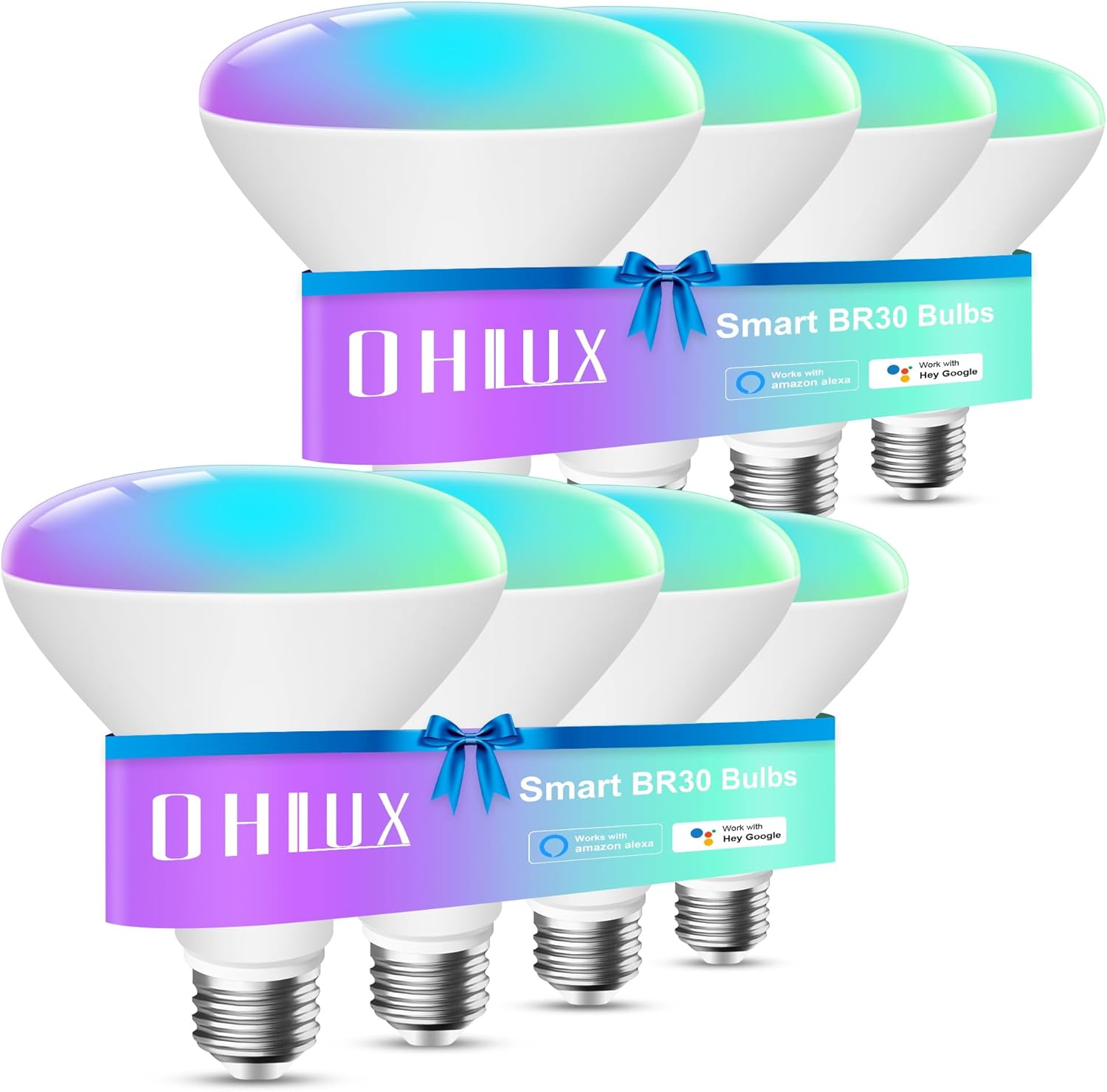
This manual provides comprehensive instructions for the setup, operation, and maintenance of your OHLUX Smart WiFi BR30 LED Bulbs. These smart bulbs offer versatile lighting options, including millions of colors, adjustable white light, and smart control features.

2. Initial Setup
2.1 Unboxing and Components
This video demonstrates the unboxing of the OHLUX Smart BR30 Bulb, showing the bulbs and the included user manual with a QR code for the Smart Life app.
2.2 App Download and Installation
Your OHLUX Smart WiFi BR30 LED Bulbs are controlled via the Smart Life app. Scan the QR code provided in the user manual or search for 'Smart Life' in your device's app store (iOS or Android) to download and install the application.
2.3 Pairing the Bulbs
Follow these steps to pair your bulbs with the Smart Life app:
- Screw the OHLUX BR30 bulb into a standard E26 light socket.
- Ensure the bulb is powered on.
- If the bulb is not rapidly blinking, you need to reset it. Turn the light switch OFF-ON-OFF-ON-OFF-ON, pausing briefly between each toggle. The bulb should then begin to blink rapidly.
- Open the Smart Life app and tap the '+' icon in the top right corner to add a new device.
- Select 'Lighting' from the categories, then choose 'Lighting (Wi-Fi)'.
- Confirm that the indicator light is rapidly blinking in the app.
- Enter your 2.4GHz Wi-Fi network password (5GHz networks are not supported).
- The app will connect to the bulb. Once successfully added, you can rename the bulb for easy identification (e.g., 'OHLUX').
This segment of the video guides you through the process of pairing your OHLUX Smart BR30 Bulb with the Smart Life app, including resetting the bulb and connecting to your Wi-Fi network.
3. Operating Your Smart Bulbs
3.1 Basic Controls (On/Off, Brightness, Color Temperature)
From the Smart Life app, you can easily control your OHLUX bulbs:
- Tap the lightbulb icon to turn the bulb ON or OFF.
- In 'White Mode', adjust the brightness using the slider from 1% to 100%.
- Adjust the color temperature in 'White Mode' from warm white (2700K) to cool daylight (6500K) using the color temperature slider.

3.2 Color Mode
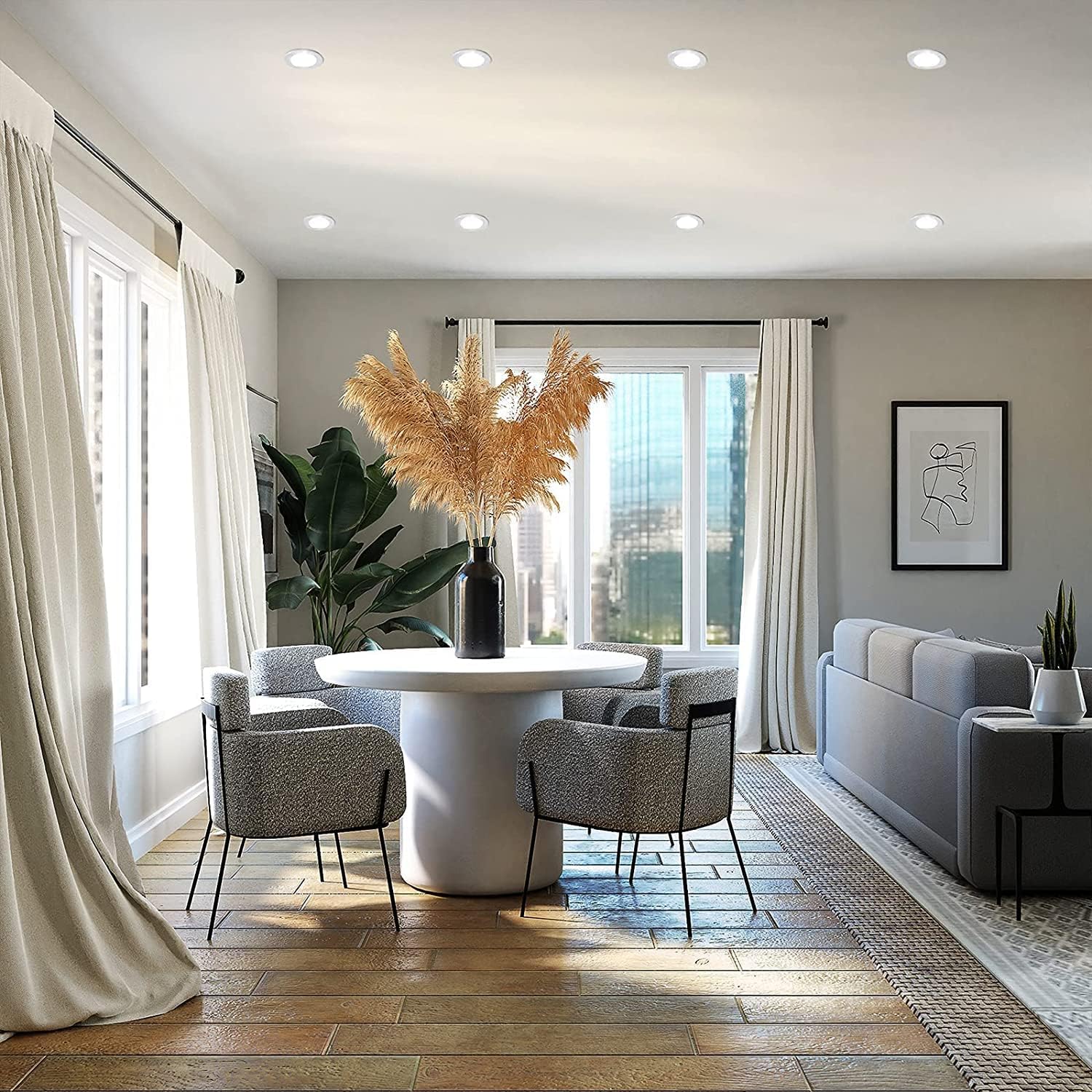
Switch to 'Color Mode' to access over 16 million colors. Use the color wheel to select your desired hue and adjust saturation and brightness with dedicated sliders.

3.3 Scene Mode
The app provides various pre-set scenes for different moods and activities (e.g., Night, Read, Meeting, Leisure). You can also customize and save your own scenes.
3.4 Scheduling
Use the 'Schedule' feature to automate your lighting. Set specific times for the bulbs to turn ON or OFF, choose repeat days, and even add notes or notifications.
This video segment demonstrates how to set up schedules for your OHLUX Smart BR30 Bulbs within the Smart Life app, allowing for automated on/off times and recurring events.
4. Voice Control Integration
4.1 Connecting with Amazon Alexa
To control your OHLUX bulbs with Amazon Alexa:
- Open the Amazon Alexa app.
- Tap the 'More' icon (three lines) in the bottom right, then select 'Skills & Games'.
- Search for 'Smart Life' and enable the skill.
- You will be prompted to link your Smart Life account. Sign in with your Smart Life app credentials.
- Once linked, Alexa will discover your OHLUX bulbs. You can then use voice commands like "Alexa, turn on OHLUX" or "Alexa, change OHLUX to blue."
This video demonstrates how to link your OHLUX Smart BR30 Bulbs with Amazon Alexa through the Smart Life skill, and shows examples of voice commands for controlling the lights.
4.2 Connecting with Google Home/Siri
Similar steps apply for Google Home and Siri. In their respective apps, search for the 'Smart Life' integration and link your account to enable voice control.
5. Product Specifications
| Feature | Detail |
|---|---|
| Brand | OHLUX |
| Light Type | LED |
| Special Feature | 160 million multicolor available, Brightness dimmable from 1-100%, Kelvin adjustable from 2700-6500K, Voice control with Amazon Alexa Echo, Google Home, Siri, Smart Life app control from thousands away |
| Wattage | 10 watts |
| Bulb Shape Size | BR30 |
| Bulb Base | E26 |
| Incandescent Equivalent Wattage | 80 Watts |
| Specific Uses For Product | Indoor |
| Light Color | MULTICOLOR |
| Voltage | 110 Volts (AC) |
| Unit Count | 8 Count |
| Color Temperature | 2700 Kelvin (range 2700K-6500K) |
| Number of Items | 8 |
| Brightness | 900 Lumen |
| Shape | PAR30 |
| Material | Plastic |
| Model Name | SPQB3010-A |
| Connectivity Technology | Wi-Fi |
| Indoor/Outdoor Usage | Indoor |
| Controller Type | Google Assistant, Amazon Alexa |
| Power Source | AC |
| Connectivity Protocol | Wi-Fi |
| Color Rendering Index | 85 |
| Beam Angle | 110 Degrees |
| Average Life | 30000 Hours |
| Product Dimensions | 3.7"W x 5"H |
6. Maintenance
- Cleaning: Ensure the bulb is off and cool before cleaning. Wipe with a soft, dry cloth. Do not use liquid cleaners.
- Storage: Store bulbs in a cool, dry place when not in use.
- Handling: Handle bulbs by the base to avoid damaging the glass or electronic components.
7. Troubleshooting
7.1 Connectivity Issues
- Bulb not blinking during setup: Perform the OFF-ON-OFF-ON-OFF-ON reset sequence as described in Section 2.3.
- Unable to connect to Wi-Fi: Ensure your Wi-Fi network is 2.4GHz. 5GHz networks are not supported. Check your Wi-Fi password for accuracy.
- Bulb disconnects frequently: Ensure the bulb is within range of your Wi-Fi router. Avoid placing it near strong interference sources.
7.2 Dimming and Color Issues
- Light flickers or shorts out: If using a physical dimmer switch, ensure it is set to maximum or a stable mid-range. These smart bulbs are primarily designed for app-based dimming.
- Color or brightness not as expected: Calibrate settings within the Smart Life app. Ensure saturation and brightness sliders are adjusted correctly in Color Mode.
7.3 Bulb Not Responding
- Bulb appears dead: Try the reset sequence (OFF-ON-OFF-ON-OFF-ON). If it still doesn't light up, test it in a different working socket to rule out fixture issues.
- Voice commands not working: Verify that the Smart Life skill is enabled and linked correctly in your Alexa/Google Home app. Ensure the bulb's name in the Smart Life app matches the name used in voice commands.
8. Warranty and Support
OHLUX is committed to customer satisfaction. For any technical or service support, please reach out to us. We strive to reply within 24 hours.
For further assistance, please refer to the official OHLUX store or contact customer service.


