1. Introduction
Thank you for choosing the AOAS K10 Gaming Mouse. This manual provides essential information for setting up, operating, and maintaining your new gaming mouse. Please read these instructions carefully to ensure optimal performance and longevity of your device.
2. Product Overview
The AOAS K10 is an ergonomic gaming mouse designed for comfort and precision. It features adjustable DPI settings, vibrant RGB lighting, and a durable USB connection.

Image 1: The AOAS K10 Gaming Mouse presented in its retail packaging.
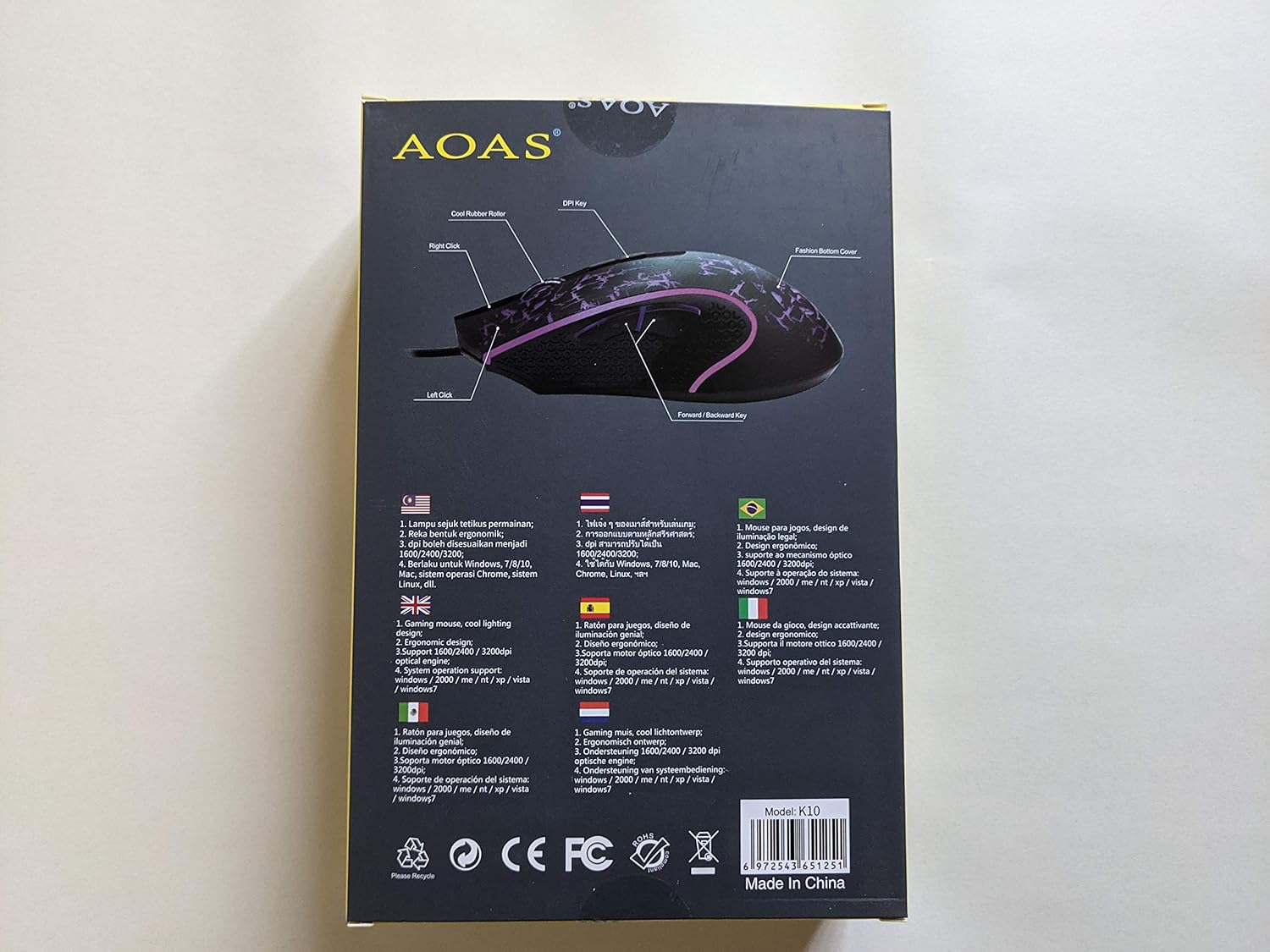
Image 2: This diagram illustrates the key components of the AOAS K10 Gaming Mouse, including the Left Click, Right Click, DPI Key, Forward/Backward Key, and Bottom Cover.
3. Features
- RGB Lighting: Dynamic and cool RGB lighting design enhances the gaming atmosphere.
- Ergonomic Design: Crafted for comfortable use during extended gaming sessions.
- Adjustable DPI: Three adjustable DPI settings (1600/2400/3200) for precision control.
- Optical Engine: High-performance optical engine for accurate tracking.
- USB Connectivity: Reliable wired connection via a 1.8m (6 ft.) USB cable.
- Ambidextrous Design: Suitable for both left and right-handed users.
- Durable Buttons: Designed for long-lasting performance.
4. Setup
Setting up your AOAS K10 Gaming Mouse is a simple plug-and-play process.
- Locate an available USB port on your computer.
- Plug the USB connector of the AOAS K10 Gaming Mouse into the USB port.
- Your operating system will automatically detect and install the necessary drivers. This may take a few moments.
- Once installation is complete, the mouse is ready for use.
5. Operating Instructions
Basic Operation
- Left Click: Primary action, selection, and activation.
- Right Click: Accesses contextual menus and secondary functions.
- Scroll Wheel: Scrolls through documents and web pages. Can also function as a middle click button.
- Forward/Backward Keys: Navigate forward or backward in web browsers and file explorers.
DPI Adjustment
The AOAS K10 Gaming Mouse features a dedicated DPI button to switch between sensitivity levels.
- Press the DPI Key (located on the top of the mouse, usually behind the scroll wheel) to cycle through the available DPI settings.
- The mouse supports 1600, 2400, and 3200 DPI. Each press will switch to the next level.
- Observe the cursor speed on your screen to select the DPI setting that best suits your preference and current task.
6. Maintenance
To ensure the longevity and optimal performance of your AOAS K10 Gaming Mouse, follow these maintenance guidelines:
- Cleaning: Use a soft, dry cloth to wipe the surface of the mouse. For stubborn dirt, slightly dampen the cloth with water or a mild cleaning solution. Avoid harsh chemicals.
- Sensor Care: Keep the optical sensor on the bottom of the mouse clean and free from dust or debris. Use a cotton swab if necessary.
- Cable Management: Avoid sharp bends or excessive pulling on the USB cable to prevent damage.
- Storage: When not in use, store the mouse in a clean, dry environment away from extreme temperatures.
7. Troubleshooting
If you encounter issues with your AOAS K10 Gaming Mouse, try the following steps:
- Mouse Not Responding:
- Ensure the USB cable is securely plugged into a working USB port on your computer.
- Try plugging the mouse into a different USB port.
- Restart your computer.
- Test the mouse on another computer to determine if the issue is with the mouse or your computer's setup.
- Cursor Movement is Erratic or Jumpy:
- Clean the optical sensor on the bottom of the mouse.
- Ensure you are using the mouse on a clean, non-reflective, and uniform surface (e.g., a mouse pad).
- RGB Lighting Not Working:
- Verify the mouse is properly connected to your computer.
- Some operating systems or software may interfere with lighting controls; check your system settings.
8. Specifications
| Feature | Specification |
|---|---|
| Model Number | K10 |
| Brand | AOAS |
| Connectivity Technology | USB (Wired) |
| Cable Length | 1.8 meters (6 feet) |
| Movement Detection Technology | Optical |
| DPI Settings | 1600 / 2400 / 3200 |
| Number of Buttons | 3 (Left, Right, Scroll Wheel/Middle Click) + DPI Key + Forward/Backward Keys |
| Hand Orientation | Ambidextrous |
| Special Features | Ergonomic Design, RGB Lighting |
| Recommended Use | Gaming |
| Compatible Operating Systems | Windows XP, Windows 7, Linux, Personal Computer |
9. Warranty and Support
For warranty information and technical support, please refer to the documentation provided with your purchase or contact your retailer. Keep your proof of purchase for any warranty claims.


