
1. Introduction
Welcome to the Artlii Play Mini Portable Projector user manual. This guide provides detailed instructions for setting up, operating, maintaining, and troubleshooting your projector. Please read this manual thoroughly before using the device to ensure optimal performance and longevity.
The Artlii Play is a compact, portable projector featuring Android TV 9.0, native 720P resolution with 1080P support, 140 ANSI lumens brightness, and versatile connectivity options including WiFi and Bluetooth. It is designed for an immersive viewing experience in various environments.
2. Product Overview
2.1 Key Features
- Smart Android TV 9.0 System: Access online services and applications like Netflix, Prime Video, and YouTube directly.
- Native 720P Resolution: Supports Full HD 1080P for vivid and precise image quality.
- 140 ANSI Lumens Brightness: Recommended for use in dark environments for best performance.
- Stereo Sound & Bluetooth Connection: Built-in 2*5W stereo speakers with SRS audio system. Connect external Bluetooth speakers or headphones.
- Fast WiFi Connection: Latest Wi-Fi technology for seamless screen mirroring from smartphones (iOS/Android).
- 4D ±45° Keystone Correction: Supports vertical and horizontal image correction for easy setup.
- Image Zoom Function: Adjust image size from 70% to 100%.
2.2 Package Contents
- Artlii Play HD Projector
- HDMI Cable
- Remote Control (batteries not included)
- Power Cable
- AV Cable
- User Manual

Figure 1: Artlii Play Mini Portable Projector with Google Play, Netflix, Prime Video, and YouTube logos, indicating smart features.
3. Setup
3.1 Initial Power On
- Connect the power cable to the projector and a power outlet.
- Press the power button on the projector or remote control to turn it on.
- The projector will boot up and display the Android TV 9.0 interface.

Figure 2: The Artlii Play projector displaying the Smart Android TV 9.0 interface with various streaming applications.
3.2 Network Connection (WiFi)
- Navigate to the 'Settings' menu on the Android TV interface.
- Select 'Network & Internet'.
- Choose your desired WiFi network from the list.
- Enter the WiFi password and connect.
3.3 Image Adjustment
- Focus: Rotate the focus ring on the projector lens until the image is clear.
- 4D Keystone Correction: If the image appears trapezoidal, use the remote control to access the keystone correction settings. Adjust the vertical and horizontal parameters to achieve a rectangular image.
- Image Zoom: Use the zoom function in the settings to adjust the image size from 70% to 100% without moving the projector.
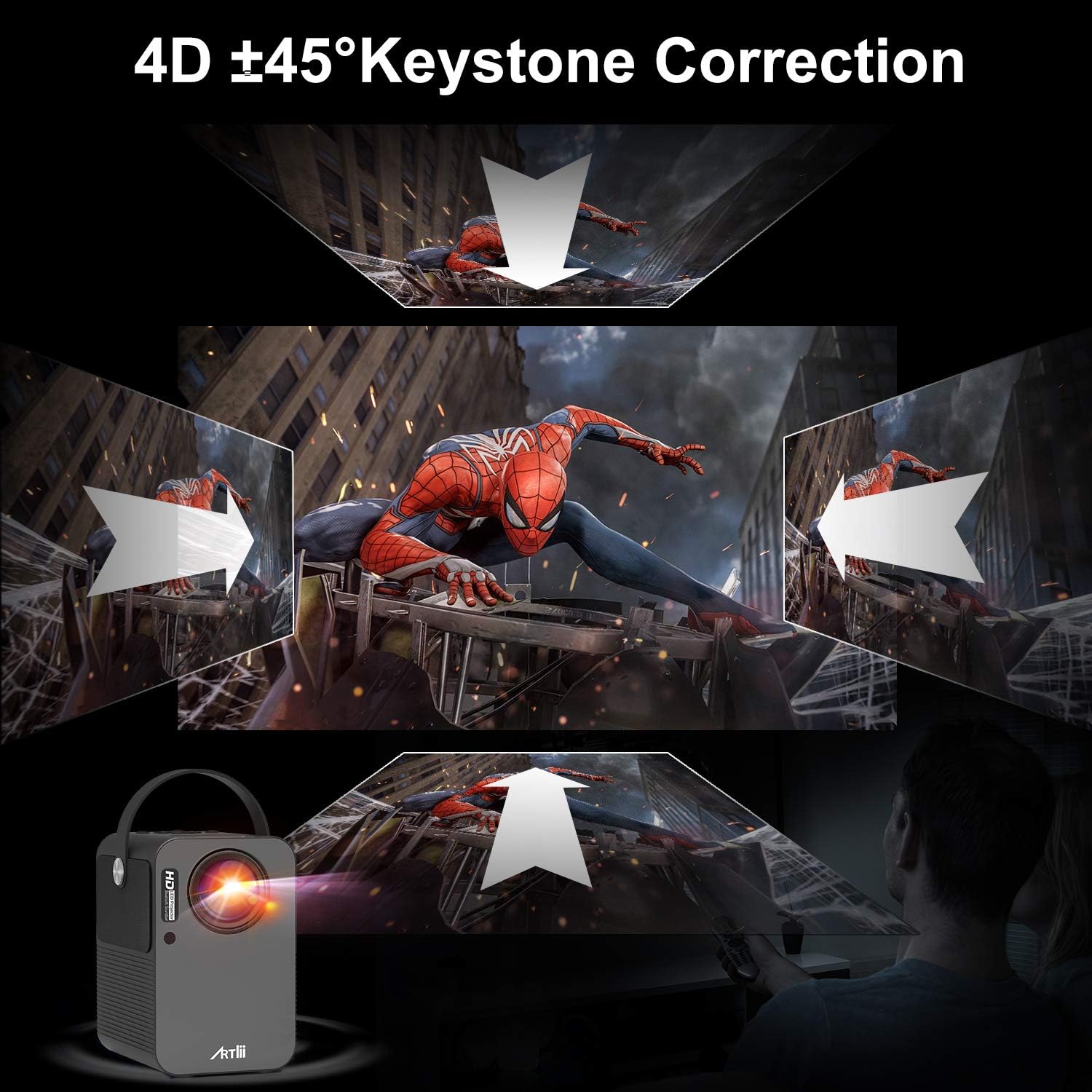
Figure 3: Visual representation of 4D ±45° Keystone Correction, showing how the projector can correct distorted images from various angles.
4. Operating Instructions
4.1 Using Android TV 9.0
- After connecting to WiFi, log in to your Google account to access the Google Play Store.
- Download and install your preferred streaming applications (e.g., Netflix, Prime Video, YouTube).
- Navigate through the interface using the remote control.
4.2 Screen Mirroring (Wireless WiFi)
The projector supports wireless screen mirroring from iOS and Android devices.
- Ensure both your smartphone and the projector are connected to the same WiFi network.
- On the projector, select the 'Screen Mirroring' or 'Cast' function.
- On your smartphone, activate the screen mirroring feature (e.g., 'Smart View' for Android, 'Screen Mirroring' for iOS).
- Select the projector from the list of available devices.

Figure 4: Illustration of wireless WiFi screen mirroring, demonstrating how content from a smartphone can be projected.
4.3 Connecting External Devices
- HDMI: Connect gaming consoles (e.g., PS5), TV sticks, or laptops via the HDMI port. Select the HDMI input source from the projector's menu.
- USB: Insert USB drives into the USB ports to play media files directly.
- AV: Use the provided AV cable to connect older devices.
4.4 Bluetooth Audio Output
You can connect external Bluetooth speakers or headphones for an enhanced audio experience.
- Go to 'Settings' > 'Bluetooth' on the projector.
- Enable Bluetooth and put your external audio device into pairing mode.
- Select your device from the list to connect.

Figure 5: Diagram illustrating the Bluetooth connection capability of the projector, allowing connection to headphones, earbuds, and external speakers.
5. Maintenance
5.1 Cleaning the Lens
Use a soft, lint-free cloth or lens cleaning paper to gently wipe the projector lens. Avoid using abrasive materials or harsh chemicals, as they can damage the lens coating.
5.2 General Care
- Keep the projector in a clean, dust-free environment.
- Avoid exposing the projector to extreme temperatures or humidity.
- Ensure proper ventilation around the projector to prevent overheating.
- When not in use, store the projector in a protective case or cover.
6. Troubleshooting
| Problem | Possible Cause | Solution |
|---|---|---|
| No image displayed | Power cable loose, incorrect input source, lens cap on. | Check power connection, select correct input source (HDMI, USB, etc.), remove lens cap. |
| Blurry image | Out of focus, incorrect keystone settings. | Adjust the focus ring, use 4D keystone correction to rectify. |
| No sound | Volume too low, external audio device not connected, incorrect audio output. | Increase volume, check Bluetooth connection, ensure internal speakers are selected or external device is properly connected. |
| WiFi connection issues | Incorrect password, out of range, network interference. | Verify password, move projector closer to router, restart router and projector. |
| Screen mirroring not working | Devices not on same WiFi, mirroring function not activated. | Ensure both devices are on the same WiFi network, activate screen mirroring on both devices. |
7. Specifications
| Feature | Specification |
|---|---|
| Brand | Artlii |
| Model Number | Artlii Play Android Projector |
| Operating System | Android 9.0 |
| Display Resolution | Native 1280 x 720P (Supports 1080P Full HD) |
| Brightness | 140 ANSI Lumens |
| Display Type | LCD |
| Connectivity Technology | Bluetooth, HDMI, USB, WiFi |
| Connections | 2x USB Ports, HDMI, AV |
| Compatible Devices | Smartphone, TV Stick, PS5, etc. |
| Screen Size | Up to 200 Inches |
| Form Factor | Portable |
| Mounting Type | Table Mount |
| Power | 75 Watts |
8. Warranty and Support
For warranty information and technical support, please refer to the official Artlii website or contact Artlii customer service directly. Keep your purchase receipt as proof of purchase for any warranty claims.
For further assistance, you may visit the Artlii Store on Amazon.
