
1. Introduction
This manual provides detailed instructions for the installation, configuration, and operation of your ASRock Z590M Phantom Gaming 4 motherboard. Please read this manual thoroughly before attempting to install or use the product to ensure proper functionality and to prevent damage.
Safety Information
- Always disconnect the power cord from the wall outlet before touching any components inside the computer case.
- Wear an anti-static wrist strap when handling components to prevent electrostatic discharge (ESD) damage.
- Ensure proper ventilation within the computer case to prevent overheating.
- Keep the motherboard away from moisture and extreme temperatures.
2. Product Overview
The ASRock Z590M Phantom Gaming 4 is a Micro ATX motherboard designed for 10th and 11th Generation Intel Core processors, utilizing the LGA1200 socket and Intel Z590 chipset. It supports DDR4 memory, features USB 3.2 Gen2, Hyper M.2 (PCIe Gen4x4), and ASRock's Super Alloy design for enhanced durability and performance.
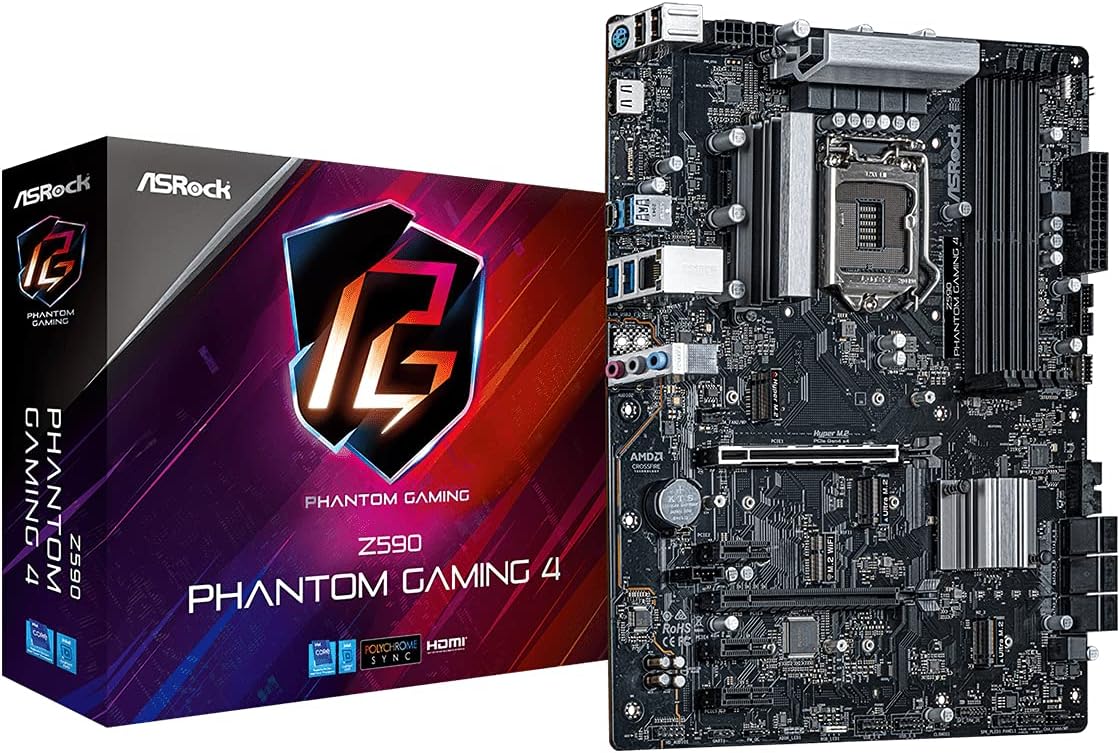
Figure 2.1: The ASRock Z590M Phantom Gaming 4 motherboard alongside its retail packaging. This image provides a general view of the product and its branding.
Key Features
- Supports 10th and 11th Gen Intel Core Processors (LGA1200)
- Intel Z590 Chipset
- Dual Channel DDR4 Memory Technology (up to 4800MHz)
- ASRock USB 3.2 Gen2 Type-A Port (10 Gb/s)
- ASRock Hyper M.2 (PCIe Gen4x4) for high-speed storage
- ASRock Super Alloy design with Premium 50A Power Chokes and Sapphire Black PCB
- ASRock Steel Slot for enhanced PCIe slot durability
- ASRock POST Status Checker (PSC) for diagnostic assistance
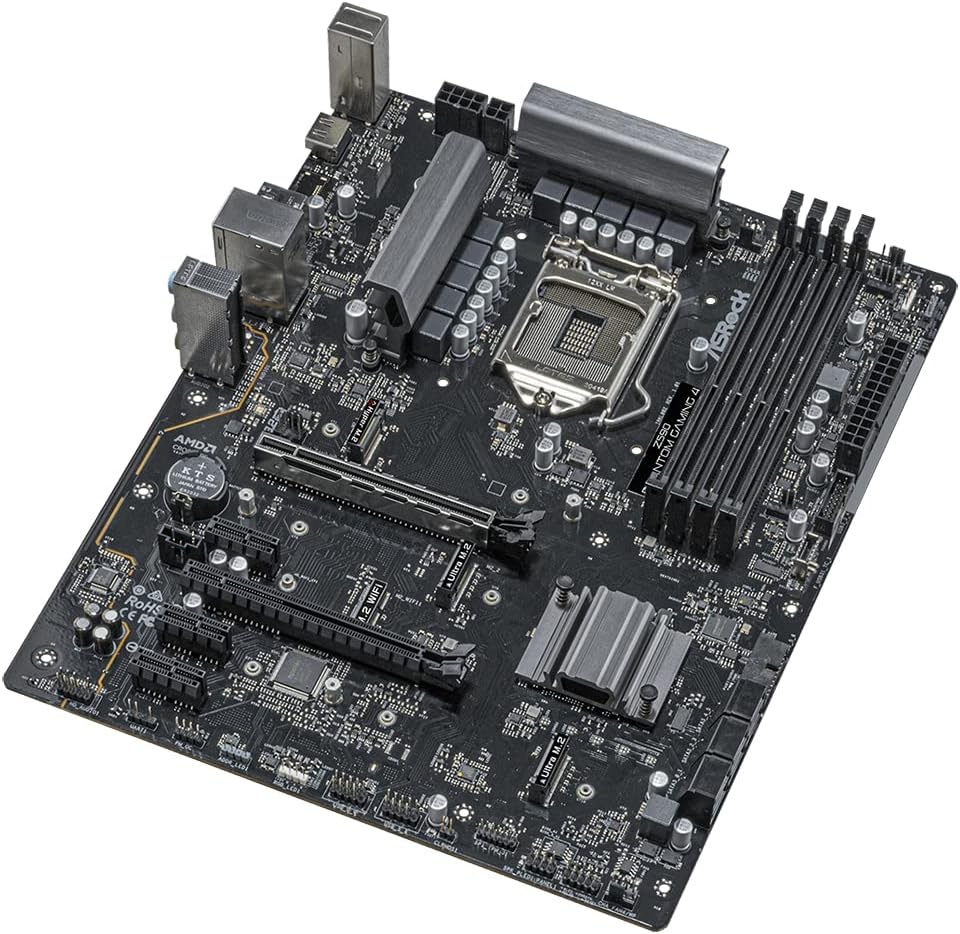
Figure 2.2: An angled perspective of the ASRock Z590M Phantom Gaming 4 motherboard, highlighting the CPU socket, RAM slots, and various expansion slots.
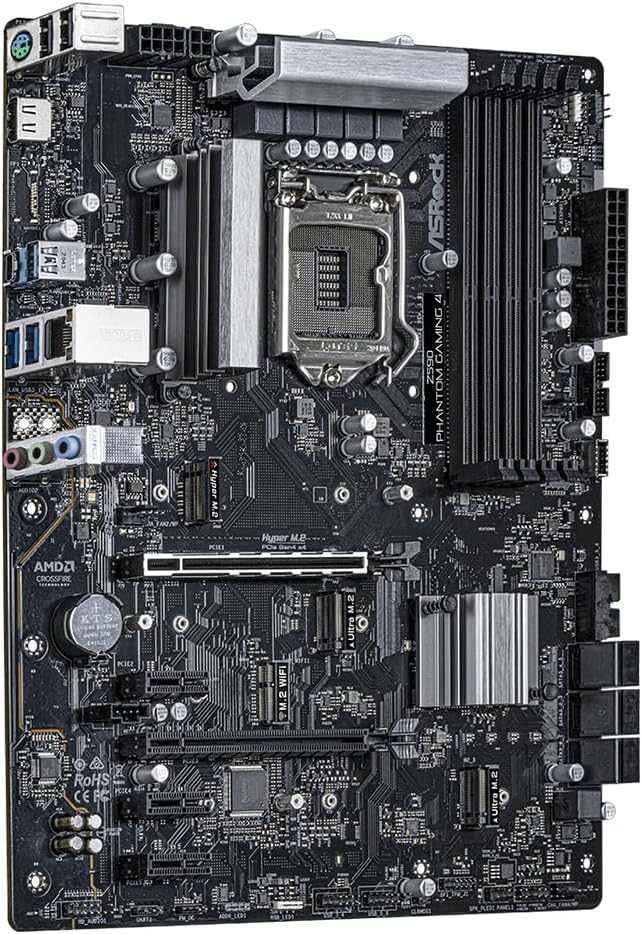
Figure 2.3: A top-down view of the ASRock Z590M Phantom Gaming 4 motherboard, showing the layout of components including the chipset heatsink, M.2 slots, and PCIe slots.
3. Setup and Installation
Follow these steps carefully to install your motherboard and its components.
3.1 Installing the CPU
- Open the CPU socket lever and lift the load plate.
- Carefully align the CPU with the socket, ensuring the golden triangle on the CPU matches the triangle on the socket.
- Gently place the CPU into the socket without forcing it.
- Close the load plate and press down the lever until it locks into place.
3.2 Installing Memory (RAM)
- Open the clips at both ends of the DIMM slots.
- Align the notch on the DDR4 memory module with the notch in the DIMM slot.
- Insert the memory module firmly into the slot until the clips snap into place. For dual-channel operation, refer to the motherboard manual for recommended slot configurations.
3.3 Installing Storage Devices
- M.2 SSD: Locate the M.2 slots. Insert the M.2 SSD into the slot at a 30-degree angle, then gently push it down and secure it with the provided screw.
- SATA Drives: Connect SATA data cables from your SSD/HDD to the SATA ports on the motherboard. Connect power cables from your power supply to the drives.
3.4 Installing Expansion Cards
Insert graphics cards or other PCIe expansion cards into the appropriate PCIe slots. Ensure they are seated firmly and secured with a screw to the case.
3.5 Connecting Power Supply
- Connect the 24-pin ATX power connector to the main power socket on the motherboard.
- Connect the 8-pin (or 4+4-pin) ATX 12V power connector to the CPU power socket.
- Connect power to any graphics cards or other components as required.
3.6 Connecting Front Panel and Rear I/O
- Connect the front panel headers (power switch, reset switch, HDD LED, power LED) to the corresponding pins on the motherboard. Refer to the motherboard diagram for correct pin assignments.
- Connect USB, audio, and other front panel connectors.
- Ensure the I/O shield is installed in your case before mounting the motherboard.

Figure 3.1: The rear I/O panel of the ASRock Z590M Phantom Gaming 4 motherboard, displaying various ports including USB, Ethernet, and audio jacks.
4. Operating Instructions
After successful installation, you can power on your system and configure the BIOS/UEFI.
4.1 First Boot and BIOS/UEFI Setup
- Power on your computer.
- Press the DEL or F2 key during startup to enter the BIOS/UEFI setup utility.
- Configure essential settings such as boot order, date/time, and enable XMP for memory if desired.
- Save changes and exit. The system will restart.
4.2 Operating System Installation
Insert your operating system installation media (USB drive or DVD) and follow the on-screen prompts to install your preferred operating system.
4.3 Driver Installation
After installing the operating system, install the necessary drivers from the ASRock support website or the provided driver CD (if applicable). Key drivers include chipset, audio, LAN, and graphics drivers.
5. Maintenance
Regular maintenance helps ensure the longevity and optimal performance of your motherboard.
5.1 Cleaning
- Periodically clean dust from inside your computer case using compressed air.
- Ensure fans (CPU, case, GPU) are free from obstructions.
- Always disconnect power before cleaning.
5.2 BIOS/UEFI Updates
Check the ASRock website for the latest BIOS/UEFI updates. Updates can improve stability, compatibility, and performance. Follow the instructions provided by ASRock carefully when performing a BIOS update.
6. Troubleshooting
This section addresses common issues you might encounter.
6.1 No Power / No Boot
- Check all power connections (24-pin ATX, 8-pin CPU, GPU).
- Ensure the power supply is switched on.
- Verify the front panel power switch connection to the motherboard.
- Test with a different power supply if possible.
6.2 No Display
- Ensure the monitor is connected to the graphics card (or integrated graphics if no discrete GPU).
- Reseat the graphics card and RAM modules.
- Check the POST Status Checker (PSC) LEDs on the motherboard for diagnostic codes.
6.3 System Instability / Crashes
- Check CPU and GPU temperatures. Ensure adequate cooling.
- Run memory diagnostic tools to check for RAM errors.
- Ensure all drivers are up to date.
- Reset BIOS to default settings.
7. Specifications
| Feature | Specification |
|---|---|
| Brand | ASRock |
| Model Name | Z590M PHANTOM GAMING 4 |
| CPU Socket | LGA 1200 |
| Compatible Processors | 10th Generation Intel Core, 11th Generation Intel Core |
| Chipset Type | Intel Z590 |
| RAM Memory Technology | DDR4 SDRAM |
| Memory Speed | Up to 4800 MHz (OC) |
| Memory Storage Capacity | 12 GB (Note: This value from source data may refer to a specific configuration, actual max capacity depends on DIMM slots and module size) |
| Number of USB 2.0 Ports | 2 (Rear I/O) |
| Product Dimensions | 11 x 10.5 x 2.5 inches |
| Item Weight | 2.2 pounds |
| Platform | Windows |
| Batteries Required | 1 Lithium Ion (for CMOS) |
8. Warranty and Support
For detailed warranty information, please refer to the warranty card included with your product or visit the official ASRock website. ASRock provides technical support for its products.
8.1 Technical Support
If you encounter issues that cannot be resolved using this manual or the troubleshooting steps, please contact ASRock technical support through their official website. Have your product model and serial number ready when contacting support.
ASRock Official Website: www.asrock.com