Introduction
This manual provides essential information for the safe and efficient use of your Samsung 65AU9005 4K UHD Smart TV. Please read these instructions carefully before operating the device and retain them for future reference.
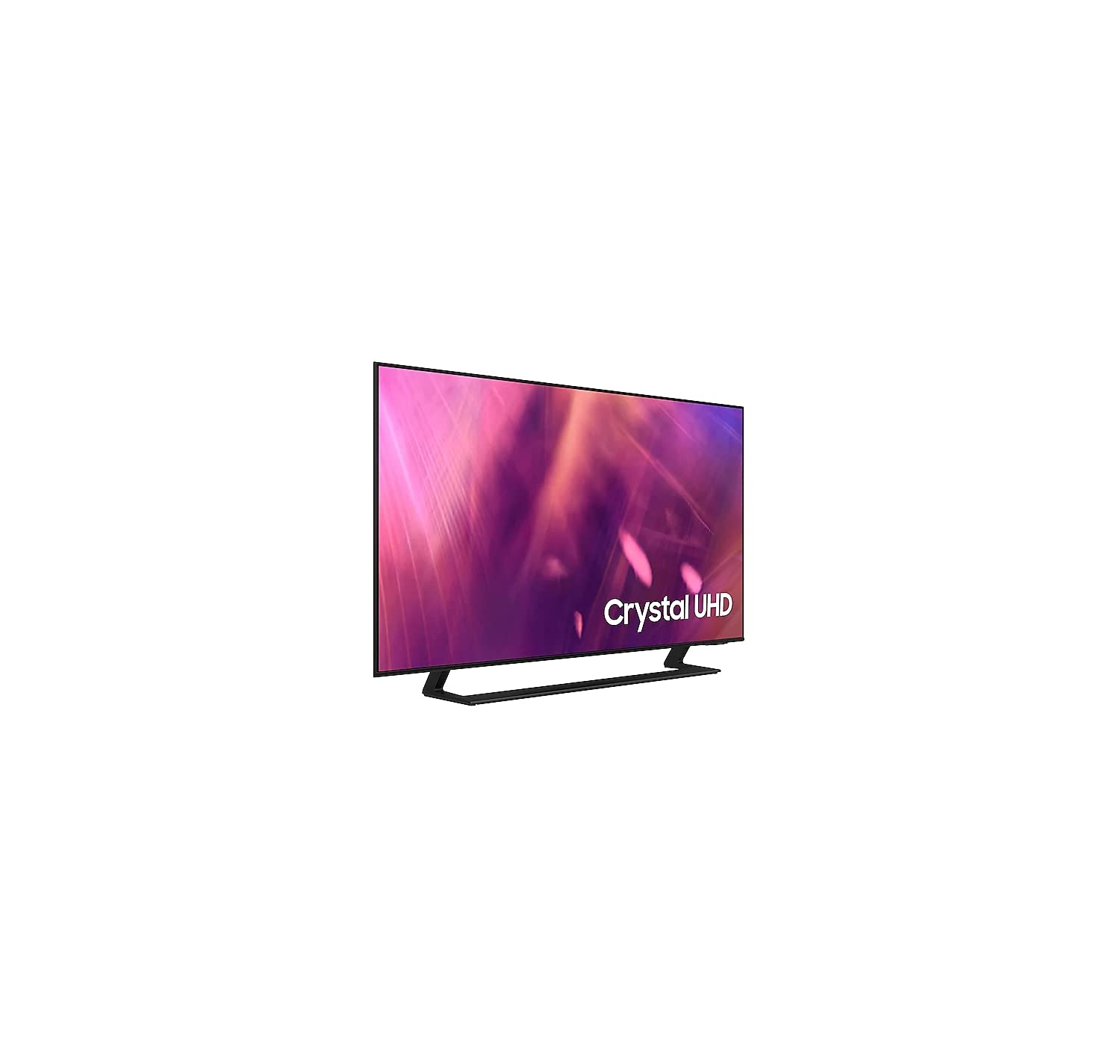
Image: Samsung 65AU9005 4K UHD Smart TV displayed on a media console in a modern living room.
Important Safety Information
Always follow basic safety precautions when using this television to reduce the risk of fire, electric shock, and injury.
- Do not expose this apparatus to rain or moisture.
- Do not block any ventilation openings.
- Do not place the TV near heat sources such as radiators, heat registers, stoves, or other apparatus (including amplifiers) that produce heat.
- Protect the power cord from being walked on or pinched.
- Only use attachments/accessories specified by the manufacturer.
- Refer all servicing to qualified service personnel.
Setup Guide
1. Unpacking and Stand Assembly
Carefully remove the TV from its packaging. Place the TV face down on a soft cloth or cushion to prevent screen damage. Attach the stand to the TV using the provided screws, ensuring it is securely fastened.

Image: Front view of the Samsung 65AU9005 TV mounted on its stand.
Alternatively, for wall mounting, refer to the wall mount kit instructions (sold separately) and ensure proper ventilation around the TV.

Image: Technical diagram showing the dimensions of the Samsung 65AU9005 TV with and without its stand, including screen width, screen height, and depth.
2. Connecting External Devices
- Power: Connect the power cord to the TV and then to a wall outlet.
- HDMI: Use HDMI cables to connect devices like Blu-ray players, game consoles, or set-top boxes to the HDMI ports on the TV.
- USB: Connect USB storage devices for media playback or software updates.
- Ethernet: For a wired internet connection, connect an Ethernet cable from your router to the LAN port on the TV.
- Wi-Fi: For wireless internet, the TV will guide you through connecting to your home Wi-Fi network during initial setup.
3. Initial Setup Wizard
Upon first power-on, the TV will launch an initial setup wizard. Follow the on-screen prompts to:
- Select your preferred language.
- Connect to your network (wired or wireless).
- Scan for available channels (if using an antenna or cable connection).
- Agree to terms and conditions.
- Set up your Samsung account (optional, but recommended for full Smart TV features).
Operating Your TV
Basic Controls
- Power: Press the Power button on the remote control to turn the TV on or off.
- Volume: Use the Volume buttons (+/-) to adjust the sound level.
- Channel: Use the Channel buttons (up/down) to change channels.
- Source: Press the Source button to select input sources (HDMI 1, HDMI 2, TV, etc.).
- Smart Hub: Press the Smart Hub button to access the Smart TV platform with apps and services.
Picture and Sound Settings
Access the TV's settings menu to customize picture and sound. Key features include:
- Crystal UHD Processor: Optimizes all images to 4K resolution, enhancing color and dynamic range.
- HDR10+: Increases the range of light levels on your TV for a wider spectrum of colors and visual detail, even in dark scenes.
- Contrast Enhancer: Analyzes each image to create more natural and realistic shades, adding depth.
- OTS Lite (Object Tracking Sound Lite): Sound is reproduced precisely where the action occurs on screen.
- Q-Symphony: When paired with a compatible Samsung soundbar, the TV and soundbar speakers operate simultaneously for an enhanced surround sound experience.
Smart Features
- Smart TV Platform: Offers a wide range of content and applications.
- Voice Assistants (Alexa): Integrated voice control for navigating the TV and accessing features.
- Tap View: Tap your compatible smartphone to the TV to mirror its content automatically.
- Multi View: Divide your TV screen into multiple sections to enjoy several content sources simultaneously. You can adjust the size and volume for each section.
- PC on TV: Connect your TV to a computer to use it as a large monitor for work or browsing.
Gaming Features
- Motion Xcelerator Turbo: Optimizes the sharpness of moving images for smooth gameplay at 120 Hz.
- Panoramic Game Mode: Change the screen aspect ratio to 21:9 or 32:9 for a wider view during gaming.
Maintenance
Cleaning Your TV
- Screen: Gently wipe the screen with a soft, lint-free cloth. For stubborn marks, lightly dampen the cloth with water or a specialized screen cleaner. Do not spray liquid directly onto the screen.
- Body: Wipe the TV frame and stand with a soft, dry cloth. Avoid using abrasive cleaners or solvents.
- Always unplug the TV before cleaning.
Software Updates
Ensure your TV's software is up to date for optimal performance and security. You can usually check for updates via the TV's settings menu (Settings > Support > Software Update).
Troubleshooting
If you encounter issues with your TV, refer to the following common problems and solutions:
| Problem | Possible Solution |
|---|---|
| No power | Check if the power cord is securely connected to the TV and the wall outlet. Test the outlet with another device. |
| No picture, but sound is present | Ensure the correct input source is selected. Check HDMI or other video cables for secure connections. Try restarting the TV. |
| No sound, but picture is present | Check the volume level and mute settings. Ensure external audio devices (soundbar, receiver) are properly connected and powered on. |
| Remote control not working | Replace the batteries in the remote control. Ensure there are no obstructions between the remote and the TV's sensor. |
| Cannot connect to Wi-Fi | Check your router and modem. Restart both the router and the TV. Re-enter the Wi-Fi password carefully. |
| Picture quality issues (e.g., blurry, distorted) | Check the source content quality. Adjust picture settings (brightness, contrast, sharpness). Ensure cables are not damaged. |
If the problem persists, consult the full e-manual available on your TV or visit the Samsung support website.
Specifications
| Feature | Detail |
|---|---|
| Brand | Samsung |
| Model Number | UE65AU9005KXXC |
| Year Model | 2021 |
| Display Technology | LED |
| Screen Size | 65 inches (as per product title) |
| Resolution | 3840 x 2160 Pixels (4K UHD) |
| Refresh Rate | 60 Hz (Motion Xcelerator Turbo for 120Hz gaming) |
| Connectivity | Bluetooth, Ethernet, HDMI, USB, Wi-Fi |
| Total USB Ports | 1 |
| Special Features | Smart TV, Internet, Alexa Integration, HDR10+, Multi View, Tap View |
| Product Dimensions (W x D x H) | 145.21 x 29.01 x 89.79 cm (with stand, approx.) |
| Product Weight | 22 kg |
| Included Components | User manual, power cable, remote control |
Warranty and Support
For detailed warranty information, please refer to the warranty card included with your product or visit the official Samsung support website for your region. The included user manual (this document) and remote control are covered by standard product support.
For further assistance, software updates, or to download the full e-manual, please visit www.samsung.com/support.


