1. Introduction
This manual provides detailed instructions for the installation, operation, and maintenance of your ICY BOX IB-2912MCL-C31 M.2 SSD Enclosure. Please read this manual thoroughly before using the device to ensure proper functionality and to prevent damage.
2. Safety Information
- Do not expose the device to moisture, dust, or extreme temperatures.
- Avoid dropping or subjecting the device to strong impacts.
- Do not attempt to open or repair the device yourself. Refer all servicing to qualified personnel.
- Ensure proper ventilation around the enclosure during operation.
- Disconnect the device from the power source before cleaning or when not in use for extended periods.
3. Package Contents
Please check the package contents upon unpacking. If any items are missing or damaged, contact your retailer.
- 1x ICY BOX IB-2912MCL-C31 M.2 SSD Enclosure
- 1x USB-C to USB-C cable (approx. 500 mm)
- 1x Power adapter (if applicable, for cloning function)
- 1x User Manual
4. Product Overview
Familiarize yourself with the components of your ICY BOX IB-2912MCL-C31 enclosure.

Image: Front view of the ICY BOX IB-2912MCL-C31 M.2 SSD Enclosure, showcasing its sleek design and cooling fins.

Image: Top and side view of the ICY BOX IB-2912MCL-C31, illustrating its dimensions (121mm length, 87mm width, 27mm height) and the included 500mm USB cable. Key ports and switches are visible on the side.
- Source SSD Slot: For the source M.2 SSD during cloning or primary drive for data transfer.
- Target SSD Slot: For the target M.2 SSD during cloning.
- USB 3.1 Gen 2 Type-C Port: For connecting to a computer.
- Power Input: For external power adapter, especially for standalone cloning.
- Power Button: To turn the device on/off.
- Clone Button: Initiates the cloning process.
- Reset Button: Resets the device.
- Clone Progress Indicators: LEDs showing 25%, 50%, 75%, 100% cloning progress.
- Write Protection Switch: Enables or disables write protection.
5. Setup
5.1 Installing M.2 SSDs
- Carefully open the enclosure to access the M.2 SSD slots.
- Insert your M.2 NVMe or SATA SSDs into the designated 'SOURCE' and 'TARGET' slots. Ensure they are seated correctly.
- Secure the SSDs with the provided fasteners (if any).
- Close the enclosure securely.
5.2 Connecting to a Computer
- Connect one end of the USB-C cable to the USB 3.1 Gen 2 Type-C port on the ICY BOX enclosure.
- Connect the other end of the USB-C cable to an available USB 3.1 Gen 2 (or compatible) port on your computer.
- For optimal performance, ensure your computer has a USB 3.1 Gen 2 interface to achieve data transfer rates up to 10 Gbit/s.
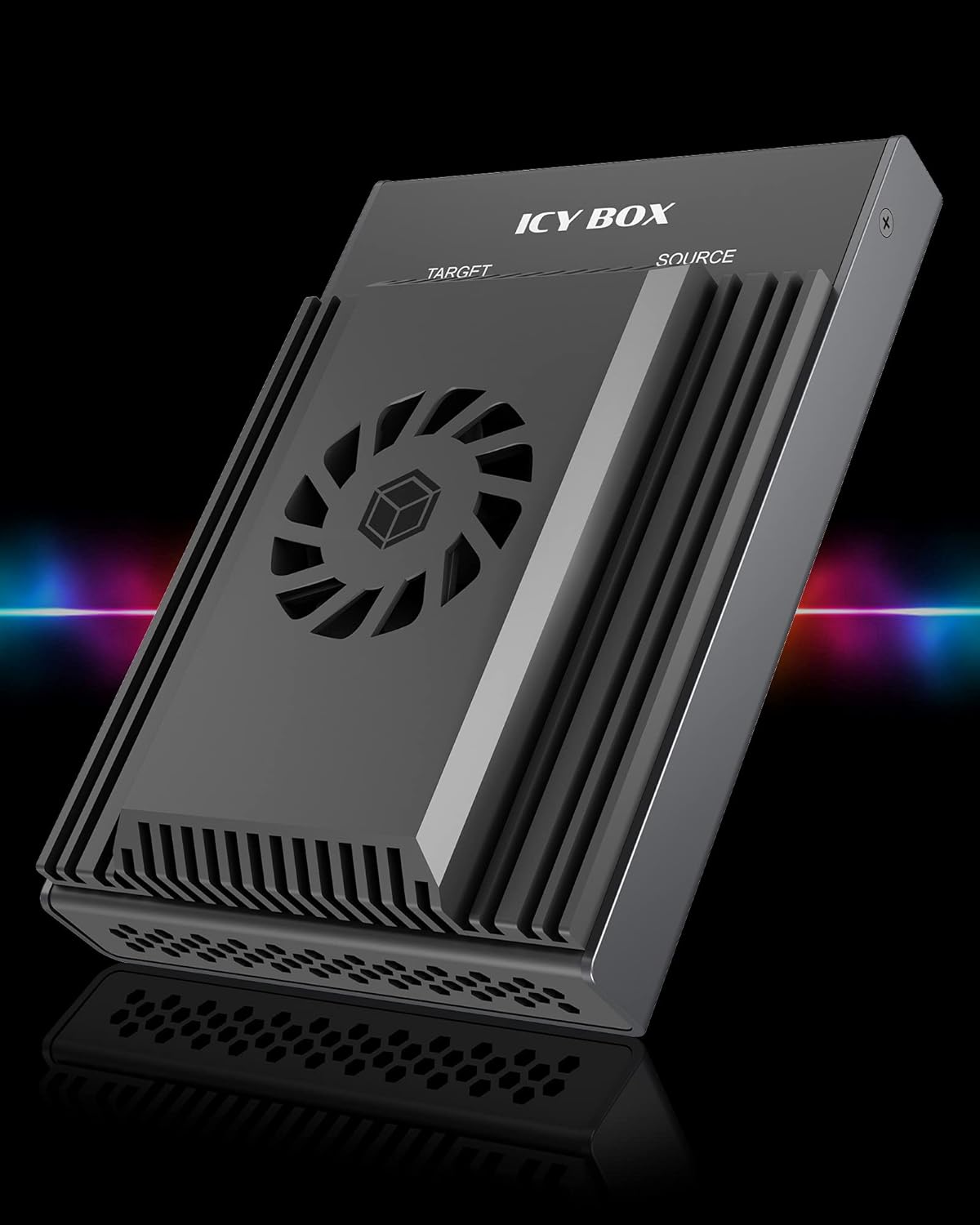
Image: Diagram illustrating the connection of the ICY BOX enclosure to a laptop via a USB-C cable, highlighting the importance of a USB 3.1 Gen 2 port for 10 Gbps data transfer, compared to USB 3.0's 5 Gbps.
6. Operation
6.1 Data Transfer
Once connected to your computer, the installed M.2 SSDs will be recognized as external storage devices. You can then drag and drop files, copy, or move data as you would with any other external drive. The USB 3.1 Gen 2 interface supports high-speed data transfer up to 10 Gbit/s.
6.2 Standalone SSD Cloning
The ICY BOX IB-2912MCL-C31 supports standalone cloning, allowing you to duplicate an SSD without connecting to a computer.
- Ensure both the source SSD (containing data to be copied) and the target SSD (where data will be copied) are correctly installed in their respective slots. The target SSD must be equal to or larger in capacity than the source SSD.
- Connect the external power adapter to the enclosure.
- Press and hold the 'Clone' button for a few seconds until the cloning process begins.
- The progress indicator LEDs (25%, 50%, 75%, 100%) will illuminate sequentially to show the cloning status.
- Once all LEDs are solid, the cloning process is complete.
- Safely remove the SSDs after the process is finished.

Image: Illustrates the standalone cloning capability of the ICY BOX enclosure, allowing bootable SSDs to be cloned without a PC. Also highlights features like virus protection, read/write protection, and protection against file deletion.
6.3 Write Protection
The enclosure features a physical write protection switch to prevent accidental data modification or deletion on the installed SSDs.
- Write Protection ON: Data on the SSDs cannot be written to, modified, or deleted. This is useful for protecting valuable data or when working with potentially malicious files.
- Write Protection OFF: Allows full read and write access to the SSDs.
Locate the 'Write Protection' switch on the device and slide it to the desired position.
6.4 Cooling System
The ICY BOX IB-2912MCL-C31 is designed with an efficient cooling system to maintain optimal operating temperatures for your M.2 SSDs, especially during intensive tasks like cloning or large data transfers.

Image: Diagram showing the efficient cooling design of the ICY BOX enclosure. It illustrates improved air circulation for optimal NVMe SSD cooling, resulting in up to 45% temperature reduction, managed by a SMART fan control system.

Image: Comparison showing the effectiveness of the full aluminum housing and fan in heat dissipation. It contrasts a measured temperature of 70°C without effective cooling against 40°C with the ICY BOX's reliable heat conduction.
The full aluminum housing and integrated fan work together to dissipate heat effectively, preventing thermal throttling and ensuring consistent performance and longevity of your SSDs.
7. Maintenance
- Keep the device clean by wiping it with a soft, dry cloth.
- Do not use liquid cleaners or aerosols.
- Ensure the cooling vents are free from dust and obstructions.
- Store the device in a cool, dry place when not in use.
8. Troubleshooting
- Device not recognized: Ensure the USB cable is securely connected to both the enclosure and the computer. Try a different USB port or cable. Verify that the SSDs are properly installed.
- Slow data transfer speeds: Ensure you are connected to a USB 3.1 Gen 2 port on your computer. Older USB ports (e.g., USB 2.0, USB 3.0) will result in lower speeds.
- Cloning fails: Ensure the target SSD has equal or greater capacity than the source SSD. Check that the external power adapter is connected and providing sufficient power. Ensure both SSDs are properly seated.
- SSD not accessible (read-only): Check the write protection switch on the enclosure. Ensure it is set to the 'OFF' position if you intend to write data.
- Overheating: Ensure the enclosure's cooling vents are not blocked. Operate the device in a well-ventilated area.
9. Specifications
| Feature | Specification |
|---|---|
| Model Number | IB-2912MCL-C31 |
| Brand | ICY BOX |
| Color | Black |
| Connections | USB 3.2 Gen 2 (3.1 Gen 2) Type-C |
| Data Transfer Rate | Up to 10 Gbit/s |
| SSD Compatibility | M.2 NVMe and SATA SSDs |
| Standalone Cloning | Yes |
| Write Protection | Yes |
| Cooling System | Full aluminum housing with SMART fan control |
| Dimensions (L x W x H) | 121 mm x 87 mm x 27 mm (approximate) |
| Power Source | USB bus-powered, external power adapter for cloning |
10. Warranty and Support
ICY BOX products are designed for reliability and performance. For warranty information and technical support, please refer to the documentation provided with your purchase or visit the official ICY BOX website. Keep your proof of purchase for warranty claims.


