
Seagate STKP10000402
Seagate Expansion 10TB External Hard Drive User Manual
Model: STKP10000402
Introduction
The Seagate Expansion desktop drive is designed to provide substantial external storage for your digital content. It is an ideal solution for expanding storage capacity for photos, movies, music, and other files in home, office, or dorm environments. This manual provides essential information for setting up, operating, and maintaining your device.
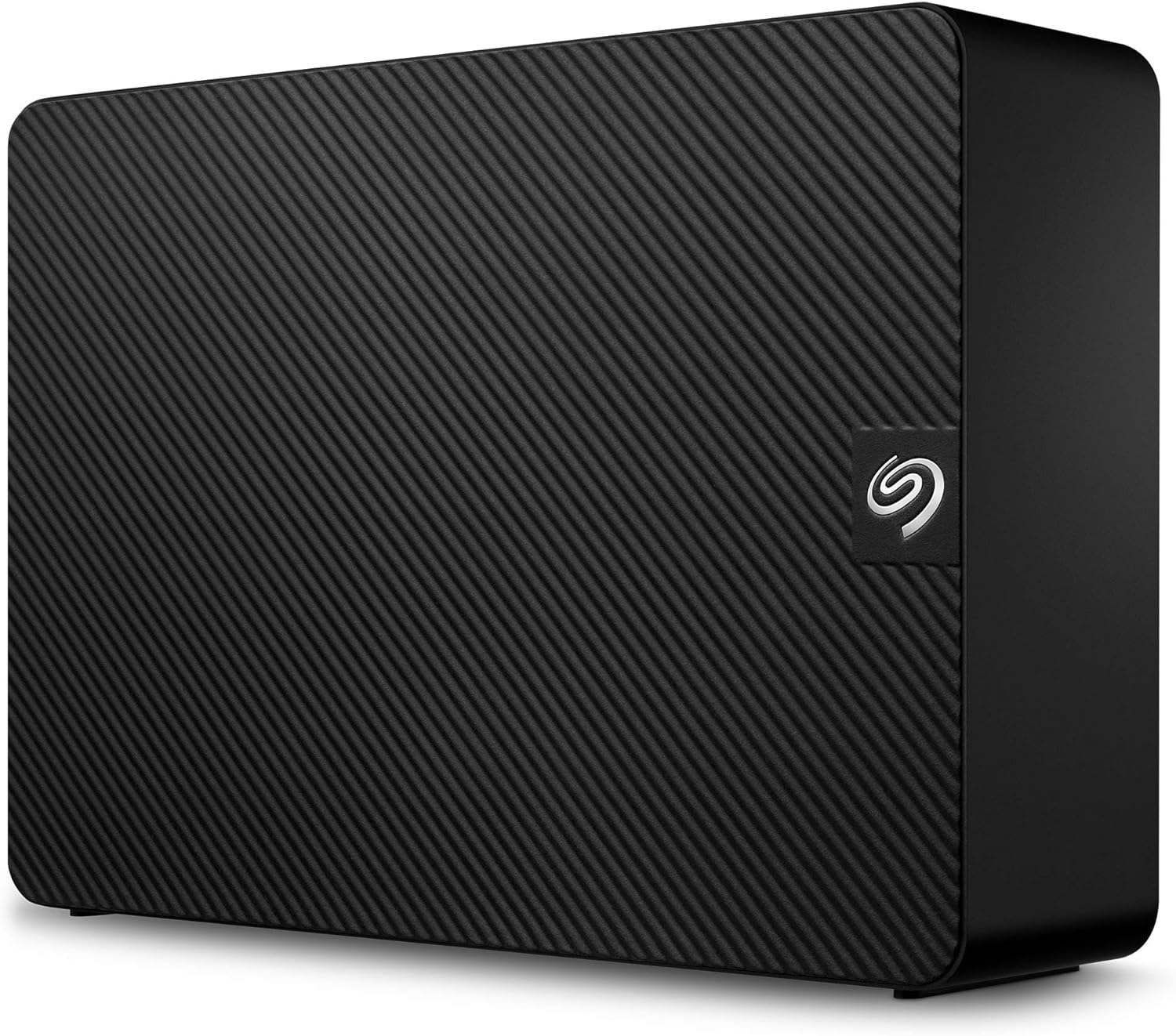
Image: The Seagate Expansion 10TB External Hard Drive, a black rectangular device with a textured top surface and the Seagate logo on the front.
What's in the Box
Verify that all items are present in the packaging:
- Seagate Expansion Desktop External Drive 10TB USB3.0
- 18-inch USB 3.0 cable
- 18W power adapter
- Quick Start Guide (physical or digital)
Setup
- Connect the Power Adapter: Plug the 18W power adapter into the Seagate Expansion drive and then into a power outlet.
- Connect the USB Cable: Connect the 18-inch USB 3.0 cable to the Seagate Expansion drive and then to an available USB 3.0 port on your computer (Windows or Mac).
- Automatic Recognition: The drive should be automatically recognized by your Windows or Mac computer. No additional software installation is typically required for basic functionality.
- Reformatting for Apple Time Machine (Optional): If you intend to use the drive with Apple Time Machine, reformatting will be necessary. Refer to your Mac's operating system documentation for instructions on how to reformat external drives for Time Machine compatibility.

Image: The Seagate Expansion drive connected via USB to a desktop computer, illustrating the simple plug-and-play setup.
Operating the Drive
The Seagate Expansion drive is designed for straightforward drag-and-drop file saving. Once connected and recognized by your computer, it will appear as an available storage device.
- Saving Files: To save files, simply drag them from your computer's internal storage or another connected drive and drop them onto the Seagate Expansion drive icon or its opened folder.
- Accessing Files: To access files stored on the drive, navigate to the drive icon on your computer (e.g., "This PC" on Windows, "Finder" on Mac) and open it.
- File Transfer Speed: The drive utilizes USB 3.0 for fast file transfers. Actual transfer speeds may vary depending on your computer's hardware, operating system, and the size/type of files being transferred.
Maintenance
The Seagate Expansion drive requires minimal maintenance. To ensure optimal performance and longevity:
- Safe Ejection: Always safely eject the drive from your computer before disconnecting the USB cable or power adapter. This prevents data corruption.
- Keep Clean: Wipe the exterior of the drive with a soft, dry cloth. Avoid using harsh chemicals or abrasive materials.
- Ventilation: Ensure the drive is placed in a location with adequate airflow to prevent overheating.
- Firmware Updates: Periodically check the official Seagate support website for any available firmware updates for your model.
Troubleshooting
| Problem | Possible Solution |
|---|---|
| Drive not recognized by computer. |
|
| Slow file transfer speeds. |
|
| Drive disconnects randomly. |
|
Specifications
| Feature | Detail |
|---|---|
| Brand | Seagate |
| Model Number | STKP10000402 |
| Digital Storage Capacity | 10 TB |
| Hard Disk Interface | USB 3.0 |
| Connectivity Technology | USB |
| Hard Disk Form Factor | 3.5 Inches |
| Hard Disk Description | Mechanical Hard Disk |
| Compatible Devices | Desktop |
| Color | Black |
| Item Weight | 2.59 pounds |
| Product Dimensions (LxWxH) | 8.58 x 8.35 x 3.03 inches |
| Hard Drive Rotational Speed | 5900 RPM |
Warranty and Support
Your Seagate Expansion drive comes with a limited warranty. For specific terms and conditions, please refer to the warranty information provided with your product or visit the official Seagate website.
Additionally, this product includes Rescue Data Recovery Services. This service is designed to help protect your data against unexpected data loss due to mechanical failure, accidental damage, or natural disaster. For more information on how to utilize this service, please visit the Seagate support portal.
For further assistance, technical support, or to access the latest drivers and software, please visit the official Seagate support website:
Related documentsSTKP10000402


Ask a question about this manual
Ask about setup, troubleshooting, compatibility, parts, safety, or missing instructions. Manuals+ will review the question and use this page’s manual context to help answer it.