
MekedeTech Android 12.3 inch Car Radio for BMW X5 E70 X6 E71 CCC
MekedeTech Android 12.3 inch Car Radio User Manual
For BMW X5 E70 & X6 E71 (2007-2013) with CCC System
1. Introduction
This manual provides detailed instructions for the installation, operation, and maintenance of your MekedeTech Android 12.3 inch 1920x720 Touch Screen Car Radio. This unit is specifically designed for BMW X5 E70 and X6 E71 models from 2007 to 2013 equipped with the CCC (Car Communication Computer) system. Please read this manual thoroughly before installation and use to ensure proper functionality and safety.
2. Important Compatibility Notes
- AUX-IN Requirement: Ensure your vehicle has an AUX-IN port. If not, an FM transmitter may be required for audio output.
- 4G Functionality: The 4G function is not supported in the Americas (e.g., US, Canada).
- Applicable Models:
- BMW X5 E70 (2007 - 2010) with CCC system
- BMW X6 E71 (2007 - 2010) with CCC system
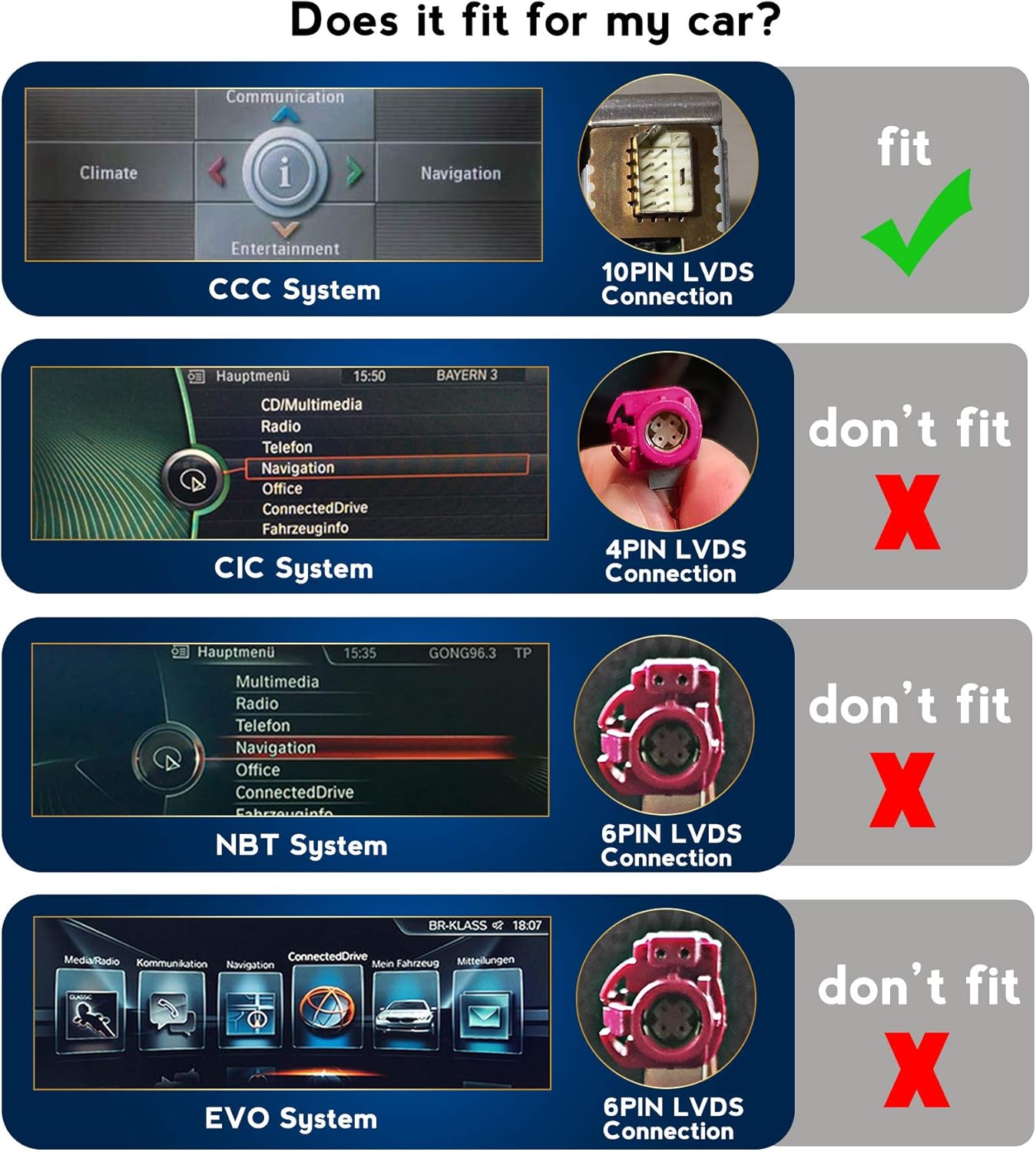
Image: Compatibility check showing the required 10PIN LVDS connection for CCC systems and incompatible connections for CIC, NBT, and EVO systems. This unit is only compatible with vehicles featuring the CCC system.
3. Key Features
- Display: 12.3 inch IPS panel with 1920x720 resolution, G+G capacitive touch screen, 178° viewing angle.
- Operating System: Android 11 with 8-core processor, 4GB RAM, 64GB ROM.
- Original Car Information Display: Integrates with the original dashboard to display speed, fuel level, oil pressure, and safety warnings. Retains original functions like CD player, radio, Bluetooth, SWC, and backup camera display.
- iDrive System Control: Retains full functionality of the original iDrive system, supporting both original and Android system navigation.
- Integrated Connectivity: Built-in CarPlay and Android Auto for seamless phone integration.
- Multimedia Support: Supports 4K video playback, split-screen mode for multitasking.
- Wireless Connectivity: Dual Wi-Fi band (2.4GHz and 5GHz), Bluetooth for hands-free calling and audio streaming.
- Navigation: GPS navigation functionality.
- Screen Mirroring: Allows mirroring of mobile phone content to the unit's display.
- Audio System: Retains original fiber optical sound system for Harman Kardon.
- Steering Wheel Control: Supports original steering wheel controls for easy operation.
4. Setup and Installation
4.1 Package Contents

Image: Top section shows connection ports: Power+Audio out (LVDS), USB, AV in, and Fakra GPS. Bottom section displays included accessories: Power Cable, GPS Antenna, USB Cable, and other necessary wiring harnesses.
Verify that all components are present in the package:
- MekedeTech Android 12.3 inch Display Unit
- Power Cable
- GPS Antenna
- USB Cable
- Other necessary wiring harnesses (e.g., LVDS cable, AV cables)
4.2 Connection Overview
The unit connects to your vehicle's existing system. Key connections include:
- Power + Audio Out (LVDS): Connects to the vehicle's main harness for power and audio signal.
- USB: For connecting USB devices.
- AV In: For auxiliary audio/video input.
- Fakra GPS: Connects the GPS antenna for navigation.
Note: Professional installation is recommended to ensure correct wiring and avoid damage to the vehicle or the unit.

Image: The MekedeTech Android 12.3 inch display unit shown installed in a BMW X5/X6 dashboard, displaying the 'Car Info' screen with a vehicle graphic and dashboard gauges.
5. Operating Instructions
5.1 Basic Operation
- Touch Screen: The unit features a G+G capacitive touch screen for intuitive control.
- iDrive Control: The original iDrive controller remains fully functional and can be used to navigate both the original BMW system and the Android interface.
- Steering Wheel Controls: Utilize your vehicle's existing steering wheel buttons to control volume, switch tracks, and manage calls.
5.2 Original Car Information Display

Image: The 'Car Info' screen on the unit, showing a graphical representation of a BMW vehicle and digital gauges for speed, RPM, fuel level, and temperature, integrating with the original car's data.
Access the 'Car Info' section to view integrated vehicle data such as speed, fuel level, oil pressure, and safety warnings, presented in a customizable theme.
5.3 Navigation

Image: The 'Navigate' screen displaying a map interface with a location pin, alongside a 'Communication' section indicating a connected phone and signal strength.
The unit includes GPS navigation. Access the 'Navigate' application to use real-time navigation features. Ensure the GPS antenna is properly installed for optimal performance.
5.4 CarPlay and Android Auto

Image: The unit displaying the Apple CarPlay interface with various app icons like Phone, Music, Maps, and Messages. A smartphone is shown next to the screen, illustrating the connection.
Connect your smartphone to enable CarPlay (for iPhone) or Android Auto (for Android phones). This allows seamless access to your phone's navigation, music, calls, and other compatible applications directly from the unit's display.
5.5 Screen Mirroring

Image: The unit's screen mirroring a video of an astronaut in space, with a smartphone below also displaying the same content, demonstrating the mirroring capability for Android USB, Android WiFi, and iPhone WiFi.
Use the screen mirroring function to display content from your mobile phone directly onto the car radio screen. This feature supports both Android (via USB or Wi-Fi) and iPhone (via Wi-Fi).
5.6 Bluetooth Connectivity

Image: The unit displaying a Bluetooth dialing screen with a numeric keypad and a phone icon. A smartphone is shown next to the unit, along with musical notes and a Bluetooth logo, indicating hands-free calling and audio streaming capabilities.
The built-in Bluetooth system allows for mobile phone pairing, hands-free dialing, and audio streaming. This enhances driving safety by enabling communication without handling your phone.
5.7 Wi-Fi Connectivity
The unit supports dual-band Wi-Fi (2.4GHz and 5GHz) for internet access and faster data transmission. Connect to a Wi-Fi hotspot to access online features and applications.
5.8 Multimedia Playback
Enjoy high-quality entertainment with support for 4K format video playback. The split-screen mode allows you to run two applications simultaneously, such as navigation while listening to music.
6. Maintenance
- Cleaning: Use a soft, dry cloth to clean the screen and unit. Avoid abrasive cleaners or solvents.
- Software Updates: Periodically check for software updates from the manufacturer to ensure optimal performance and access to new features.
- Environmental Conditions: Avoid exposing the unit to extreme temperatures, direct sunlight for prolonged periods, or excessive moisture.
7. Troubleshooting
- No Sound:
- Ensure the AUX-IN cable is correctly connected and selected as the audio source on your original BMW system.
- Check volume levels on both the unit and the original car radio.
- If no AUX-IN, confirm an FM transmitter is properly configured.
- Unit Not Powering On:
- Verify all power connections are secure.
- Check vehicle fuses related to the car radio.
- GPS Signal Issues:
- Ensure the GPS antenna is properly connected and placed in an unobstructed location (e.g., dashboard).
- Check GPS settings within the Android system.
- Touch Screen Unresponsive:
- Restart the unit.
- Ensure the screen is clean and free of debris.
- Bluetooth/Wi-Fi Connectivity Problems:
- Ensure Bluetooth/Wi-Fi is enabled on both the unit and the external device.
- Try re-pairing devices or reconnecting to the Wi-Fi network.
For persistent issues, please contact MekedeTech customer support.
8. Specifications
- Brand: MekedeTech
- Model: Android 12.3 inch Car Radio for BMW X5 E70 X6 E71 CCC
- Screen Size: 12.3 Inches
- Display Type: LCD, IPS Panel
- Resolution: 1920x720
- Operating System: Android 11
- Processor: 8-core
- RAM: 4GB
- ROM: 64GB
- Connectivity Technology: Auxiliary, Bluetooth, USB, Wi-Fi (2.4GHz & 5GHz)
- Manufacturer: Shenzhen Mekede Technology Co.,Ltd
9. Warranty and Support
For warranty information and technical support, please refer to the documentation provided with your purchase or contact MekedeTech customer service directly. Ensure you have your product model and purchase details available when seeking support.
Ask a question about this manual
Ask about setup, troubleshooting, compatibility, parts, safety, or missing instructions. Manuals+ will review the question and use this page’s manual context to help answer it.