
1. Introduction
This manual provides essential information for setting up, operating, maintaining, and troubleshooting your Alienware m15 R4 Gaming Laptop. The Alienware m15 R4 is designed for high-performance gaming and demanding tasks, featuring a 10th Generation Intel Core i7-10870H processor, NVIDIA GeForce RTX 3060 graphics, 16GB DDR4 RAM, and a 512GB NVMe SSD. It comes with a 15.6-inch Full HD (1920x1080) display with a 144Hz refresh rate.
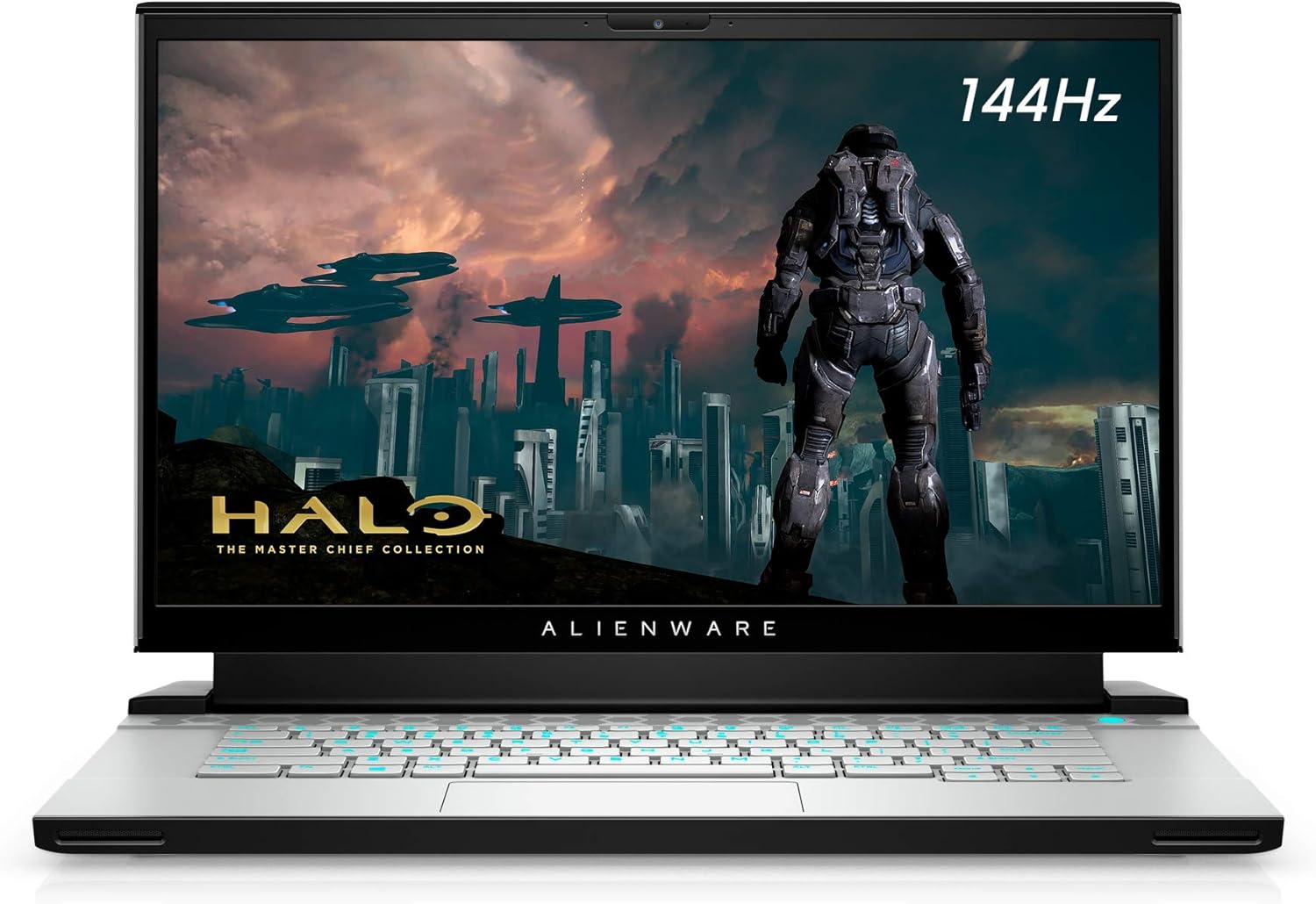
Figure 1: Alienware m15 R4 Gaming Laptop in Lunar Light finish, showcasing its sleek design and illuminated keyboard.
2. What's in the Box
Verify that all the following items are included in your product packaging:
- Alienware m15 R4 Notebook
- Power Adaptor
- Power Cord
- Documentation (Manual)
3. Setup
3.1 Initial Power On
- Connect the Power Adaptor: Plug the power adaptor into the power port on the rear of the laptop. Connect the power cord to the adaptor and then to a wall outlet.
- Open the Display: Carefully lift the display lid.
- Power On: Press the power button, located on the top right of the keyboard deck, to turn on your laptop.
- Initial Setup: Follow the on-screen instructions to complete the Windows 10 Home setup process, including language selection, network connection, and user account creation.

Figure 2: Rear view of the Alienware m15 R4, highlighting the power input, HDMI, Mini-DisplayPort, Thunderbolt 3 (USB-C), and Alienware Graphics Amplifier Port.
3.2 Connecting Peripherals
Your Alienware m15 R4 offers various ports for connecting external devices:
- USB Ports: Connect USB devices such as mice, keyboards, and external storage drives to the USB 3.2 Gen 1 ports (Type-A) located on the sides.
- HDMI/DisplayPort: Use the HDMI 2.1 or Mini-DisplayPort 1.4 to connect external monitors or projectors.
- Audio Jack: Plug in headphones or external speakers into the 3.5mm audio jack.
- Ethernet: For a wired network connection, use the RJ-45 Ethernet port.

Figure 3: Left side view of the Alienware m15 R4, showing the Ethernet port, USB 3.2 Gen 1 Type-A port, and global headset jack.

Figure 4: Right side view of the Alienware m15 R4, showing two USB 3.2 Gen 1 Type-A ports and a microSD card reader.
4. Operating Your Laptop
4.1 Keyboard and Touchpad
The Alienware m15 R4 features a full-size keyboard with per-key RGB AlienFX lighting, customizable through the Alienware Command Center software. The precision touchpad supports multi-touch gestures for intuitive navigation.

Figure 5: Top-down view of the Alienware m15 R4 keyboard, showcasing the customizable RGB backlighting and touchpad.
4.2 Display Settings
Your laptop is equipped with a 15.6-inch Full HD (1920x1080) display with a 144Hz refresh rate for smooth visuals. You can adjust display settings (resolution, refresh rate, brightness) via Windows Display Settings or NVIDIA Control Panel.
Video 1: Official Alienware video demonstrating the 144Hz display of the m15 R4, highlighting smooth motion and visual clarity for gaming.
4.3 Audio Settings
Adjust volume using the function keys (Fn + F2/F3) or through the Windows sound settings. For optimal audio experience, ensure your audio drivers are up to date.
4.4 Power Management
Utilize Windows power plans to optimize performance or battery life. Access these settings via Settings > System > Power & sleep. For advanced power management and performance profiles, use the Alienware Command Center.
4.5 Connectivity
- Wi-Fi: The laptop supports Killer Wi-Fi 6 AX1650i (802.11ax) for high-speed wireless internet. Connect via Windows network settings.
- Bluetooth: Integrated Bluetooth 5.1 allows connection to wireless peripherals like headsets and mice. Enable and manage Bluetooth devices through Windows settings.
- Ethernet: For a stable wired connection, use the Gigabit Ethernet port.
Video 2: A detailed close-up video showcasing various features and ports of the Alienware m15 R4 Gaming Laptop, including connectivity options and design elements.
5. Maintenance
5.1 Cleaning
- Screen: Use a soft, lint-free cloth lightly dampened with water or a screen cleaner. Do not spray liquid directly onto the screen.
- Keyboard and Chassis: Use a soft brush or compressed air to remove dust and debris. Wipe surfaces with a slightly damp, soft cloth. Avoid harsh chemicals.
- Vents: Regularly clear dust from the cooling vents using compressed air to ensure optimal airflow and prevent overheating.
5.2 Software Updates
Keep your operating system, drivers (especially graphics drivers from NVIDIA), and Alienware software (Command Center) updated to ensure optimal performance, security, and compatibility. Check for updates regularly through Windows Update and Dell's official support website.
5.3 Battery Care
- Avoid fully discharging the battery frequently.
- Store the laptop in a cool, dry place if not used for extended periods.
- For prolonged gaming sessions, it is recommended to keep the laptop plugged in to ensure maximum performance and prevent battery drain.
6. Troubleshooting
This section addresses common issues you might encounter with your Alienware m15 R4.
| Problem | Possible Cause | Solution |
|---|---|---|
| Laptop does not power on | No power, faulty power adapter, battery fully discharged | Ensure power adapter is securely connected and outlet is working. Charge battery for at least 30 minutes before attempting to power on. |
| No display on screen | Screen brightness too low, external monitor connected, display driver issue | Increase screen brightness (Fn + F11/F12). Disconnect external monitors. Restart the laptop. Update display drivers. |
| Poor performance or overheating | Dust in vents, outdated drivers, too many background applications | Clean cooling vents. Update graphics and system drivers. Close unnecessary applications. Ensure laptop is on a hard, flat surface for proper airflow. |
| Wi-Fi connection issues | Wi-Fi disabled, driver issues, router problems | Ensure Wi-Fi is enabled in Windows settings. Restart router and laptop. Update Wi-Fi drivers. |
7. Specifications
| Feature | Detail |
|---|---|
| Model Name | Alienware m15 R4 |
| Processor | 10th Generation Intel Core i7-10870H (8-Core, up to 5.0GHz) |
| Graphics | NVIDIA GeForce RTX 3060 6GB GDDR6 |
| Display | 15.6-inch FHD (1920 x 1080) 144Hz 7ms 300-nits |
| RAM | 16GB DDR4 2933MHz |
| Storage | 512GB M.2 PCIe NVMe SSD |
| Operating System | Windows 10 Home |
| Wireless Connectivity | Killer Wi-Fi 6 AX1650i (802.11ax), Bluetooth 5.1 |
| Ports | HDMI 2.1, Mini-DisplayPort 1.4, Thunderbolt 3 (USB-C), 3x USB 3.2 Gen 1 Type-A, RJ-45 Ethernet, Global Headset Jack, Alienware Graphics Amplifier Port, microSD Card Reader |
| Dimensions (L x W x H) | 14.19" x 10.86" x 0.78" (360.3mm x 275.9mm x 19.9mm) |
| Weight | 5.5 pounds (2.5 kg) |
| Battery | 6-cell, 60 Wh Lithium Ion |
8. Warranty and Support
Your Alienware m15 R4 Gaming Laptop comes with a 1 Year Hardware Service with Onsite/In-Home Service After Remote Diagnosis. For detailed warranty terms and conditions, please refer to the warranty documentation included with your product or visit the official Dell/Alienware support website.
For technical support, driver downloads, and further assistance, please visit the Dell Support Website.