
1. Introduction
The Hombli Smart Doorbell 2 is an advanced video doorbell designed to enhance your home security. It features 1080p HD video, a 140-degree wide-angle view, two-way audio communication, motion detection, and infrared night vision. This manual provides detailed instructions for the installation, operation, and maintenance of your Smart Doorbell 2, ensuring optimal performance and security for your home.
Compared to its predecessor, the Smart Doorbell 2 offers a 25% faster response time and nearly double the battery life, along with flexible wired or wireless installation options.
2. Product Overview
Familiarize yourself with the components and features of your Hombli Smart Doorbell 2.

Image 2.1: Hombli Smart Doorbell 2 highlighting key features such as 140° wide-angle 1080p HD camera, motion detection, built-in 5000mAh battery, optional cloud storage, Micro SD slot, two-way audio, infrared night vision, weatherproof IP65 rating, and GDPR compliance.
- Camera Lens: Captures 1080p Full HD video with a 140° wide-angle view.
- Motion Sensor: Detects movement in front of the doorbell.
- Doorbell Button: Illuminates when pressed, sending a notification to your smartphone.
- Microphone: For two-way audio communication.
- Speaker: For two-way audio communication.
- Charging Port: For recharging the internal battery.
- Reset Button: Used for pairing and resetting the device.
- Micro SD Card Slot: Supports local video storage up to 128GB.
3. What's in the Box
Ensure all components are present before proceeding with installation:
- Hombli Smart Doorbell 2
- Mounting Bracket
- Angle Mount (optional, for optimal viewing angle)
- 3M Double-Sided Adhesive Tape
- Mounting Screws and Wall Plugs
- USB Charging Cable
- User Manual (this document)

Image 3.1: The Hombli Smart Doorbell 2 shown alongside its separate mounting bracket, illustrating how the device attaches to its base.
4. Setup and Installation
4.1 Initial Charging
Before installation, fully charge the Hombli Smart Doorbell 2 using the provided USB cable. A full charge ensures the device is ready for immediate use and helps calibrate the battery life indicator.
4.2 App Installation and Pairing
- Download the Hombli app from the App Store (iOS) or Google Play Store (Android).
- Create an account or log in if you already have one.
- In the app, tap the "+" icon to add a new device.
- Select "Smart Doorbell 2" from the list of devices.
- Follow the on-screen instructions to connect the doorbell to your 2.4 GHz Wi-Fi network. Ensure your phone is connected to the same 2.4 GHz network during pairing.

Image 4.1: A smartphone displaying the Hombli app interface, showing options like screenshot, speak, record, playback, cloud storage, and buzzer, positioned next to the Hombli Smart Doorbell 2.
4.3 Mounting the Doorbell
Choose a suitable location for your doorbell, typically at eye level, ensuring a clear view of your entrance. The doorbell can be installed wirelessly or wired to existing doorbell connections.
- Wireless Installation (Battery Powered):
- Clean the mounting surface thoroughly.
- Attach the mounting bracket to the desired location using either the provided 3M double-sided adhesive tape or screws. For a more secure installation, screws are recommended.
- If needed, use the angle mount to adjust the viewing angle for optimal coverage of your entryway.
- Slide the Hombli Smart Doorbell 2 onto the mounted bracket until it clicks into place.
- Wired Installation (Continuous Power):
- Ensure power to your existing doorbell system is turned off at the circuit breaker.
- Remove your old doorbell.
- Connect the existing doorbell wires to the terminals on the Hombli Smart Doorbell 2 mounting bracket.
- Mount the bracket to the wall using screws.
- Slide the Hombli Smart Doorbell 2 onto the mounted bracket.
- Restore power at the circuit breaker.
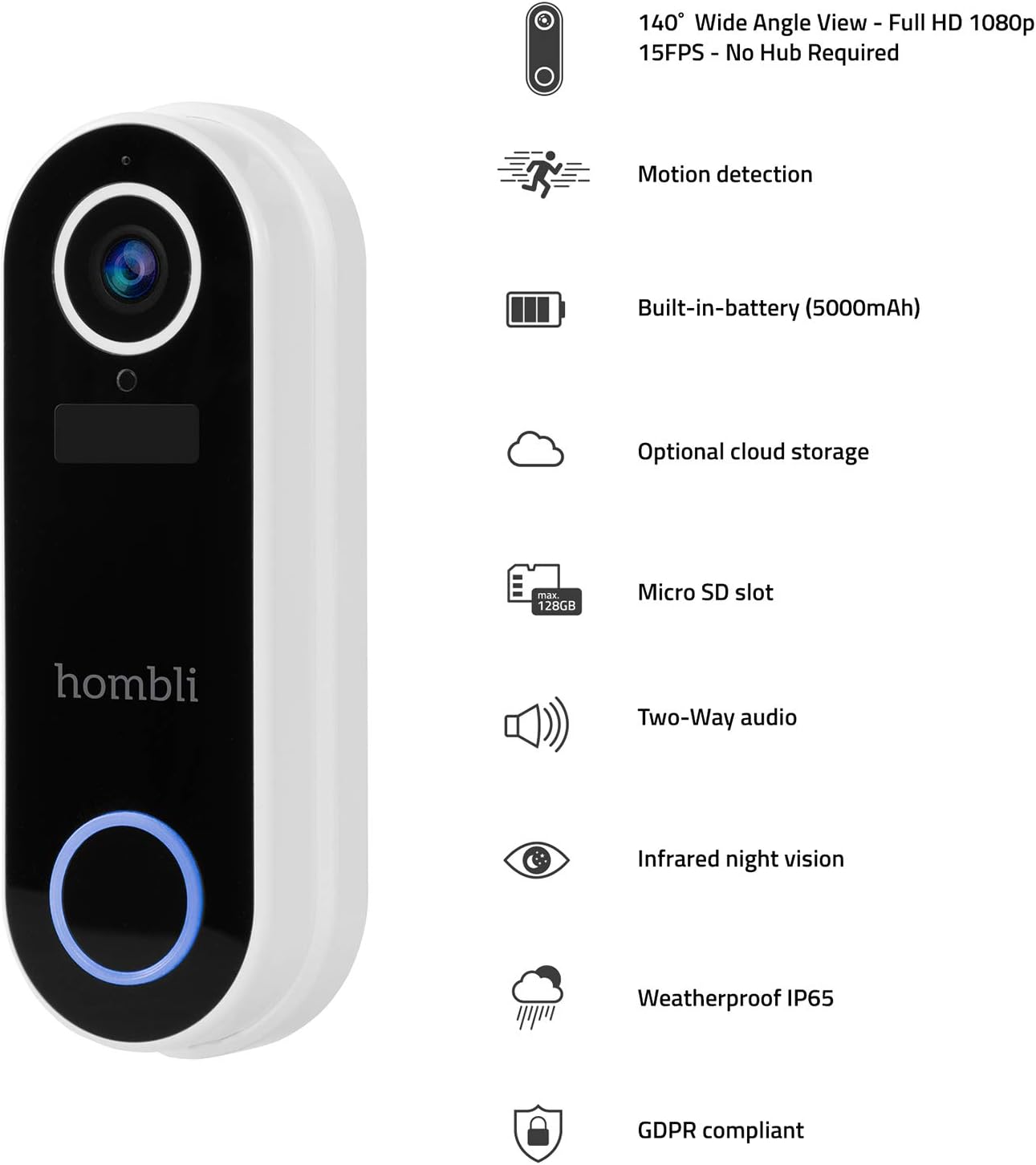
Image 4.2: The Hombli Smart Doorbell 2 is shown mounted on a brick wall, viewed from the side, demonstrating its slim profile and integration with the wall surface.

Image 4.3: The Hombli Smart Doorbell 2 is shown mounted on a brick wall, viewed from the front, highlighting its camera lens and illuminated doorbell button.
5. Operating the Smart Doorbell 2
5.1 Receiving Notifications
When someone presses the doorbell button or motion is detected, you will receive an instant notification on your smartphone via the Hombli app. Tap the notification to view the live feed.
5.2 Two-Way Audio Communication
From the live view in the Hombli app, you can use the microphone and speaker icons to engage in real-time two-way audio communication with visitors at your door, even when you are away from home.
5.3 Live View and Video Recording
Access the 1080p HD live video feed at any time through the Hombli app. You can manually record video or capture screenshots directly from the live view. The doorbell also automatically records events triggered by motion or doorbell presses.
5.4 Motion Detection
The integrated motion sensor detects activity in its field of view. You can adjust the motion detection sensitivity and set specific detection zones within the Hombli app to minimize false alerts.
5.5 Infrared Night Vision
The doorbell automatically switches to infrared night vision in low-light conditions, providing clear black-and-white video footage even in complete darkness.
5.6 Video Storage Options
- Micro SD Card: Insert a Micro SD card (up to 128GB, not included) into the designated slot for local storage of recorded video events.
- Cloud Storage: Optional cloud storage plans are available through the Hombli app for secure, remote access to your video history.
5.7 Battery Life
The built-in 5000mAh rechargeable battery provides 3 to 6 months of operation, depending on usage frequency and environmental factors. The Hombli app will notify you when the battery level is low.
6. Maintenance
6.1 Charging the Battery
When the battery is low, remove the doorbell from its mounting bracket and charge it using the provided USB cable. Connect the cable to the charging port on the doorbell and a standard USB power adapter (not included). The charging indicator will show the charging status.
6.2 Cleaning
Periodically clean the doorbell's camera lens and body with a soft, damp cloth to ensure clear video quality and proper functioning of the sensors. Avoid using harsh chemicals or abrasive materials.

Image 6.1: A close-up view of the Hombli Smart Doorbell 2's camera area, showing water droplets on its surface, demonstrating its IP65 weatherproof rating.
7. Troubleshooting
| Problem | Possible Cause | Solution |
|---|---|---|
| Doorbell not powering on | Low battery; Incorrect wired connection. | Charge the doorbell fully. For wired installation, ensure wires are correctly connected and power is on. |
| Cannot connect to Wi-Fi | Incorrect Wi-Fi password; Not a 2.4 GHz network; Weak Wi-Fi signal. | Verify Wi-Fi password. Ensure you are connecting to a 2.4 GHz network. Move the doorbell closer to your router or use a Wi-Fi extender. Reset the doorbell and try pairing again. |
| Poor video quality | Weak Wi-Fi signal; Dirty camera lens. | Improve Wi-Fi signal strength. Clean the camera lens with a soft cloth. |
| No motion detection alerts | Motion detection disabled; Sensitivity too low; Incorrect detection zone settings. | Enable motion detection in the Hombli app. Adjust sensitivity settings. Configure detection zones to cover the desired area. |
| No notifications on phone | App notifications disabled; Phone's notification settings. | Check notification settings within the Hombli app. Ensure your phone's system settings allow notifications from the Hombli app. |
8. Specifications

Image 8.1: Technical drawing showing the dimensions of the Hombli Smart Doorbell 2: 14.2 cm height, 4.9 cm width (front), and 2.8 cm depth (side).
- Model Number: HBDB-0209
- Manufacturer: Hombli
- Dimensions (L x W x H): 2.6 x 4.6 x 13 cm
- Weight: 420 grams
- Color: White
- Material: Plastic
- Voltage: 5 Volts
- Installation Method: Self-adhesive, Screws
- Included Components: Video doorbell
- Battery: 5000 mAh rechargeable (included)
- Camera Resolution: 1080p HD
- Field of View: 140° Wide Angle
- Night Vision: Infrared
- Connectivity: 2.4 GHz Wi-Fi
- Weather Resistance: IP65
- Storage: Micro SD card slot (up to 128GB), Optional Cloud Storage
9. Warranty and Support
For warranty information, technical support, or further assistance, please refer to the official Hombli website or contact Hombli customer service directly. Details regarding specific warranty periods and support channels can typically be found on the manufacturer's official product page or within the Hombli app.
Please note that information regarding spare parts availability is not provided in this manual. For inquiries about spare parts, please contact Hombli support.

