Introduction
This manual provides detailed instructions for the Binbok Wireless Pro Controller YS10, designed for use with Nintendo Switch and Switch Lite consoles. It covers setup, operation, features, maintenance, and troubleshooting to ensure optimal performance and user experience.

Image: The Binbok Wireless Pro Controller YS10, showcasing its transparent design and illuminated internal components, highlighting its unique aesthetic.
Package Contents
- 1 x Binbok Wireless Pro Controller YS10
- 1 x USB-C Charging Cable
- 1 x User Manual
Controller Layout
The Binbok Wireless Pro Controller YS10 features a standard layout with several enhanced functionalities:
- Left Analog Stick: For movement and navigation.
- D-Pad: Directional input.
- Minus (-) Button: System function.
- Screenshot Button: Capture in-game screenshots.
- Home Button: Return to the Switch Home menu.
- Right Analog Stick: For camera control and aiming.
- A/B/X/Y Buttons: Action buttons.
- Plus (+) Button: System function.
- Turbo Button: Activates/deactivates turbo function.
- LED Indicator Lights: Display player number and charging status.
- Shoulder Buttons (L/R): Top triggers.
- Trigger Buttons (ZL/ZR): Bottom triggers.
- USB-C Port: For charging.
Setup
1. Charging the Controller
Before first use, fully charge the controller. Connect the supplied USB-C cable to the controller's USB-C port and the other end to a USB power source (e.g., Nintendo Switch dock, computer USB port, or a USB wall adapter).
- Charging time: Approximately 2-3 hours.
- Battery life: Approximately 6-8 hours of continuous play.
- The LED indicator lights will show charging status and turn off when fully charged.
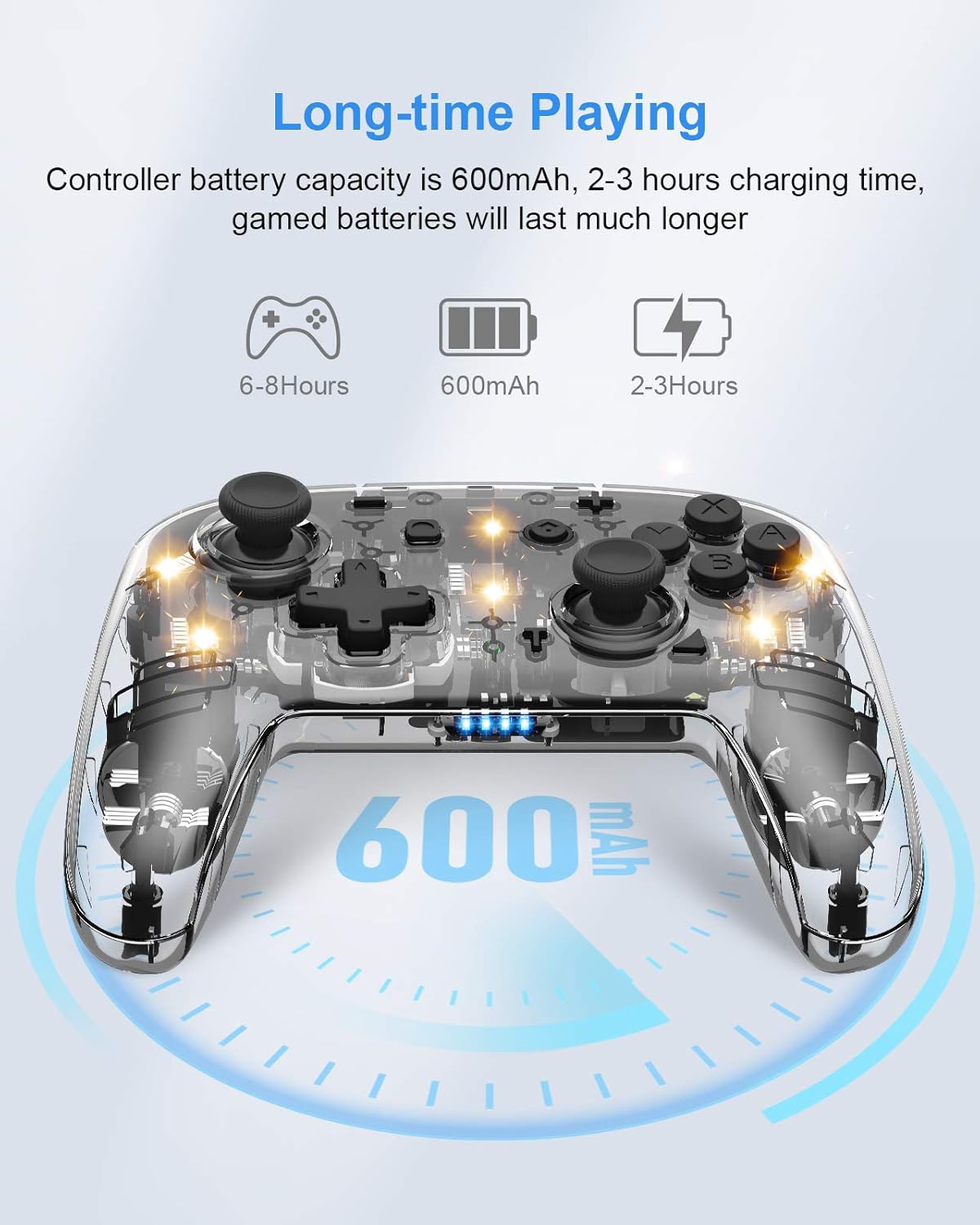
Image: An illustration of the Binbok Wireless Pro Controller YS10 highlighting its 600mAh battery capacity, 2-3 hour charging time, and 6-8 hours of playtime.
2. Wireless Pairing with Nintendo Switch
Follow these steps to pair your Binbok Wireless Pro Controller YS10 with your Nintendo Switch console:
- Ensure your Nintendo Switch console is powered on.
- From the Switch HOME Menu, select "Controllers", then "Change Grip/Order".
- On the controller, press and hold the HOME button for at least two seconds.
- The LED indicator lights on the controller will flash, indicating it is searching for the console.
- Once successfully connected, the LED lights will stop flashing and indicate the corresponding player number (1-4).

Image: The Binbok Wireless Pro Controller YS10 shown alongside Nintendo Switch and Switch Lite consoles, illustrating its compatibility and key features like wireless connection, turbo, dual shock, and 6-axis gyro.
Operating Instructions
1. Turbo Function
The turbo function allows for rapid, repeated input of a button press, useful in action or arcade games.
- Activate Turbo: Press and hold the Turbo button, then press the desired action button (A/B/X/Y, L/R, ZL/ZR). Release both buttons. The action button will now continuously repeat its input when held down.
- Adjust Turbo Speed: With turbo activated, press and hold the Turbo button and move the Right Analog Stick Up or Down to cycle through three turbo speeds (5 shots/sec, 15 shots/sec, 20 shots/sec).
- Deactivate Turbo: Press and hold the Turbo button, then press the action button again. Alternatively, press and hold the Turbo button for 5 seconds to clear all turbo settings.

Image: An illustration of the Binbok Wireless Pro Controller YS10 demonstrating the three adjustable turbo speeds: 5 shots per second, 15 shots per second, and 20 shots per second.
2. Vibration Adjustment
The controller features dual motors with adjustable vibration feedback.
- To adjust vibration intensity, press and hold the Turbo button and move the Left Analog Stick Up or Down to cycle through three vibration levels.

Image: The Binbok Wireless Pro Controller YS10 with visual cues indicating dual motor vibration and three distinct adjustable vibration levels.
3. LED Light Adjustment
The controller features 8 different LED light colors and adjustable intensity.
- Change LED Color: Press and hold the Turbo button and press the Left Analog Stick (L3) to cycle through the 8 available colors.
- Adjust LED Brightness: Press and hold the Turbo button and press the Right Analog Stick (R3) to cycle through 4 brightness levels.

Image: The Binbok Wireless Pro Controller YS10 displaying a spectrum of 8 distinct LED light colors that can be selected by the user.
4. 6-Axis Gyro Sensor
The integrated 6-axis gyroscope chip supports somatosensory controls, enhancing gameplay in motion-sensing games with high precision.
- The gyro sensor allows for intuitive control based on the controller's orientation and movement, such as aiming, steering, or performing in-game actions by tilting the controller.

Image: Illustrations showing the Binbok Wireless Pro Controller YS10 being used with its 6-axis gyro sensor for actions like throwing, rotating, and shifting vision in games.
Maintenance
- Cleaning: Use a soft, dry cloth to clean the controller. Avoid using harsh chemicals or abrasive materials.
- Storage: Store the controller in a cool, dry place away from direct sunlight and extreme temperatures.
- Battery Care: To prolong battery life, avoid fully discharging the controller frequently. Charge it regularly, even if not in use for extended periods.
- Avoid Impact: Do not drop or subject the controller to strong impacts, as this may damage internal components.
Troubleshooting
- Controller not pairing:
- Ensure the controller is charged.
- Verify the Switch is in "Change Grip/Order" mode.
- Try restarting both the Switch console and the controller.
- Ensure no other wireless devices are causing interference.
- Input lag or disconnection:
- Ensure the controller is within range of the Switch console.
- Check for potential wireless interference from other devices.
- Ensure the controller is fully charged.
- Buttons not responding:
- Restart the controller and re-pair it with the Switch.
- Ensure the controller is charged.
- If specific buttons are unresponsive, contact customer support.
- Vibration or Turbo not working:
- Ensure these functions are enabled and adjusted correctly as per the "Operating Instructions" section.
- Some games may not support vibration or turbo features.
Specifications
| Model | YS10 |
| Connectivity | Wireless (Bluetooth), USB-C (for charging) |
| Compatibility | Nintendo Switch, Nintendo Switch Lite |
| Battery Capacity | 600mAh |
| Charging Time | Approx. 2-3 hours |
| Operating Time | Approx. 6-8 hours |
| Special Features | Adjustable Turbo, Dual Vibration Motors, 6-Axis Gyro Sensor, 8-Color LED Lights (adjustable brightness) |
| Dimensions | 17.4 x 12.19 x 7.11 cm (approximate package dimensions) |
| Weight | 331 g (approximate package weight) |
Warranty and Support
For warranty information or technical support, please refer to the contact details provided with your purchase or visit the official Binbok website. Keep your proof of purchase for warranty claims.


