Introduction
Thank you for purchasing the Muvit USB Wireless Keyboard. This slim and compact external keyboard is designed for seamless connectivity with various devices, including laptops, tablets, desktops, PCs, Surface devices, Smart TVs, and systems running Windows 10, 8, or 7. This manual provides detailed instructions for setup, operation, maintenance, and troubleshooting to ensure optimal performance and longevity of your device.
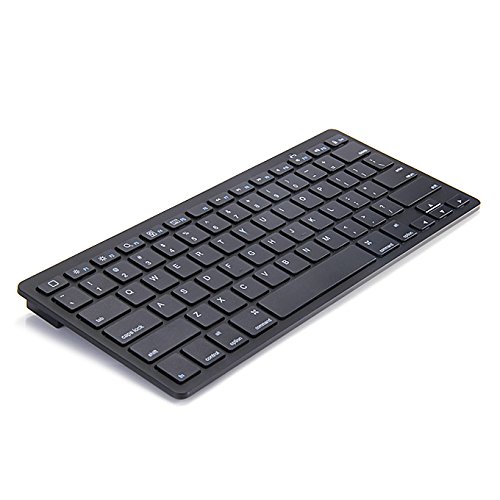
Figure 1: Muvit USB Wireless Keyboard, showcasing its compact design.
Setup Guide
Follow these steps to set up your Muvit USB Wireless Keyboard:
1. Battery Installation
Locate the battery compartment on the underside of the keyboard. Open the compartment cover and insert the required batteries (not included) according to the polarity indicators (+/-). Close the cover securely.

Figure 2: Battery compartment on the underside of the keyboard.
2. Powering On the Keyboard
On the top edge of the keyboard, locate the ON/OFF switch. Slide the switch to the "ON" position. An indicator light may briefly illuminate to confirm the keyboard is powered on.
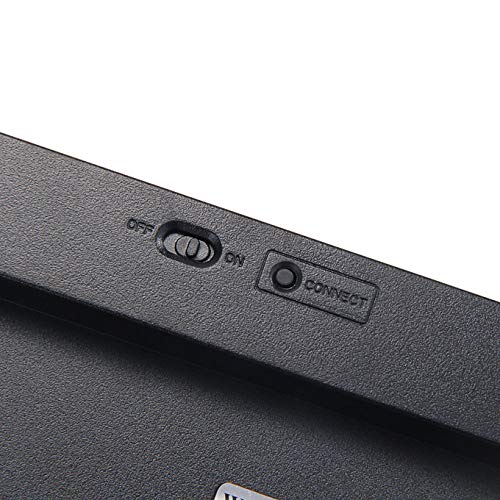
Figure 3: ON/OFF switch and Connect button.
3. Connecting to Your Device
This keyboard uses a USB wireless connection. Insert the USB receiver (typically found within the battery compartment or packaged separately) into an available USB port on your computer, laptop, tablet, or Smart TV. The device should automatically detect and install the necessary drivers. If prompted, press the "CONNECT" button on the keyboard (refer to Figure 3) to establish the connection.
Operating Instructions
Your Muvit USB Wireless Keyboard is designed for intuitive use. Here are some key operational aspects:
Basic Typing
The keyboard features a standard QWERTY layout. Simply begin typing as you would with any conventional keyboard.
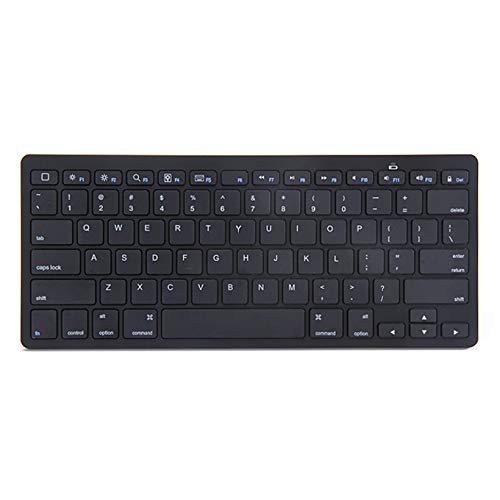
Figure 4: Full keyboard layout.
Function Keys (F1-F12)
Many keys have secondary functions (e.g., media controls, volume, brightness). These are typically accessed by holding down the Fn key (Function key) and pressing the desired F-key. Refer to the keycap legends for specific functions.
Compatibility
The keyboard is designed for wide compatibility with various operating systems and devices that support USB keyboard input. While this image depicts compatibility with mobile devices, please note that the Muvit BK3001 is a USB wireless keyboard, connecting via a USB receiver, primarily for use with computers and smart TVs.

Figure 5: The keyboard is designed for wide compatibility with various operating systems and devices that support USB keyboard input. While this image depicts compatibility with mobile devices, please note that the Muvit BK3001 is a USB wireless keyboard, connecting via a USB receiver, primarily for use with computers and smart TVs.
Ergonomics
The keyboard features an ergonomic design for comfortable typing during extended use.

Figure 6: Side profile illustrating the ergonomic design.
Maintenance
Proper maintenance ensures the longevity and performance of your keyboard:
- Cleaning: Use a soft, dry cloth to wipe the surface of the keyboard. For stubborn dirt or grime between keys, use a can of compressed air to blow out debris. Avoid using harsh chemicals or abrasive cleaners.
- Storage: When not in use for extended periods, store the keyboard in a cool, dry place away from direct sunlight and extreme temperatures.
- Battery Care: If the keyboard will not be used for a long time, remove the batteries to prevent leakage and potential damage to the device.
Troubleshooting
If you encounter issues with your Muvit USB Wireless Keyboard, try the following solutions:
| Problem | Possible Solution |
|---|---|
| Keyboard not responding. |
|
| Keys are sticky or unresponsive. |
|
| Connection is intermittent. |
|
Specifications
Detailed specifications for the Muvit USB Wireless Keyboard (Model: BK3001):
| Feature | Detail |
|---|---|
| Brand | Muvit |
| Model | BK3001 |
| Product Dimensions (LxWxH) | 12 x 8 x 4 cm (4.72 x 3.15 x 1.57 inches) |
| Item Model Number | BK3001 |
| Operating System Compatibility | Windows 10, Windows 8, Windows 7 |
| Hardware Platform | Laptop, Desktop, PC, Tablet, Smart TV, Surface |
| Hardware Interface | USB (via wireless receiver) |
| Special Features | Ergonomic design |
| Batteries Included | No |
| Connector Type | Micro USB (likely for power or internal connection; primary device connection is via USB wireless receiver) |
| Hand Orientation | Ambidextrous |
| Connectivity Technology | Wireless (via USB receiver) |
Warranty and Support
For information regarding product warranty, returns, or technical support, please refer to the documentation provided with your purchase or visit the official Muvit website. Specific warranty terms and support contact details are typically provided by the manufacturer or retailer at the time of purchase.
For general inquiries, you may also refer to the Amazon product page for this item: Muvit USB Wireless Keyboard on Amazon.in


