
FORTINET FS-124F
Contents
Fortinet FortiSwitch 124F Performance L2 Switch User Manual
Model: FS-124F
1. Product Overview
The Fortinet FortiSwitch 124F is a high-performance Layer 2 switch designed for secure access and robust network connectivity. This fanless model features 24 Gigabit Ethernet (GE) ports and 4 SFP+ ports, making it suitable for various network environments requiring quiet operation and efficient data transfer.
Key features include:
- 24 x 10/100/1000Base-T Gigabit Ethernet Ports
- 4 x 10 Gigabit SFP+ Ports for high-speed uplinks
- Fanless design for silent operation
- Layer 2 switching capabilities
- High switching capacity of 128 Gbps (Duplex)
- Packet forwarding rate of 190 Mpps (Duplex)
- Compact 1U rack-mountable metal chassis
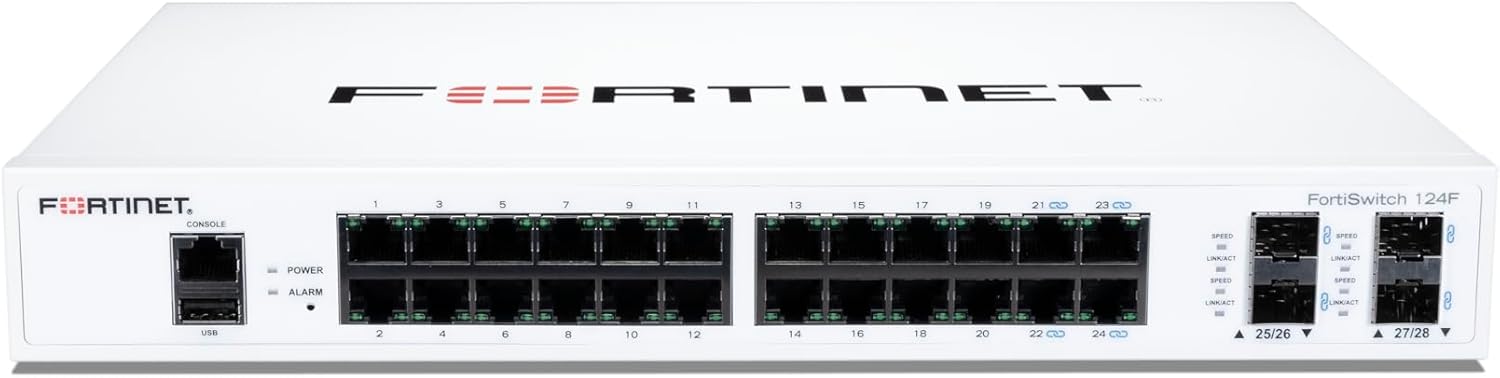
Figure 1: Front view of the Fortinet FortiSwitch 124F, showing 24 GE ports, 4 SFP+ ports, console port, and LED indicators.
2. Setup and Installation
2.1 Unpacking
Carefully unpack the FortiSwitch 124F from its packaging. Verify that all components are present: the FortiSwitch unit, power cord, and rack-mount kit (if included).
2.2 Physical Placement
The FortiSwitch 124F is designed for desktop or rack-mount installation. Ensure the installation location provides:
- Adequate ventilation to prevent overheating.
- Protection from direct sunlight, heat sources, and moisture.
- A stable, level surface for desktop placement or a standard 19-inch rack for rack-mounting.

Figure 2: Angled view of the Fortinet FortiSwitch 124F, illustrating its compact size suitable for various deployments.
2.3 Power Connection
Connect the provided power cord to the AC input port on the rear of the FortiSwitch and then to a grounded electrical outlet. The device supports 100-240V AC, 50/60Hz input.

Figure 3: Front and rear view of the Fortinet FortiSwitch 124F, showing the AC input port on the rear panel.
2.4 Network Connections
Connect Ethernet cables from your network devices (computers, servers, access points) to the RJ-45 GE ports on the front panel. For high-speed uplinks or connections to other network devices, use SFP+ transceivers and fiber optic cables in the SFP+ ports.
2.5 Console Connection (Optional)
For initial configuration or command-line interface (CLI) access, connect a console cable (RJ-45 to DB9 or USB) from your management workstation to the console port on the front panel of the FortiSwitch.
3. Operating the FortiSwitch
3.1 Powering On
Once the power cord is connected, the FortiSwitch will automatically power on. Observe the LED indicators on the front panel.
3.2 LED Indicators
- POWER LED: Indicates the power status of the device.
- ALARM LED: Indicates system alarms or errors.
- LINK/ACT LEDs (per port): Indicates a valid link connection and activity on the port.
- SPEED LEDs (per port): Indicates the connection speed (e.g., 100Mbps, 1Gbps, 10Gbps).
3.3 Management Access
The FortiSwitch can be managed via:
- Command Line Interface (CLI): Accessible via the console port or SSH/Telnet over the network.
- Web-based Manager: A graphical user interface (GUI) accessible via a web browser.
- FortiManager: Centralized management for multiple Fortinet devices.
Refer to the FortiSwitch Administration Guide for detailed configuration instructions.
4. Maintenance
Regular maintenance helps ensure the longevity and optimal performance of your FortiSwitch.
- Cleaning: Keep the device and its vents free from dust and debris. Use a soft, dry cloth for cleaning. Do not use liquid or aerosol cleaners.
- Firmware Updates: Periodically check the Fortinet support website for the latest firmware versions. Keeping the firmware updated ensures access to new features, performance improvements, and security patches.
- Environmental Monitoring: Ensure the operating environment remains within specified temperature and humidity ranges to prevent hardware damage.
5. Troubleshooting
This section provides basic troubleshooting steps for common issues.
5.1 No Power
- Verify the power cord is securely connected to both the FortiSwitch and the electrical outlet.
- Check if the electrical outlet is functional by plugging in another device.
- Ensure the power supply is within the specified voltage range (100-240V AC).
5.2 No Link on Port
- Check the Ethernet or fiber cable connection at both ends. Ensure it is securely plugged in.
- Verify the cable is not damaged. Try a different cable.
- Ensure the connected device is powered on and functioning correctly.
- Check the port configuration on the FortiSwitch and the connected device (e.g., speed, duplex settings).
5.3 Network Connectivity Issues
- Verify IP address, subnet mask, and gateway settings on connected devices.
- Check VLAN configurations if your network uses VLANs.
- Ensure there are no IP address conflicts on the network.
- Consult the FortiSwitch Administration Guide for advanced diagnostics and logging information.
6. Specifications
Detailed technical specifications for the Fortinet FortiSwitch 124F:

Figure 4: Comprehensive specifications table for FortiSwitch models, including the FS-124F.
| Attribute | Value |
|---|---|
| Model | FS-124F |
| Item Weight | 2.95 Kilograms (6.49 pounds) |
| Case Material | Metal |
| Number of Layers | 1 |
| Interface Type | SFP+ |
| Data Transfer Rate | 24 Gigabits Per Second (Total GE ports) |
| Manufacturer | Fortinet |
| UPC | 195875000672 |
| Package Dimensions | 15.75 x 12.28 x 4.09 inches |
| Number of Ports | 24 (GE) + 4 (SFP+) |
| Switch Type | Managed, Fixed, Cut-through, Non-PoE, Layer 2 |
| Switching Capacity (Duplex) | 128 Gbps |
| Packets Per Second (Duplex) | 190 Mpps |
| Memory | 512 MB DDR3 |
| RJ-45 Serial Console Port | 1 |
| VLANs Supported | 4K |
| Network Latency | < 1µs |
7. Warranty and Support
7.1 Warranty Information
Fortinet provides a limited lifetime warranty on all FortiSwitch models. For specific terms and conditions, please refer to the official Fortinet warranty policy available on their website or contact Fortinet support.
7.2 Technical Support
For technical assistance, product documentation, and software downloads, please visit the official Fortinet support portal. You may need to register your product to access full support resources.
- Fortinet Support Website: https://support.fortinet.com
- Documentation: Comprehensive guides and manuals are available online.
Documents and downloads
Ask a question about this manual
Ask about setup, troubleshooting, compatibility, parts, safety, or missing instructions. Manuals+ will review the question and use this page’s manual context to help answer it.