
ITECH IT6952A
ITECH IT6952A Programmable DC Power Supply User Manual
Model: IT6952A | Brand: ITECH
1. Introduction
This user manual provides essential information for the safe and effective operation of your ITECH IT6952A Programmable DC Power Supply. Please read this manual thoroughly before using the device to ensure proper functionality and to prevent damage or injury. The IT6952A is a high-performance, programmable DC power supply designed for laboratory and industrial applications, offering precise control over voltage and current output.
2. Safety Information
Always observe the following safety precautions to prevent electric shock, injury, or damage to the instrument:
- Ensure the power supply is connected to a grounded AC outlet.
- Do not operate the device in wet or damp conditions.
- Do not open the casing; there are no user-serviceable parts inside. Refer all servicing to qualified personnel.
- Verify that the input voltage matches the power supply's rating before connecting to the mains.
- Avoid short-circuiting the output terminals, especially at high power settings.
- Ensure proper ventilation around the unit to prevent overheating.
3. Product Overview
The ITECH IT6952A features a clear VFD display and intuitive controls for easy operation.
3.1 Front Panel Layout

Figure 3.1: Front Panel of IT6952A
The front panel includes the VFD display for voltage and current readings, a rotary knob for precise adjustments, number keys (0-9) and ESC for direct input, function keys (V-SET, I-SET, Save, Recall, Meter, Trigger, Enter, On/Off) for various operations, navigation keys (UP/DOWN/LEFT/RIGHT) for cursor movement, and output terminals for connecting loads. The 'Shift' and 'Local' keys provide additional control options, and the main power switch is integrated.
3.2 Rear Panel Layout
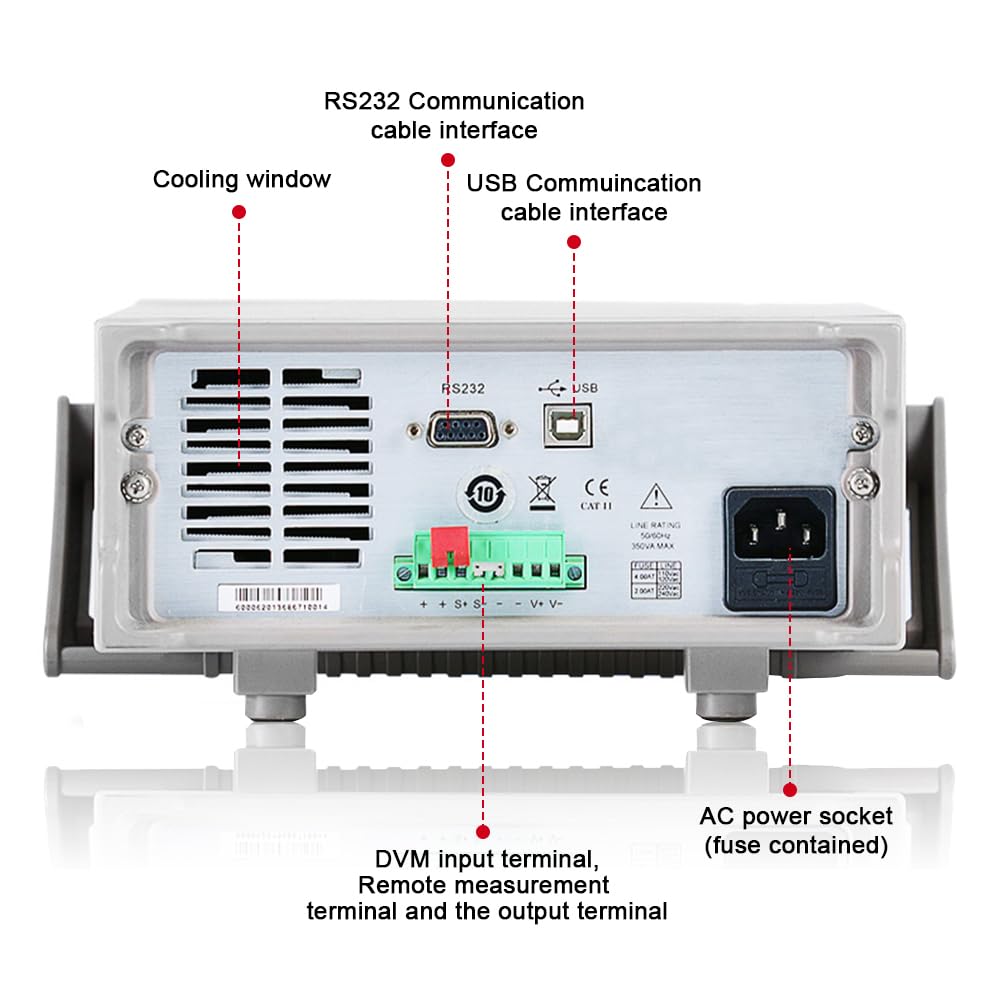
Figure 3.2: Rear Panel of IT6952A
The rear panel features the AC power socket (with integrated fuse), cooling windows for heat dissipation, an RS232 communication cable interface, a USB communication cable interface, and DVM input terminals along with remote measurement terminals and additional output terminals for specific applications.
4. Setup
Follow these steps for initial setup:
- Unpacking: Carefully remove the power supply from its packaging. Inspect for any signs of damage during transit.
- Placement: Place the unit on a stable, level surface with adequate ventilation around all sides. Do not block the cooling vents on the sides and rear.
- Power Connection: Connect the provided AC power cord to the AC power socket on the rear panel of the IT6952A. Plug the other end into a grounded electrical outlet.
- Power On: Press the main power switch on the front panel to turn on the unit. The VFD display should illuminate.
- Output Connection: Connect your load to the output terminals on the front panel using appropriate test leads. Ensure correct polarity (positive to positive, negative to negative).
5. Operating Instructions
This section covers basic operation of the IT6952A.
5.1 Setting Voltage and Current
- Set Voltage: Press the V-SET button. The voltage display will become active. Use the rotary knob to adjust the voltage, or use the number keys for direct input followed by Enter.
- Set Current: Press the I-SET button. The current display will become active. Use the rotary knob to adjust the current limit, or use the number keys for direct input followed by Enter.
- Enable Output: After setting the desired voltage and current, press the On/Off button to enable the output. The output indicator will illuminate.
- Disable Output: To disable the output, press the On/Off button again.
5.2 Using Memory Functions (Save/Recall)
The IT6952A allows you to save and recall frequently used voltage and current settings.
- Save Setting: Set the desired voltage and current. Press the Save button. Use the navigation keys or number keys to select a memory location (e.g., 0-9) and press Enter to store the settings.
- Recall Setting: Press the Recall button. Use the navigation keys or number keys to select the desired memory location and press Enter to load the stored settings.
6. Maintenance
Proper maintenance ensures the longevity and reliability of your power supply.
- Cleaning: Disconnect the power supply from the mains before cleaning. Use a soft, dry cloth to wipe the exterior. For stubborn dirt, a slightly damp cloth with mild detergent can be used, ensuring no liquid enters the unit.
- Ventilation: Regularly check that the cooling vents are free from dust and obstructions. Use compressed air to clear dust if necessary.
- Storage: When not in use for extended periods, store the power supply in a cool, dry, and dust-free environment.
7. Troubleshooting
If you encounter issues with your IT6952A, refer to the following common problems and solutions:
| Problem | Possible Cause | Solution |
|---|---|---|
| No power when switched on | Power cord not connected; Blown fuse; No power from outlet | Check power cord connection; Replace fuse (refer to specifications for type); Test outlet with another device |
| No output voltage/current | Output disabled; Overload protection activated; Incorrect settings | Press On/Off to enable output; Reduce load or increase current limit; Verify voltage/current settings |
| Display shows 'Error' | Internal fault; Over-temperature | Turn off unit, wait 5 minutes, restart; Ensure proper ventilation, allow unit to cool down. If error persists, contact support. |
| Inaccurate readings | Poor connection; Calibration needed | Check all connections; Contact ITECH support for calibration information. |
8. Specifications
Key technical specifications for the ITECH IT6952A Programmable DC Power Supply:
| Specification | Value |
|---|---|
| Brand | ITECH |
| Model | IT6952A |
| Output Voltage | 60 Volts |
| Amperage | 25 Amps |
| Output Wattage | 600 Watts |
| Form Factor | Benchtop |
| Connector Type | USB |
| Material | Metal |
| Color | Red, black |
9. Warranty and Support
ITECH products are designed for reliability and performance. For warranty information, technical support, or service inquiries, please refer to the warranty card included with your product or visit the official ITECH website. Keep your purchase receipt as proof of purchase for warranty claims.
For further assistance, you may contact ITECH customer service through their official channels. Always provide your product model (IT6952A) and serial number when seeking support.
Related documentsIT6952A


Ask a question about this manual
Ask about setup, troubleshooting, compatibility, parts, safety, or missing instructions. Manuals+ will review the question and use this page’s manual context to help answer it.