
Introduction
The Nektar Impact GXP61 is a full-sized, semi-weighted USB MIDI keyboard controller designed for musicians and producers. It features velocity and aftertouch, a real-time repeat engine, Nektar DAW integration, and Nektarine plugin patch management. This manual provides comprehensive instructions for setting up, operating, and maintaining your Impact GXP61 to ensure optimal performance.

Figure 1: Top-down view of the Nektar Impact GXP61 MIDI Keyboard Controller, showcasing its 61 semi-weighted keys and control panel.
Setup
1. Unpacking and Contents
Carefully remove the Impact GXP61 from its packaging. Verify that all included components are present:
- Nektar Impact GXP61 MIDI Keyboard Controller
- USB Cable
- Software Suite download instructions (Cubase LE, Retrologue 2, Nektarine)
2. Connecting the Controller
The Impact GXP61 connects to your computer via a standard USB cable. It is class-compliant, meaning no specific drivers are required for basic operation on Windows, macOS, or Linux (Ubuntu) devices.

Figure 2: Rear panel connections of the Impact GXP61, including Expression Pedal, Foot Switch, MIDI Out, USB, and DC 9V power input.
- Connect one end of the USB cable to the USB port on the Impact GXP61.
- Connect the other end of the USB cable to an available USB port on your computer.
- (Optional) If using external power, connect a compatible DC 9V power adapter (not included) to the DC 9V input.
- (Optional) Connect expression or foot switch pedals to the dedicated inputs.
- (Optional) Connect external MIDI hardware to the MIDI Out port.
3. Software Installation
The Impact GXP61 includes a professional software bundle to enhance your music production experience.
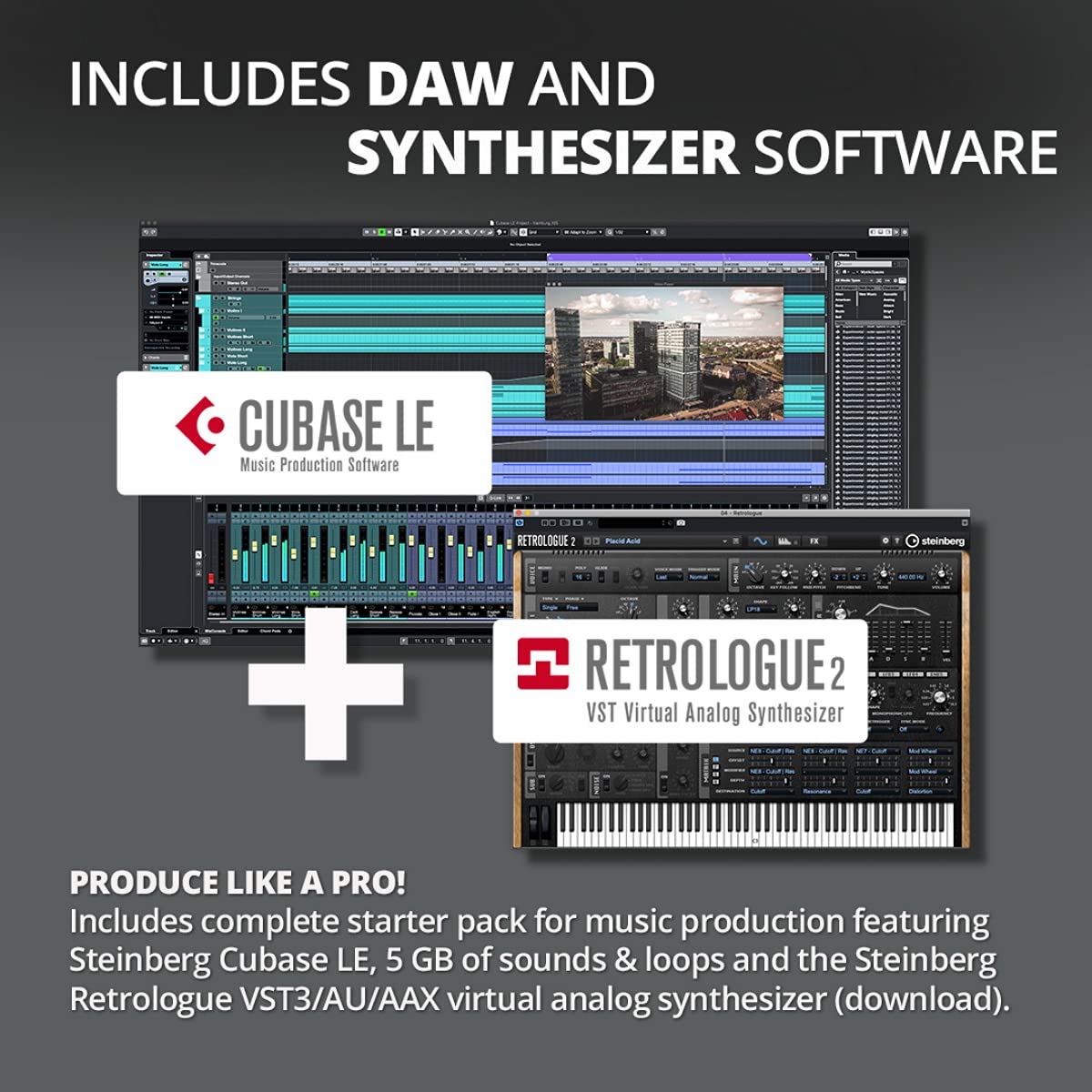
Figure 3: Visual representation of the included Steinberg Cubase LE Music Production Software and Retrologue 2 Virtual Analog Synthesizer.
- Steinberg Cubase LE: A powerful music production software. Follow the instructions provided in the software suite download guide to register and download Cubase LE.
- Retrologue 2: A virtual analog synthesizer. This VST3/AU/AAX plugin integrates with Cubase LE and other compatible DAWs.
- Nektarine: Nektar's plugin host and patch management software. Install Nektarine to load plugins and manage patches directly from your Impact GXP.
Refer to the specific download and installation guides provided with your software suite for detailed instructions.
Operating the Impact GXP61
1. Power On/Off
Once connected via USB, the Impact GXP61 will power on automatically. To power off, simply disconnect the USB cable or use the On/Off switch if an external power supply is connected.
2. Keyboard Features

Figure 4: Detailed view of the semi-weighted keys, repeat engine controls, and DAW control section.
- Semi-Weighted Keys: The 61 full-sized keys provide a responsive and expressive playing experience.
- Velocity: The keyboard is velocity-sensitive, meaning the volume or intensity of a note changes based on how hard you press the key.
- Aftertouch: Apply additional pressure to a key after it has been pressed to control parameters like vibrato or filter cutoff, adding expressive modulation to your performance.
3. Performance Controls

Figure 5: Overview of key features such as the Repeat Engine, MIDI Out, FS+EXP connections, and DAW Control Center.
- Repeat Engine: Engage the real-time repeat engine to create rhythmic patterns and arpeggios. Controls for this feature are located on the top panel.
- Transpose and Octave: Dedicated buttons allow you to quickly transpose the keyboard or shift the octave range up or down.
- Pitch Bend and Modulation Wheels: Use these wheels for expressive control over pitch and other assignable parameters.
- 14 RGB MIDI Buttons: These multi-color buttons can be assigned to various MIDI functions or used for DAW control.
4. Nektar DAW Integration
Nektar's deep DAW integration provides instant remote control of essential DAW features, streamlining your workflow.

Figure 6: Nektar DAW Integration supports a wide range of Digital Audio Workstations including Bitwig, Cubase, Cakewalk, FL Studio, GarageBand, Logic, Nuendo, Reaper, Reason, and Studio One.
- Transport Control: Use dedicated buttons for Play, Stop, Record, Fast Forward, and Rewind.
- Track Navigation: Easily select tracks and navigate through your project.
- Volume Control: Adjust track and master volumes directly from the controller.
- Project Navigation: Open/close DAW windows and navigate projects with ease.
Supported DAWs include Bitwig, Cubase, Cakewalk, DP, FL Studio, GarageBand, Logic, Nuendo, Reaper, Reason, and Studio One. Refer to the Nektar website for specific setup instructions for your DAW.

Figure 7: Examples of advanced transport control, track selection, project navigation, and loading instruments/patches with Nektarine.
5. Nektarine Plugin Host
Nektarine software allows you to load VST/AU/AAX plugins and manage their patches directly from your Impact GXP. This provides a seamless workflow for browsing and selecting sounds without needing to constantly interact with your computer screen.
Maintenance
Proper care will extend the life of your Nektar Impact GXP61.
- Cleaning: Use a soft, dry, lint-free cloth to wipe down the surface of the controller. For stubborn dirt, a slightly damp cloth can be used, but ensure no liquid enters the device. Avoid abrasive cleaners or solvents.
- Storage: Store the controller in a cool, dry place away from direct sunlight, extreme temperatures, and high humidity. If transporting, use a padded case to protect it from physical damage.
- Dust Protection: When not in use, cover the keyboard to prevent dust accumulation, which can affect key action and internal components.
Troubleshooting
| Problem | Possible Cause | Solution |
|---|---|---|
| Controller not recognized by computer/DAW. | USB connection issue, incorrect driver/MIDI settings. |
|
| No sound from the controller. | No virtual instrument loaded, incorrect MIDI routing, volume too low. |
|
| DAW integration features not working. | Incorrect setup in DAW, outdated firmware/software. |
|
Specifications
| Feature | Detail |
|---|---|
| Model Name | Impact GXP61 |
| Number of Keys | 61 full-sized, semi-weighted keys |
| Key Features | Velocity-sensitive, Aftertouch |
| Connectivity | USB (Class Compliant), MIDI Out, 2x Foot Switch (FS), 1x Expression Pedal (EXP) |
| Hardware Interface | USB |
| Compatible Devices | Laptop, Desktop PC |
| Operating System Compatibility | Windows 7/8 or higher, macOS 10.7 or higher, Linux (Ubuntu) |
| Product Dimensions (LxWxH) | 96.52 x 23.01 x 7.19 cm (approx. 37.99 x 9.06 x 2.83 inches) |
| Item Weight | 5 kg (approx. 11 lbs) |
| Included Components | Software Suite (Cubase LE, Retrologue 2, Nektarine) |
| Colour | Black |
Warranty and Support
Warranty Information
The Nektar Impact GXP61 comes with a 1 Year Warranty from the date of purchase. Please retain your proof of purchase for warranty claims. The warranty covers manufacturing defects and malfunctions under normal use. It does not cover damage caused by misuse, accidents, unauthorized modifications, or normal wear and tear.
Customer Support
For technical assistance, troubleshooting, or warranty inquiries, please contact Nektar support or the authorized distributor in your region.
- Manufacturer: Nektar Technology, Inc.
- Importer (India): The Inventory, Old No.102/ New No.145, Luz Church Road, Mylapore, Chennai - 600 004, Tamilnadu, India.
- General/Service Email: info@theinventory.in
- Contact Number: +91-44-42026415
- Nektar Official Website: For product registration, driver downloads, and additional support resources, please visit the official Nektar website.
- Amazon Brand Store: Visit the Nektar Store on Amazon