
Introduction
This manual provides detailed instructions for the Tera Small Laser Barcode Scanner, Model 5200C. This device is designed for efficient scanning of 1D barcodes and offers flexible connectivity options including USB wired, 2.4G wireless, and Bluetooth. It is compact, lightweight, and suitable for various applications requiring reliable barcode data capture.
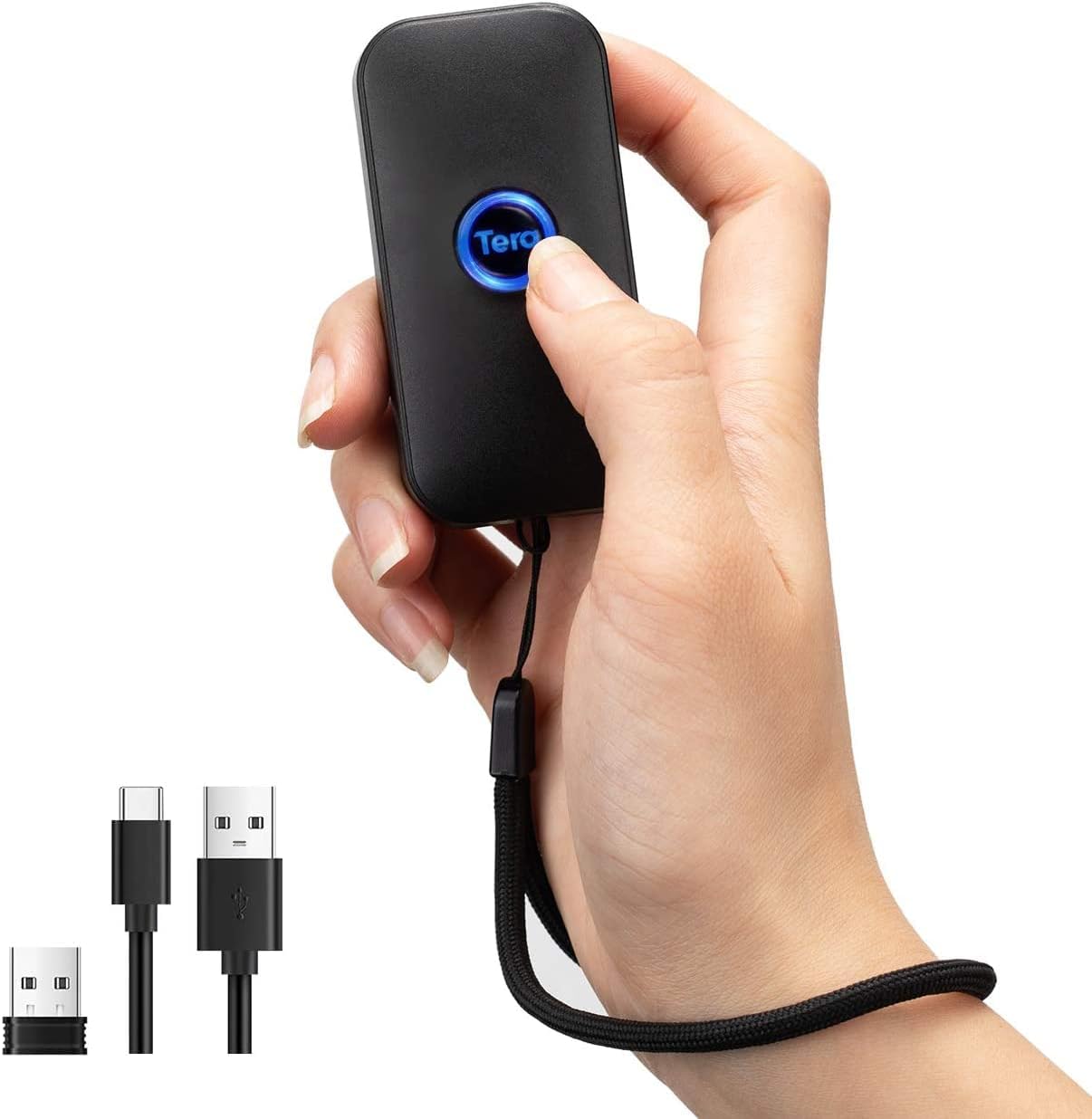
Image: The Tera Small Laser Barcode Scanner, a compact black device with a blue button, held in a hand.
Setup
1. Charging the Scanner
Before initial use, fully charge the scanner. Use the genuine USB cable included in the package. Connect the cable to a 5V/1A power adapter or a computer's USB port. Avoid using fast chargers (e.g., smartphone fast chargers with 5V/4.8A or higher) as this may damage the scanner's internal circuit board.

Image: Diagram illustrating the correct charging voltage (5V/1A) and warning against using high-power USB PD adapters.
2. Connection Methods
The scanner supports three connection modes:
- USB Wired Connection: Connect the scanner directly to your computer via the USB cable. No special drivers are required.
- 2.4G Wireless Connection: Plug the 2.4G USB dongle into your computer. The scanner will automatically connect.
- Bluetooth Connection: Pair the scanner with your device via Bluetooth. Refer to your device's Bluetooth settings for pairing instructions.
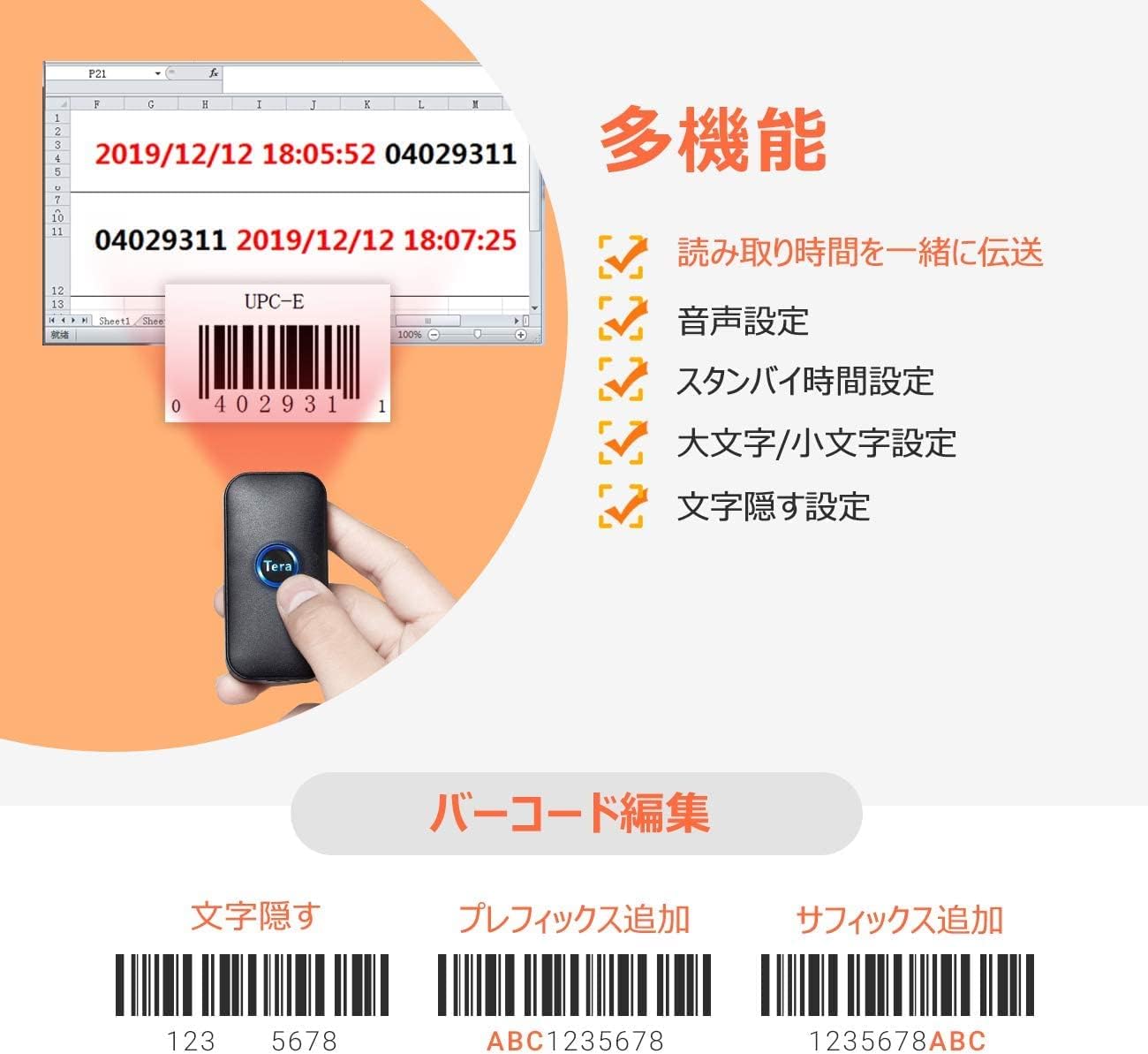
Image: Visual representation of the three connection methods: Bluetooth (BT) with a smartphone, 2.4GHz wireless with a laptop via a dongle, and USB wired with a laptop.
3. Device Compatibility
The scanner is compatible with a variety of operating systems, including:
- Windows XP, Win7, Win8, Win10, Win11
- Android
- iOS
- macOS
- Linux

Image: Icons representing compatibility with Windows, iOS, macOS, Android, and Linux operating systems, along with examples of devices connected via Bluetooth, USB, and 2.4GHz.
Operating Instructions
1. Scanning Barcodes
Point the scanner's laser beam at the 1D barcode you wish to scan. A successful scan will be indicated by a subtle vibration (if enabled) or an audible beep and LED flash. This scanner is a laser type and supports only 1D barcodes; it does not read 2D codes or QR codes.

Image: A hand holding the Tera barcode scanner, aiming its laser at a barcode on a product label.
2. Vibration Mode
For quiet environments, the scanner features a vibration mode. When activated, the scanner will vibrate slightly upon a successful scan, providing tactile feedback without disruptive sound. The buzzer can also be disabled.

Image: A hand holding the scanner, with wavy lines indicating vibration, and text highlighting the vibration setting for quiet environments.
3. Data Transmission Modes
The scanner offers two data transmission modes:
- Instant Upload Mode: Scanned data is immediately transmitted to the connected device.
- Storage Mode: Scanned data is stored in the scanner's memory and can be uploaded in bulk to the PC later.

Image: Illustration showing two data upload methods: Data Storage Mode (uploading multiple scanned barcodes from memory to PC) and Instant Transmission Mode (sending scanned codes directly to the receiving terminal).
4. Barcode Editing Features
You can customize scanned data by adding prefixes or suffixes, or by hiding specific characters. This functionality allows for flexible data integration with various systems.

Image: Display of various functions including adding scan time, sound settings, standby time settings, case sensitivity, and character hiding. Below, examples of barcode editing are shown: hiding characters, adding prefixes (ABC1235678), and adding suffixes (1235678ABC).
5. Supported Barcode Types
The scanner supports a wide range of 1D barcode symbologies, including but not limited to:
- JAN/EAN-13, JAN/EAN-8
- UPC-A, UPC-E
- Code11, Code32, Code39, Code 39 Full ASCII, Code93, Code128
- Codabar (NW-7)
- Interleaved 2 of 5, Matrix 2 of 5, Industrial 2 of 5, Standard 2 of 5
- PLESSEY, MSI, ITF14
- ISBN, ISSN, ISBT-128
Note: This product does not support QR codes or 2D barcodes.
6. Multi-Language Keyboard Support
The scanner supports various keyboard layouts, including English, Spanish, German, Japanese, French, and Italian, ensuring compatibility with different regional systems.

Image: Icons of flags representing supported keyboard languages: English, Spanish, German, Japanese, French, and Italian.
Maintenance
To ensure optimal performance and longevity of your barcode scanner, follow these maintenance guidelines:
- Cleaning: Regularly wipe the scanner's exterior with a soft, dry cloth. For the scanning window, use a lint-free cloth and a mild cleaning solution if necessary. Avoid abrasive cleaners or solvents.
- Storage: Store the scanner in a cool, dry place away from direct sunlight, extreme temperatures, and high humidity.
- Handling: Avoid dropping the scanner or subjecting it to strong impacts.
- Battery Care: Do not overcharge or completely drain the battery frequently. If storing for an extended period, charge the battery to about 50% capacity.
Troubleshooting
| Problem | Possible Cause | Solution |
|---|---|---|
| Scanner does not turn on. | Low battery. | Charge the scanner fully using the provided USB cable and a 5V/1A power source. |
| Cannot scan barcodes. | Barcode is 2D/QR code; Barcode is damaged or poorly printed; Scanner is not properly aimed. | Ensure the barcode is a 1D type. Check barcode quality. Aim the laser directly across the entire barcode. |
| No data transmission to device. | Connection issue (USB, 2.4G, Bluetooth); Incorrect data upload mode. | Verify USB cable connection, 2.4G dongle insertion, or Bluetooth pairing. Ensure the scanner is in the correct data upload mode (Instant or Storage). |
| Bluetooth connection is unstable. | Interference; Out of range; Low battery. | Move closer to the host device. Ensure no strong interference sources are nearby. Recharge the scanner. |
| Scanner does not vibrate. | Vibration mode is disabled. | Refer to the manual's configuration section to enable vibration mode. |
Specifications
| Feature | Detail |
|---|---|
| Model Number | 5200C |
| Manufacturer Model Number | EVHK0039-3_JP |
| Brand | Tera |
| Product Dimensions (D x W x H) | 80mm x 40mm x 10mm (3.14 x 1.57 x 0.39 inches) |
| Product Weight | 107 grams |
| Power Source | Battery Powered |
| Operating Voltage | 5 Volts |
| Connectivity Technology | USB Wired / 2.4G Wireless / Bluetooth |
| Compatible Devices | Smartphones, Tablets, Desktops, Laptops |
| Viewing Angle | 30 degrees |
| Upper Storage Temperature | 60 degrees Celsius |
| Included Components | 1 (Scanner unit) |
Image: The compact dimensions of the scanner (8cm length, 4cm width, 1cm height) are shown, emphasizing its portability and ease of carrying in a pocket or on a lanyard.
Warranty
This product comes with a 1-year manufacturer's warranty. Please retain your proof of purchase for warranty claims.
Support
If you encounter any issues or have questions regarding the Tera Small Laser Barcode Scanner Model 5200C that are not covered in this manual, please contact Tera customer support. You can typically find contact information on the manufacturer's website or through your retailer.


