
1. Introduction
This manual provides detailed instructions for the setup, operation, and maintenance of your winees M1 Mini Indoor Security Camera. Designed for indoor use, this Wi-Fi smart home IP camera offers 1080P HD video, motion detection, two-way audio, night vision, and compatibility with Alexa, making it suitable for monitoring babies, pets, or general home security.
2. Product Overview
2.1 Key Features
- 1080P HD Resolution: Provides clear video for monitoring.
- Motion Detection: Automatically detects human and pet motion, sending 15-second video alerts to your phone.
- Two-Way Audio: Built-in microphone and speaker for communication.
- Night Vision: Infrared night vision for clear monitoring in low-light conditions.
- Multiple Installation Methods: Table stand, wall mount (screw or 3M adhesive tape), and magnetic design for flexible placement.
- Dual Storage Options: Supports secure cloud service (3-month free trial) or local Micro SD card storage (up to 64GB, not included).
- Alexa Compatibility: Integrates with Amazon Alexa for voice control and live view on compatible devices.
- Wi-Fi Connectivity: Supports 2.4 GHz Wi-Fi networks only.
2.2 Package Contents
The package includes the winees M1 Mini camera unit, a desktop stand with magnetic mount, a micro USB power cable, an AC/DC power adapter, mounting screws, and a user guide.
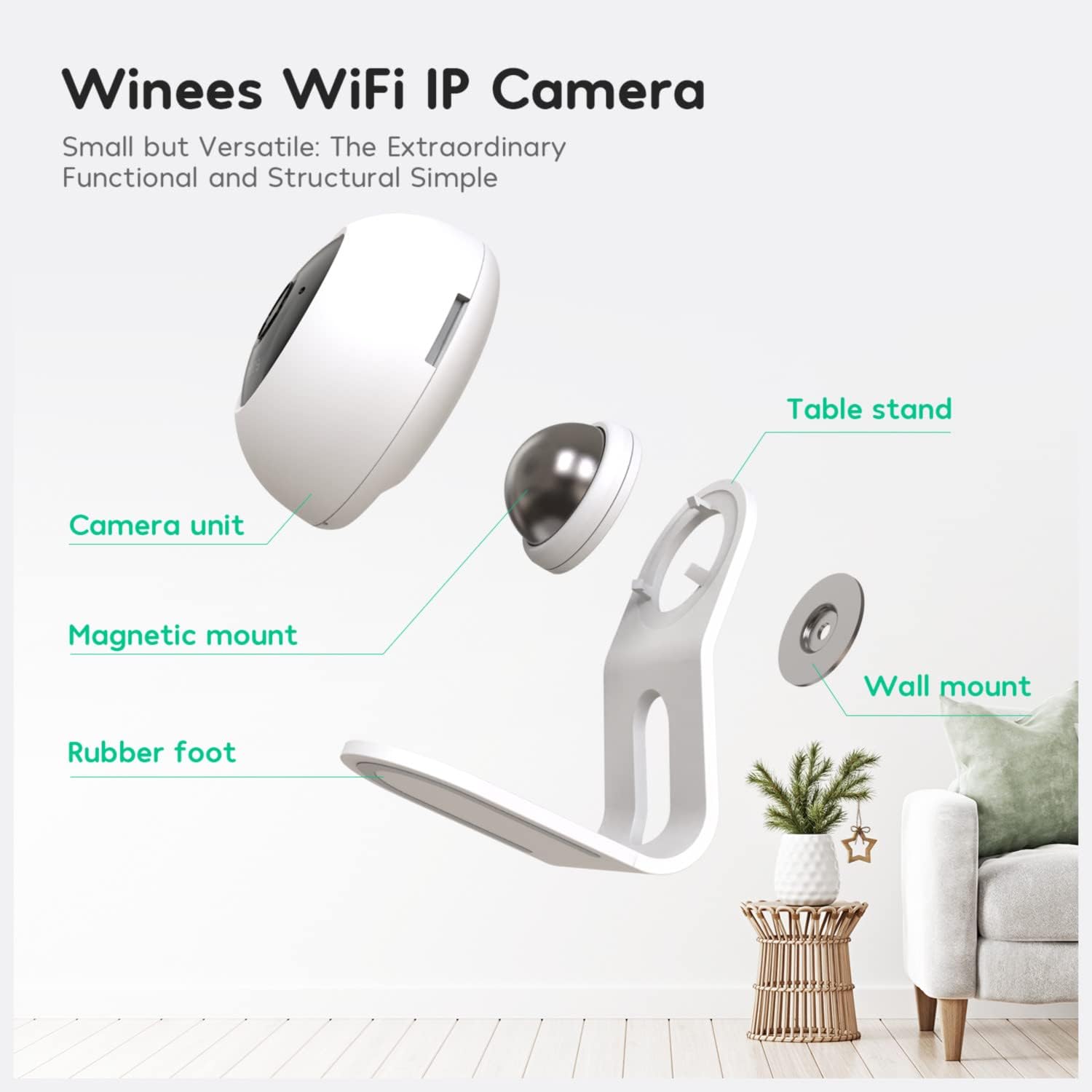
Figure 1: Exploded view of the winees M1 Mini camera components.
The image above shows the individual components: the camera unit, magnetic mount, table stand, rubber foot, and wall mount. The magnetic mount allows for easy attachment and adjustment of the camera to the stand or a wall mount.
3. Setup
3.1 Physical Installation
The winees M1 Mini camera offers versatile installation options:
- Table Stand: Place the camera on any flat surface using the included stand. The magnetic connection allows for easy angle adjustment.
- Wall Mount: The camera can be mounted to a wall using either the provided screws or 3M adhesive tape. The magnetic base attaches to a small metal plate secured to the wall.

Figure 2: Various installation methods for the camera.
The diagram illustrates how the camera can be adapted to different surfaces like metal, glass, wood, and walls, or simply placed on a table. The magnetic design provides flexibility in positioning the camera to monitor the desired area.
3.2 App Download and Account Creation
- Download the "Linkind" or "AiDot" app from your smartphone's App Store.
- Create a new account and sign in.
3.3 Wi-Fi Connection
- Plug in the camera using the micro USB power cable and AC/DC adapter.
- Wait for the green light on the camera to start flashing.
- In the app, press the '+' button to add a new device. Select "Winees Cam mini" or "IPC" under the Surveillance category.
- Follow the on-screen prompts to connect the camera to your 2.4 GHz Wi-Fi network. (5GHz Wi-Fi is not supported).
- Ensure your network upload speed is greater than 1 Mbps for fluent video streaming.
Video 1: Official guide on the steps for installation and connecting the winees M1 Mini camera.
This video demonstrates the process of physically installing the camera, connecting the power supply, inserting an SD card, and setting up the camera through the AiDot/Linkind app, including Wi-Fi connection steps.
4. Operating the Camera
4.1 Live View
Once connected, you can access the live 1080P HD video feed from your camera through the app. This allows you to monitor your space in real-time.
4.2 Motion Detection
The camera features human and pet motion detection. When motion is detected, the camera automatically records a 15-second video clip and sends a notification to your smartphone.

Figure 3: Motion detection alerts on a smartphone.
The image illustrates how motion detection alerts appear on your phone, showing a notification from the AiDot app when a person or pet is detected.
4.3 Two-Way Audio
Utilize the built-in microphone and speaker for two-way communication. You can speak through the camera to interact with family members or pets, or issue a warning if needed.

Figure 4: Demonstrating instant two-way audio feature.
This image shows a user interacting with the camera via their smartphone, highlighting the instant two-way audio capability with a built-in anti-noise microphone and speaker.
4.4 Night Vision
The camera is equipped with infrared night vision, allowing it to capture clear images and videos in completely dark environments. The night vision feature activates automatically in low light conditions.

Figure 5: Night vision capability in a living room setting.
The image demonstrates the camera's night vision, showing a clear black and white view of a living room in darkness compared to a daytime view.
4.5 Storage Options
You have two options for storing your video recordings:
- Micro SD Card: The camera supports Micro SD cards up to 64GB (card not included). You can set it for full-time continuous recording or event-based recording.
- Cloud Service: A secure cloud service is available, offering a 3-month free trial.
4.6 Alexa Integration
The winees M1 Mini camera is compatible with Amazon Alexa. To enable this feature:
- Open the Alexa app.
- Enable the "Linkind" skill.
- Link your AiDot account with Alexa.
- You can then use voice commands like "Alexa, show me the [camera name]" to view the live feed on compatible Alexa devices (e.g., Echo Show).
Video 2: Official demonstration of the winees M1 Mini camera's features and Alexa integration.
This video highlights the camera's features, including motion detection, two-way audio, and night vision, and demonstrates how to connect it with Amazon Alexa for convenient voice control and live viewing.
5. Maintenance
5.1 Resetting the Camera
If you need to reset the camera to its factory settings, or if you cannot reset it from the app's settings page:
- Ensure the power cable is plugged in.
- Locate the reset button (a small pinhole) on the back of the camera.
- Use a reset pin (or a straightened paperclip) to press and hold the reset button for 5 seconds.
- The camera will play a voice prompt: "Restoring factory settings".
5.2 Cleaning
Unplug the power cord before cleaning. Do not clean the camera with any liquids, spray cleaner, or wet cloth. Use a dry, soft cloth to gently wipe the camera's exterior.
6. Troubleshooting
- Camera fails to connect to Wi-Fi: Ensure your wireless router has internet access and the Wi-Fi signal is strong at the camera's location. The camera only supports 2.4 GHz Wi-Fi. If the LED is not flashing green, try resetting the camera.
- Micro SD card not detected: Ensure the Micro SD card is correctly inserted and formatted in FAT32.
- Limited event recording: Event recordings are typically 15 seconds long. For continuous recording, activate the "Continuous Video Recording" option in the app settings.
- Power failure beep: If there is a power failure, the camera will generate a loud beep once it reboots. This is normal operation.
- Motion detection not working: Ensure motion detection is manually activated in the app settings.
7. Specifications
| Feature | Specification |
|---|---|
| Model | M1 mini |
| Video Capture Resolution | 1080p |
| Connectivity Technology | Wireless (Wi-Fi) |
| Connectivity Protocol | Wi-Fi (2.4GHz only) |
| Special Features | Motion Sensor, Night Vision, 2-Way Audio |
| Compatible Devices | Alexa |
| Storage | Micro SD card (up to 64GB), Cloud Service |
| Power Source | AC/DC (5 watts) |
| Mounting Type | Surface Mount, Wall Mount, Stick up (Magnetic) |
| Indoor/Outdoor Usage | Indoor |
| Item Weight | 9.1 ounces |
| Package Dimensions | 7.24 x 5.83 x 3.27 inches |
| UPC | 850028625040 |
8. Safety Information
Please observe the following precautions for safe use of your winees M1 Mini camera:
- Use only the provided adapter to prevent product damage.
- Keep out of reach of children. This product contains small magnets and other small parts, which can cause choking or injury if ingested.
- Do not install in wet locations, outdoors, close to heat sources, or near metal objects and mirrors that may cause radio signal interference.
- Do not disassemble or reinstall the camera, as this may cause security risks.
- Unplug the power cord before cleaning. Do not clean with liquids, spray cleaner, or wet cloth.
- The slot and opening are for ventilation and must not be blocked or covered.
9. Warranty and Support
For any questions or support regarding your winees M1 Mini Indoor Security Camera, please contact the manufacturer directly. Refer to the product packaging or the official winees website for contact information.


