Introduction
This manual provides detailed instructions for the installation, operation, and maintenance of your Wyze Bulb Color. This smart LED bulb offers 16 million colors, tunable white light, and smart control features, enhancing your home lighting experience.
Safety Information
- Ensure power is off before installation or removal.
- Do not use with dimmers unless specified by the manufacturer.
- Suitable for indoor use only.
- Avoid exposure to water or excessive moisture.
- Do not disassemble the bulb.
What's Included
- Wyze Bulb Color (2-Pack)

Image: Two Wyze Bulb Color smart bulbs, showing their colorful glow and white base with the 'WYZE COLOR' logo.
Specifications
| Feature | Detail |
|---|---|
| Brand | WYZE |
| Light Type | LED |
| Special Feature | Color Changing, Dimmable |
| Wattage | 12 watts |
| Bulb Shape Size | A19 |
| Bulb Base | E26 |
| Incandescent Equivalent | 75 Watts |
| Voltage | 120 Volts |
| Color Temperature | Tunable White (2700K-6500K) |
| Brightness | 1100 Lumen |
| Color Rendering Index (CRI) | 90+ |
| Average Life | 25000 Hours |
| Control Method | Voice (Alexa, Google Assistant), Wyze App |
| Connectivity | WiFi (2.4GHz), Bluetooth |
Setup Instructions
- Install the Bulb: Screw the Wyze Bulb Color into any standard E26 light fixture. Ensure the fixture is powered on.
- Download the Wyze App: Download the latest Wyze app from your device's app store (Google Play Store for Android or Apple App Store for iOS).
- Create/Log In to Wyze Account: Open the app and create a new account or log in to your existing one.
- Add Device: In the Wyze app, tap the "+" icon in the upper left corner, then select "Add Device". Choose "Power & Lighting" and then "Wyze Bulb Color".
- Pair the Bulb: The app will guide you through the pairing process. If the bulb is not pulsing, turn the light fixture on and off three times to enter pairing mode.
- Connect to Wi-Fi: Select your 2.4GHz Wi-Fi network and enter the password. (Note: Wyze Bulbs operate on 2.4GHz Wi-Fi networks).
- Name Your Bulb: Once connected, you can name your bulb for easy identification and voice control.
Video: Demonstrates the quick and easy setup process of the Wyze Bulb Color using the Wyze app, including screwing in the bulb, connecting to Wi-Fi, and naming the device.
Operating Instructions
Using the Wyze App:
- Color Control: Select your bulb in the app. Use the color wheel to choose from 16 million colors.
- Brightness Adjustment: Adjust the brightness slider to your desired level (from 30 lumens to 1100 lumens).
- White Light Temperature: Switch to the "Temperature" tab to select various shades of white light, from cool white (6500K) for focus to soft white (2700K) for relaxation.
- Scenes and Routines: Create custom scenes for different moods or activities. Set schedules and automations for the bulb to turn on/off or change color at specific times or based on other Wyze device triggers.
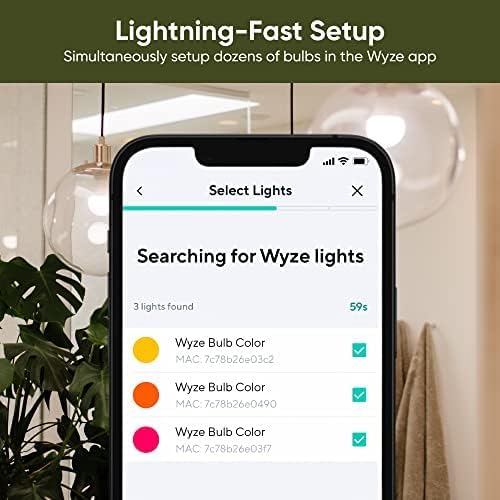
Image: The Wyze app displaying the color selection wheel, allowing users to choose from a wide spectrum of colors for their smart bulb.
Voice Control (Alexa/Google Assistant):
- Connect to Voice Assistant: Link your Wyze account to your Amazon Alexa or Google Assistant app.
- Commands: Use voice commands such as "Alexa, turn [bulb name] blue," "Hey Google, dim [bulb name] to 50%," or "Alexa, set [bulb name] to warm white."

Image: A person interacting with a smart speaker to control the Wyze Bulb Color, demonstrating convenient voice activation.
Key Features
- Adjustable Brightness: Offers a wide range of brightness from 30 lumens (2W equivalent) to 1100 lumens (75W equivalent).
- 16 Million Colors: Customize your lighting with a full spectrum of colors for any mood or occasion.
- Tunable White Light: Adjust white light temperature from cool to warm to suit your activity or preference.
- High CRI Rating (90+): Experience true and vibrant colors in your environment.
- Smart Notifications: Create time-based color events or automate visual notifications using other Wyze devices.
- Easy Setup: Quick and straightforward setup process via the Wyze app, no hub required.

Image: A dining table illuminated with a warm red light from the Wyze Bulb Color, demonstrating its ability to set a specific mood.

Image: A home office setup brightly illuminated by the Wyze Bulb Color, highlighting its 1100 lumen output for clear visibility.
Maintenance
- Cleaning: Ensure the bulb is off and cool before cleaning. Wipe with a soft, dry cloth. Do not use liquid cleaners.
- Firmware Updates: Regularly check the Wyze app for firmware updates to ensure optimal performance and access to new features.
- Storage: If storing the bulb for an extended period, keep it in a cool, dry place away from direct sunlight.
Troubleshooting
- Bulb Not Connecting: Ensure your Wi-Fi network is 2.4GHz. Try turning the light fixture off and on three times to re-enter pairing mode. Move the bulb closer to your Wi-Fi router if possible.
- Voice Control Issues: Verify that your Wyze account is correctly linked to your Alexa or Google Assistant app. Check your internet connection.
- Inconsistent Performance: Check for and install any available firmware updates in the Wyze app. Ensure your Wi-Fi signal is strong and stable.
- Bulb Not Turning On: Check the light fixture and ensure it is receiving power. Test the bulb in another working fixture.
Warranty Information
The Wyze Bulb Color comes with a 1-year manufacturer's warranty. Please refer to the official Wyze website for full warranty terms and conditions.
Support
For further assistance, visit the official WYZE Store or contact Wyze customer support through their website.


