
1. Introduction
This manual provides detailed instructions for the setup, operation, and maintenance of your Macally Bluetooth Wireless Keyboard and Mouse Combo. This combo is designed for compatibility with Apple devices and other Bluetooth-enabled systems, offering a versatile and efficient input solution.
2. Package Contents
Please check the package for the following items:
- Macally Bluetooth Wireless Keyboard
- Macally Bluetooth Wireless Mouse
- USB Charging Cable (for keyboard and mouse)
- User Manual (this document)

Image: The Macally Bluetooth Wireless Keyboard, showcasing its full layout with function keys and numeric keypad.
3. Setup Instructions
3.1. Charging the Devices
Before initial use, ensure both the keyboard and mouse are fully charged. Connect the provided USB charging cable to the charging port on each device and to a USB power source (e.g., computer USB port, USB wall adapter). The LED indicator will show charging status and turn off or change color when fully charged.
3.2. Connecting the Keyboard via Bluetooth
- Power On: Locate the power switch on the keyboard (usually on the side or back) and slide it to the "ON" position.
- Enter Pairing Mode: Press and hold one of the Bluetooth channel keys (B1, B2, or B3, typically located near the top left of the keyboard) for 3-5 seconds until its LED indicator starts blinking rapidly. This indicates the keyboard is in pairing mode.
- Enable Bluetooth on Your Device: On your Mac, iPad, iPhone, or other compatible device, go to System Settings/Preferences > Bluetooth and ensure Bluetooth is turned on.
- Select Keyboard: In the list of available Bluetooth devices, select "Macally Keyboard" (or similar name).
- Confirm Pairing: If prompted, enter the displayed code on the keyboard and press Enter, or confirm the connection on your device. The LED indicator on the keyboard will stop blinking and remain solid for a few seconds, then turn off, indicating a successful connection.

Image: The Macally keyboard connected to three different devices (smartphone, desktop, laptop) via Bluetooth channels 1, 2, and 3, illustrating its multi-device switching capability.
3.3. Connecting the Mouse via Bluetooth
- Power On: Locate the power switch on the mouse (usually on the bottom) and slide it to the "ON" position.
- Enter Pairing Mode: Press and hold the Bluetooth pairing button on the bottom of the mouse for 3-5 seconds until the LED indicator on the mouse starts blinking rapidly.
- Enable Bluetooth on Your Device: On your Mac, iPad, iPhone, or other compatible device, go to System Settings/Preferences > Bluetooth and ensure Bluetooth is turned on.
- Select Mouse: In the list of available Bluetooth devices, select "Macally Mouse" (or similar name).
- Confirm Pairing: The LED indicator on the mouse will stop blinking and remain solid for a few seconds, then turn off, indicating a successful connection.

Image: The Macally Bluetooth Wireless Mouse on a desk next to a laptop and smartphone, illustrating its stable Bluetooth connectivity.
4. Operating Instructions
4.1. Keyboard Features
- Full-Size Layout: The keyboard features a 110-key layout including a numeric keypad for efficient data entry.
- macOS Shortcut Keys: Dedicated shortcut keys provide one-touch control for various macOS functions such as brightness, volume, media playback, and Mission Control.
- Quiet Scissor-Switch Keys: Designed for a responsive touch and quiet typing experience.
- Multi-Device Switching: Easily switch between up to three paired Bluetooth devices using the B1, B2, and B3 keys. Simply press the desired channel key to connect to the corresponding device.
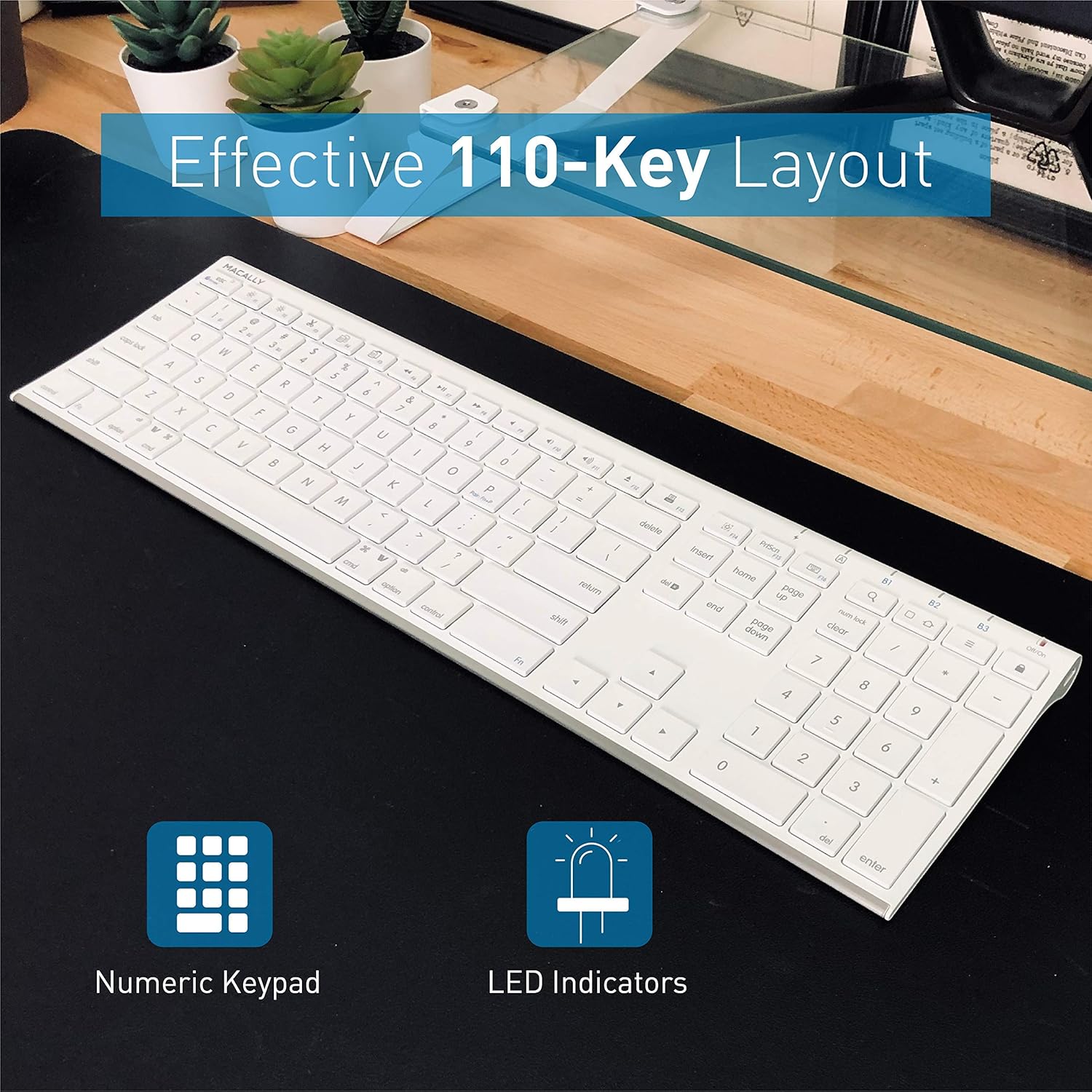
Image: The Macally keyboard showcasing its effective 110-key layout, including a numeric keypad and LED indicators.

Image: Close-up of the Macally keyboard highlighting the 20 macOS X shortcut keys located in the function row, designed for quick access to system functions.
4.2. Mouse Features
- Silent Click Buttons: Equipped with silicone membranes to reduce click noise by up to 90%, providing a quiet working environment.
- Adjustable DPI: The mouse features a DPI switch (typically on the top or bottom) allowing you to adjust cursor sensitivity between 800, 1200, and 1600 DPI for precise control.
- Ambidextrous Design: The ergonomic, ultra-slim design is suitable for both left and right-handed users.

Image: Overhead view of the Macally mouse on a wooden desk, with labels pointing to the left button, right button, scroll wheel, and DPI switch (800/1200/1600) optical sensor, emphasizing its precision features.

Image: Close-up of the Macally mouse on a desk with a laptop in the background, highlighting the "Quiet Click Buttons" feature and stating that it reduces click noise by 90% due to silicone membrane equipped buttons.
5. Maintenance
- Cleaning: Use a soft, dry, lint-free cloth to clean the surfaces of the keyboard and mouse. For stubborn dirt, slightly dampen the cloth with water or a mild cleaning solution (avoid harsh chemicals).
- Storage: When not in use for extended periods, turn off both devices to conserve battery life. Store them in a cool, dry place away from direct sunlight and extreme temperatures.
- Battery Care: Avoid fully depleting the battery frequently. Recharge when the low battery indicator appears.
6. Troubleshooting
- Device Not Connecting:
- Ensure both the keyboard and mouse are powered on and fully charged.
- Make sure Bluetooth is enabled on your host device.
- Put the keyboard/mouse back into pairing mode.
- Forget the device from your host device's Bluetooth list and try pairing again.
- Restart your host device.
- Lag or Disconnections:
- Ensure the devices are within the effective Bluetooth range (up to 30ft/10m).
- Reduce interference from other wireless devices (Wi-Fi routers, other Bluetooth devices).
- Check battery levels.
- Keyboard Typing Incorrect Characters:
- Check your device's keyboard layout settings to ensure it matches a QWERTY layout.
- Restart the keyboard and your device.
- Mouse Cursor Not Moving Smoothly:
- Clean the optical sensor on the bottom of the mouse.
- Ensure you are using the mouse on a suitable surface (not highly reflective or transparent).
- Adjust the DPI setting.
7. Specifications
| Brand | Macally |
| Model | B08WYL4XKF |
| Connectivity Technology | Bluetooth |
| Keyboard Layout | QWERTY |
| Number of Keys (Keyboard) | 110 |
| Keyboard Type | Membrane (Scissor-switch) |
| Mouse DPI Settings | 800/1200/1600 |
| Hand Orientation (Mouse) | Ambidextrous |
| Power Source | Battery Powered (Rechargeable) |
| Compatible Devices | Mac, iPad, iPhone, Laptops, Tablets, Smartphones, Gaming Consoles, Television (Bluetooth enabled) |
| Minimum OS Requirement | Mac OS 13 Ventura (and compatible with earlier macOS versions) |
| Material | Silicone (for mouse buttons) |

Image: The Macally keyboard with dimensions indicated (16.5 inches length, 4.5 inches width) and icons showing compatibility with Mac OS X, Windows, iPad, iPhone, Tablets, and Smartphones, along with a "Rechargeable Battery" icon.
8. Warranty and Support
The Macally Bluetooth Wireless Keyboard and Mouse Combo comes with up to a 2-year warranty from the date of purchase. This warranty covers manufacturing defects and normal operational failures. It does not cover damage caused by misuse, accidents, unauthorized modifications, or normal wear and tear.
For technical support, warranty claims, or further assistance, please visit the official Macally support website or contact their customer service. You can find more information at www.macally.com/support.
Macally also offers lifetime support for its products.