
1. Introduction
The Netro Spark 8 Zone Smart Sprinkler Controller is designed to automate and optimize your irrigation system. This device connects to your home Wi-Fi network, allowing for remote management via a mobile application. It utilizes local weather data to adjust watering schedules, promoting water conservation and plant health. This manual provides detailed instructions for the installation, setup, operation, maintenance, and troubleshooting of your Netro Spark controller.
2. Safety Information
Please read and understand all safety instructions before installing or operating the Netro Spark controller. Failure to follow these instructions may result in electric shock, fire, or other hazards.
- Ensure the power supply is disconnected before performing any wiring or maintenance.
- The controller is designed for indoor use or in a protected outdoor enclosure. Avoid direct exposure to rain or extreme weather conditions.
- Use only the provided power adapter. Using an incorrect adapter may damage the device and void the warranty.
- Keep the device away from children and pets.
- Do not attempt to open or repair the controller yourself. Refer all servicing to qualified personnel.
3. Package Contents
Verify that all items are present in the package:
- Netro Spark 8 Zone Smart Sprinkler Controller
- Power Adapter
- Mounting Hardware (screws and anchors)
- Quick Start Guide (if applicable)
4. Product Overview
Familiarize yourself with the components of your Netro Spark controller.

Figure 4.1: Netro Spark Controller Components
This image displays the Netro Spark controller with various parts labeled, including the Duration Display, Zone Display, Network Status Light, Watering Status Light, Zone Selection Button, Duration Selection Button, and Water ON/OFF Button. These labels help identify the functions of each physical control and indicator on the device.

Figure 4.2: Netro Spark Controller Front View
A front view of the Netro Spark 8 Zone Smart Sprinkler Controller, showcasing its compact design and LED display. This image provides a general visual reference for the device's appearance.
4.1. Front Panel Indicators and Buttons
- Duration Display: Shows the watering duration in minutes.
- Zone Display: Indicates the active watering zone.
- Network Status Light: Indicates Wi-Fi connectivity status.
- Watering Status Light: Illuminates when watering is active.
- Zone Selection Button (Grass icon): Press to cycle through available zones for manual watering.
- Duration Selection Button (Clock icon): Press to adjust the manual watering duration.
- Water ON/OFF Button (Watering Can icon): Press to start or stop manual watering for the selected zone and duration.
5. Setup
5.1. Installation
Follow these steps to physically install your Netro Spark controller.
- Choose a Location: Select a suitable location near your existing sprinkler wiring and a power outlet. Ensure it is protected from direct weather exposure.
- Mount the Controller: Use the provided mounting hardware to secure the controller to a wall.
- Wire the Sprinkler Valves: Open the controller's cover. Carefully disconnect the wires from your old controller (if replacing one) and connect them to the corresponding terminals on the Netro Spark.

Figure 5.1: Wiring Terminals
This image shows the Netro Spark controller with its front cover open, revealing the wiring terminals for zones (1-8), common (C), and 24VAC power. This view is essential for connecting the sprinkler system's valve wires to the controller.
Connect the common wire(s) from your sprinkler valves to the 'C' terminal. Connect each zone wire to its respective numbered terminal (1-8). If you have a master valve or pump start relay, connect it to the 'M' terminal.
5.2. Power Connection
Connect the provided power adapter to the 24VAC input terminals on the controller, then plug the adapter into a standard electrical outlet.
5.3. App Download and Account Creation
Download the Netro app from the Apple App Store (for iOS devices) or Google Play Store (for Android devices). Create a new account or log in if you already have one.
5.4. Wi-Fi Connection
Follow the in-app instructions to connect your Netro Spark controller to your home Wi-Fi network. The controller supports 2.4GHz Wi-Fi networks. Ensure your mobile device is connected to the same 2.4GHz network during the setup process.
6. Operating Instructions
6.1. Manual Watering (On-Device)
You can manually operate your sprinkler zones directly from the controller:
- Press the Zone Selection Button (grass icon) to cycle through zones (1-8). The selected zone number will appear on the Zone Display.
- Press the Duration Selection Button (clock icon) to set the desired watering duration. The duration will appear on the Duration Display.
- Press the Water ON/OFF Button (watering can icon) to start watering the selected zone for the set duration. Press it again to stop watering.
6.2. App Control and Scheduling
The Netro app provides comprehensive control and scheduling capabilities.

Figure 6.1: Remote Control via App
This image shows a smartphone displaying the Netro app interface, illustrating how users can remotely control their sprinkler system from anywhere. The app provides real-time status and control options.
Figure 6.2: App Interface for Irrigation Control
A screenshot of the Netro app, demonstrating the interface for controlling your irrigation system remotely. It displays watering status, next watering times, and moisture levels for different zones.
- Create Watering Schedules: Use the app to set up automatic watering schedules for each zone. You can define start times, durations, and days of the week.
- Smart Schedules: Enable smart schedules to allow the controller to dynamically adjust watering based on weather forecasts and historical data.
- Remote Monitoring: Monitor your garden's moisture levels, temperature, and sunlight data directly from the app.
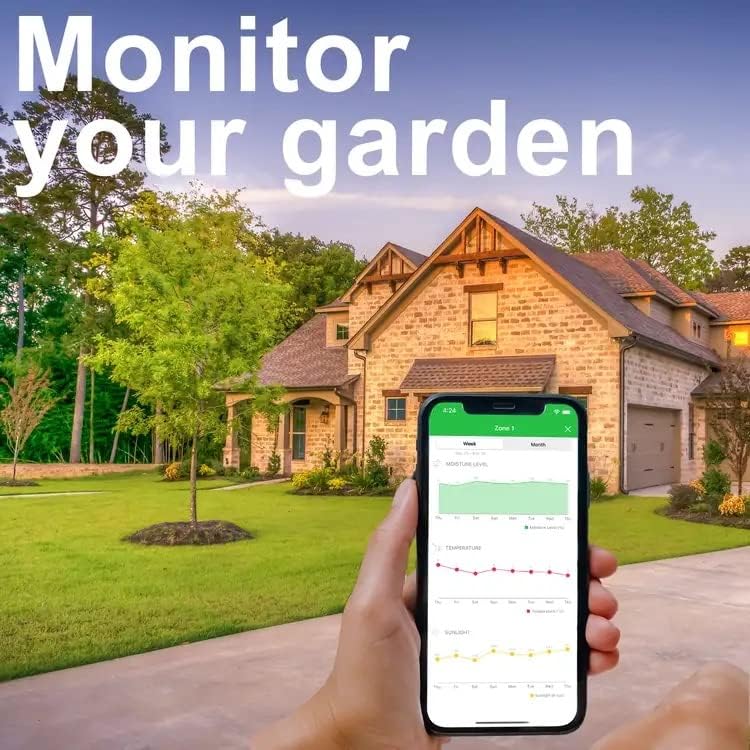
Figure 6.3: Garden Monitoring via App
This image shows a smartphone displaying the Netro app, which allows users to monitor various garden parameters such as moisture level, temperature, and sunlight. The app provides graphical representations of these metrics over time.
Figure 6.4: Detailed Garden Monitoring Graphs
A screenshot of the Netro app showing detailed graphs for sunlight, temperature, soil moisture level, and irrigation water. This feature helps users understand and optimize their watering practices.
- Water Usage Statistics: Track your water consumption and savings through the app's detailed statistics.
Figure 6.5: Water Usage Monitoring
A screenshot from the Netro app displaying water usage statistics, including water saved in gallons over different periods. This feature helps users track their water conservation efforts.
- Easy Programming: The app provides an intuitive interface for setting up and managing watering schedules.
Figure 6.6: Schedule Manager Interface
A screenshot of the Netro app's schedule manager, showing a calendar view and smart schedule options for setting watering times and durations for different zones. This simplifies the process of creating and modifying irrigation plans.
6.3. Smart Features
The Netro Spark controller incorporates advanced features for efficient watering:
- Weather Awareness: The controller uses local weather forecasts to automatically skip watering cycles if rain is expected, or adjust duration based on temperature and humidity.

Figure 6.7: Weather Awareness Icon
An icon representing weather awareness, showing a sun, cloud, and raindrops. This signifies the controller's ability to integrate local weather data for optimized watering.
- Water Restriction Compliance: The system can be configured to comply with local watering restrictions, automatically adjusting schedules to avoid violations.
- Eco-Friendly Operation: By optimizing watering based on actual needs, the controller helps save up to 50% of outdoor water use.
Figure 6.8: Eco-Friendly Icon
An icon depicting a document with leaves, symbolizing the eco-friendly aspects of the controller, such as water conservation and sustainable practices.
6.4. Alexa Compatibility
The Netro Spark controller is compatible with Amazon Alexa. To enable this feature:
- Open the Alexa app on your mobile device.
- Search for and enable the Netro skill.
- Link your Netro account with your Alexa account.
- You can now use voice commands to control your sprinkler zones (e.g., "Alexa, turn on Zone 1 for 10 minutes").
7. Maintenance
Regular maintenance ensures optimal performance and longevity of your Netro Spark controller.
- Cleaning: Wipe the exterior of the controller with a soft, dry cloth. Do not use abrasive cleaners or solvents.
- Firmware Updates: The Netro app will notify you of available firmware updates. It is recommended to install these updates to ensure your controller has the latest features and security enhancements.
- Winterization: In regions with freezing temperatures, it is recommended to disconnect the controller and store it indoors during winter months to prevent damage.
8. Troubleshooting
If you encounter issues with your Netro Spark controller, refer to the following troubleshooting guide.
| Problem | Possible Cause | Solution |
|---|---|---|
| Controller not powering on | No power to the outlet; faulty power adapter; loose connection. | Check the power outlet; ensure the power adapter is securely connected; try a different outlet. |
| Cannot connect to Wi-Fi | Incorrect Wi-Fi password; controller too far from router; 5GHz network selected; router issues. | Verify Wi-Fi password; move controller closer to router; ensure you are connecting to a 2.4GHz network; restart your router. |
| Sprinklers not watering | Zone wires not connected correctly; master valve off; water supply off; rain sensor active (if connected); smart schedule skipping. | Check wiring connections; ensure master valve is on; verify water supply; check app for smart schedule skips or rain sensor status. |
| App shows controller offline | Wi-Fi disconnected; internet outage; controller power loss. | Check controller's network status light; verify home internet connection; ensure controller is powered on. |
9. Specifications
Technical specifications for the Netro Spark 8 Zone Smart Sprinkler Controller.
| Feature | Detail |
|---|---|
| Model Number | 8 Zone |
| Brand | Netro |
| Display Type | LED |
| Product Dimensions | 5.71 x 5.71 x 1.57 inches (14.5 x 14.5 x 4 cm) |
| Item Weight | 2.38 pounds (1.08 kg) |
| Voltage | 240 Volts (AC input) |
| Material | Plastic |
| Color | White |
| Wi-Fi Connectivity | 2.4GHz |
| Compatibility | iOS (8.3+), Android (5.0+), Web browsers, Amazon Alexa |
10. Warranty Information
Netro Inc. warrants this product against defects in materials and workmanship for a period specified at the time of purchase. Please retain your proof of purchase for warranty claims. The warranty does not cover damage caused by improper installation, misuse, unauthorized repairs, or acts of nature. For specific warranty terms, please refer to the documentation included with your product or visit the official Netro website.
11. Support
For technical assistance, product inquiries, or warranty support, please contact Netro Inc. customer service.
- Manufacturer: Netro Inc
- Website: www.netrohome.com (Please refer to the website for the most current contact information and support resources.)

