
Introduction
The BenQ ScreenBar Halo is an advanced LED monitor light bar designed to provide optimal illumination for your workspace while prioritizing eye comfort. Featuring a wireless controller, integrated backlight, and adjustable brightness and color temperature, it aims to reduce screen glare and eye strain. This manual provides detailed instructions for setting up, operating, and maintaining your ScreenBar Halo.

Image: The BenQ ScreenBar Halo light bar and its wireless controller, showcasing the product's sleek design.
Package Contents
Before proceeding with installation, please verify that all components are present in the package:
- BenQ ScreenBar Halo LED Monitor Light Bar
- Wireless Controller (requires 3 AAA batteries, included)
- USB Power Cable (1.5m / 5.9 inches)
- Curved Monitor Adapter (for monitors over 1000R)
- User Manual

Image: An illustration showing all items included in the BenQ ScreenBar Halo product box, such as the light bar, controller, and cables.
Setup Instructions
1. Mounting the Light Bar
The ScreenBar Halo features a patented weighted clip design for easy and secure attachment to most monitors without causing damage. Ensure your monitor meets the compatibility requirements:
- Flat Monitors: Bezel width >= 0.25" (0.63cm), thickness up to 2.36" (6cm).
- Curved Monitors: Thickness up to 1.5" (3.8cm) for monitors over 1000R. Use the included adapter for curved screens.
- Gently place the light bar's clip onto the top center of your monitor. The weighted design will help it stay in place.
- Adjust the light bar's position to ensure the light is directed onto your desk area and not directly onto the screen.
- For curved monitors, attach the curved monitor adapter to the clip before mounting.

Image: Diagrams illustrating the correct mounting of the ScreenBar Halo on both flat and curved monitors, highlighting the adjustable clip mechanism.
2. Connecting Power
The ScreenBar Halo is USB powered.
- Connect the USB power cable to the light bar.
- Plug the other end of the USB cable into an available USB port on your computer, monitor, or a USB power adapter (5V, 1A recommended).

Image: A close-up view of the BenQ ScreenBar Halo connected via a USB cable to a monitor for power.
3. Wireless Controller Setup
The wireless controller requires 3 AAA batteries (included).
- Open the battery compartment on the underside of the wireless controller.
- Insert the 3 AAA batteries, ensuring correct polarity.
- Close the battery compartment. The controller should automatically pair with the light bar upon first use.
Operating Instructions
The wireless controller provides intuitive control over all light bar functions.

Image: A detailed diagram of the wireless controller, indicating buttons for power, brightness, color temperature, light modes, and favorite settings.
1. Power On/Off
- Tap the power button (central button) on the wireless controller to turn the light bar on or off.
2. Adjusting Brightness
- Rotate the outer ring of the wireless controller clockwise to increase brightness.
- Rotate the outer ring counter-clockwise to decrease brightness. The ScreenBar Halo offers over 100 stepless brightness levels.
3. Adjusting Color Temperature
- Tap the color temperature icon on the controller.
- Rotate the outer ring to adjust the color temperature from warm white (2700K) to cool white (6500K).
4. Light Modes
The ScreenBar Halo offers three distinct light modes:
- Front Light: Illuminates the desk area directly.
- Backlight: Provides ambient light behind the monitor, reducing contrast between the screen and the environment.
- Front & Back Light: Combines both for comprehensive illumination and reduced eye strain.
Tap the light mode icon on the controller to cycle through these modes.

Image: A visual representation of the three distinct light modes: precise front light, immersive backlight, and eye-care front & back light, shown with corresponding workspace illumination examples.
5. Auto-Dimming Feature
The built-in ambient light sensor automatically adjusts the brightness to 500 lux, the recommended level for eye comfort, based on your environment.
- Tap the auto-dimming icon on the controller to activate this feature.
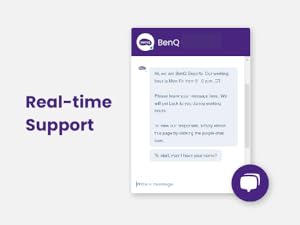
Image: An X-ray view of the BenQ ScreenBar Halo, highlighting the integrated ambient light sensor responsible for the auto-dimming function.
6. "My Favorite" Setting
You can save your preferred brightness and color temperature settings for quick access.
- Adjust the brightness and color temperature to your desired levels.
- Press and hold the "My Favorite" icon on the controller until the light bar blinks, indicating the setting has been saved.
- Tap the "My Favorite" icon to recall your saved setting.
Maintenance
To ensure the longevity and optimal performance of your BenQ ScreenBar Halo, follow these maintenance guidelines:
- Cleaning: Use a soft, dry cloth to wipe the light bar and wireless controller.
- Avoid Solvents: Do not use alcohol or any chemical solvents to clean the wireless controller or the light fixture, as this may cause damage to the finish or internal components.
- Dust Removal: Regularly remove dust from the light bar's surface and the ambient light sensor to maintain accurate auto-dimming functionality.
Troubleshooting
If you encounter issues with your ScreenBar Halo, refer to the following common solutions:
Light Bar Not Turning On / Flickering
- Power Source: Ensure the USB power source provides adequate wattage. Some monitor USB ports may not supply sufficient power, leading to flickering. Try connecting the light bar to a dedicated USB wall adapter or a powered USB hub.
- Cable Connection: Verify that the USB cable is securely connected to both the light bar and the power source.
- Controller Batteries: Check if the wireless controller batteries are correctly installed and have sufficient charge. Replace them if necessary.
Mounting Issues
- Monitor Compatibility: Ensure your monitor's bezel width and thickness fall within the specified compatibility ranges.
- Non-Planar Backs: Monitors with highly irregular or non-planar back designs may experience mounting problems. Adjust the light bar's position or consult BenQ support if issues persist.
Wireless Controller Unresponsive
- Battery Check: Replace the AAA batteries in the wireless controller.
- Proximity: Ensure the controller is within reasonable range of the light bar.
- Interference: Move the controller away from other wireless devices that might cause interference.
Specifications
| Model Name | ScreenBar Halo |
| Brand | BenQ |
| Product Dimensions | 3.73"D x 19.7"W x 3.82"H |
| Item Weight | 1.76 pounds |
| Material | Aluminum |
| Finish Type | Metallic |
| Light Source Type | LED |
| Power Source | USB and battery (for controller) |
| Wattage | 6.5 watts |
| Voltage | 5 Volts |
| Brightness | 800 Lux (max) |
| Color Temperature | 2700K - 6500K (Adjustable) |
| Control Method | Remote (Wireless Controller) |
| Special Features | Adjustable Color Temperature, All-round Illumination (Front, Back, Both), Auto dimming, Dimmable, Memory Function |
| UPC | 840046045265 |
Warranty Information
The BenQ ScreenBar Halo LED Monitor Light Bar comes with a 1-year limited warranty from the date of purchase. This warranty covers manufacturing defects and malfunctions under normal use. Please retain your proof of purchase for warranty claims. For detailed terms and conditions, refer to the warranty card included in your package or visit the official BenQ website.
Customer Support
For further assistance, technical support, or inquiries regarding your BenQ ScreenBar Halo, please contact BenQ customer service. Real-time support options may be available through the official BenQ website or designated support channels.

Image: A screenshot of a real-time chat interface, indicating BenQ's customer support availability.


