
Introduction
This manual provides detailed instructions for the installation, operation, and maintenance of your Nedis ZBHTR10WT ZigBee Radiator Thermostat. This intelligent radiator control unit is designed to enhance your home heating system with smart features, allowing for efficient temperature management via the Nedis SmartLife app and compatibility with voice assistants like Amazon Alexa and Google Home. Please read this manual carefully before use to ensure proper functionality and safety.

Figure 1: Nedis ZBHTR10WT ZigBee Radiator Thermostat. This image shows the front view of the thermostat with its digital display indicating a temperature of 21.5 degrees Celsius. The ZigBee logo is visible in the bottom left corner.
Setup and Installation
The Nedis ZBHTR10WT is a battery-powered device designed for surface mounting on your radiator valve. It requires a ZigBee gateway (not included) for smart functionality.
Package Contents
- Nedis ZBHTR10WT Radiator Thermostat
- Adapters (for various valve types)
- Quick Start Guide
- Batteries (typically 2x AA, though not explicitly stated in components, implied by battery-powered)

Figure 2: Included components. This image displays the main thermostat unit, two AA batteries, and a selection of adapters for different radiator valve types, along with a screw and nut for mounting.
Battery Installation
- Carefully remove the back cover of the thermostat unit.
- Insert the required batteries (e.g., 2x AA) according to the polarity markings inside the compartment.
- Replace the back cover securely.
Mounting on Radiator Valve
- Remove your existing radiator thermostat head.
- Select the appropriate adapter from the included accessories that fits your radiator valve.
- Attach the chosen adapter to the radiator valve.
- Mount the Nedis ZBHTR10WT thermostat onto the adapter, ensuring it is securely fastened. The device is designed for surface mounting.

Figure 3: Mounting adapters. This image shows the top of the thermostat unit and several white plastic adapters, which are used to ensure compatibility with different radiator valve sizes and types.
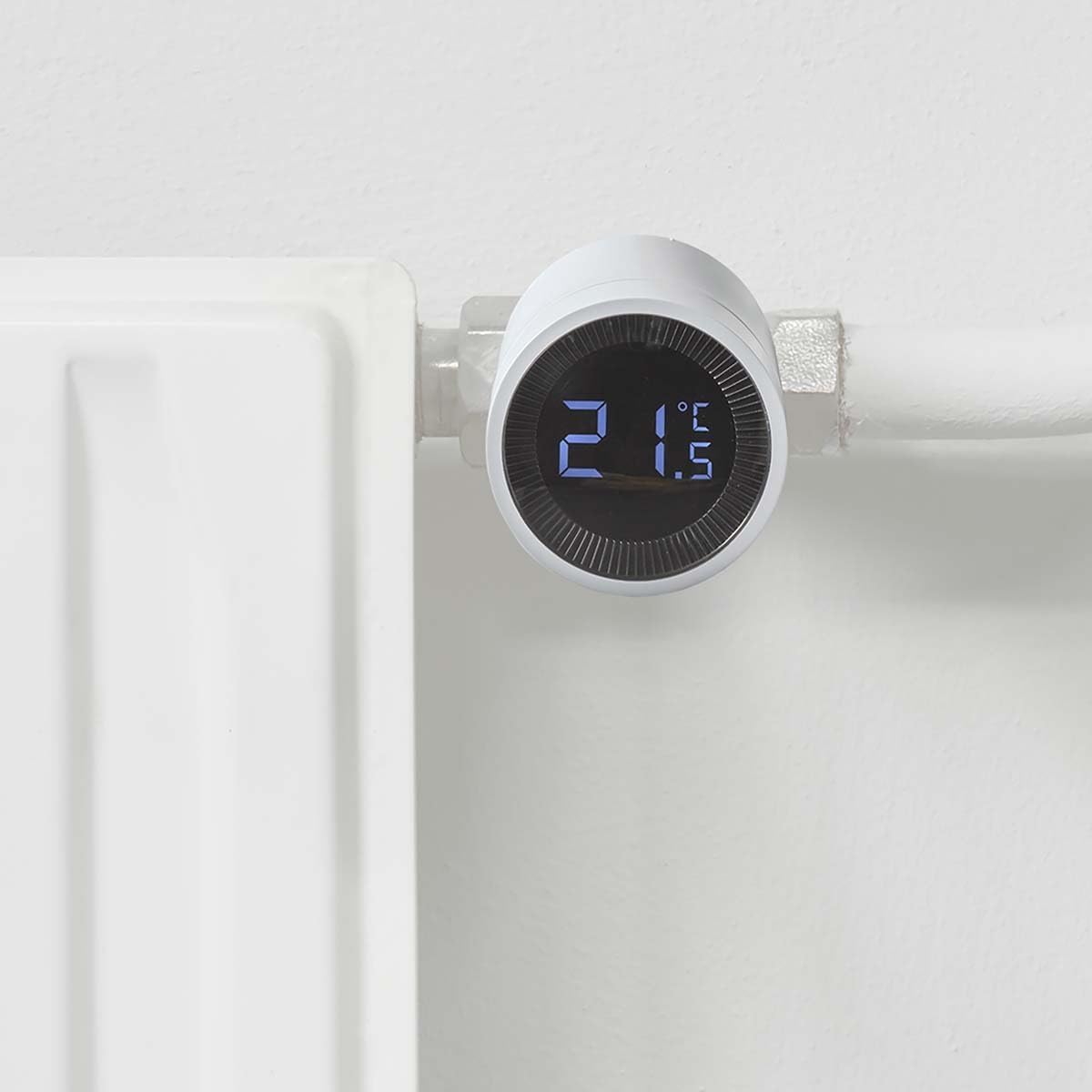
Figure 4: Thermostat installed on a radiator. This image shows the Nedis ZBHTR10WT thermostat mounted on a white radiator pipe, demonstrating its compact and integrated appearance.
Connecting to ZigBee Gateway and SmartLife App
To utilize the smart features, you must connect the thermostat to a compatible ZigBee gateway and the Nedis SmartLife app.
- Ensure your ZigBee gateway is powered on and connected to your home network.
- Download and install the Nedis SmartLife app on your Android or iOS device.
- Open the app and follow the on-screen instructions to add a new device.
- Put the thermostat into pairing mode (refer to the Quick Start Guide for specific button presses).
- The app will guide you through the connection process.
Once connected, you can control the thermostat remotely, set schedules, and integrate it with Amazon Alexa or Google Home for voice control.
Operating Instructions
The Nedis ZBHTR10WT features an LCD display and can be controlled manually, via the SmartLife app, or through voice commands.
Manual Control
The thermostat has physical controls (buttons or a rotating ring, depending on the model variant) to adjust the temperature directly on the device. The LCD display with backlight will show the current temperature setting.
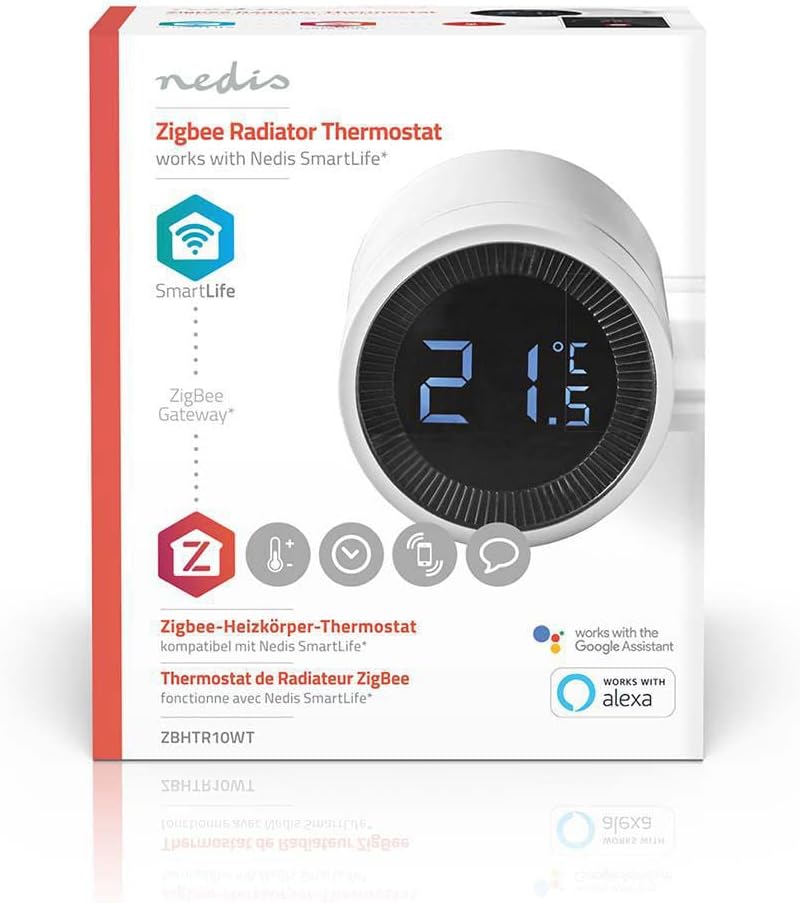
Figure 5: Digital display. This close-up image highlights the clear LCD display of the thermostat, showing the temperature reading and other indicators.
App Control (Nedis SmartLife)
Through the Nedis SmartLife app, you can:
- Adjust the target temperature remotely.
- Create and manage heating schedules for different times of the day and week.
- Monitor the current room temperature.
- Access advanced settings and features.
Voice Control (Amazon Alexa / Google Home)
Once integrated with Amazon Alexa or Google Home, you can use voice commands to control your radiator thermostat. Examples include:
- "Alexa, set the living room temperature to 22 degrees."
- "Hey Google, what is the temperature in the bedroom?"
Maintenance
To ensure optimal performance and longevity of your Nedis ZBHTR10WT radiator thermostat, follow these maintenance guidelines:
Cleaning
- Wipe the device with a soft, dry cloth.
- Do not use abrasive cleaners, solvents, or strong chemicals, as these can damage the surface and internal components.
- Ensure no liquid enters the device.
Battery Replacement
When the battery level is low, an indicator will typically appear on the LCD display or within the Nedis SmartLife app. Replace batteries promptly to avoid interruption of service.
- Remove the back cover of the thermostat.
- Carefully remove the old batteries.
- Insert new batteries of the correct type (e.g., 2x AA) ensuring correct polarity.
- Replace the back cover.
- Dispose of old batteries according to local regulations.
Troubleshooting
If you encounter issues with your Nedis ZBHTR10WT thermostat, refer to the following common problems and solutions:
Device Not Responding / No Display
- Check Batteries: Ensure batteries are correctly inserted and not depleted. Replace if necessary.
- Power Cycle: Remove batteries, wait 30 seconds, then reinsert them.
Cannot Connect to ZigBee Gateway / App
- Gateway Status: Verify that your ZigBee gateway is powered on, connected to the internet, and functioning correctly.
- Proximity: Ensure the thermostat is within range of the ZigBee gateway.
- Pairing Mode: Confirm the thermostat is in pairing mode during the app setup process. Refer to the Quick Start Guide for specific instructions.
- Router Restart: If you recently restarted your home router, the ZigBee gateway or thermostat might need to be reconnected. Try restarting the ZigBee gateway and then re-pairing the thermostat if necessary.
- App Update: Ensure your Nedis SmartLife app is updated to the latest version.
Incorrect Temperature Readings
- Placement: Ensure the thermostat is not obstructed or exposed to direct heat sources (e.g., direct sunlight, other heat-emitting devices) that could affect its temperature sensor.
- Calibration: Check the Nedis SmartLife app for any temperature calibration options.
Voice Control Not Working
- Integration: Confirm that the Nedis SmartLife skill/service is correctly linked in your Amazon Alexa or Google Home app.
- Device Naming: Ensure the thermostat has a recognizable name in the SmartLife app that your voice assistant can understand.
- Internet Connection: Verify that your voice assistant device and ZigBee gateway have a stable internet connection.
Specifications
| Feature | Specification |
|---|---|
| Brand | NEDIS |
| Model Name | Nedis SmartLife - Zigbee Radiator Thermostat |
| Model Number | ZBHTR10WT |
| Connectivity Technology | ZigBee |
| Power Source | Battery Powered |
| Display Type | LCD |
| Backlight | Yes |
| Control Method | Voice Controlled, Smart/Remote Control |
| Controller Type | Amazon Alexa, Google Home |
| Mounting Type | Surface Mount |
| Item Weight | 240 Grams |
| Included Components | Adapter, Quick Start Guide |
| Color | White |
| Shape | Round |
| Style | Modern |
Warranty and Support
Information regarding product warranty and specific customer support contacts is not available in the provided product data. Please refer to the official Nedis website or the documentation included in your product packaging for warranty details and support options.
For general inquiries or further assistance, you may also consult the Nedis SmartLife app or their online resources.


