
NEBULA D2140
NEBULA Cosmos Full HD 1080p Home Entertainment Projector User Manual
Model: D2140 | Brand: NEBULA
Introduction
This manual provides detailed instructions for setting up, operating, and maintaining your NEBULA Cosmos Full HD 1080p Home Entertainment Projector. The Cosmos projector is designed to deliver a true cinematic experience with its 1080p resolution, 810 ANSI lumens brightness, and integrated Android TV 9.0. It supports 4K content and features HDR10, auto-focus, and extensive keystone correction for optimal viewing.
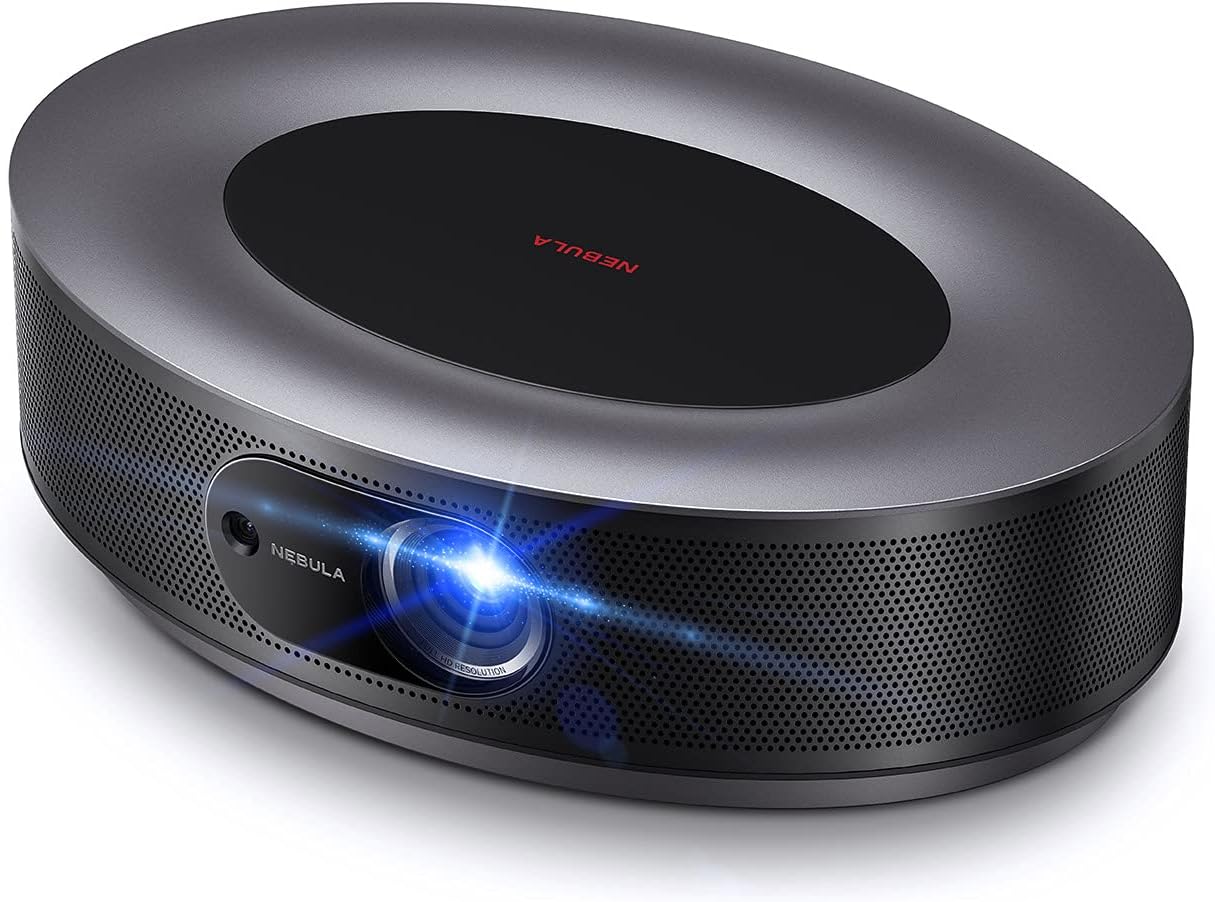
Figure 1: NEBULA Cosmos Projector
The NEBULA Cosmos projector, showcasing its sleek design and front lens.
What's In The Box
Upon unboxing your NEBULA Cosmos projector, ensure all the following components are present:
- NEBULA Cosmos Projector
- Remote Control
- Quick Start Guide
- Power Adapter
Note: The remote control is required for using the Google Assistant feature. This projector does not have a built-in battery and requires continuous power.
Setup
1. Placement
Position the projector on a stable, flat surface. For optimal viewing, ensure the projector is placed directly in front of your projection surface (wall or screen). The projector can also be mounted on a tripod for flexible positioning.

Figure 2: Projector Placement Example
The NEBULA Cosmos projector positioned on a tripod, projecting a vibrant image onto a screen, demonstrating its versatility in placement.
2. Power Connection
Connect the provided power adapter to the projector's power input port, then plug the adapter into a wall outlet. The projector will power on automatically or can be turned on using the power button on the device or remote control.
3. Initial Image Adjustment
The NEBULA Cosmos features 3-second autofocus and automatic vertical keystone correction (±40°). For horizontal keystone correction (±40°), manual adjustment is available via the settings menu or remote control.

Figure 3: Automatic Focus
A visual representation of the projector's instant image clarity feature, highlighting its autofocus capability.

Figure 4: Keystone Correction
An illustration demonstrating the projector's ability to correct horizontal and vertical image distortion, allowing projection from various angles.
4. Connectivity
The projector offers various connectivity options:
- HDMI: Two HDMI ports for connecting external devices like Blu-ray players, gaming consoles, or laptops.
- USB-A: One USB-A port for connecting flash drives or other USB devices.
- Optical: One optical port for audio output to external sound systems.
- Wi-Fi: Dual Frequency 2.4/5GHz Wi-Fi for network connectivity.
- Bluetooth: BT4.2 for connecting Bluetooth accessories like speakers or headphones.
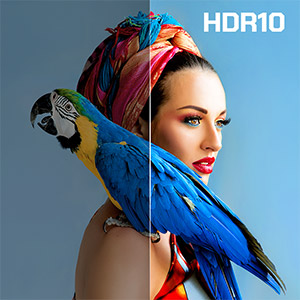
Figure 5: Connectivity Ports
A close-up view of the projector's input/output ports, including HDMI, USB-A, and Optical, with icons indicating compatible devices.
Operating Instructions
1. Android TV 9.0 Interface
The NEBULA Cosmos runs on Android TV 9.0, providing access to a wide range of entertainment options. Navigate the interface using the provided remote control.

Figure 6: Android TV Home Screen
The Android TV home screen displayed by the projector, showing various apps and content options available through Google Play.
2. App Store and Chromecast
Access the Google Play Store to download and install your favorite streaming applications. The projector also supports Chromecast, allowing you to cast content directly from your compatible smartphone or tablet.

Figure 7: Chromecast Functionality
An image illustrating the ability to cast content from a mobile phone to the NEBULA Cosmos projector.
3. Audio and Visual Enhancements
- Dolby Digital Plus: Experience immersive 360° sound with the integrated 20W speaker system, enhanced by Dolby Digital Plus.
- HDR10: The projector supports HDR10 video decoding, providing enhanced contrast and color for compatible content. Hybrid Log Gamma (HLG) upscales non-HDR content automatically.
- Brightness: With 810 ANSI lumens, the Cosmos delivers a bright and clear image.

Figure 8: Superior Sound System
An exploded view of the projector's internal speaker components, emphasizing its audio capabilities.

Figure 9: Brightness Comparison
A visual comparison highlighting the superior brightness of the Cosmos projector (810 ANSI lumens) compared to other projectors (200 ANSI lumens).
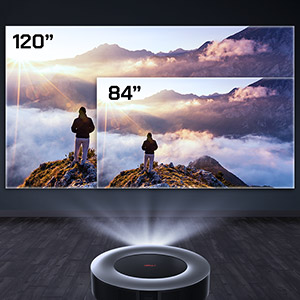
Figure 10: HDR10 Support
An image demonstrating the enhanced color and contrast provided by HDR10 technology on the projector.
Maintenance
Proper maintenance ensures the longevity and optimal performance of your NEBULA Cosmos projector.
- Lens Cleaning: Gently clean the projector lens with a soft, lint-free cloth specifically designed for optical surfaces. Avoid abrasive materials or harsh chemicals. Do not attempt to clean internal lens components.
- Ventilation: Ensure the projector's ventilation openings are clear and unobstructed to prevent overheating. The fan operates at less than 32dB for quiet operation.
- LED Lamp Life: The LED light source has an estimated life of 30,000 hours. Brightness may diminish over extended usage time, which is normal for projector lamps.
- Storage: When not in use for extended periods, store the projector in a cool, dry place, protected from dust.
Troubleshooting
If you encounter issues with your NEBULA Cosmos projector, refer to the following common problems and solutions:
| Problem | Possible Cause / Solution |
|---|---|
| No Power / Projector Not Turning On |
|
| Image is Blurry / Out of Focus |
|
| Image is Distorted (Trapezoid Shape) |
|
| No Sound / Low Volume |
|
| Wi-Fi Connectivity Issues |
|
| Netflix Not Working / Low Resolution |
|
Specifications
| Feature | Detail |
|---|---|
| Model Number | D2140 |
| Display Technology | 0.33DMD in 1080p DLP |
| Brightness | 810 ANSI lumen |
| Resolution | 1920x1080 (Full HD) |
| LED Life | 30,000 hours |
| Throw Ratio | 1.2 |
| Focus Adjustment | 3-second autofocus |
| Keystone Correction | Auto (vertical ±40°), Manual (horizontal ±40°) |
| HDMI Ports | 2 |
| USB-A Ports | 1 |
| Optical Port | 1 |
| RAM | 2GB DDR |
| ROM | 8GB eMMC |
| Speaker | 20W (Dolby support) |
| Wi-Fi | Dual Frequency 2.4/5GHz |
| Bluetooth | BT4.2 |
| Fan Noise | <32dB |
| Operating System | Android TV 9.0 |
| Chromecast | Supported |
| App Store | Google Play |
| Video Decode | HDR10 |
| Item Weight | 4.4 pounds |
| Product Dimensions | 11.42 x 7.8 x 3.62 inches |
| Color | Black |
Note: Brightness (light output) will vary depending on usage conditions. Light output is measured in accordance with ANSI IT7.228-1997. The nominal value represents the average value of mass production and is tested under ideal laboratory conditions. Brightness diminishes due to increased usage time.
Warranty and Support
For information regarding the product warranty, please refer to the warranty card included with your purchase or visit the official NEBULA (Anker) website.
If you require technical assistance, troubleshooting beyond this manual, or have questions about your product, please contact NEBULA customer support. Contact details can typically be found on the official NEBULA website or in the quick start guide.
Important: When contacting support, please have your product model number (D2140) and purchase information readily available.
Related documentsD2140


Ask a question about this manual
Ask about setup, troubleshooting, compatibility, parts, safety, or missing instructions. Manuals+ will review the question and use this page’s manual context to help answer it.