
Netis E3
Netis E3 AC1200 Wireless Dual Band Range WiFi Extender User Manual
Model: E3 | Brand: Netis
Product Overview
The Netis E3 AC1200 Wireless Dual Band Range WiFi Extender is designed to expand the coverage of your existing wireless network, eliminating Wi-Fi dead zones and providing a more stable and efficient connection. It supports dual-band Wi-Fi (2.4GHz and 5GHz) for optimal performance and features a compact, wall-plug design for easy placement.

Front view of the Netis E3 AC1200 Wireless Dual Band Range WiFi Extender, showcasing its compact design and two external antennas.
Key Features
- Extended Wireless Coverage: Adds Wi-Fi range coverage up to 1300-2200 sqft, extending your main router's Wi-Fi signals to a further range and eliminating signal dead zones.
- AC1200 Wi-Fi Speed: Provides 1167 Mbps performance using dual-band Wi-Fi; 2.4GHz for further distances (300 Mbps) and 5GHz for faster data rates (867 Mbps). Equipped with two high-gain antennas for strong signal penetration.
- Easy Setup: Supports one-button setup via WPS. Simply press the WPS button on your existing router and then on the extender to easily and efficiently extend your network coverage.
- Wired Expansion Port: Equipped with an RJ45 Ethernet port that supports wired expansion, allowing flexible networking for maximum speed. Connect devices like game consoles or streaming players directly.
- Compact and Compatible Design: Designed to establish a highly efficient mobile office or entertainment network with wider coverage. Ideal for large homes or for work and play.
Setup Guide
This section provides instructions for setting up your Netis E3 Wi-Fi Extender. There are two primary methods: WPS setup for quick connection or manual setup via a web browser.
1. Placement Considerations
For optimal performance, place the extender in an area between your main router and the Wi-Fi dead zone. Ensure it is within the range of your main router's signal. Avoid placing it near large metal objects, concrete walls, or other devices that may cause interference.

The Netis E3 extender plugged directly into a standard wall outlet, ready for setup.
2. WPS (Wi-Fi Protected Setup) Method
The WPS method is the quickest way to connect your extender to your existing Wi-Fi network.
- Power On: Plug the Netis E3 extender into an electrical outlet near your main router. Wait for the Power (PWR) LED to turn solid green.
- Activate WPS on Router: Press the WPS button on your main wireless router. Refer to your router's manual for the exact location and timing.
- Activate WPS on Extender: Within two minutes, press the WPS button on the side of the Netis E3 extender. The WPS LED on the extender will start blinking.
- Connection Confirmation: Wait for the WPS LED on the extender to turn solid green, indicating a successful connection. The Signal LED will also illuminate, showing the signal strength from your router.
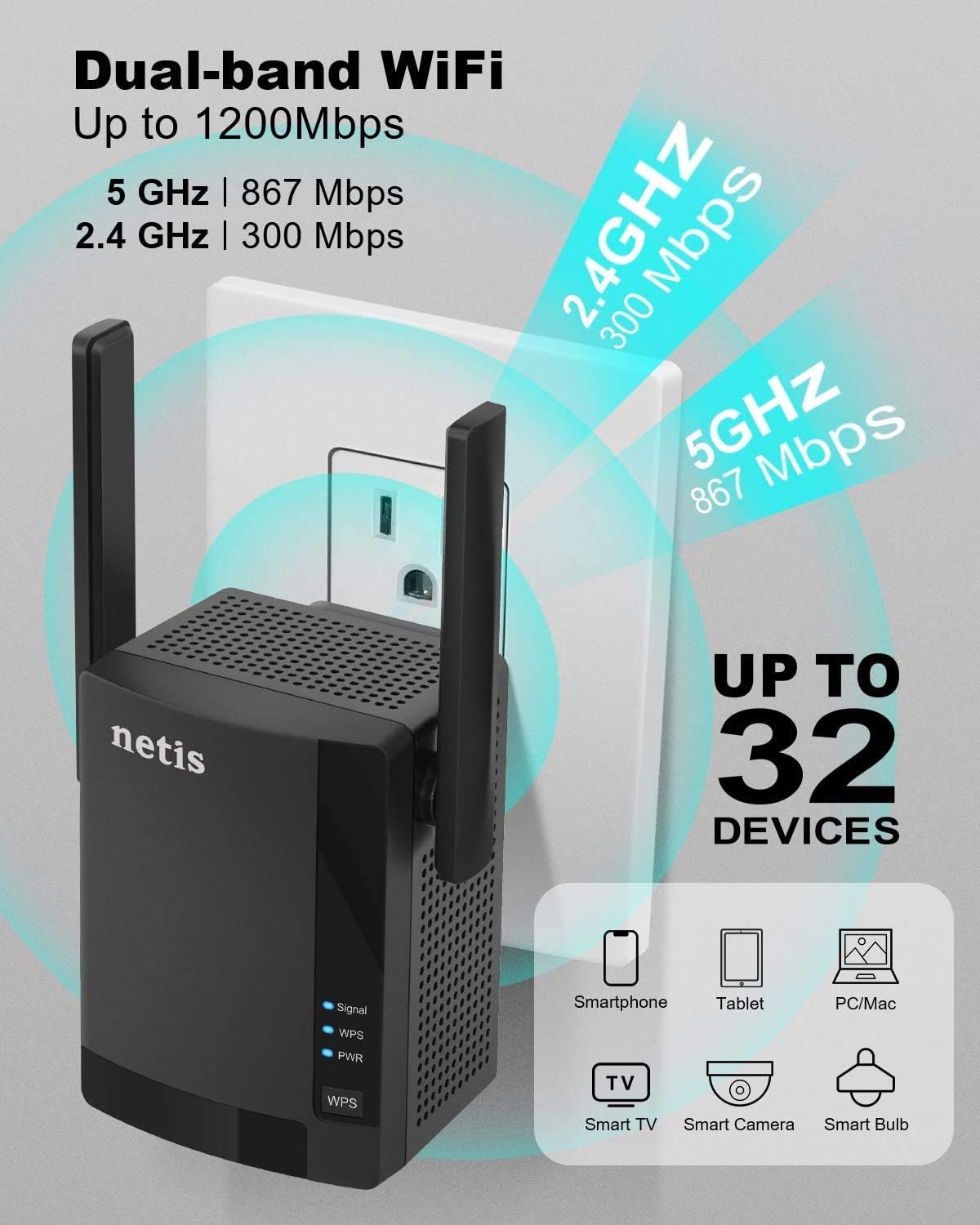
The Netis E3 extender plugged into an outlet, illustrating its dual-band capabilities (2.4GHz and 5GHz) and capacity to connect up to 32 devices.
3. Manual Setup Method (Web Browser)
If your router does not support WPS, or if you prefer a manual configuration, follow these steps:
- Connect to Extender: Plug the Netis E3 extender into an electrical outlet. On your computer or mobile device, connect to the extender's default Wi-Fi network (e.g., "netis_Extender_XXXXXX"). No password is required initially.
- Access Web Interface: Open a web browser and type http://netis.cc or http://192.168.1.254 into the address bar. Press Enter.
- Login: If prompted, enter the default username and password (usually "admin" for both).
- Quick Setup: Follow the on-screen Quick Setup wizard. Select "Range Extender" mode.
- Select Network: Scan for available Wi-Fi networks and select your main router's network (SSID). Enter your main router's Wi-Fi password.
- Configure Extender SSID: You can choose to keep the same SSID as your main network or create a new one for the extended network. Set a password for the extended network.
- Save Settings: Apply the settings. The extender will restart.
- Relocate Extender: Once configured, you can unplug the extender and move it to a more central location between your router and the desired coverage area. Ensure the Signal LED indicates good signal strength.
Operating the Extender
The Netis E3 extender operates primarily in Range Extender mode, boosting your existing Wi-Fi signal. It also offers a wired expansion port for direct device connections.
Indicator Lights and Buttons

A detailed diagram of the Netis E3 extender, highlighting the Signal Status LED, WPS Connection LED, Power Status LED, WPS Button, Reset Button, and Ethernet Port.
- Signal LED: Indicates the signal strength received from your main router. Green (Good), Orange (Fair), Red (Poor/No Signal).
- WPS LED: Indicates the status of the WPS connection. Solid green for successful connection, blinking during WPS process.
- PWR (Power) LED: Indicates if the device is powered on. Solid green when powered.
- WPS Button: Used for quick setup with WPS-enabled routers.
- Reset Button: Used to restore the extender to factory default settings.
- Ethernet Port (RJ45): Allows you to connect a wired device (e.g., PC, game console) to the extended network.
Range Extender Mode
In Range Extender mode, the E3 captures the wireless signal from your main router and re-broadcasts it, effectively extending your Wi-Fi coverage. Devices connected to the extender will access the internet through this extended network.

The Netis E3 extender positioned in a home environment, illustrating its role as a dual-band Wi-Fi router partner, extending signal coverage.
Wired Expansion
The integrated Ethernet port allows you to connect a wired device to the extender. This is useful for devices that require a stable wired connection or do not have Wi-Fi capabilities. Simply connect an Ethernet cable from your device to the RJ45 port on the extender.

The Netis E3 extender showcasing its compact wall plug design, 180-degree foldable high-gain antennas, and features for better heat dissipation.
Maintenance
Proper maintenance ensures the longevity and optimal performance of your Netis E3 extender.
- Cleaning: Gently wipe the exterior of the extender with a soft, dry cloth. Do not use liquid cleaners or aerosols. Ensure the ventilation holes are clear of dust and debris to prevent overheating.
- Firmware Updates: Periodically check the Netis official website for firmware updates. Updating the firmware can improve performance, add new features, and fix bugs. Follow the instructions provided on the website carefully when performing an update.
- Optimal Placement: Re-evaluate the extender's placement if you experience a decrease in performance. Ensure it is still centrally located between your router and the desired coverage area, away from potential interference sources.
Troubleshooting
This section addresses common issues you might encounter with your Netis E3 Wi-Fi Extender.
No Internet Access After Setup
- Check Main Router: Ensure your main router is working correctly and has internet access.
- Signal Strength: Verify the Signal LED on the extender. If it's red or off, the extender is too far from your main router. Relocate it closer.
- Re-configure: Try re-running the setup process (WPS or manual) to ensure the extender is properly connected to your main network.
Slow Connection Speed
- Extender Placement: The extender might be too far from your main router or too far from your devices. Try moving it to a more central location.
- Interference: Reduce interference from other electronic devices (cordless phones, microwaves, Bluetooth devices) by moving the extender away from them.
- Band Selection: For faster speeds, ensure your devices are connecting to the 5GHz band of the extended network if supported.
Cannot Connect to Extender's Wi-Fi
- Check Power: Ensure the extender is powered on and the PWR LED is solid green.
- Correct Password: Double-check that you are entering the correct Wi-Fi password for the extended network.
- Reset Extender: If all else fails, perform a factory reset. With the extender powered on, use a paperclip to press and hold the Reset button (refer to the diagram in the Operating section) for about 5-10 seconds until the LEDs flash. The extender will revert to its default settings, and you will need to set it up again.
Specifications
| Feature | Detail |
|---|---|
| Brand | Netis |
| Model Number | E3 |
| Wireless Type | 802.11ac |
| Data Transfer Rate | 1200 Megabits Per Second (Mbps) |
| Frequency Band Class | Dual-Band (2.4GHz & 5GHz) |
| Item Weight | 8 ounces |
| Product Dimensions (LxWxH) | 4 x 4 x 5 inches |
| Color | Black |
| Special Features | One-Button Setup, Wired Expansion Port |
| What's in the Box | Extender, Ethernet Cable |
Warranty and Support
For detailed warranty information and technical support, please refer to the official Netis website or contact their customer service. Keep your purchase receipt for warranty claims.
Netis Official Website: www.netis-systems.com
Related documentsE3


Ask a question about this manual
Ask about setup, troubleshooting, compatibility, parts, safety, or missing instructions. Manuals+ will review the question and use this page’s manual context to help answer it.