
Welcome
This manual provides essential information for setting up, operating, and maintaining your Infinix X653 Smart 4 smartphone. Please read it carefully to ensure optimal performance and longevity of your device.
Device Overview
The Infinix X653 Smart 4 is a feature-rich smartphone designed for everyday communication and entertainment. It features a large display, dual cameras, and a long-lasting battery.
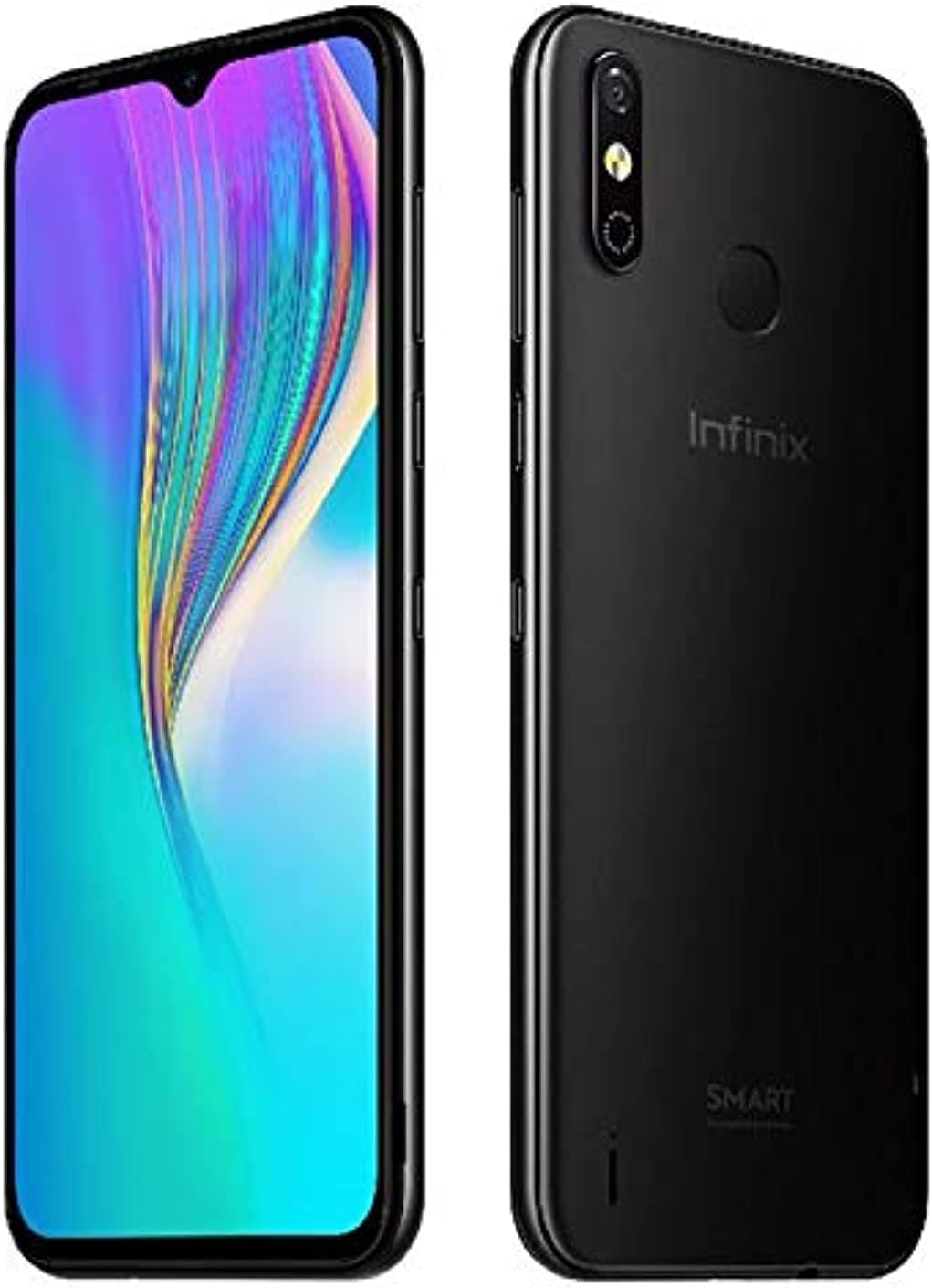
This image displays the Infinix X653 Smart 4 smartphone. The left side shows the front of the device with its 6.6-inch IPS display, featuring a waterdrop notch for the front camera. The right side shows the back of the device, highlighting the dual rear camera setup, LED flash, fingerprint sensor, and the Infinix brand logo.
Initial Setup
1. Inserting SIM Cards and SD Card
- Locate the SIM card tray on the side of your device.
- Use the provided SIM ejector tool to open the tray.
- Carefully place your Nano SIM cards and/or microSD card into the designated slots. Ensure the gold contacts are facing down.
- Gently push the tray back into the device until it is flush.
2. Charging the Battery
- Connect the Micro USB cable to the charging port at the bottom of your phone.
- Connect the other end of the cable to the power adapter, then plug the adapter into a wall outlet.
- Allow the device to charge fully before initial use. The battery indicator on the screen will show charging status.
3. Powering On/Off
- To power on: Press and hold the Power button until the Infinix logo appears.
- To power off: Press and hold the Power button, then select 'Power off' from the options on the screen.
4. Initial Configuration
- Follow the on-screen prompts to select your language, connect to a Wi-Fi network, and set up your Google account.
- You can also configure security settings like fingerprint unlock during this process.
Operating Your Device
1. Basic Navigation
- Tap: Touch an icon or option to select it.
- Swipe: Drag your finger across the screen to scroll or navigate between screens.
- Pinch: Use two fingers to zoom in or out on images and web pages.
2. Making Calls
- Open the 'Phone' application.
- Enter the phone number using the dial pad or select a contact from your address book.
- Tap the call icon to initiate the call.
3. Sending Messages
- Open the 'Messages' application.
- Tap the 'Start chat' or '+' icon to compose a new message.
- Enter the recipient's number or select from contacts, then type your message.
- Tap the send icon.
4. Connecting to Networks
- Wi-Fi: Go to Settings > Network & internet > Wi-Fi. Turn Wi-Fi on and select your desired network, then enter the password if required.
- Mobile Data: Go to Settings > Network & internet > Mobile network. Ensure 'Mobile data' is toggled on.
5. Camera Usage
- Open the 'Camera' application.
- Tap the shutter button to take a photo.
- Swipe left or right to switch between photo, video, and other modes.
- Tap the camera switch icon to toggle between front and rear cameras.
6. Fingerprint Sensor
- To set up: Go to Settings > Security & location > Fingerprint. Follow the on-screen instructions to register your fingerprint.
- To unlock: Place your registered finger on the fingerprint sensor on the back of the device.
7. Audio and Multimedia
- Use the 'Music' or 'Files' app to play audio files (MP3, MIDI, AMR, WAV).
- Use the 'Video' app to play video files (3GP, MP3, AVI).
- To use FM Radio, connect wired earphones as they act as an antenna.
8. GPS Navigation
- Ensure GPS is enabled in your device settings (Settings > Security & location > Location).
- Use a navigation application (e.g., Google Maps) to get directions and location services.
Device Maintenance
1. Cleaning Your Device
- Use a soft, lint-free cloth to gently wipe the screen and body of the phone.
- Avoid using harsh chemicals or abrasive materials.
2. Battery Care
- Avoid exposing the device to extreme temperatures.
- Use only the original charger or a certified compatible charger.
- Do not leave the device charging for extended periods after it is fully charged.
3. Software Updates
- Regularly check for software updates to ensure your device has the latest features and security patches.
- Go to Settings > System > System update to check for and install updates.
4. Data Backup
- Regularly back up your important data (photos, contacts, documents) to a cloud service or a computer to prevent data loss.
Troubleshooting Common Issues
1. Device Not Powering On
- Ensure the battery is charged. Connect the charger and wait a few minutes before attempting to power on.
- Press and hold the Power button for at least 10-15 seconds to perform a forced restart.
2. Network Connectivity Problems
- Wi-Fi: Check if Wi-Fi is enabled and you have entered the correct password. Try restarting your router.
- Mobile Data: Ensure mobile data is enabled in settings and your SIM card is properly inserted and active. Check your data plan with your service provider.
3. App Issues
- If an app is not responding, force close it (Settings > Apps & notifications > See all apps, select the app, then 'Force stop').
- Clear the app's cache and data (Settings > Apps & notifications > See all apps, select the app, then Storage & cache > Clear cache/Clear storage).
- Uninstall and reinstall the app.
4. Battery Draining Quickly
- Reduce screen brightness and screen timeout duration.
- Close unused applications running in the background.
- Disable Wi-Fi, Bluetooth, and GPS when not in use.
- Check battery usage in Settings > Battery to identify power-hungry apps.
Technical Specifications
| Brand | Infinix |
| Model | X653 Smart 4 |
| Operating System | Android 9 Pie |
| Network | 4G/3G/2G |
| CPU Frequency | 2.0 GHz |
| RAM | 2 GB |
| Internal Storage | 32 GB |
| External Memory Support | Up to 256 GB |
| Display Size | 6.6 Inch |
| Display Type | IPS |
| Display Resolution | HD+ 1600x720 |
| Front Camera | 5 MP |
| Rear Camera | 8 MP + QVGA |
| Flash Light | Yes |
| Video Recording | 1080P@30FPS |
| Battery Capacity | 4000 mAh |
| Talk Time (2G/3G) | 41 Hours (2G), 26.5 Hours (3G) |
| Standby Time | 390 Hours |
| SIM Card Slot | Dual Nano SIM |
| GPS Navigation | Yes |
| Bluetooth | Yes |
| USB Port | Micro USB 5 PIN |
| Earphone Jack | 3.5 mm |
| Charge Output | 5V-1.2A |
| OTG Support | No |
| Sensors | G-Sensor, E-Compass, Gyroscope, Light Sensor, Proximity Sensor, Fingerprint |
| Audio Player Formats | MP3, MIDI, AMR, WAV |
| Video Player Formats | 3GP, MP3, AVI |
| FM Radio | Yes |
| Voice Recording | Yes |
| Color | Black |
| Item Weight | 560 g |
Warranty and Support Information
Your Infinix X653 Smart 4 is covered by a standard manufacturer's warranty. Please refer to the warranty card included in your product packaging for specific terms and conditions, including warranty period and coverage details.
For technical support, service, or further inquiries, please visit the official Infinix website or contact their customer service department. Keep your purchase receipt as proof of purchase for warranty claims.


