Introduction
This manual provides detailed instructions for the setup, operation, and maintenance of your LG NanoCell 75 Series 50-inch 4K Smart TV. Please read this manual thoroughly before using your television to ensure proper and safe operation. Keep this manual for future reference.

Image: The LG NanoCell 75 Series 50-inch 4K Smart TV positioned on a media console in a living room, showing a sports broadcast.
Setup
1. Unpacking and Placement
- Carefully remove the TV from its packaging. It is recommended to have two people for this process.
- Place the TV on a stable, level surface or mount it on a wall using a compatible VESA mount (sold separately). Ensure adequate ventilation around the TV.
- Refer to the included Quick Start Guide for initial physical setup.
2. Connecting Peripherals
- Connect your antenna or cable box to the RF Connection Input.
- Use HDMI ports (HDMI 1 rear, HDMI 2 side) for connecting external devices such as Blu-ray players, gaming consoles, or soundbars. HDMI 2 supports eARC.
- USB ports (v 2.0, 1 rear/1 side) are available for connecting USB storage devices.
- An Ethernet input is provided for wired network connection.
- For optical audio output, use the Digital Audio Output (Optical) port.
3. Initial Power On and Network Setup
- Plug the power cable into the TV and a wall outlet.
- Press the power button on the remote control.
- Follow the on-screen instructions to select your language, country, and connect to your Wi-Fi network (Wi-Fi Certified 802.11ac) or use the wired Ethernet connection.
- The TV will guide you through setting up the Magic Remote and tuning channels.

Image: Dimensional diagram of the LG NanoCell 75 Series 50-inch TV, illustrating its physical size.
Operating Your TV
Magic Remote Control
The LG Magic Remote (included) offers intuitive control with point, click, scroll, and voice command functionalities. It also features button shortcuts for popular content providers.
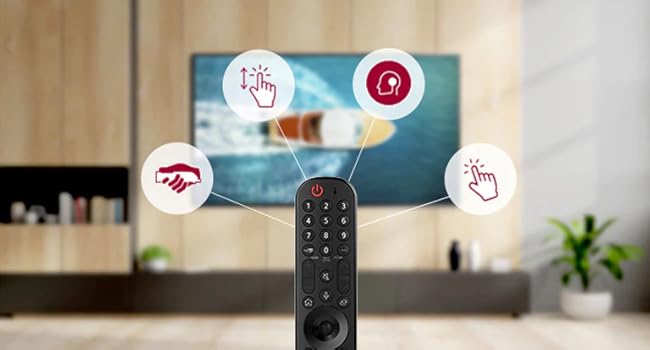
Image: The LG Magic Remote demonstrating its various interactive functions.
webOS Smart TV Platform
Your TV runs on the webOS operating system, providing access to a wide range of apps and features. The newly designed Home Screen offers personalized content suggestions and easier access to favorites.
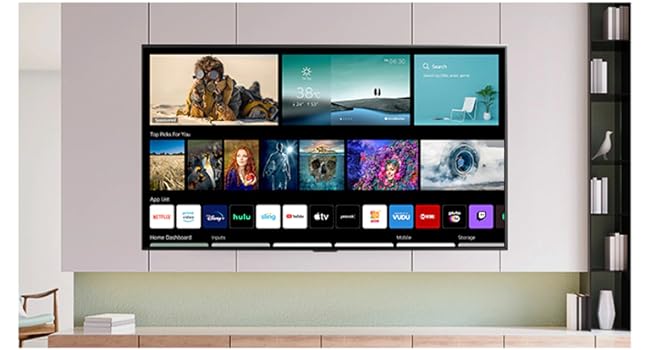
Image: The LG webOS Home Screen interface, showing available applications and content.
Voice Assistants and AI ThinQ
The TV features LG ThinQ AI with built-in Google Assistant and Alexa. Use voice commands through the Magic Remote to control your TV, search for content, get information, and manage connected smart home devices.
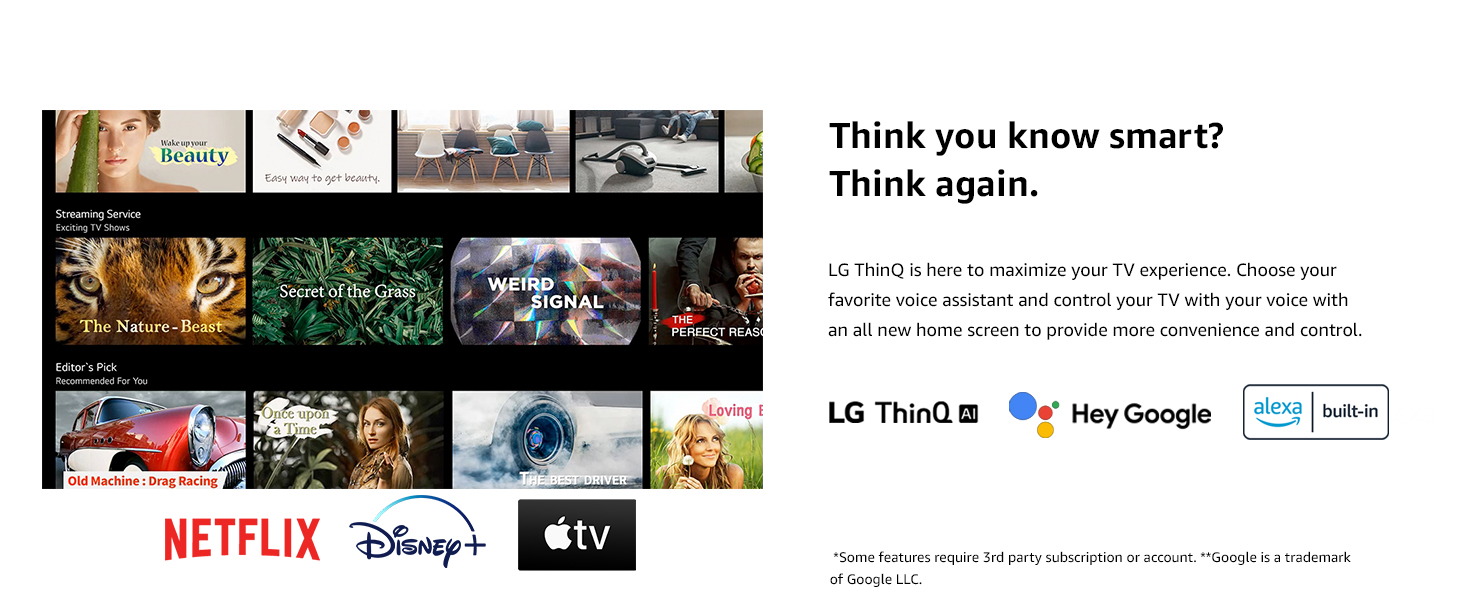
Image: The LG ThinQ AI platform on the TV, highlighting its compatibility with Google Assistant and Alexa.
Key Features
Real 4K NanoCell Display
The NanoCell display utilizes nanoparticles to filter and refine color, delivering pure, accurate colors and a vibrant, lifelike 4K picture (3840 x 2160 resolution).
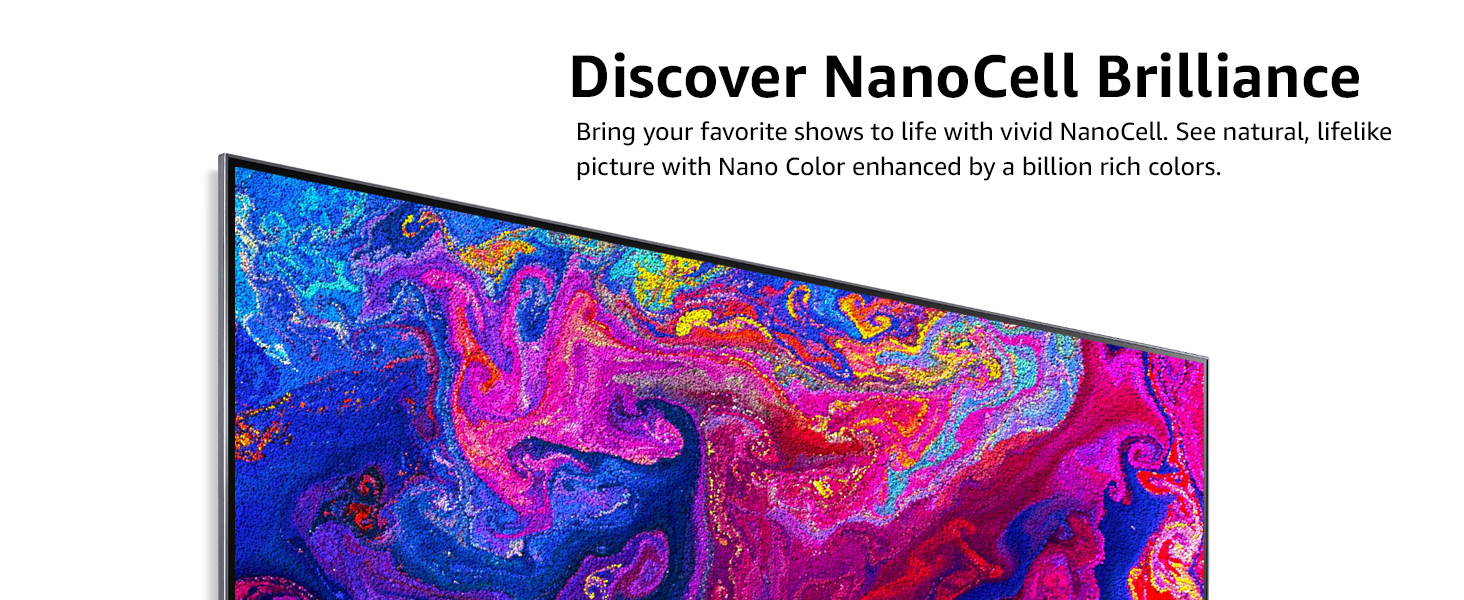
Image: A detailed view of the LG NanoCell screen showcasing its vibrant color reproduction.
Quad Core Processor 4K
The Quad Core Processor 4K enhances contrast, color, and black levels, providing a smooth and crisp viewing experience. It also supports 4K upscaling for lower resolution content.
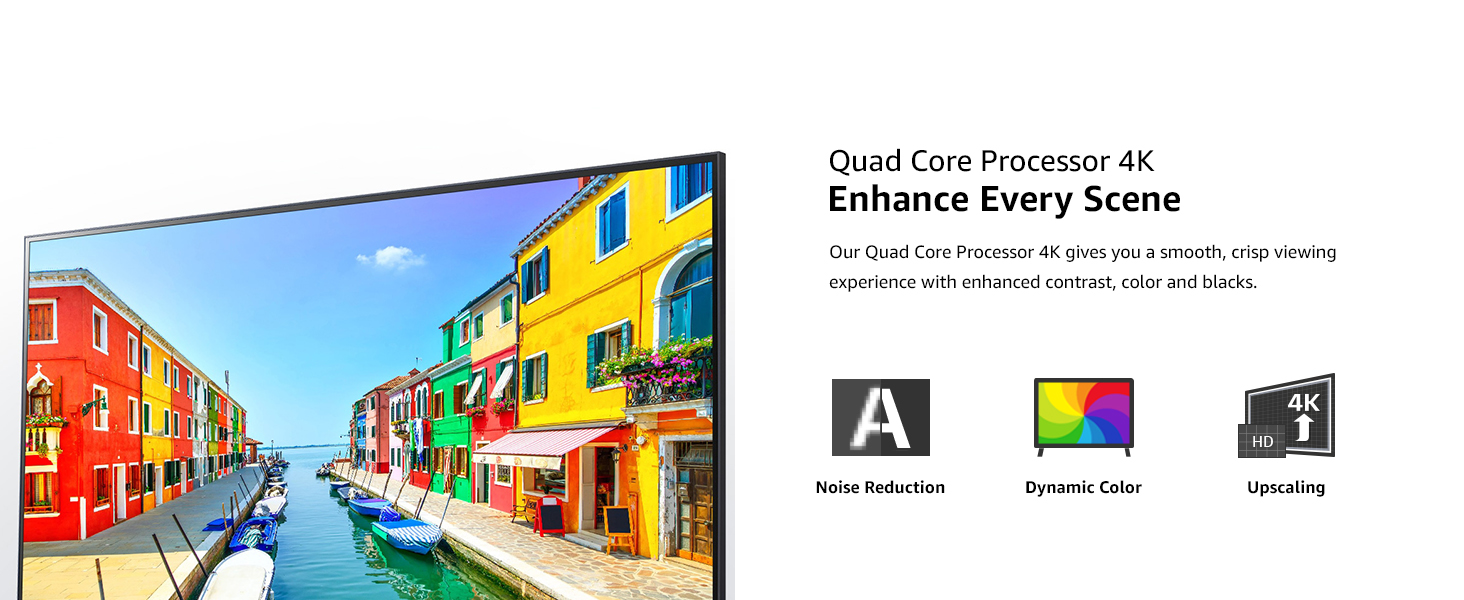
Image: The LG NanoCell TV highlighting the benefits of its Quad Core Processor 4K, including noise reduction and dynamic color.
Active HDR & Filmmaker Mode
Experience enhanced picture quality with Active HDR (HDR10, HLG). Filmmaker Mode™ preserves the director's original vision by disabling motion smoothing and other post-processing effects, ensuring an authentic cinematic experience.
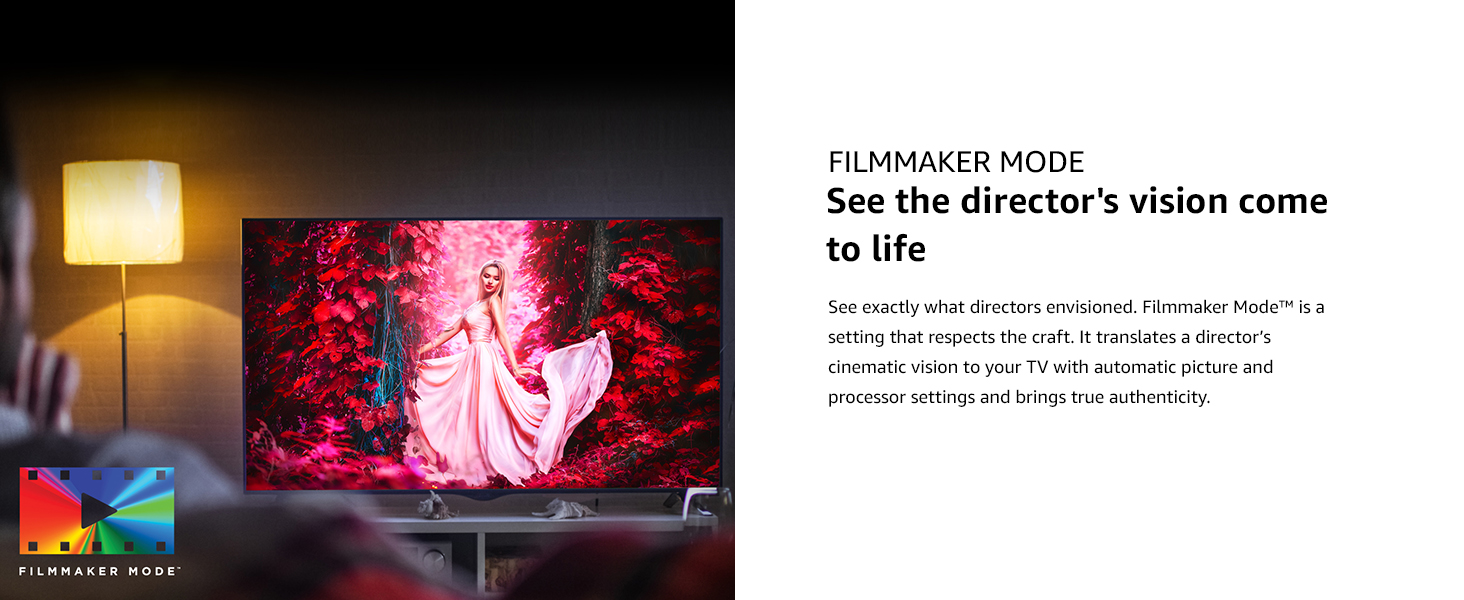
Image: The LG NanoCell TV showcasing Filmmaker Mode, designed to present content as intended by the creators.
Gaming Features
The TV includes Game Optimizer for easy access to game settings, Auto Low-Latency Mode (ALLM) for responsive gameplay, and HGiG for detailed HDR gaming pictures.
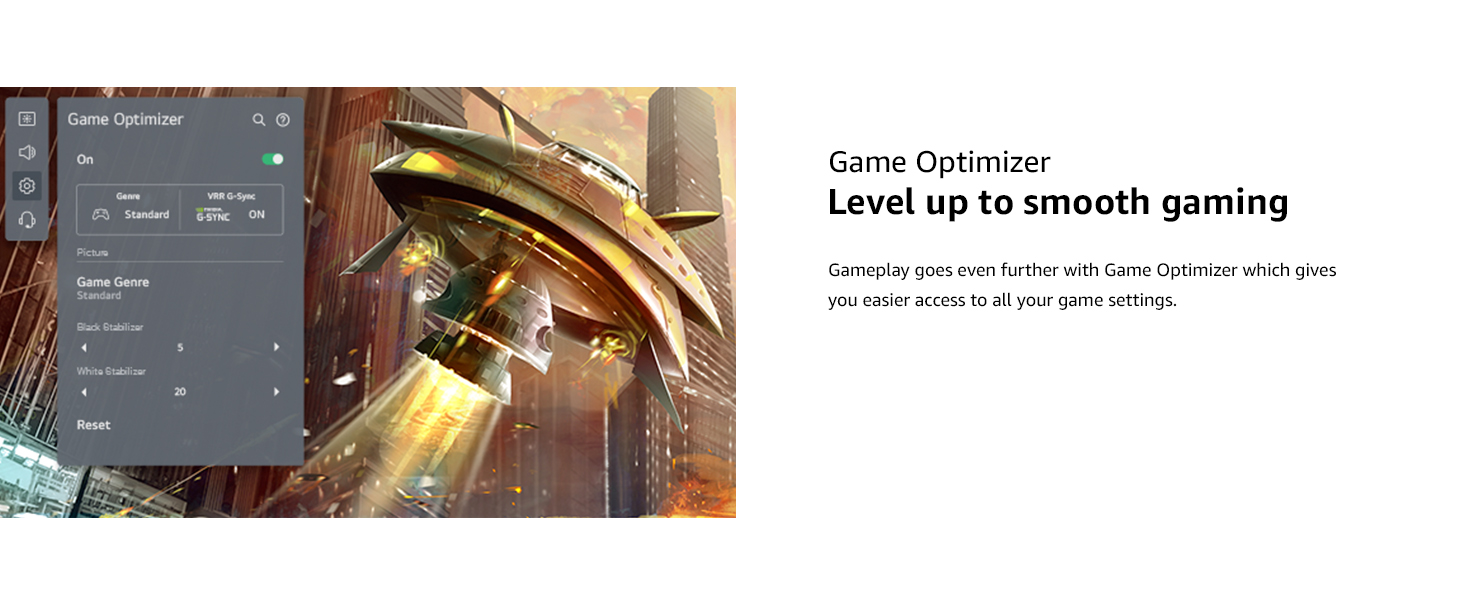
Image: The LG NanoCell TV's Game Optimizer interface during gameplay, allowing users to adjust settings for an optimized experience.
Bluetooth Surround Ready
Connect compatible Bluetooth speakers (including LG XBOOM Speakers) wirelessly to create a surround sound experience without additional cables. Up to two speakers can be connected.
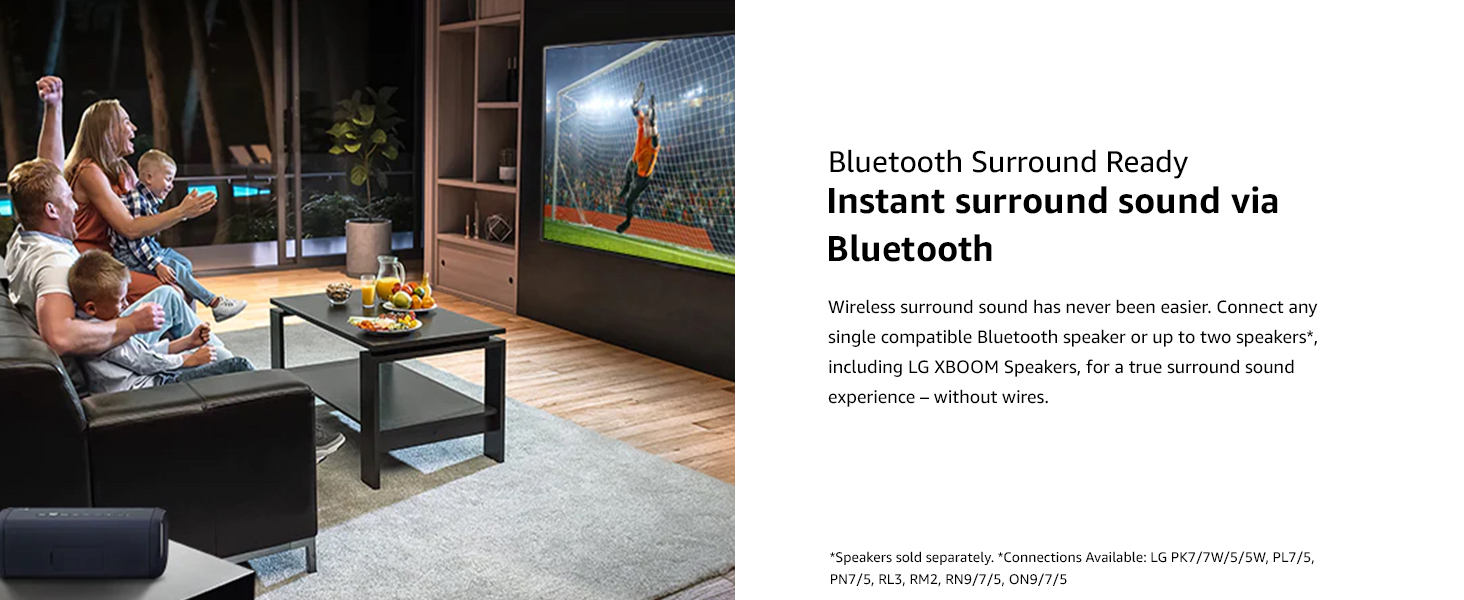
Image: A family enjoying content on the LG NanoCell TV with a Bluetooth speaker, demonstrating wireless surround sound capability.
Specifications
| Feature | Detail |
|---|---|
| Display Type | Real 4K NanoCell Display |
| Display Resolution | 4K Ultra HD (3,840 x 2,160) |
| Screen Size | 50 Inches |
| Picture Processor | Quad Core Processor 4K |
| Refresh Rate | TruMotion 120 (60Hz Native) |
| HDR Support | Active HDR (HDR10, HLG) |
| Operating System | webOS |
| AI Features | LG ThinQ AI, Google Assistant Built-in, Alexa Built-in |
| Remote Control | Magic Remote (Point, Click, Scroll, Voice) |
| Speaker System | 2.0 Channel, 20W Output Power |
| Wi-Fi Standard | Wi-Fi Certified 802.11ac |
| Bluetooth Support | Version 5.0 |
| HDMI Inputs | 3 (1 rear/2 side), eARC (HDMI 2) |
| USB Ports | 2 (1 rear/1 side) |
| Ethernet Input | 1 (Rear) |
| Digital Audio Output | 1 (Optical, Rear) |
| Power Supply | AC 100~240V 50-60Hz |
| Power Consumption | 66W (Operating), Under 0.5W (Standby) |
| TV Dimensions with Stand (WxHxD) | 44.1" x 27.9" x 9.1" |
| TV Dimensions without Stand (WxHxD) | 44.1" x 25.6" x 2.3" |
| TV Weight with Stand | 27.3 lbs |
| VESA Mounting | 200 x 200 |
Maintenance
- Cleaning the Screen: Gently wipe the screen with a soft, dry microfiber cloth. For stubborn marks, slightly dampen the cloth with water or a screen-specific cleaning solution. Avoid harsh chemicals or abrasive materials.
- Cleaning the Frame: Use a soft, dry cloth to wipe the TV frame and stand.
- Ventilation: Ensure the ventilation openings on the TV are not blocked to prevent overheating.
- Power Cable: Regularly check the power cable for any damage.
Troubleshooting
If you encounter issues with your LG NanoCell TV, refer to the following common troubleshooting steps:
- No Power: Ensure the power cable is securely plugged into both the TV and a working electrical outlet. Try a different outlet.
- No Picture/Sound: Verify that the correct input source is selected. Check all cable connections (HDMI, antenna, etc.) for looseness or damage.
- Poor Picture Quality: Adjust picture settings (brightness, contrast, sharpness, color) in the TV menu. Ensure the content source is high quality.
- Remote Not Working: Check the batteries in the Magic Remote and replace them if necessary. Ensure there are no obstructions between the remote and the TV.
- Network Connection Issues: Restart your router and modem. Reconnect the TV to the Wi-Fi network or check the Ethernet cable connection.
- Smart Features Not Responding: Restart the TV by unplugging it from the power outlet for a few minutes, then plugging it back in.
For more detailed troubleshooting or persistent issues, consult the e-Manual available on your TV or contact LG customer support.
Warranty and Support
Your LG NanoCell TV comes with a limited warranty. Please refer to the support tab on the product page or the official LG website for full details on the limited warranty terms and conditions.
For technical assistance, service, or warranty claims, please contact LG Customer Support. Contact information can typically be found in the e-Manual on your TV or on the official LG Electronics website.