1. Introduction
Thank you for purchasing the Muvit Candy Wireless Keyboard Mouse Combo. This manual provides detailed instructions for setting up, operating, and maintaining your new wireless peripheral set. Please read this manual carefully before use to ensure optimal performance and longevity of your product.
2. Product Overview
2.1 Components
- Wireless Keyboard (100-key mini keyboard with circular punk key caps)
- Wireless Mouse
- USB Receiver (for 2.4GHz wireless connection)
2.2 Key Features
- 2.4GHz Wireless Technology: Provides a stable and reliable connection with an effective range of up to 10 meters.
- Full-size 100-Key Layout: Includes conventional keyboard, numeric keypad, and directional keys for comprehensive functionality.
- Multimedia Hotkeys: FN+F1~F12 keys support various shortcut functions such as play/pause, volume control, and more.
- Intelligent Power-Saving: Features an intelligent power-saving chip with three power-saving modes to extend battery life.
- Plug and Play: No drivers required; simply insert the USB receiver to connect both keyboard and mouse.
- Ergonomic Design: Designed for comfortable use during extended periods.
- Optical Mouse: Compact and precise optical tracking.

Figure 2.1: The Muvit Candy Wireless Keyboard and Mouse Combo in blue, showcasing its compact design and circular keycaps.

Figure 2.2: The Muvit Candy keyboard and mouse combo positioned alongside a laptop, demonstrating its size and compatibility with portable devices.

Figure 2.3: A detailed view of the Muvit Candy keyboard's circular punk keycaps, highlighting their unique design and removable nature.
3. Setup Guide
3.1 Battery Installation
The keyboard and mouse require 2 AA batteries each (not included). Follow these steps to install the batteries:
- Locate the battery compartment on the underside of the keyboard and mouse.
- Open the battery compartment cover.
- Insert the AA batteries, ensuring correct polarity (+/-).
- Close the battery compartment cover securely.
3.2 Connecting the USB Receiver
The Muvit Candy combo uses a single USB receiver for both the keyboard and mouse.
- Locate the USB receiver, typically stored in the battery compartment of the mouse or in the product packaging.
- Plug the USB receiver into an available USB port on your computer (PC, Laptop, Desktop).
- The system will automatically detect and install the necessary drivers. No manual driver installation is required.
- Once detected, the keyboard and mouse are ready for use.

Figure 3.1: The Muvit Candy keyboard, mouse, and the compact USB receiver, illustrating the components required for wireless connectivity.
4. Operation
4.1 Basic Use
Once connected, the keyboard and mouse function like standard wired peripherals. The 2.4GHz wireless technology ensures a strong and secured signal, allowing you to operate your computer from a distance of up to 10 meters.
4.2 Multimedia Functions (Keyboard)
The keyboard features dedicated multimedia functions accessible via the 'FN' key combined with the F1-F12 keys. Refer to the keycap legends for specific functions:
- FN + F1: Media Player
- FN + F2: Volume Down
- FN + F3: Volume Up
- FN + F4: Mute
- FN + F5: Previous Track
- FN + F6: Next Track
- FN + F7: Play/Pause
- FN + F8: Stop
- FN + F9: Home Page
- FN + F10: Email
- FN + F11: My Computer
- FN + F12: Calculator
4.3 Power Saving Modes
The combo is equipped with an intelligent power-saving chip. If inactive for a period, the devices will enter a sleep mode to conserve battery. To wake them up, simply press any key on the keyboard or move the mouse.
4.4 Compatibility
The Muvit Candy Wireless Keyboard Mouse Combo is compatible with a wide range of operating systems, including:
- Windows (Windows 7, Windows 8, Windows 10)
- Mac OS
- Vista
It is ideal for use with PCs, Laptops, Desktops, and Gaming PC setups.
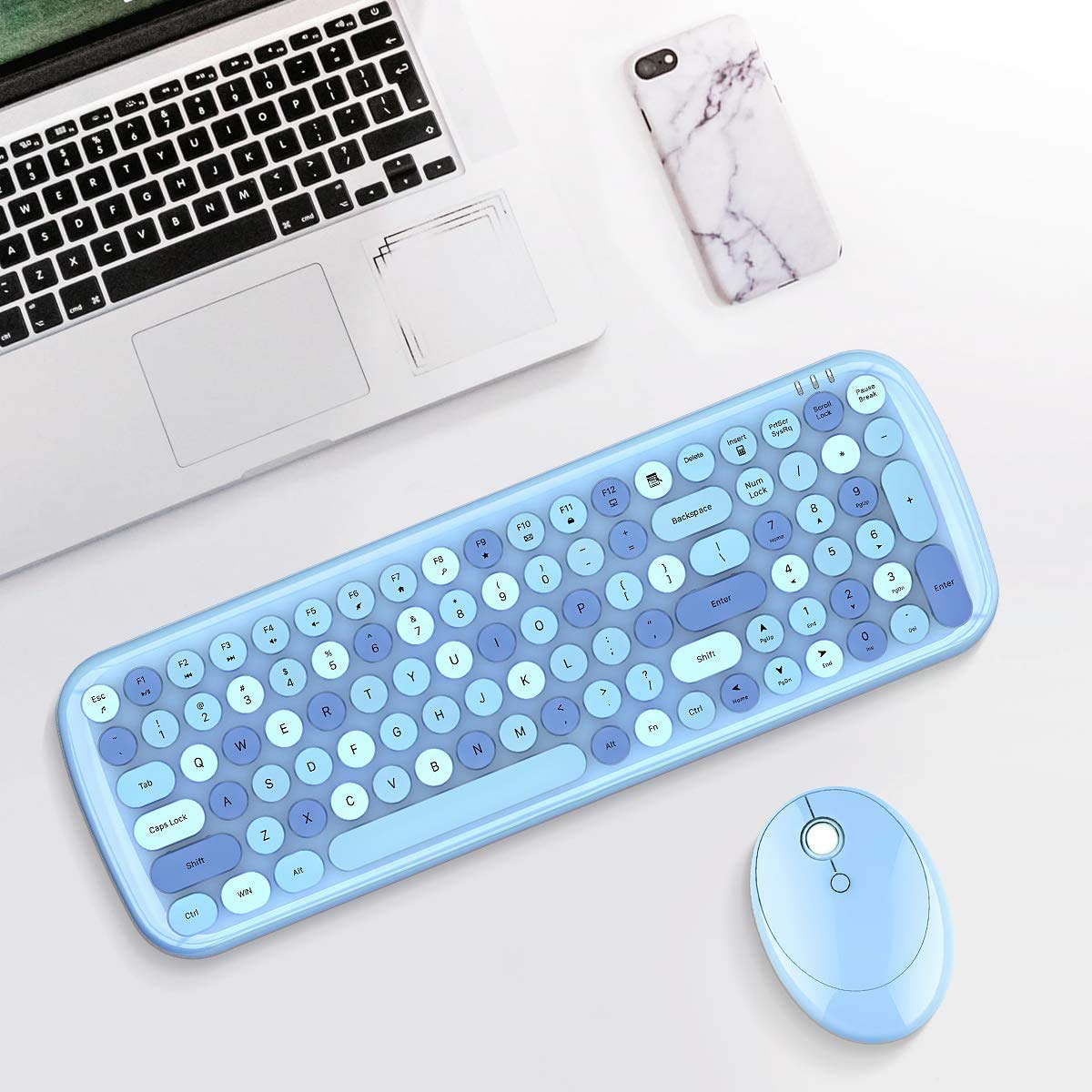
Figure 4.1: A user actively typing on the Muvit Candy keyboard, demonstrating its use in a typical desktop environment with a monitor.

Figure 4.2: The Muvit Candy keyboard and mouse shown with a tablet, illustrating the effective wireless operating distance of approximately 6 meters.
5. Maintenance
5.1 Cleaning
To maintain the appearance and functionality of your keyboard and mouse:
- Use a soft, dry cloth to wipe down the surfaces.
- For stubborn dirt, slightly dampen the cloth with water or a mild, non-abrasive cleaner.
- Avoid using harsh chemicals, solvents, or abrasive materials, as these can damage the finish.
- For the keyboard, you may use compressed air to remove debris from between the keys.
5.2 Battery Replacement
When the keyboard or mouse becomes unresponsive or exhibits delayed input, it is likely time to replace the batteries. Follow the battery installation steps in Section 3.1.
6. Troubleshooting
| Problem | Possible Cause | Solution |
|---|---|---|
| Keyboard/Mouse not responding | Low or dead batteries | Replace batteries in both keyboard and mouse. |
| Intermittent connection or lag | USB receiver not properly connected or too far from devices | Ensure USB receiver is securely plugged in. Move devices closer to the receiver (within 10m). Avoid obstructions. |
| Keyboard/Mouse not detected | USB receiver issue or port issue | Try plugging the USB receiver into a different USB port on your computer. Restart your computer. |
| Specific keys/mouse buttons not working | Software conflict or physical damage | Ensure no conflicting software is running. Check for physical damage. If problem persists, contact support. |
7. Specifications
| Feature | Detail |
|---|---|
| Brand | Muvit |
| Model | CANDY |
| Connectivity Technology | 2.4GHz Wireless, USB (for receiver) |
| Keyboard Description | Ergonomic, 100-key mini with circular punk key caps |
| Mouse Movement Detection | Optical |
| Hand Orientation (Mouse) | Right |
| Compatible Devices | Laptop, PC, Desktop |
| Operating System Compatibility | Mac OS, Windows 10, Windows 7, Windows 8, Vista |
| Power Source | Battery Powered (2*AA batteries required, not included) |
| Product Dimensions | 12 x 8 x 4 cm |
| Item Model Number | CANDY |
| ASIN | B08WHKWP49 |
| Date First Available | 23 September 2021 |
8. Warranty and Support
For warranty information and customer support, please refer to the product packaging or contact Muvit customer service through their official website or the retailer where the product was purchased. Please have your product model number (CANDY) and ASIN (B08WHKWP49) ready when contacting support.


