1. Introduction
This manual provides detailed instructions for the installation, operation, and maintenance of your Mars Gaming MC500 ATX PC Case. Please read this guide thoroughly before beginning assembly or use to ensure proper functionality and safety. The MC500 is designed for high-performance computing, featuring exceptional cooling capabilities and a stylish FRGB lighting system.

Figure 1: Mars Gaming MC500 PC Case with tempered glass design.
2. Package Contents
Verify that all components are present in the package:
- Mars Gaming MC500 ATX PC Case
- Accessory box (screws, standoffs, cable ties)
- User Manual (this document)
3. Setup and Installation
Follow these steps for proper assembly of your PC components within the MC500 case.
3.1 Preparing the Case
- Carefully remove the case from its packaging.
- Place the case on a stable, flat surface.
- Remove the tempered glass side panel by unscrewing the thumb screws at the rear of the case.
3.2 Motherboard Installation
- Install the I/O shield into the motherboard tray opening.
- Align the motherboard with the pre-installed standoffs. Ensure the standoffs match your motherboard's form factor (ATX, Micro-ATX, Mini-ITX).
- Secure the motherboard with the provided screws.
3.3 Storage Drive Installation
The MC500 supports up to 4 x 2.5" SSDs or 2 x 3.5" HDDs.
- For 2.5" SSDs: Locate the dedicated mounting points on the motherboard tray or drive cages. Secure the SSDs with screws.
- For 3.5" HDDs: Utilize the drive cages located in the dual chamber design. Slide the HDDs into the trays and secure them.

Figure 2: Internal layout showing storage drive mounting locations.
3.4 Power Supply Unit (PSU) Installation
- Install the PSU into the dedicated compartment at the bottom rear of the case.
- Secure the PSU with screws from the rear of the case.
3.5 Graphics Card and Expansion Card Installation
- Remove the necessary PCIe slot covers from the rear of the case.
- Insert your graphics card or other expansion cards into the appropriate PCIe slots on the motherboard.
- Secure the cards with screws.
3.6 Cable Management
Utilize the cable routing cutouts and tie-down points behind the motherboard tray to manage cables. This improves airflow and aesthetics.
4. Operating Instructions
4.1 Powering On
After all components are installed and connected, close the side panel. Connect your monitor, keyboard, mouse, and power cable. Press the power button on the top I/O panel to start your system.
4.2 Fan Operation
The MC500 comes with two pre-installed 18cm XXL FRGB fans at the front, providing excellent airflow. These fans operate automatically once the system is powered on, drawing cool air into the case.
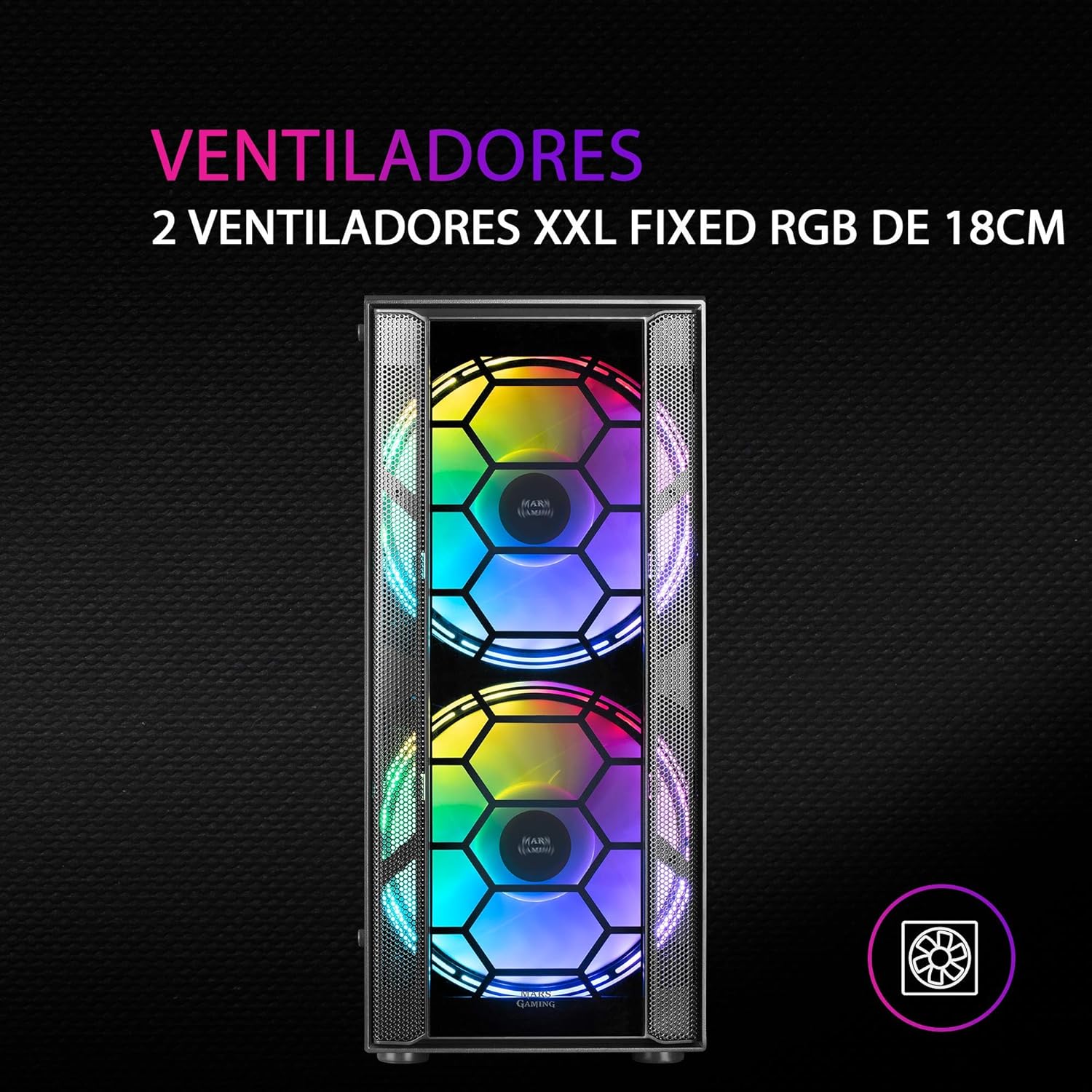
Figure 3: Front view highlighting the two 18cm XXL FRGB fans.
4.3 FRGB Lighting
The front fans feature Fixed RGB (FRGB) lighting. This lighting system provides a constant stream of colors and activates automatically when the fans receive power. No additional software or controller is required for its operation.

Figure 4: Detail of the FRGB ring lighting on the fans.
5. Maintenance
Regular maintenance ensures optimal performance and longevity of your PC case.
5.1 Dust Filter Cleaning
The MC500 is equipped with two removable dust filters to prevent dust buildup inside the case. It is recommended to clean these filters periodically (e.g., monthly) depending on your environment.
- Power off your computer and disconnect the power cable.
- Gently remove the dust filters (typically located on the top and bottom/front of the case).
- Clean the filters using compressed air or by rinsing them with water. If using water, ensure they are completely dry before re-installing.
- Re-install the dust filters.

Figure 5: Removable dust filter for easy cleaning.
5.2 General Cleaning
Wipe the exterior of the case with a soft, damp cloth. Avoid using harsh chemicals or abrasive materials that could damage the finish or tempered glass.
6. Troubleshooting
If you encounter issues with your MC500 PC case, consider the following common solutions:
- System Not Powering On: Ensure all power cables (24-pin ATX, 8-pin CPU, GPU power) are securely connected to the motherboard and components. Verify the PSU switch is in the 'ON' position. Check front panel header connections to the motherboard.
- Fans Not Spinning: Confirm that the fan power cables are correctly connected to the motherboard fan headers or a fan controller. Check BIOS settings for fan speed control.
- FRGB Lighting Not Working: Since the FRGB lighting is fixed and powered by the fans, ensure the fans are spinning and receiving power.
- Poor Airflow/Overheating: Ensure all case fans are oriented correctly (intake/exhaust). Clean dust filters regularly. Verify no cables are obstructing airflow.
- Loose Components: If you hear rattling, check that all screws for the motherboard, drives, and expansion cards are tightened.
For persistent issues, consult the documentation for your individual PC components (motherboard, PSU, etc.) or contact Mars Gaming support.
7. Specifications
| Feature | Specification |
|---|---|
| Brand | Mars Gaming |
| Model | MC500 |
| Product Dimensions | 37.5 x 44.8 x 20.2 cm |
| Item Weight | 5.1 kg |
| Form Factor | ATX |
| Motherboard Compatibility | ATX, Micro-ATX, Mini-ITX |
| Case Type | Tower |
| Material | Glass |
| Included Fans | 2 x 18cm XXL FRGB Fans (Front) |
| Liquid Cooling Support | 240/120mm (Top), 120mm (Rear) |
| Storage Bays | Up to 4 x 2.5" SSDs or 2 x 3.5" HDDs |
| Dust Filters | 2 (Removable) |
| Color | Black |
8. Warranty and Support
8.1 Warranty Information
For detailed warranty information regarding your Mars Gaming MC500 PC Case, please refer to the official Mars Gaming website or the warranty card included with your purchase. Warranty terms and conditions may vary by region.
8.2 Technical Support
If you require technical assistance or have questions not covered in this manual, please visit the official Mars Gaming support page or contact their customer service directly. Contact information can typically be found on their website.


