
1. Setup Guide
1.1 Unboxing and Initial Preparation
Carefully unbox your LG NanoCell TV. It is recommended to have at least two people for safe handling due to the size and weight of the 86-inch model. Ensure all packing materials and components are removed from the box.
Video: LG Nano Unboxing. This video demonstrates the unboxing process and initial setup steps for an LG NanoCell TV.
Before proceeding with installation, prepare a clean, flat, and soft surface to place the TV face down. This prevents scratches to the screen during stand attachment or wall mount preparation.

Image: This image displays the dimensions of the 86-inch LG NanoCell TV and lists the items included in the box: 86" TV with Stand, User Manual, Power Cable, and LG Magic Remote.
1.2 Stand Installation
If you choose to place the TV on a stand, install the included base using the provided hardware. Ensure the stand is securely fastened to the TV. Once the stand is attached, carefully lift the TV with assistance and position it in your desired location.

Image: A close-up view of the two stand components and screws required for assembly.
1.3 Wall Mounting
For wall mounting, purchase a VESA-compatible wall mount that can support the weight and size of your 86-inch TV. Refer to the wall mount's instructions for proper installation. The VESA mount standard for this model is 800 x 400 mm. Ensure the wall structure can safely support the TV's weight of 122.4 pounds.
1.4 Connecting Inputs and Power
Connect all necessary input devices (e.g., cable box, gaming console, Blu-ray player) to the available HDMI and USB ports. This TV features 4 HDMI ports and 3 USB ports. Secure all cables to prevent clutter and accidental disconnections. Finally, plug the power cable into a wall outlet.

Image: The rear panel of the LG NanoCell TV showing the arrangement of HDMI, USB, Ethernet, and other connectivity ports.
1.5 Initial Setup Wizard
Upon first power-on, the TV will guide you through a step-by-step setup process. This includes connecting to your TV service, configuring internet access (Wi-Fi or Ethernet), and setting up other connected devices. Follow the on-screen prompts to complete the initial configuration.
2. Operating Your LG NanoCell TV
2.1 Smart TV Features with WebOS and LG ThinQ AI
Your LG NanoCell TV runs on the intuitive WebOS platform, offering a user-friendly interface for accessing content and smart features. Integrated LG ThinQ AI allows for voice control and personalized recommendations. The TV includes built-in access to popular streaming services such as Netflix, Prime Video, Apple TV+, Disney+, Hulu, Vudu, and YouTube.
Voice control is available through built-in Google Assistant and Alexa, eliminating the need for additional devices. Simply use your voice to search for content, check weather, news, or control connected smart home devices.
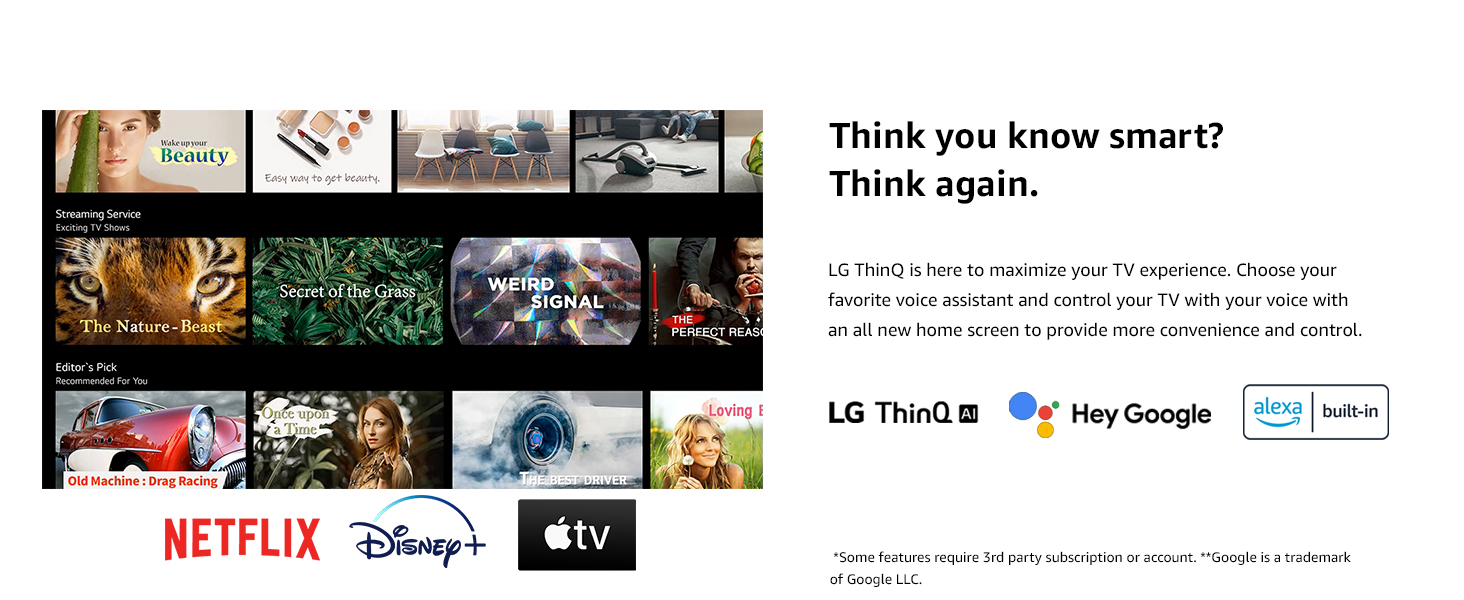
Image: A visual representation of the LG ThinQ AI Smart TV interface, highlighting WebOS and built-in voice assistant capabilities.
2.2 Picture Quality Enhancements
Experience stunning visuals with the Real 4K NanoCell Display, delivering a billion rich colors. Full Array Dimming provides deep blacks and enhanced contrast by precisely balancing lighting and reducing halo effects. The α7 Gen 4 AI Processor 4K optimizes viewing and audio settings automatically with AI Picture and AI Sound, and performs AI 4K Upscaling for authentic calibration of every scene.
The TV supports Cinema HDR, Dolby Vision IQ, and Dolby Atmos for a home cinema experience. Filmmaker Mode ensures movies are displayed as intended by directors, preserving original aspect ratios, colors, and frame rates.
Video: LG NanoCell TV True Colors. This video illustrates the vibrant and accurate color reproduction capabilities of LG NanoCell technology.
2.3 Sound Quality
The TV features 2.2 channel surround sound with Dolby Atmos, providing immersive audio. The maximum output power is 40 watts, delivering clear and powerful sound for an enhanced viewing experience.
2.4 Gaming Features
For gamers, the LG NanoCell TV offers a 120Hz refresh rate and FreeSync Premium compatibility for smooth, tear-free action. Game Optimizer provides easy access to all game settings. Low input lag and fast response times are ensured with Auto Low-Latency Mode and HGiG support.
2.5 Magic Remote
The included Magic Remote offers intuitive control with point-and-click functionality, a scroll wheel, and dedicated buttons for popular streaming services. It also supports voice commands for seamless navigation and control of your TV and smart home devices.

Image: A close-up of the LG Magic Remote, showcasing its ergonomic design and various control buttons.
3. Maintenance
3.1 Cleaning the Screen
To clean the screen, gently wipe it with a soft, dry microfiber cloth. For stubborn smudges, lightly dampen the cloth with water or a screen-specific cleaning solution (avoiding harsh chemicals or abrasive materials). Do not spray liquid directly onto the screen.
3.2 Cleaning the TV Body and Stand
Wipe the TV body and stand with a soft, dry cloth. Avoid using solvents or alcohol-based cleaners, as these can damage the finish.
3.3 General Care
Keep the TV away from direct sunlight, heat sources, and excessive dust. Ensure proper ventilation around the TV to prevent overheating. Avoid placing heavy objects on top of the TV or stand.
4. Troubleshooting
4.1 No Power / Remote Issues
If the TV does not power on or the remote is unresponsive, check the power cable connection and ensure the remote's batteries are fresh (requires 2 AA batteries). If the remote's power button becomes unresponsive, consider using the LG ThinQ app on your smartphone as an alternative control method.
4.2 Slow App Loading / Interface Lag
If apps load slowly or the interface experiences lag, ensure your internet connection is stable and strong. Restarting the TV by unplugging it for a few minutes and plugging it back in can often resolve minor software glitches. Regularly update the TV's firmware to ensure optimal performance.
4.3 Picture or Sound Problems
For picture or sound issues, first check all cable connections to external devices. Ensure the correct input source is selected. If using external audio, verify its connection and settings. Consult the TV's on-screen settings for picture and sound adjustments.
5. Specifications
| Feature | Detail |
|---|---|
| Screen Size | 86 Inches |
| Brand | LG |
| Display Technology | LED |
| Resolution | 4K (3840 x 2160) |
| Refresh Rate | 120 Hz (TruMotion 240) |
| Processor | α7 Gen 4 AI Processor 4K |
| Operating System | WebOS |
| Voice Assistants | Google Assistant, Alexa Built-in |
| HDR Format Supported | Dolby Vision, Cinema HDR |
| Audio Output Mode | Surround (2.2 channel, 40W, Dolby Atmos) |
| Connectivity Technology | Bluetooth 5, Ethernet, HDMI, USB, Wi-Fi |
| Total HDMI Ports | 4 |
| Total USB Ports | 3 (USB 2.0) |
| Product Dimensions (D x W x H) | 14.1"D x 75.8"W x 45.9"H |
| Item Weight | 122.4 Pounds |
| VESA Mount Standard | 800 x 400 mm |
| Model Year | 2021 |
6. Warranty & Support
6.1 Warranty Information
This LG NanoCell TV comes with a 1 Year Parts and Labor limited warranty. Please retain your proof of purchase for warranty claims.
6.2 Customer Support
For further assistance, technical support, or warranty service, please visit the official LG website at LG.com or contact LG Customer Support directly. You can also find additional resources and FAQs on their support pages.