1. Introduction
This manual provides comprehensive instructions for the installation, operation, and maintenance of your ASUS TUF Gaming B560M-PLUS WiFi Motherboard. Please read this manual thoroughly before using the product to ensure proper setup and optimal performance. This motherboard is designed for 24/7 unparalleled performance with upgraded power delivery and comprehensive cooling options to fuel the latest Intel 11th gen CPUs. It also provides faster memory and storage.
2. Product Overview
The ASUS TUF Gaming B560M-PLUS WiFi is a Micro ATX gaming motherboard featuring the LGA1200 socket, supporting Intel 11th/10th Gen processors. It includes PCIe 4.0 support, dual M.2 slots, 8+1 power stages, 2.5Gb LAN, and WiFi 6 connectivity.

Figure 2.1: Top-down view of the ASUS TUF Gaming B560M-PLUS WiFi Motherboard, showcasing the CPU socket, RAM slots, PCIe slots, and various headers.
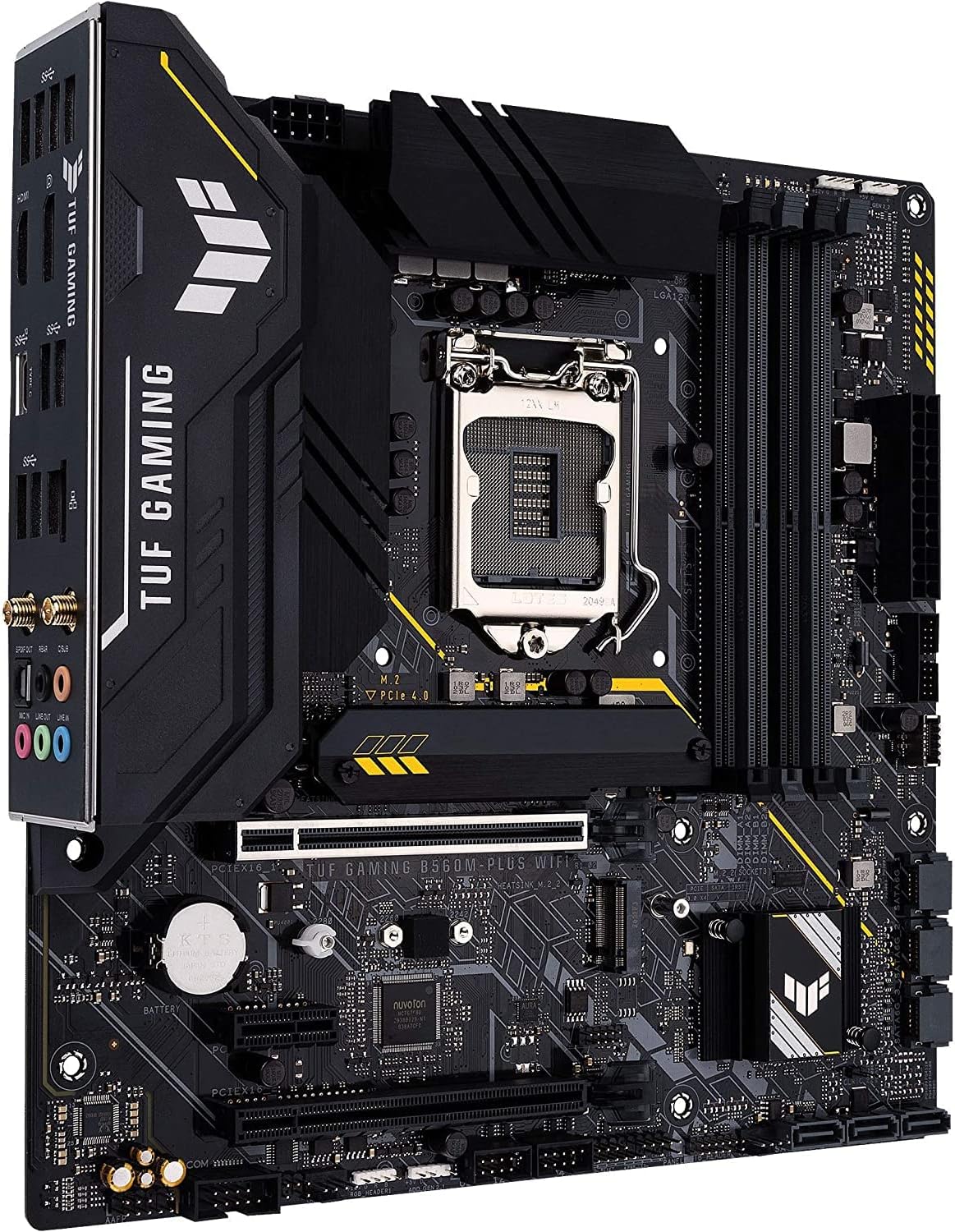
Figure 2.2: Angled view of the motherboard, highlighting the I/O shield, VRM heatsinks, and the overall compact Micro ATX form factor.

Figure 2.3: A different angled perspective of the motherboard, showing the M.2 slots and the chipset heatsink.

Figure 2.4: Close-up of the rear I/O panel, detailing the USB ports, HDMI, DisplayPort, Ethernet, Wi-Fi antenna connectors, and audio jacks.
3. Key Features
- Intel LGA 1200 socket: Ready for 11th Gen Intel Core processors.
- Enhanced power solution: 8+1 power stages, 6-layer PCB, ProCool socket, and durable capacitors for stable power delivery.
- Comprehensive cooling: VRM heatsink, flexible M.2 heatsink, PCH heatsink, hybrid fan headers and Fan Xpert 2+.
- Next-gen connectivity: PCIe 4.0, Realtek 2.5Gb Ethernet, Intel Wi-Fi 6, rear USB 3.2 Gen 2, front USB 3.2 Gen 1 Type-C and Thunderbolt 4 support.
- Two-way AI Noise-Cancelation: Reduce background noise from the microphone and audio output for crystal-clear communication in games or video conferences.
4. Setup and Installation
Proper installation is crucial for the stability and performance of your system. Always ensure your power supply is disconnected before handling components.
4.1. Pre-Installation Checklist
- Ensure you have a compatible CPU (Intel 10th or 11th Gen LGA1200).
- Gather necessary tools: Phillips-head screwdriver, anti-static wrist strap.
- Prepare your PC case and power supply.
4.2. Motherboard Installation
- Install the CPU into the LGA1200 socket, aligning the triangular markers. Secure the retention arm.
- Apply thermal paste to the CPU and install the CPU cooler.
- Install DDR4 RAM modules into the DIMM slots, ensuring they click into place. Refer to the motherboard manual for preferred slot configuration for dual-channel memory.
- Mount the motherboard into the PC case using standoffs and screws.
- Connect the 24-pin ATX power connector and the 8-pin CPU power connector from your power supply to the motherboard.
- Install M.2 SSDs into the M.2 slots and secure them.
- Install your graphics card into the primary PCIe x16 slot.
- Connect front panel headers (power button, reset button, USB, audio) according to the motherboard's pinout diagram.
- Connect SATA drives (if any) to the SATA ports.
- Connect case fans to the fan headers.
5. Operating the Motherboard (BIOS/UEFI)
The BIOS (Basic Input/Output System) or UEFI (Unified Extensible Firmware Interface) is the first software that runs when you power on your computer. It initializes hardware components and loads the operating system.
5.1. Accessing BIOS/UEFI
To enter the BIOS/UEFI setup utility, press the Delete key or F2 key during the Power-On Self-Test (POST) phase, immediately after turning on your computer.
5.2. Key BIOS/UEFI Settings
- Boot Order: Configure the sequence in which the system attempts to boot from storage devices.
- XMP Profile: Enable Extreme Memory Profile for optimal RAM performance.
- Fan Control: Adjust fan speeds and curves for optimal cooling and noise levels.
- Storage Configuration: Set SATA mode (AHCI, RAID) and manage M.2 devices.
- Firmware Update: Update the BIOS/UEFI firmware for improved compatibility and performance. Refer to the ASUS support website for the latest firmware and update procedures.
6. Maintenance
Regular maintenance helps prolong the lifespan of your motherboard and ensures stable operation.
- Dust Removal: Periodically clean dust from the motherboard and components using compressed air. Ensure the system is powered off and unplugged.
- BIOS/UEFI Updates: Keep your BIOS/UEFI firmware updated to the latest version from the official ASUS website to ensure compatibility and performance improvements.
- Driver Updates: Install the latest drivers for your motherboard's chipset, LAN, Wi-Fi, and audio from the ASUS support page.
- Cable Management: Ensure internal cables are neatly routed to improve airflow and prevent obstruction.
7. Troubleshooting
This section addresses common issues you might encounter with your motherboard.
7.1. No Power / No Boot
- Check Power Connections: Ensure the 24-pin ATX and 8-pin CPU power cables are securely connected to the motherboard and power supply.
- Verify PSU: Test the power supply unit (PSU) with another system or a PSU tester.
- Reseat Components: Reseat RAM modules, graphics card, and CPU.
- Clear CMOS: Refer to your motherboard manual for instructions on how to clear the CMOS, which can resolve boot issues caused by incorrect BIOS settings.
7.2. System Instability / Crashes
- Check Temperatures: Monitor CPU and GPU temperatures to ensure they are within safe operating limits. Overheating can cause instability.
- Memory Test: Run a memory diagnostic tool (e.g., MemTest86) to check for RAM errors.
- Driver Issues: Ensure all drivers are up-to-date and correctly installed.
- BIOS/UEFI Settings: Reset BIOS/UEFI to default settings if you have made recent changes.
7.3. Peripheral Not Detected
- Check Connections: Ensure the peripheral is properly connected to the correct port.
- Install Drivers: Install the necessary drivers for the peripheral.
- BIOS/UEFI Settings: Check if the port or controller for the peripheral is enabled in the BIOS/UEFI.
8. Specifications
| Category | Specification |
|---|---|
| Brand | ASUS |
| Series | TUF GAMING B560M-PLUS WIFI |
| Model Number | TUF GAMING B560M-PLUS WIFI |
| CPU Socket | LGA 1200 |
| Compatible Processors | Intel 11th Gen / 10th Gen Core Processors, Intel Celeron |
| Chipset Type | Intel B560 |
| RAM Memory Technology | DDR4 |
| Memory Speed | Up to 5000 MHz (OC) |
| Memory Storage Capacity (Max) | 128 GB |
| Wireless Type | 802.11a/b/g/n/ac, 802.11ax (Wi-Fi 6) |
| Product Dimensions (LxWxH) | 10.83 x 10.83 x 2.66 inches |
| Item Weight | 1.32 pounds |
| Date First Available | February 8, 2021 |
9. Warranty and Support
For warranty information, technical support, and the latest drivers and BIOS updates, please visit the official ASUS support website. You can also refer to the official user guides for more detailed information.
- Official ASUS Support: ASUS Official Support Page
- User Manual (PDF): Download User Manual
- User Guide (PDF): Download User Guide
For further assistance, please contact ASUS customer service.


