1. Introduction
This manual provides comprehensive instructions for the Gzunelic Native 1080P Smart Projector, Model Nm8sbw-2. It covers essential information regarding setup, operation, maintenance, and troubleshooting to ensure optimal performance and longevity of your device. Please read this manual thoroughly before using the projector.
2. Product Overview
2.1 Projector Components
The Gzunelic Native 1080P Smart Projector features a robust design with a high-quality lens and efficient ventilation. Below are images illustrating the projector's exterior and connectivity ports.

Figure 2.1: Front view of the Gzunelic projector, showing the lens and ventilation grilles.

Figure 2.2: Rear and side view of the Gzunelic projector, illustrating various input/output ports including HDMI, USB, VGA, and audio.
2.2 Connectivity Options
The projector supports a wide range of devices for versatile media playback and display. This includes smartphones, tablets, set-top boxes, Blu-ray players, personal computers, USB drives, game consoles (Xbox/PS4), Fire TV devices, Chromecast, laptops, and Steam Sticks.

Figure 2.3: Diagram illustrating various devices that can be connected to the projector.
3. Setup
3.1 Unpacking
Carefully remove the projector and all accessories from the packaging. Verify that all components are present:
- Gzunelic Native 1080P Smart Projector
- Power Cable
- Remote Control
- HDMI Cable
- User Manual
3.2 Placement
The projector can display an image size ranging from approximately 50 inches to 200 inches, with a corresponding throw distance varying from 5 to 20 feet. Adjust the projector's distance from the screen to achieve the desired image size.
For ceiling mounting, the projector has four threaded holes on the bottom. These holes are compatible with screws that are 4mm in diameter and 10mm in length, with a PWB/WB (flat-head screw with meson) shape. A liftable stand is also provided for desk projection.
3.3 Power Connection
Connect the provided power cable to the projector's power input port and then plug the other end into a standard AC power outlet.
4. Operating Instructions
4.1 Powering On/Off
Press the power button on the projector or the remote control to turn the device on or off. Allow a few moments for the projector to boot up or shut down completely.
4.2 Android OS Navigation
The projector integrates an Android operating system. To navigate the interface, you can connect a USB mouse to one of the projector's USB ports, allowing for a PC-like control experience.

Figure 4.1: Icons representing Ethernet, Wi-Fi, AirPlay, Miracast, and Bluetooth connectivity.
4.3 Wireless Mirroring
The projector supports wireless mirroring for both iPhone (via Airplay) and Android phones (via Miracast). Ensure both the projector and your mobile device are connected to the same Wi-Fi network.
- For iPhone (Airplay): On the projector's Android home page, open the pre-installed app named "Screening Assistant." No further settings are required on the projector. Then, initiate Airplay from your iPhone.
- For Android Phone (Miracast): On the projector, go to the Android home page, then navigate to "Settings," and open "MCast." Once MCast is active, you can mirror your Android phone's screen to the projector via Miracast.
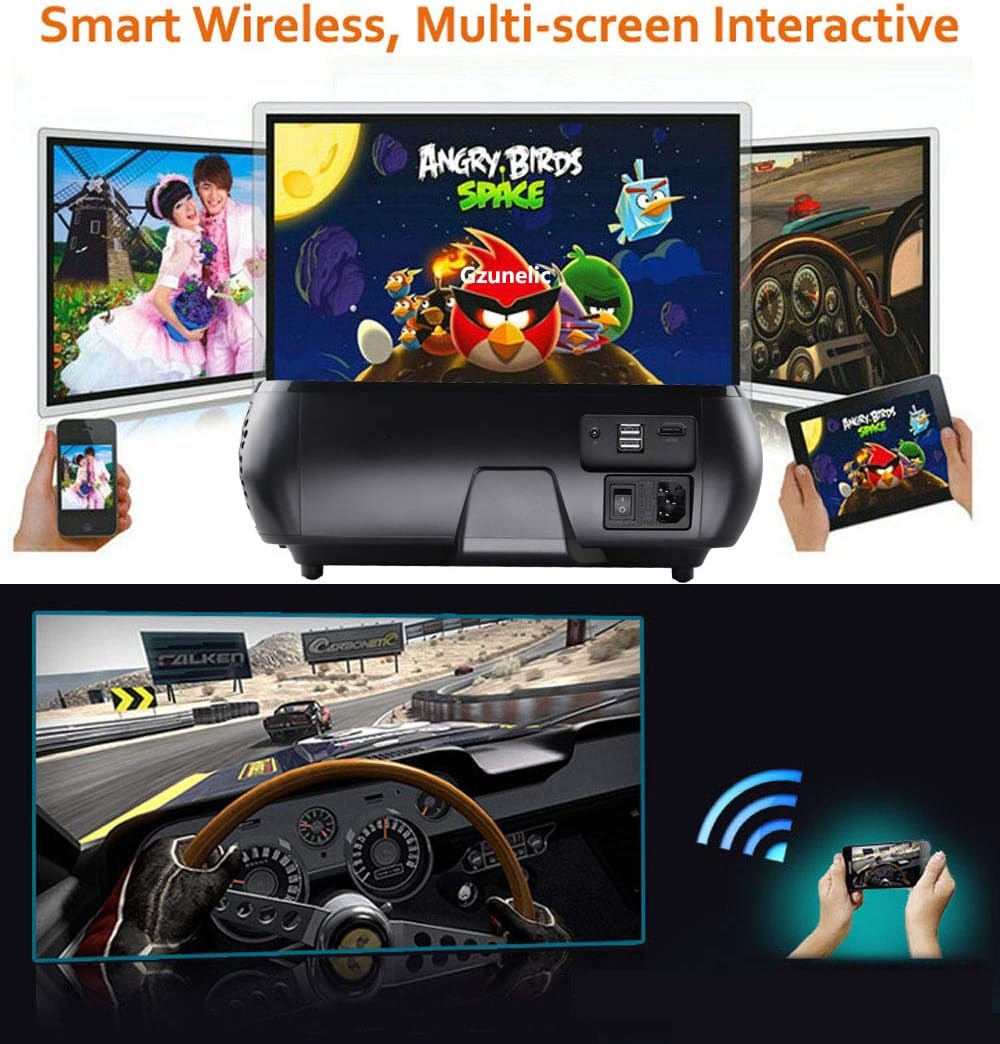
Figure 4.2: The projector displaying content from a smartphone and tablet, highlighting its smart wireless and multi-screen interactive features.
4.4 Keystone Correction
The projector features innovative 4D keystone correction, allowing for adjustment along both vertical and horizontal axes. Use the remote control to correct the image distortion by up to ±50° along the four sides of the image and ±40° for the entire image.
4.5 X/Y Zoom Function
The X/Y Zoom function allows you to adjust the image size without moving the projector, which is particularly useful for ceiling-mounted installations. You can zoom the image horizontally from 50% to 100% and vertically from 50% to 100% using the remote control.
4.6 External Audio Output
To use external speakers with the projector:
- Via Audio Cable: Connect an audio cable from your external speaker to the projector's audio output port. Then, navigate to the Android home page, go to "Settings," then "Projector," and set the sound output to "line out."
- Via Bluetooth: If your external speaker supports Bluetooth, you can pair it directly with the projector's Bluetooth. This eliminates the need for an audio cable.
5. Maintenance
5.1 Cleaning the Lens
Gently wipe the projector lens with a soft, lint-free cloth specifically designed for optical surfaces. Avoid using abrasive cleaners or excessive force, as this can scratch the lens.
5.2 Cleaning the Casing
Use a soft, dry cloth to clean the projector's casing. For stubborn dirt, slightly dampen the cloth with water and then wipe dry immediately. Do not use chemical solvents.
5.3 Lamp Life
The projector utilizes an LED lamp with an estimated lifespan of 100,000 hours. Regular cleaning and proper ventilation can help maintain optimal lamp performance.
6. Troubleshooting
6.1 No Image Display
- Ensure the power cable is securely connected and the projector is powered on.
- Verify that the correct input source is selected on the projector (e.g., HDMI, USB).
- Check the connection cable between the projector and the source device.
6.2 Poor Image Quality
- Adjust the focus ring on the projector lens until the image is clear.
- Use the keystone correction function to square the image if it appears trapezoidal.
- Ensure the source content resolution matches the projector's native 1080P resolution for best clarity.
- Check for any obstructions in front of the lens.
6.3 No Sound
- Increase the volume on both the projector and the source device.
- If using external speakers, ensure they are properly connected and configured as described in Section 4.6.
- Verify that the audio output setting on the projector is correct.
7. Technical Specifications
The Gzunelic Native 1080P Smart Projector (Model Nm8sbw-2) features advanced optical and processing technologies for superior display performance.

Figure 7.1: Comparison images demonstrating the difference in brightness (230W lamp vs. 100-150W lamp) and contrast ratio (10000:1 vs. 6000:1) of the Gzunelic projector.

Figure 7.2: Diagram illustrating the 6-layer optical coating lens design, explaining how it improves light accommodation, corrects light paths, increases penetration, and enhances sharpness.
| Feature | Specification |
|---|---|
| Brand | Gzunelic |
| Model | Nm8sbw-2 |
| Native Resolution | 1920 x 1080 (Native 1080P) |
| Brightness | 8000 Lumens |
| Contrast Ratio | 10000:1 |
| Light Source | LED (100,000 hours lifespan) |
| Display Technology | LCD |
| Keystone Correction | 4D Keystone (±50° vertical & horizontal) |
| Zoom Function | X/Y Zoom (50%-100%) |
| Aspect Ratio | 16:9, 4:3 |
| Image Size / Throw Distance | 50-200 inches / 5-20 feet |
| Operating System | Android OS (Quad Core CPU, 1GB RAM, 8GB ROM) |
| Wireless Connectivity | Wi-Fi (802.11a/b/g/n), Bluetooth 4.0 |
| Hardware Interface | HDMI, USB 2.0 (x2), VGA, AV, Audio Out, Ethernet |
| Audio | Built-in HI-FI Stereo Sound Box with SRS system (2*5W speakers) |
| Wattage | 230 watts |
| Power Source | AC |
| Product Dimensions | 32.51 x 27.69 x 13.46 cm |
| Item Weight | 2.99 kg (6.6 Pounds) |
| Mounting Type | Ceiling Mount, Desk Projection |
8. Warranty and Support
Gzunelic offers comprehensive support for your projector:
- Return Policy: 6 months for a full payment refund.
- Replacement: 1 year free replacement.
- Extended Repair: Register your projector within 7 days of receipt to activate 3 years of free repair service.
- Repair Center: A dedicated repair center is located in LA, United States.
- Contact Support: For any problems or questions, please contact Gzunelic customer service. Responses are typically provided within 24 hours.


