
1. Introduction
Thank you for purchasing the QFX PBX-615 15" Bluetooth Rechargeable Speaker. This manual provides detailed instructions for setting up, operating, and maintaining your speaker to ensure optimal performance and longevity. Please read this manual thoroughly before using the product.

Figure 1.1: Front view of the QFX PBX-615 speaker showcasing its LED lights and robust design.
2. What's in the Box
Please check the contents of your package to ensure all items are present:
- QFX PBX-615 Speaker
- Remote Control
- AC Adapter
- User Manual (this document)
3. Product Features & Overview
3.1 Key Features
- TWS (True Wireless System) for connecting two TWS-ready speakers for true stereo sound.
- 15-inch woofer for powerful audio output.
- Multiple playback options: USB/TF Card port, Bluetooth, and FM tuner.
- Dynamic LED party lights.
- Adjustable Microphone Echo, Bass, and Treble controls.
- Dedicated Microphone and AUX inputs.
- Integrated handle and wheels for easy portability.
- Rechargeable battery for extended use.
3.2 Component Overview

Figure 3.1: Rear panel diagram illustrating the various inputs and controls of the PBX-615 speaker.
Refer to the diagram above for the location of the following components:
- Handle: For easy transport.
- DC 13.5V Input: Power input for charging and operation.
- Display & Global Controls: Screen and buttons for mode selection, track control, etc.
- Mic Echo: Adjusts the echo effect for the microphone.
- Mic Volume: Controls the microphone input volume.
- Mic Input: Connect a wired microphone.
- Bass Control: Adjusts the low-frequency audio output.
- AUX Input: Connect external audio devices via a 3.5mm cable.
- Treble Control: Adjusts the high-frequency audio output.
- USB & TF Card Port: For playing audio from USB drives or TF (MicroSD) cards.
- ON/OFF: Power switch for the speaker.
- Tripod Mount Fastener: For mounting the speaker on a compatible tripod stand.
- Wheels: For convenient mobility.
4. Setup
4.1 Charging the Speaker
Before first use, fully charge the speaker. Connect the supplied AC adapter to the DC 13.5V Input port on the speaker and plug the other end into a standard wall outlet. The charging indicator will illuminate. Once fully charged, the indicator may change color or turn off depending on the model. A full charge provides several hours of playback.
4.2 Powering On/Off
To power on the speaker, locate the ON/OFF switch on the rear panel and slide it to the 'ON' position. To power off, slide the switch to the 'OFF' position.
4.3 Initial Placement
The PBX-615 is designed for portability with its handle and wheels. For optimal sound, place the speaker on a stable, flat surface. You may also use a compatible tripod stand with the built-in Tripod Mount Fastener.

Figure 4.1: The integrated handle and wheels allow for easy transport of the speaker.
5. Operating Instructions
5.1 Bluetooth Connection
- Power on the PBX-615 speaker. It will automatically enter Bluetooth pairing mode, indicated by a flashing Bluetooth icon or voice prompt.
- Enable Bluetooth on your smartphone, tablet, or other Bluetooth-enabled device.
- Search for available devices and select "QFX PBX-615" from the list.
- Once connected, the speaker will confirm with an audible tone or a solid Bluetooth indicator.
True Wireless System (TWS) Pairing: To connect two PBX-615 speakers for stereo sound (Bluetooth only feature):
- Ensure both PBX-615 speakers are powered on and in Bluetooth mode, but not yet connected to any device.
- On one of the speakers (this will be the primary speaker), press and hold the TWS button (refer to the component overview if unsure of its location).
- The primary speaker will search for the secondary speaker. Once connected, both speakers will emit a confirmation tone.
- Now, connect your Bluetooth device to the primary speaker as described in steps 1-3 above. Audio will play in stereo across both speakers.
5.2 FM Radio
Press the 'Mode' button on the speaker or remote control to switch to FM Radio mode. Use the 'Scan' button to automatically search and save available stations. Use the 'Previous/Next' buttons to navigate between saved stations.
5.3 USB/TF Card Playback
Insert a USB flash drive or TF (MicroSD) card containing MP3 audio files into the respective port. The speaker will automatically detect the media and begin playback. Use the 'Play/Pause' and 'Previous/Next' buttons to control playback.
5.4 AUX Input
Connect an external audio device (e.g., MP3 player, laptop) to the AUX Input port using a 3.5mm audio cable. The speaker will automatically switch to AUX mode or you may need to select it using the 'Mode' button. Control playback from your connected device.
5.5 Microphone Usage
Connect a wired microphone to the Mic Input port. Adjust the microphone volume using the 'Mic Volume' knob and add echo effects with the 'Mic Echo' knob on the rear panel.
5.6 LED Lights
The speaker features dynamic LED party lights. Use the dedicated light control button (if available, refer to component overview) or the remote control to cycle through different light modes or turn them off.
5.7 Bass & Treble Control
Adjust the Bass and Treble knobs on the rear panel to customize the audio output to your preference. Turn clockwise to increase and counter-clockwise to decrease.
6. Maintenance
- Cleaning: Use a soft, dry cloth to clean the speaker's exterior. Do not use abrasive cleaners or solvents.
- Storage: When not in use for extended periods, store the speaker in a cool, dry place away from direct sunlight and extreme temperatures.
- Battery Care: To prolong battery life, avoid fully discharging the battery frequently. Charge the speaker regularly, even if not in use, to maintain battery health.
7. Troubleshooting
If you encounter issues with your QFX PBX-615 speaker, please refer to the following common problems and solutions:
| Problem | Possible Cause | Solution |
|---|---|---|
| No power/Speaker not turning on | Battery is depleted; Power switch is off; AC adapter not connected properly. | Charge the speaker fully; Ensure the power switch is 'ON'; Check AC adapter connection. |
| No sound/Low volume | Volume too low; Incorrect input mode selected; Device not connected properly. | Increase speaker and source device volume; Select correct input mode (Bluetooth, AUX, USB/TF); Reconnect device. |
| Bluetooth connection issues | Speaker out of range; Interference from other devices; Speaker not in pairing mode. | Move device closer to speaker (within 33 ft/10m); Avoid strong electromagnetic interference; Ensure speaker is in pairing mode. |
| Speakers cut out intermittently | Low battery; Interference; Speaker outside Bluetooth range. | Recharge the speaker; Reduce interference from other electronic devices or radio waves; Ensure speaker is within Bluetooth range. |
| Microphone not working | Microphone not plugged in; Mic volume too low. | Ensure microphone is securely plugged into the Mic Input; Increase 'Mic Volume' knob. |
8. Specifications
| Feature | Detail |
|---|---|
| Model Name | QFX PBX-615 |
| Speaker Type | Woofer |
| Speaker Size | 15 Inches |
| Speaker Maximum Output Power | 60 Watts |
| Connectivity Technology | Bluetooth |
| Wireless Communication Technology | Bluetooth |
| Power Source | Corded Electric (Rechargeable Battery Included) |
| Product Dimensions (D x W x H) | 12.44" x 15.83" x 23.35" |
| Item Weight | 12.01 Pounds |
| Included Components | Speaker, Remote Control, AC Adapter, User Manual |
| Battery Type | 1 Lithium Ion battery (included) |
| Color | LED Lights |
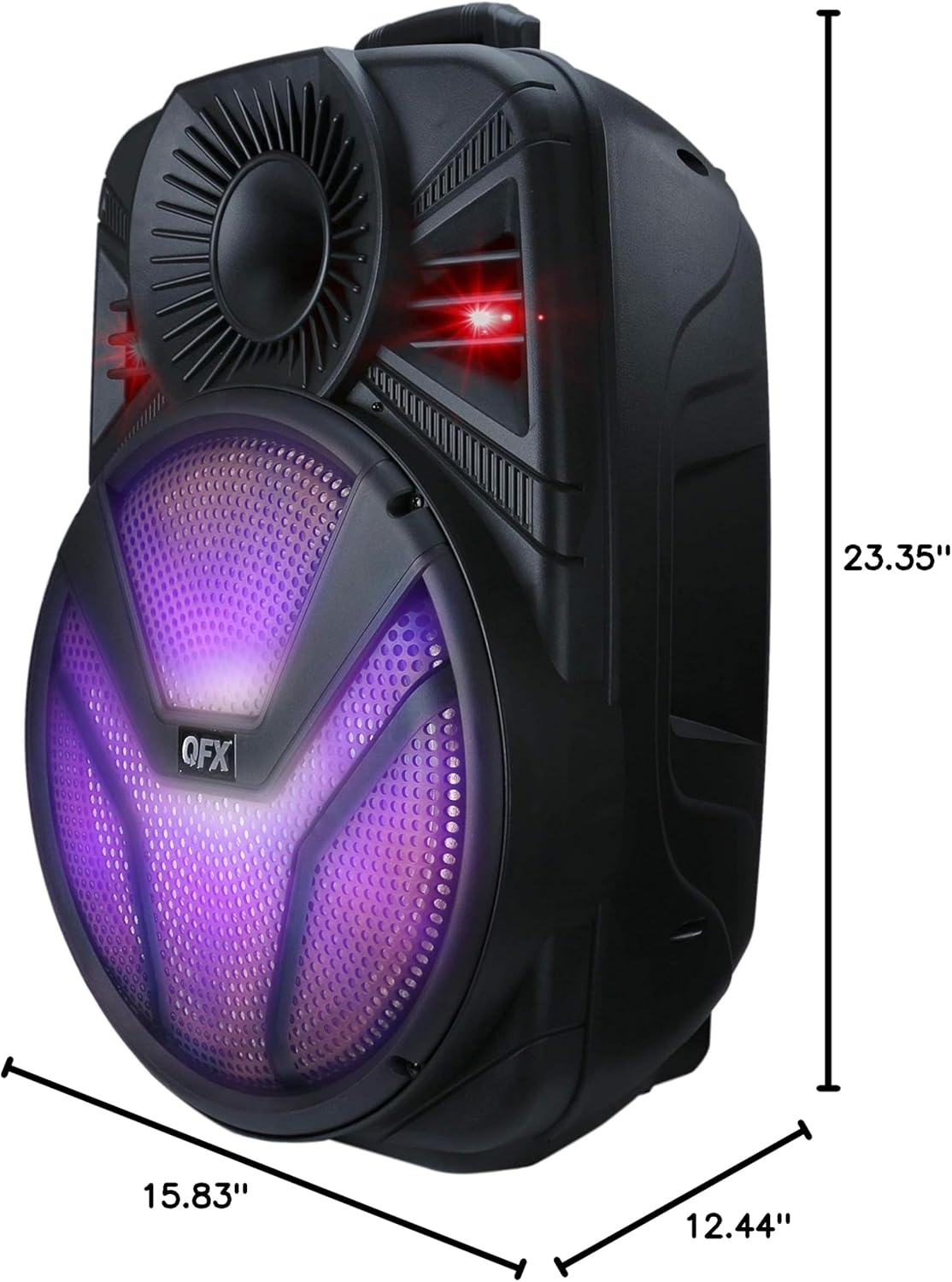
Figure 8.1: Visual representation of the speaker's dimensions.
9. Warranty & Support
The QFX PBX-615 speaker comes with a Limited Warranty. For specific warranty terms and conditions, please refer to the documentation included with your purchase.
Your satisfaction is important to us. If you have any questions, concerns, or require technical assistance with your Portable Bluetooth Speaker, please contact the QFX Customer Support Department. Contact information can typically be found on the QFX official website or on the product packaging.
For an electronic version of the user manual, you may also refer to the PDF document available at: User Manual (PDF)

