
Introduction
This manual provides detailed instructions for the Califone 3066-USB Deluxe Multimedia Stereo Headset. Designed for clear audio communication and listening, this headset features a USB plug for easy connectivity, an omni-directional microphone, and noise-reducing earcups. Please read this manual thoroughly to ensure proper setup, operation, and maintenance of your device.
Package Contents
Verify that all items are present in your package:
- Califone 3066-USB Deluxe Multimedia Stereo Headset (Pack of 2)
- Integrated USB Cable (7-ft)
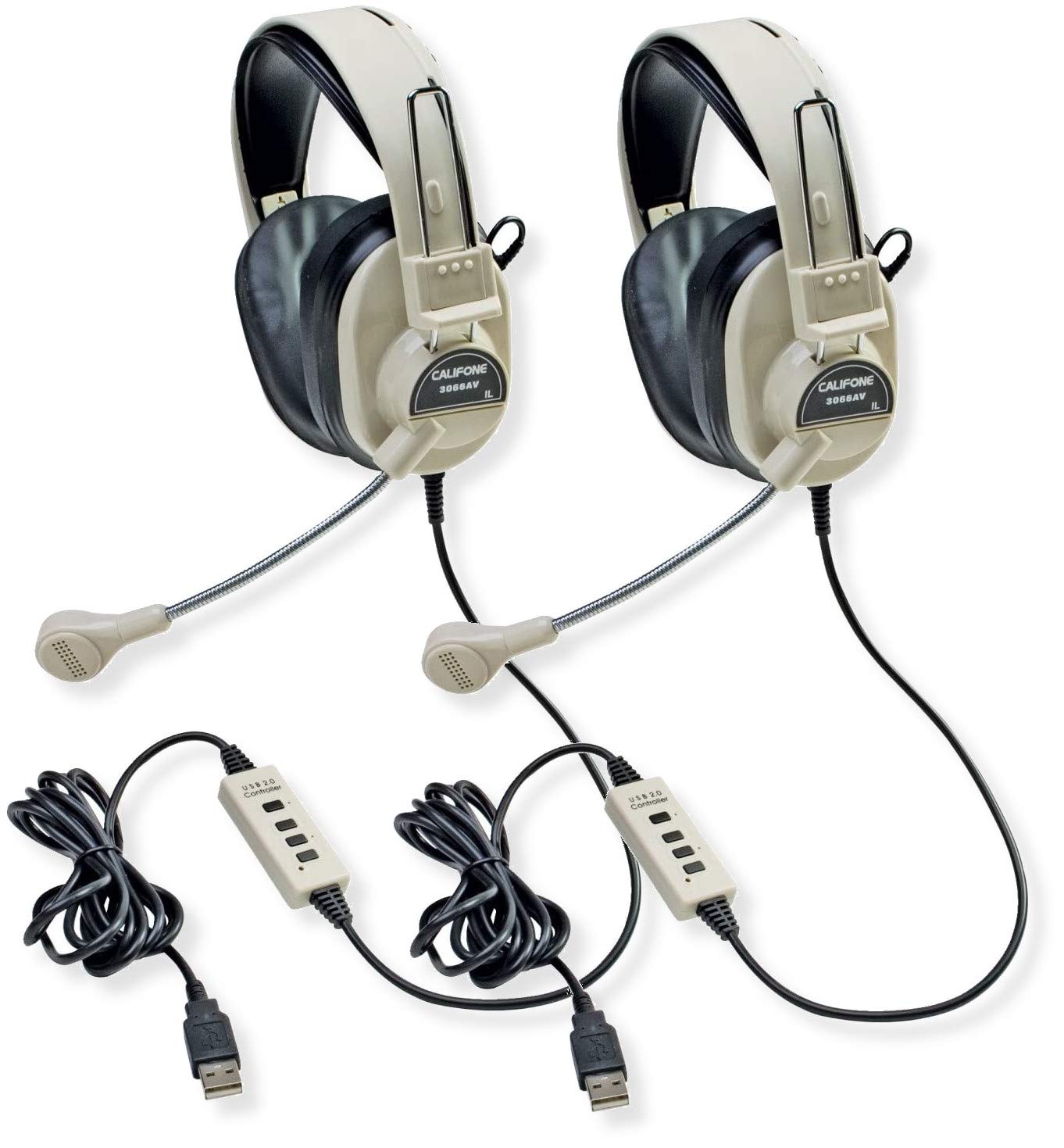
Image: Two Califone 3066-USB Deluxe Multimedia Stereo Headsets. Each headset features large, over-ear earcups, a flexible gooseneck microphone extending from the left earcup, and an integrated USB cable. The headsets are black and appear durable.
Setup
- Connect the Headset: Locate an available USB port on your computer or laptop. Insert the USB plug of the Califone 3066-USB headset into the USB port. The headset is designed for Plug and Play functionality, meaning your operating system should automatically detect and install the necessary drivers.
- Adjust the Headset: The headstrap is fully adjustable to fit various head sizes. Gently extend or retract the headstrap until the earcups sit comfortably over your ears.
- Position the Microphone: The microphone features a flexible gooseneck design. Position the microphone approximately 1-2 inches from your mouth for optimal voice capture.
- Verify Audio Settings: After connecting, check your computer's audio settings to ensure the Califone 3066-USB is selected as the default playback and recording device. This is typically found in your operating system's Sound or Audio settings.
Operating Instructions
The Califone 3066-USB headset features an in-line control unit on its 7-ft cord for convenient audio management.
- Volume Control: Use the in-line volume control wheel to adjust the listening volume of the headphones. Rotate the wheel up to increase volume and down to decrease volume.
- Microphone Mute: The in-line control includes a switch for microphone on/off (mute). Flip the switch to the 'off' position to mute the microphone, preventing your voice from being transmitted. Flip it to the 'on' position to enable the microphone.
- Noise Reduction: The earcups are designed to reduce ambient noise, providing a clearer listening experience. The omni-directional microphone includes a built-in windscreen to minimize the recording of unintended background sounds.
Maintenance
Proper maintenance ensures the longevity and optimal performance of your headset.
- Cleaning: Use a soft, dry cloth to wipe down the earcups and headstrap. For stubborn dirt, a slightly damp cloth with mild soap can be used, but ensure no moisture enters the speaker or microphone components.
- Ear Cushions: The leatherette ear cushions are replaceable. If they become worn or damaged, contact Califone support for replacement options.
- Cable Care: Avoid sharp bends or excessive pulling on the 7-ft cord. The reinforced connection is designed to resist accidental pull-out, but proper handling will prevent damage.
- Storage: Store the headset in a clean, dry place away from extreme temperatures and direct sunlight when not in use.
Troubleshooting
If you encounter issues with your Califone 3066-USB headset, refer to the following common solutions:
- No Sound/Microphone Not Working:
- Ensure the USB plug is fully inserted into a working USB port. Try a different USB port.
- Check the in-line volume control and microphone mute switch. Ensure volume is up and mic is not muted.
- Verify that the Califone 3066-USB is selected as the default audio input and output device in your computer's sound settings.
- Restart your computer.
- Poor Audio Quality:
- Adjust the volume using the in-line control and your computer's system volume.
- Ensure the microphone is positioned correctly (1-2 inches from mouth) and not obstructed.
- Check for any loose connections.
- Headset Not Recognized by Computer:
- Try connecting the headset to a different USB port or another computer to rule out a port issue.
- Check your computer's Device Manager (Windows) or System Information (macOS) to see if the device is listed.
- Ensure your operating system is up to date.
Specifications
| Feature | Detail |
|---|---|
| Model | 3066-USB |
| Connectivity | Wired USB (Backwards compatible USB 2.0) |
| Headphone Speaker Size | 40mm Mylar |
| Headphone Frequency Response | 20-20000 Hz |
| Headphone Sensitivity | 110dB SPL ± 3dB at 1kHz |
| Microphone Type | Electret Condenser |
| Microphone Directivity | Omni-directional |
| Microphone Frequency Response | 20-16000 Hz |
| Microphone Sensitivity | -41dB (standard -38dB, max -35dB) |
| Cord Length | 7-ft (2.1 meters) |
| Controls | In-line volume control, mic on/off switch |
| Earcups | Noise-reducing ABS plastic with replaceable leatherette cushions |
| Weight (each) | 0.75 lbs (12 ounces) |
Warranty and Support
For warranty information, technical support, or to inquire about replacement parts (such as ear cushions), please contact Califone customer service directly. Refer to the official Califone website for the most current contact details and warranty policies.
You can visit the Califone store on Amazon for more product information: Califone Store


