
JOYACCESS JKBBU
JOYACCESS Wireless Bluetooth Keyboard User Manual
Model: JKBBU
Introduction
Thank you for choosing the JOYACCESS Wireless Bluetooth Keyboard. This multi-device keyboard is designed for seamless connectivity across various operating systems, including Mac, Windows, iOS, and Android. Featuring an ergonomic design, quiet scissor-switch keys, and a full number pad, it enhances your productivity and comfort. This manual provides detailed instructions for setup, operation, maintenance, and troubleshooting to ensure optimal performance of your keyboard.

Image: The JOYACCESS Wireless Bluetooth Keyboard in turquoise color, showcasing its full layout with a number pad.
Setup Guide
1. Battery Installation
The keyboard requires two AA batteries (not included).
- Locate the battery compartment on the underside of the keyboard.
- Open the battery compartment cover.
- Insert two AA batteries, ensuring correct polarity (+/-).
- Close the battery compartment cover securely.
- Power on the keyboard using the switch, usually located on the top right edge.
2. Connecting via 2.4G USB Receiver
For a stable 2.4G wireless connection:
- Ensure the keyboard is powered on.
- Locate the USB receiver, typically stored in the battery compartment slot.
- Plug the USB receiver into an available USB port on your computer or device.
- The keyboard should automatically connect.

Image: A close-up of the compact USB receiver.
3. Connecting via Bluetooth (BT3.0 + BT5.0)
The keyboard supports two Bluetooth channels (BT1 and BT2) for multi-device connectivity.
- Ensure the keyboard is powered on.
- Press and hold Fn + 1 (for BT1) or Fn + 2 (for BT2) for 3 seconds. The corresponding LED indicator will blink, indicating pairing mode.
- On your device (computer, tablet, smartphone), enable Bluetooth and search for available devices.
- Select "BT3.0 Keyboard" or "BT5.0 Keyboard" from the list.
- Follow any on-screen prompts to complete the pairing process.
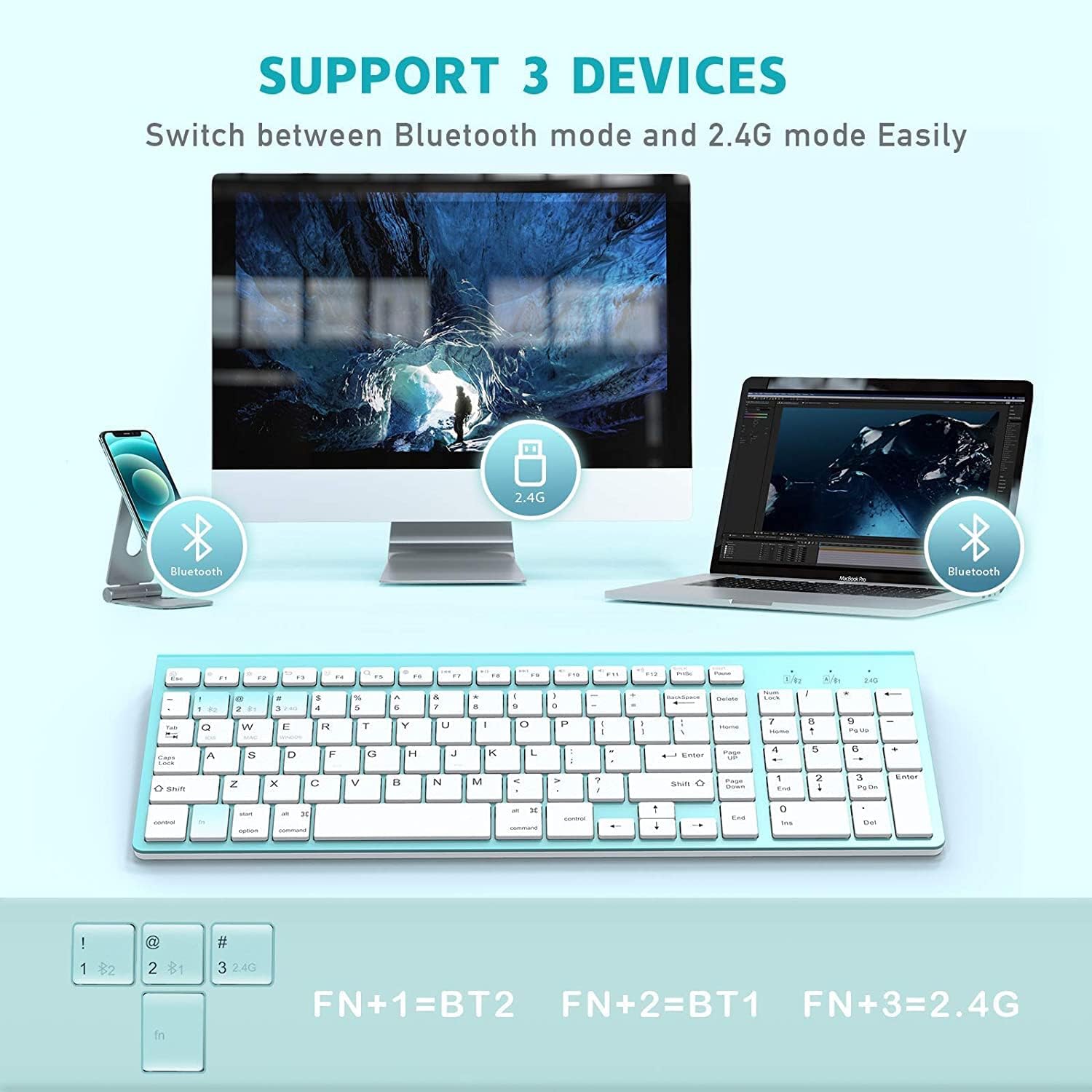
Image: Diagram illustrating the keyboard's ability to connect to three different devices (two via Bluetooth, one via 2.4G USB).
4. System Selection
To optimize keyboard functionality for your specific operating system:
- For iOS devices: Press and hold Fn + Q for 3 seconds.
- For Mac devices: Press and hold Fn + W for 3 seconds.
- For Windows devices: Press and hold Fn + E for 3 seconds.
The LED indicator will blink to confirm the system selection.

Image: Close-up of the keyboard showing the Fn+Q, Fn+W, Fn+E keys for system selection.
Operating Instructions
Switching Between Connected Devices
Once multiple devices are paired, you can easily switch between them:
- To switch to Bluetooth Device 1: Press Fn + 1.
- To switch to Bluetooth Device 2: Press Fn + 2.
- To switch to 2.4G USB Receiver connection: Press Fn + 3.
Multimedia Keys
The keyboard features convenient multimedia keys accessible via the Function (F) row. These keys are designed to work across Windows and Mac systems.
| Key | Function |
|---|---|
| F1 | Brightness Decrease |
| F2 | Brightness Increase |
| F3 | Return |
| F4 | Select All |
| F5 | Search for File |
| F6 | Switching Input |
| F7 | Previous Track |
| F8 | Play and Pause |
| F9 | Next Track |
| F10 | Mute |
| F11 | Volume Down |
| F12 | Volume Up |
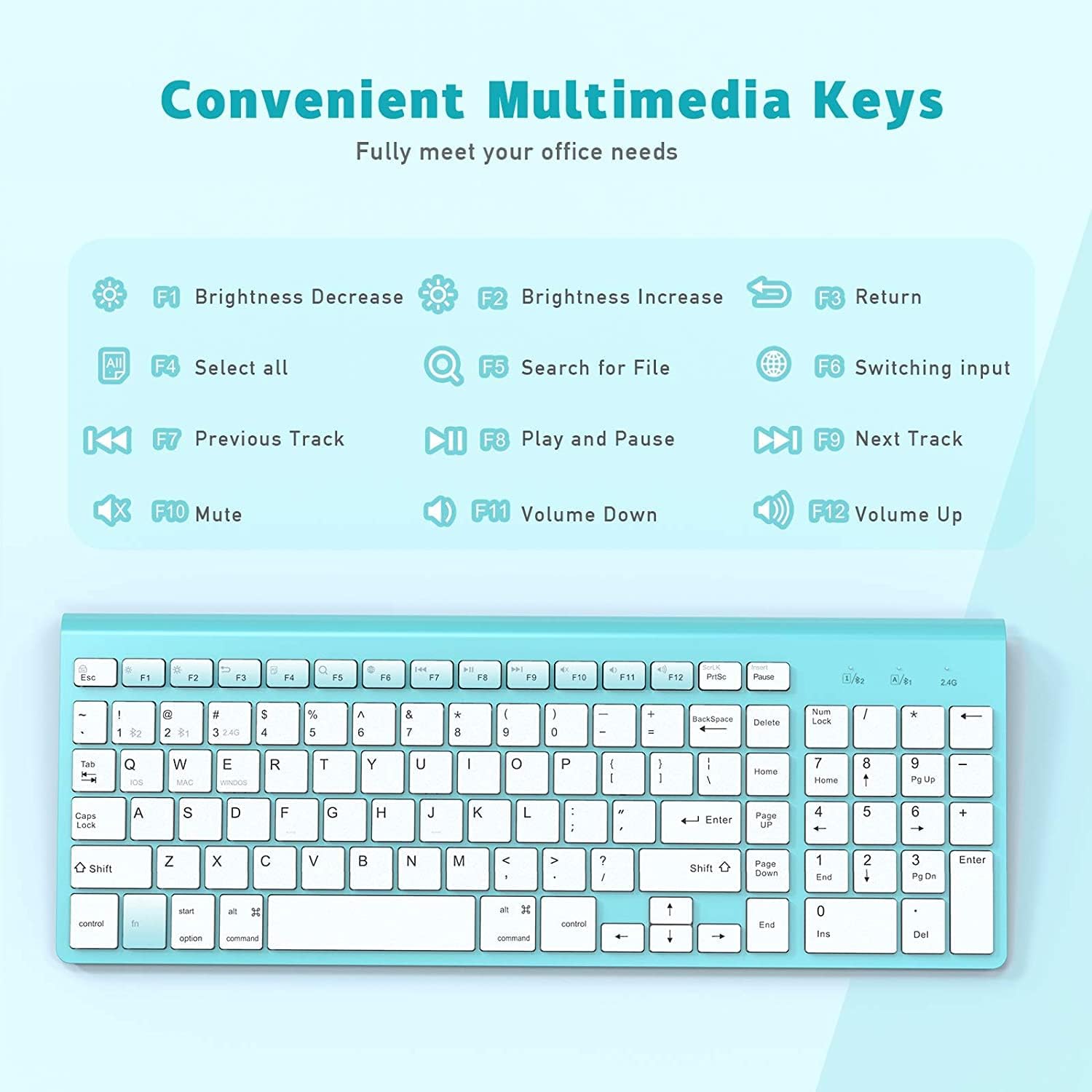
Image: A visual representation of the keyboard's multimedia keys and their corresponding functions.
Auto-Sleep Mode
To conserve battery life, the keyboard will automatically enter power-saving mode if there is no operation for 30 minutes. To reactivate the keyboard, simply click any button.

Image: Icon indicating the auto-sleep feature and how to activate the keyboard.
Maintenance
Proper maintenance ensures the longevity and optimal performance of your JOYACCESS keyboard.
Cleaning
- Turn off the keyboard before cleaning.
- Use a soft, lint-free cloth slightly dampened with water or a mild cleaning solution to wipe the surface.
- Avoid using harsh chemicals, abrasive cleaners, or excessive moisture.
- For cleaning between keys, use compressed air to remove dust and debris.
Battery Replacement
When the keyboard's performance degrades or it stops responding, it may be time to replace the batteries. Follow the battery installation steps outlined in the "Setup Guide" section.
Troubleshooting
If you encounter issues with your keyboard, refer to the following common troubleshooting steps:
Keyboard Fails to Connect via Bluetooth
- Check Battery and Power: Ensure the batteries are charged and correctly installed, and the keyboard's power switch is turned on.
- Proximity: Make sure the keyboard and your electronic device are within close proximity (recommended range is typically up to 10 meters or 33 feet).
- Device Bluetooth Stability: Verify that your electronic device's Bluetooth signal is stable and functioning correctly. Try restarting your device's Bluetooth.
- Re-pair Device: On your device, delete any existing "BT3.0 Keyboard" or "BT5.0 Keyboard" entries from your Bluetooth device list. Then, re-pair the keyboard by following the Bluetooth connection steps in the "Setup Guide".
- System Selection: Confirm you have selected the correct operating system mode (Fn+Q for iOS, Fn+W for Mac, Fn+E for Windows).
Keyboard Not Responding (2.4G Connection)
- Check Battery and Power: Ensure the batteries are charged and correctly installed, and the keyboard's power switch is turned on.
- USB Receiver: Ensure the 2.4G USB receiver is securely plugged into a working USB port on your device. Try a different USB port.
- Proximity: Ensure the keyboard is close to the USB receiver.
- Interference: Move away from other wireless devices that might cause interference.
Specifications
| Feature | Detail |
|---|---|
| Product Dimensions | 14.17 x 5.51 x 0.91 inches (36 x 14 x 2.3 cm) |
| Item Weight | 1.29 pounds (0.58 kg) |
| Model Number | JKBBU |
| Batteries Required | 2 AA batteries (not included) |
| Connectivity Technology | Bluetooth (BT3.0, BT5.0), 2.4G USB-A Wireless |
| Compatible Devices | Laptop, PC, Smartphone, iPhone, iPad, Tablet, iMac, Macbook |
| Keyboard Description | Wireless, Bluetooth Keyboard with Number Pad |
| Special Features | Ergonomic, Hotkeys and Media Keys, Multi-OS, Multi-devices, Scissor-Switch |
| Color | Turquoise |
| Number of Keys | 102 |
| Auto-Sleep Mode | After 30 minutes of inactivity |

Image: Diagram showing the ultra-slim design and dimensions of the keyboard.
Warranty and Support
For warranty information and customer support, please refer to the product packaging or visit the official JOYACCESS website.
JOYACCESS Official Store: https://www.amazon.com/stores/JOYACCESS/page/873A5C55-9CBB-48E4-A0D1-6141798955D4
Related documentsJKBBU

Ask a question about this manual
Ask about setup, troubleshooting, compatibility, parts, safety, or missing instructions. Manuals+ will review the question and use this page’s manual context to help answer it.