
QFX E-1500
Contents
QFX E-1500 Professional Large Bluetooth Speakers
Model: E-1500 User Manual
Introduction
Thank you for purchasing the QFX E-1500 Professional Large Bluetooth Speaker. This portable PA system is designed to deliver powerful and clear audio with versatile connectivity options and dynamic party lights. Please read this manual carefully to ensure proper operation and to maximize your enjoyment of the product.
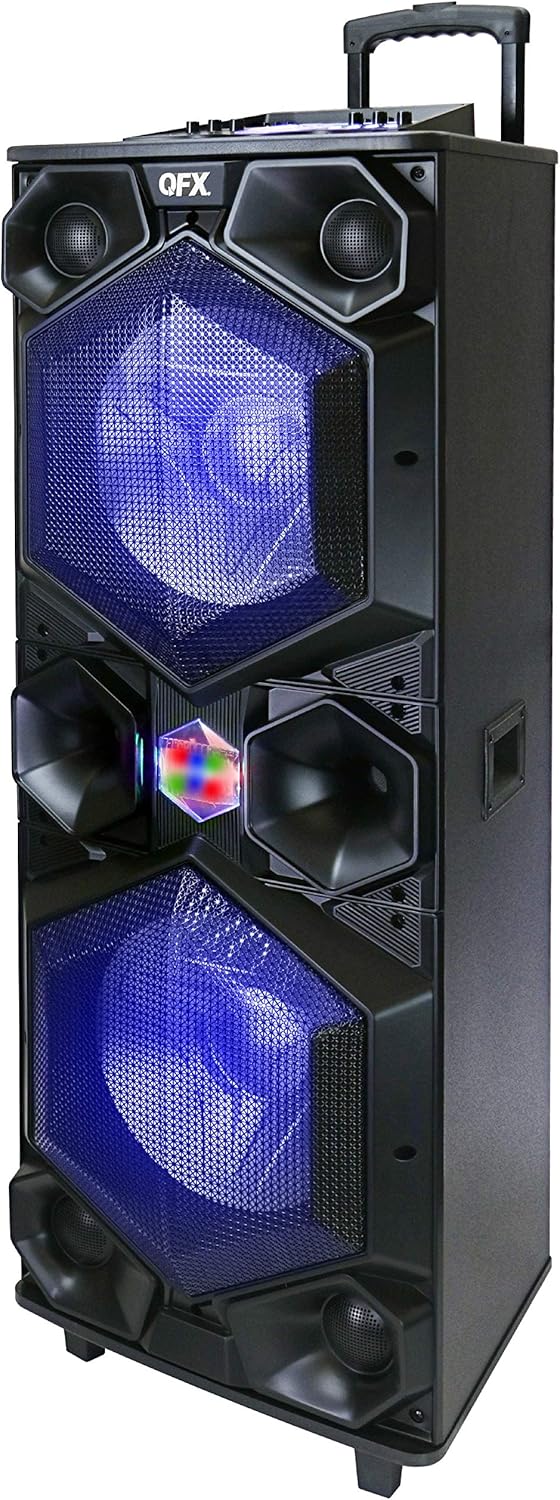
Front view of the QFX E-1500 speaker, showcasing its dual 15-inch woofers and illuminated blue LED lights.
What's in the Box
Upon unboxing, please verify that all the following components are included:
- QFX E-1500 Professional Large Bluetooth Speaker
- Microphone
- Remote Control
- AC Power Cable
- User Manual (this document)
Setup Guide
1. Power Connection
Connect the supplied AC power cable to the power input port on the back of the speaker. Plug the other end into a standard wall outlet. Ensure the power switch is in the OFF position before connecting.

Rear view of the speaker, highlighting the power input and various audio connection ports.
2. Initial Power On
Once connected to power, flip the main power switch located on the back panel to the ON position. The display on the top panel will illuminate, indicating the speaker is ready for use.
Operating Instructions
The QFX E-1500 offers multiple ways to play audio. Familiarize yourself with the control panel located on the top of the speaker.

Detailed view of the speaker's control panel, showing input selectors, volume controls, and equalizer settings.
1. Bluetooth Pairing
To connect via Bluetooth:
- Turn on the speaker.
- Press the MODE button on the control panel until "BLUETOOTH" or "BT" appears on the display.
- On your mobile device (smartphone, tablet, etc.), enable Bluetooth and search for available devices.
- Select "QFX E-1500" from the list. Once paired, you will hear a confirmation tone.

Illustrates connecting a mobile device to the speaker via Bluetooth.
2. USB/TF Card Playback
Insert a USB flash drive or TF (Micro SD) card into the respective slot on the control panel. The speaker will automatically switch to USB/TF mode and begin playing compatible audio files.

Demonstrates inserting a USB drive for direct audio playback.
3. AUX Input
For devices without Bluetooth, use an AUX cable to connect to the 3.5mm AUX input port on the control panel. Press the MODE button to select AUX input.

An AUX cable connected to the speaker for wired audio input.
4. Microphone and Guitar Inputs
The speaker features dedicated inputs for microphones and guitars. Adjust their respective volume and echo controls on the control panel for optimal sound.

Users enjoying the speaker with a microphone, demonstrating its karaoke capabilities.
5. TWS (True Wireless Stereo) Function
Connect two QFX E-1500 speakers wirelessly for a true stereo sound experience:
- Ensure both speakers are powered on and in Bluetooth mode.
- On one speaker, press and hold the TWS button. It will search for the other speaker.
- Once connected, you will hear a confirmation tone, and audio will play through both speakers in stereo.
6. Party Lights Control
The speaker features integrated LED party lights. Use the dedicated light control button on the control panel to cycle through different light modes or turn them off.

The speaker's vibrant LED party lights creating an engaging visual effect.
7. Equalizer Settings
Adjust the audio output using the 6-band graphic equalizer on the control panel to fine-tune bass, mid-range, and treble frequencies according to your preference.

The equalizer section of the control panel, allowing for precise audio adjustments.
Features Overview
Discover the key features that make the QFX E-1500 a versatile audio solution.
Official QFX promotional video showcasing the E-1500 speaker's features and capabilities.
Maintenance
Cleaning
To maintain the appearance and longevity of your speaker, wipe the exterior with a soft, dry cloth. Do not use abrasive cleaners, waxes, or solvents. Ensure the speaker is unplugged before cleaning.
Storage
When not in use for extended periods, store the speaker in a cool, dry place away from direct sunlight and extreme temperatures. Protect it from dust and moisture.
Troubleshooting
| Problem | Possible Cause | Solution |
|---|---|---|
| No Power | Power cable not connected; Power switch off; Outlet malfunction. | Ensure AC cable is securely plugged into speaker and wall outlet. Check if the power switch is ON. Test the outlet with another device. |
| No Sound | Volume too low; Incorrect input mode; Device not connected properly; Bluetooth not paired. | Increase master volume. Press MODE to select the correct input. Reconnect audio cables. Re-pair Bluetooth device. |
| Bluetooth Disconnection | Device out of range; Interference. | Move the Bluetooth device closer to the speaker (within 10 meters). Avoid obstacles or other wireless devices causing interference. |
| Party Lights Not Working | LED light switch off; Internal issue. | Ensure the LED light switch on the back panel is ON. If still not working, contact customer support. |
Specifications
- Model Name: QFX E-1500
- Speaker Type: Woofer
- Subwoofer Diameter: Dual 15 Inches
- Tweeter Diameter: 1.5 Inches
- Product Dimensions: 16.3"D x 17.8"W x 51.99"H
- Item Weight: 71.7 Pounds
- Connectivity Technology: Bluetooth, USB
- Wireless Communication Technology: Bluetooth
- Bluetooth Range: 10 Meters
- Power Source: Corded Electric
- Audio Output Mode: Stereo
- Control Method: Remote
- Included Components: Speaker, microphone, remote control, AC cable and user manual
- Color: Blue LED
- Manufacturer: QFX
Warranty & Support
QFX offers a limited warranty for this product. For specific warranty details, please refer to the warranty card included with your purchase or visit the official QFX website. Your satisfaction is important to us. If you have any questions, require technical assistance, or need to address any issues with your QFX E-1500 speaker, please contact the QFX Customer Support Department.
QFX Customer Support:
- Phone: 800.864.2582
- Email: support@qfxusa.com
Documents and downloads
Ask a question about this manual
Ask about setup, troubleshooting, compatibility, parts, safety, or missing instructions. Manuals+ will review the question and use this page’s manual context to help answer it.