
1. Introduction
The EVGA X12 Gaming Mouse is a high-performance wired mouse designed for precision and customization. It features advanced sensor technology, a high report rate, and programmable buttons to enhance your gaming and computing experience.
Key Features:
- Dual Sensor 2-Dimension Array Technology: Combines a Lift Off Distance (LOD) sensor with a Pixart 3389 optical sensor for precise tracking.
- 8K Hz Report Rate: Utilizes a USB 2.0 High-Speed 32-bit Arm Cortex-M33 core microprocessor, providing an 8000 Hz report rate for faster response times and accurate movements.
- Customizable Profiles: 5 onboard profiles with on-the-fly DPI settings allow for personalized configurations.
- 3-Zone RGB Lighting: Customizable RGB lighting zones via the UNLEASH RGB software.
- Lightweight Ambidextrous Design: Ergonomic design suitable for both left and right-handed users, paired with a flexible paracord USB cable.
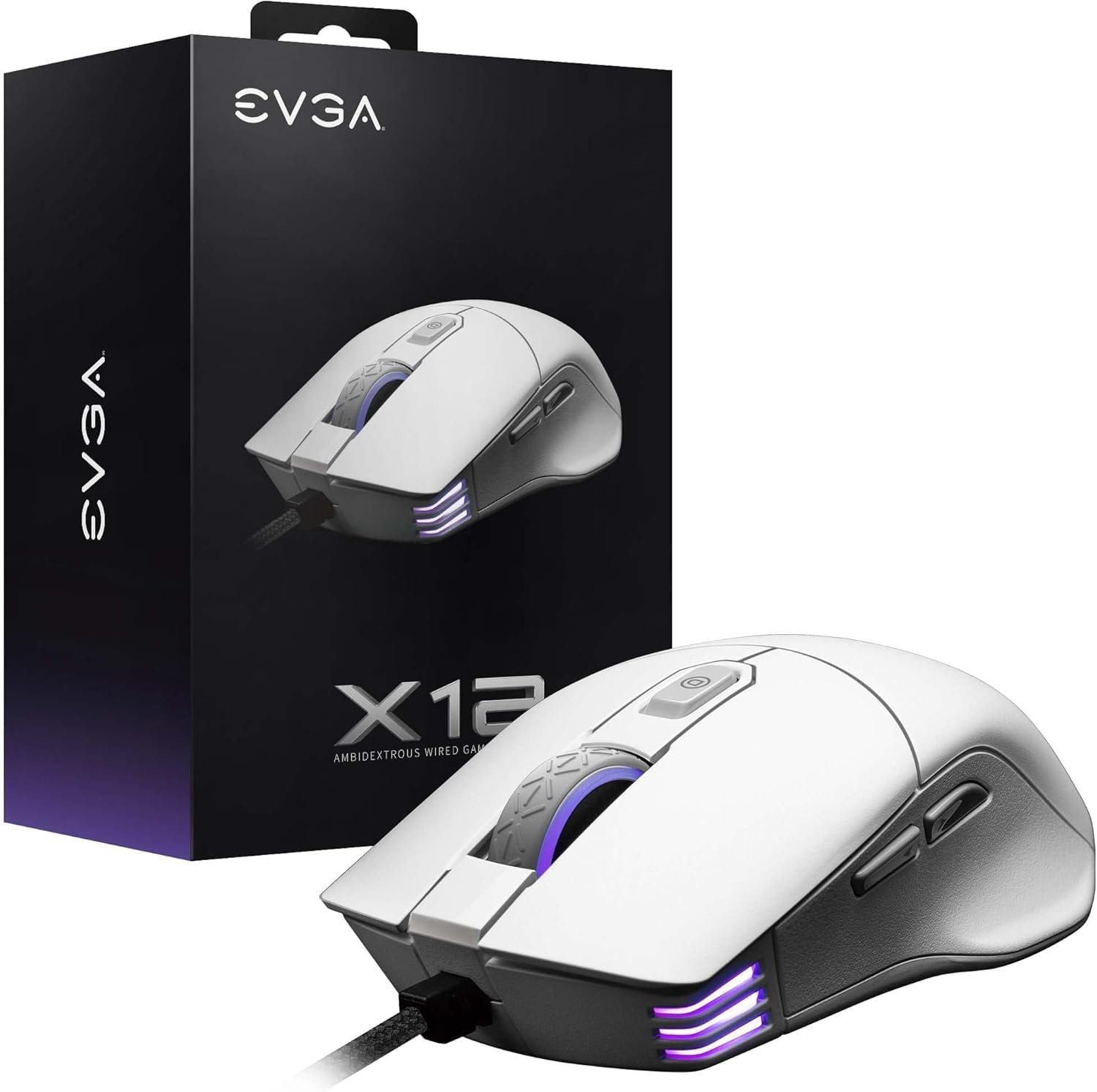
Image 1.1: EVGA X12 Wired Gaming Mouse and its retail packaging.
2. Setup
2.1 Connecting the Mouse
- Locate an available USB-A port on your computer.
- Plug the USB-A connector of the EVGA X12 mouse cable into the USB-A port.
- The mouse will automatically be detected by your operating system.
2.2 Software Installation (UNLEASH RGB)
To unlock the full customization potential of your EVGA X12 mouse, including DPI settings, RGB lighting, macro programming, and profile management, download and install the UNLEASH RGB software from the official EVGA website.
- Visit the official EVGA support website.
- Navigate to the downloads section for the X12 Gaming Mouse.
- Download and run the UNLEASH RGB software installer.
- Follow the on-screen instructions to complete the installation.
3. Operating the Mouse
3.1 Basic Button Functions
The EVGA X12 mouse features 8 programmable buttons for versatile control:
- Left Click (Primary): Standard selection and activation.
- Right Click (Secondary): Context menu access.
- Scroll Wheel: Scrolls content vertically. Can also be pressed for a middle-click function.
- DPI Up/Down Buttons: Adjusts the mouse's sensitivity (DPI) on the fly.
- Side Buttons (Forward/Back): Typically used for navigation in web browsers or file explorers.
- Sniper Button: Located on the side, this button can be programmed to temporarily lower DPI for precise aiming in games.

Image 3.1: Close-up view of the EVGA X12 mouse highlighting the main buttons and scroll wheel.
3.2 DPI Adjustment
The DPI (Dots Per Inch) setting determines the sensitivity of your mouse. Higher DPI means the cursor moves faster across the screen with less physical mouse movement. You can adjust DPI using the dedicated buttons on the mouse or through the UNLEASH RGB software.
3.3 8K Hz Report Rate
The 8K Hz report rate means the mouse sends data to your computer 8000 times per second, significantly reducing input lag compared to standard 1000 Hz mice. This results in faster response times and more precise tracking, particularly beneficial in fast-paced gaming scenarios.
4. Customization with UNLEASH RGB Software
The UNLEASH RGB software provides extensive customization options for your EVGA X12 mouse:
- RGB Lighting: Customize the 3-zone RGB lighting (scroll wheel, front, and logo) with various effects and colors.
- DPI Settings: Fine-tune DPI levels and assign them to your 5 onboard profiles.
- Macro Programming: Create and assign complex macros to any of the 8 programmable buttons.
- Profile Management: Save and switch between up to 5 distinct profiles, allowing you to adapt your mouse settings for different games or applications.
- Lift Off Distance (LOD) Calibration: Adjust the lift-off distance for optimal tracking performance on your specific mouse pad surface.
5. Specifications
| Feature | Detail |
|---|---|
| Brand | EVGA |
| Model Number | 905-W1-12WH-KR |
| Sensor Type | Dual Sensor (Pixart 3389 Optical + Optical LOD Sensor) |
| Max DPI | 16,000 |
| Report Rate | 8K Hz (8000 Hz) |
| Buttons | 8 Programmable Buttons |
| RGB Lighting | 3-Zone RGB |
| Connectivity | Wired (Flexible Paracord USB Cable) |
| Design | Ambidextrous, Lightweight |
| Dimensions (LxWxH) | 4.84 x 2.75 x 0.1 inches |
| Item Weight | 2.65 ounces |
| Compatible OS | Windows, macOS, Linux |

Image 5.1: Physical dimensions of the EVGA X12 mouse.
6. Maintenance
To ensure optimal performance and longevity of your EVGA X12 Gaming Mouse, follow these maintenance guidelines:
- Cleaning: Use a soft, dry cloth to wipe the mouse surface. For stubborn dirt, slightly dampen the cloth with water or a mild cleaning solution. Avoid harsh chemicals.
- Sensor Care: Keep the optical sensor on the underside of the mouse clean and free of dust or debris. Use compressed air or a cotton swab for cleaning.
- Cable Management: Avoid sharp bends or excessive pulling on the USB cable to prevent damage.
- Storage: Store the mouse in a clean, dry environment when not in use.
7. Troubleshooting
If you encounter issues with your EVGA X12 Gaming Mouse, try the following steps:
- Mouse Not Responding: Try plugging the mouse into a different USB port on your computer. Ensure the cable is securely connected.
- Cursor Jumps/Lag: Clean the optical sensor on the underside of the mouse. Ensure your mouse pad surface is clean and free of obstructions. Update mouse drivers or reinstall the UNLEASH RGB software.
- Buttons Not Working: Check button assignments in the UNLEASH RGB software. Ensure no macros are conflicting.
- RGB Lighting Issues: Verify RGB settings in the UNLEASH RGB software. Ensure the software is up to date.
- Software Not Detecting Mouse: Reinstall the UNLEASH RGB software. Ensure your operating system is up to date.
8. Warranty and Support
For warranty information, technical support, or to access the latest drivers and software for your EVGA X12 Gaming Mouse, please visit the official EVGA website:
- EVGA Support Website: www.evga.com/support/
- Product Registration: Register your product on the EVGA website to activate your warranty and receive support.


