1. Introduction
This manual provides essential instructions for the safe and efficient use of your Canon PIXMA G2020 NV All-in-One Inktank Colour Printer. This device is designed for printing, scanning, and copying, suitable for home and home office environments requiring high-volume printing.
The Canon PIXMA G2020 NV is a compact and versatile printer, measuring approximately 44.5 cm (width) x 33 cm (depth) x 16.7 cm (height) and weighing 6.4 kg. It features an integrated ink tank system for cost-effective printing and a user-friendly interface.

Image: Front view of the Canon PIXMA G2020 NV printer, showcasing its compact design and navy blue finish.
2. Setup
2.1 Unpacking and Initial Placement
Carefully remove the printer from its packaging. Place the printer on a stable, level surface with adequate space around it for ventilation and operation. Ensure all protective tapes and packing materials are removed from the printer before proceeding.
2.2 Filling the Ink Tanks
The PIXMA G2020 NV uses an integrated ink tank system. Fill the ink tanks with the provided GI-71 Cyan, Magenta, Yellow, and Black ink bottles. Refer to the labels on the ink bottles and printer tanks to ensure correct color placement. Use only genuine Canon ink for optimal performance.

Image: Close-up of the ink tank system, demonstrating the spill-free ink bottle design during refilling.
2.3 Installing Print Heads
Install the print heads as instructed in the quick start guide. Ensure they are securely seated to prevent printing issues.
2.4 Power Connection and Driver Installation
Connect the printer to a power source using the provided power cord. Connect the printer to your computer via the supplied USB cable. Install the necessary drivers and software from the Canon website or the included installation CD (if applicable) to enable full functionality.

Image: Visual representation of the three-step setup process: Fill Ink in the Tank, Establish Connection & Install Driver, Ready To Print.
3. Operating Instructions
3.1 Control Panel and LCD Screen
The printer features a user-friendly button panel and a 5.08 cm LCD screen. Use the navigation buttons to select options and settings. The LCD screen displays copy size, number of copies, and other operational information.

Image: Detailed view of the LCD display panel and control buttons on the printer.
3.2 Loading Paper
Load paper into the rear paper input tray. The printer supports various paper sizes including A4, A5, A6, B5, LTR, LGL, and Executive. The maximum input sheet capacity is 100 sheets (A4). Adjust the paper guides to fit the paper size.

Image: The Canon PIXMA G2020 NV printer with paper loaded in the input tray and a printed document in the output tray.
3.3 Printing
To print, select the print function from your computer's application. Choose the Canon PIXMA G2020 NV as your printer and adjust settings such as paper size, print quality, and color mode. The printer offers a maximum print resolution of 4800x1200 dpi for both color and monochrome prints. Print speeds are approximately 9.1 ipm for monochrome and 5.0 ipm for color.
3.4 Scanning
Place the document or photo face down on the flatbed scanner glass. Use the scanning software on your computer or the printer's control panel to initiate a scan. The scanner resolution is 600x1200 dpi.
3.5 Copying
Place the document on the scanner glass. Use the control panel to select copy options, including the number of copies and copy size. Press the 'Start' button (Black or Color) to begin copying. The printer supports ID copy function and can recognize and omit background while copying documents.
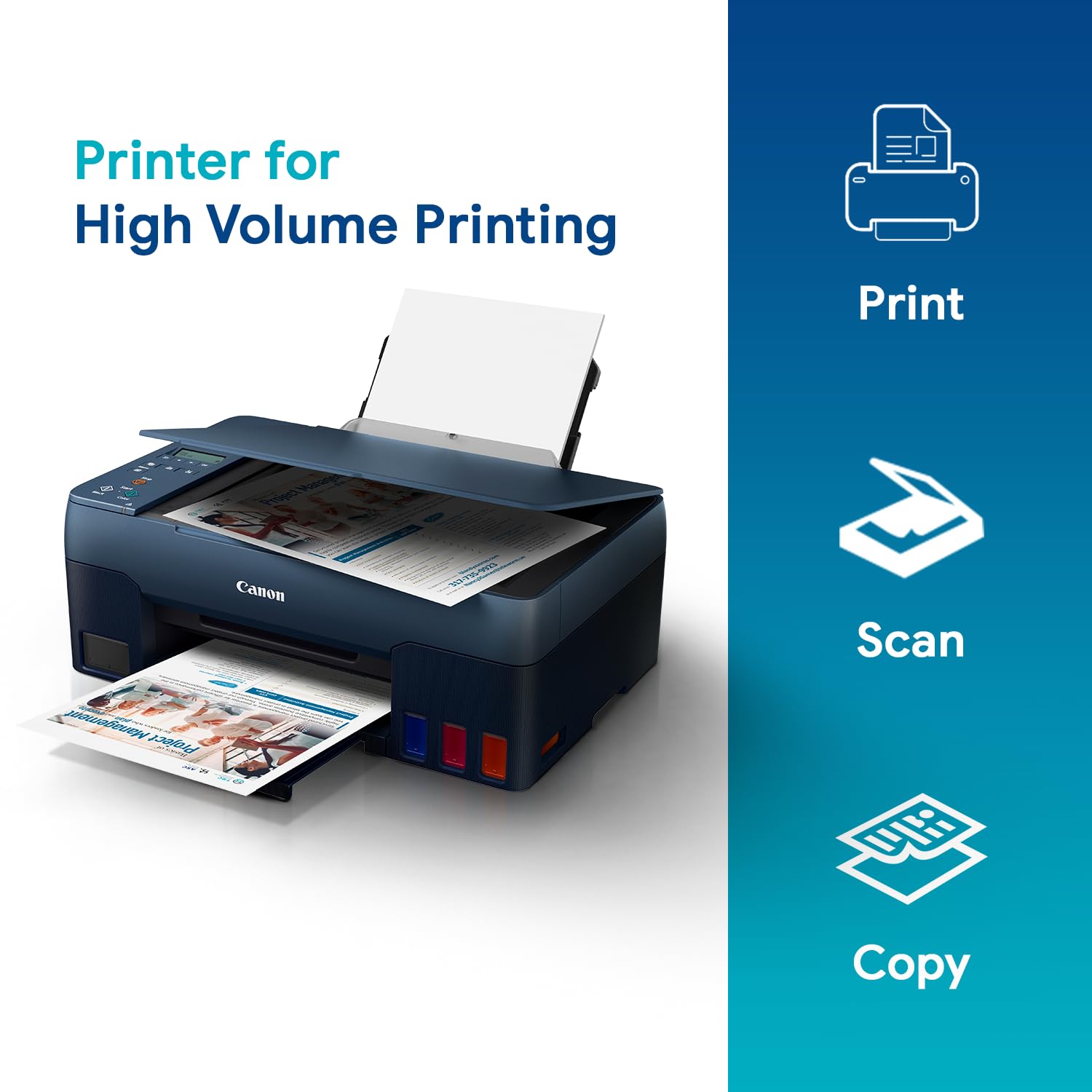
Image: The Canon PIXMA G2020 NV printer illustrating its print, scan, and copy capabilities.
4. Maintenance
4.1 Ink Level Monitoring and Refilling
Regularly check the ink levels in the transparent ink tanks. Refill tanks when levels are low to prevent air from entering the ink system, which can affect print quality. Use only genuine Canon GI-71 ink bottles for optimal performance and to maintain warranty validity.

Image: A Canon GI-71 ink bottle, highlighting its high page yield for the PIXMA G2020 NV printer.
4.2 Replacing the Maintenance Cartridge
The printer includes a replaceable maintenance cartridge. When prompted by the printer or software, replace this cartridge to ensure continued optimal performance and prevent ink overflow. Refer to the printer's display or software for instructions on how to replace it.

Image: A hand removing the replaceable maintenance cartridge from the side of the Canon PIXMA G2020 NV printer.
4.3 Print Head Cleaning
If print quality degrades (e.g., streaks, faded colors), perform a print head cleaning from the printer's maintenance menu or through the printer driver software on your computer. This process helps clear clogged nozzles.
5. Troubleshooting
This section addresses common issues you might encounter with your Canon PIXMA G2020 NV printer. For more detailed troubleshooting, refer to the official Canon support website or contact customer service.
5.1 General Printing Issues
- Printer Not Responding: Ensure the printer is powered on and connected correctly via USB. Check if the printer drivers are installed and up to date.
- Poor Print Quality: Perform a print head cleaning and nozzle check. Ensure genuine Canon ink is used and ink tanks are not empty. Verify that the correct paper type and print quality settings are selected in your print driver.
- Paper Jams: Follow the on-screen instructions or refer to the printer's internal guides to carefully remove any jammed paper. Ensure paper is loaded correctly and not overfilled in the tray.
5.2 Error Codes
If an error code appears on the LCD screen, consult the printer's electronic manual or the Canon support website for specific instructions related to that code. Common error codes may indicate issues such as paper jams, ink levels, or print head problems.
6. Specifications
| Feature | Specification |
|---|---|
| Model Name | PIXMA G2020 NV |
| Functions | Print, Scan, Copy |
| Printer Type | Inktank Inkjet |
| Connectivity | USB 2.0 |
| Print Resolution (Max) | 4800 x 1200 dpi |
| Print Speed (Monochrome) | 9.1 ipm |
| Print Speed (Colour) | 5.0 ipm |
| Scanner Type | Flatbed |
| Scanner Resolution | 600 x 1200 dpi |
| Maximum Copy Resolution | 600 x 1200 dpi |
| Display Type | LCD |
| Paper Sizes Supported | A4, A5, A6, B5, LTR, LGL, Executive, 4x6, 5x7, 7x10, 8x10 |
| Maximum Input Sheet Capacity | 100 sheets (A4) |
| Compatible Ink | GI-71 Cyan, Magenta, Yellow, Black |
| Operating System Compatibility | Windows 10 / 8.1 / 7 SP1, macOS 10.12.6 ~ 10.15, Chrome OS |
| Dimensions (D x W x H) | 33D x 44.5W x 16.7H Centimeters |
| Item Weight | 6.4 Kilograms |
| Power Consumption (Copying) | Approx. 18 W |
| Duplex Printing | Manual |

Image: Diagram showing the dimensions of the Canon PIXMA G2020 NV printer: 44.5cm width, 33cm depth, 16.7cm height.
7. Warranty and Support
The Canon PIXMA G2020 NV printer comes with a 1-year warranty from the date of purchase or 30,000 prints, whichever occurs earlier. This is an on-site warranty and includes free one-time installation support.
Important: Use only genuine Canon ink. Using counterfeit ink will harm your printer and may void your warranty.
For technical assistance, service requests, or to access the latest drivers and manuals, please visit the official Canon India website or contact Canon customer support. The manufacturer contact information is 3-30-2, Shimomaruko, Ohta-ku, Tokyo 146-8501, Japan.
8. Product Overview Video
Watch this video for a visual overview of the Canon PIXMA G2020 NV printer, including its features and basic operation.
Video: A technical demonstration of the Canon PIXMA G2020 NV All-in-One printer, showcasing its features and ease of use.


