1. Introduction
This manual provides detailed instructions for the Waveshare 2.13-inch E-Paper E-Ink Display Module (Model: Pico-ePaper-2.13). This module is designed for use with the Raspberry Pi Pico, offering a low-power, partial refresh display solution. E-paper displays are known for their paper-like effect and ability to retain content without continuous power.

Figure 1: Waveshare 2.13-inch E-Paper Display Module displaying example content.
2. Key Features
- No Backlight: The display retains its content indefinitely without power, making it highly energy-efficient.
- Ultra-Low Power Consumption: Power is primarily required only during content refresh cycles.
- SPI Interface: Utilizes a Serial Peripheral Interface, requiring minimal I/O pins for communication.
- Development Resources: Includes comprehensive development resources and a manual with Raspberry Pi Pico C/C++ and MicroPython examples.
- Direct Raspberry Pi Pico Attachment: Features an onboard female pin header for direct connection to a Raspberry Pi Pico.

Figure 2: Overview of the 2.13-inch E-Paper Module's features and specifications.
3. Technical Specifications
| Feature | Value |
|---|---|
| Operating Voltage | 3.3V |
| Grey Scale | 2 |
| Interface | 3-wire SPI, 4-wire SPI |
| Partial Refresh Time | 0.3s |
| Outline Dimensions | 65.00 × 30.50mm |
| Full Refresh Time | 2s |
| Display Size | 48.55 × 23.70mm |
| Refresh Power | 26.4mW (typ.) |
| Dot Pitch | 0.194 × 0.194mm |
| Standby Current | <0.01uA (almost none) |
| Resolution | 250×122 pixels |
| Viewing Angle | >170° |
| Display Color | Black, White |

Figure 3: Detailed technical specifications of the E-Paper module.

Figure 4: Outline dimensions of the 2.13-inch E-Paper module in millimeters.
4. Setup and Connection
The Waveshare Pico-ePaper-2.13 module is designed for direct attachment to a Raspberry Pi Pico. Follow these steps for proper setup:
- Prepare Raspberry Pi Pico: Ensure your Raspberry Pi Pico is ready for use, with necessary firmware or operating system installed if required for your project.
- Align and Connect: Carefully align the female pin header on the E-Paper module with the male pins on your Raspberry Pi Pico. Gently press them together until fully seated. Ensure correct orientation to prevent damage.
- Power Supply: Once connected, power the Raspberry Pi Pico via its USB port or other designated power input. The E-Paper module draws power directly from the Pico.
- Software Setup: Refer to the provided development resources for specific C/C++ or MicroPython examples to initialize and control the display. This typically involves configuring the SPI interface on the Pico.

Figure 5: Raspberry Pi Pico securely connected to the E-Paper module. Note: Raspberry Pi Pico is not included with the display module.
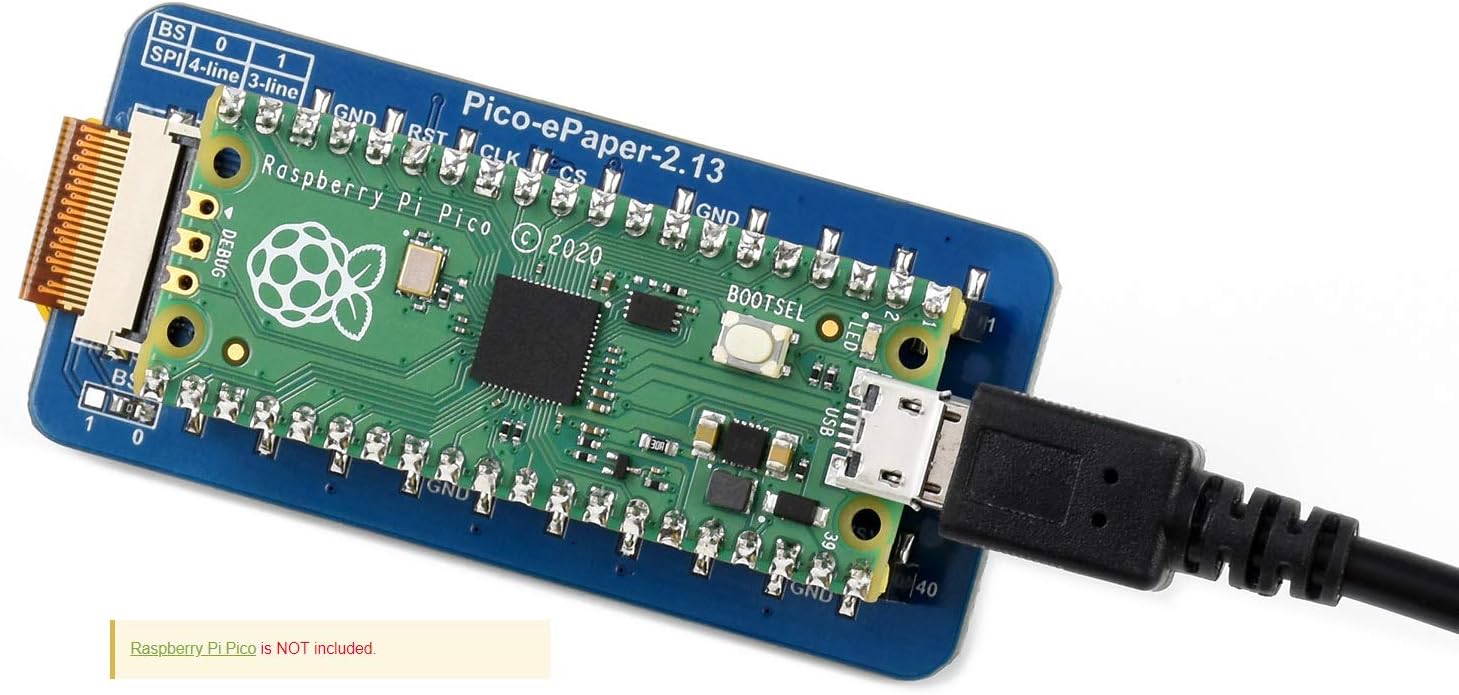
Figure 6: Raspberry Pi Pico with E-Paper module connected and powered via USB. Note: Raspberry Pi Pico is not included with the display module.
4.1 Pinout Definition
Understanding the pinout is crucial for advanced configurations or troubleshooting. The module uses an SPI interface.
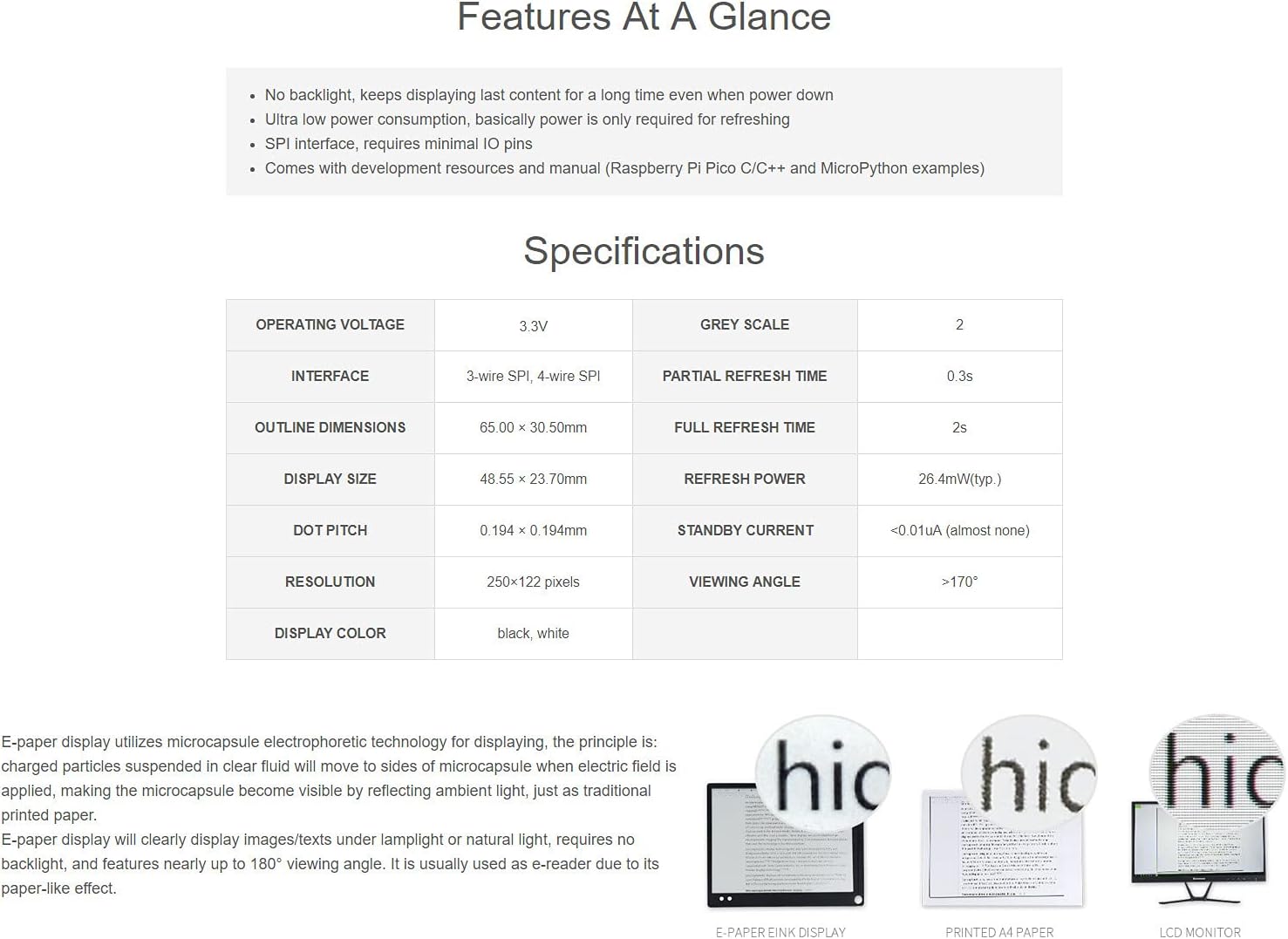
Figure 7: Pinout definition for the Waveshare Pico-ePaper-2.13 module, showing connections for SPI, power, and control pins.
| Pin Name | Description |
|---|---|
| VSYS | Power input |
| GND | Ground |
| e-Paper_DC | Data/Command control pin (high for data, low for command) |
| e-Paper_CS | SPI chip select (low active) |
| e-Paper_CLK | SPI SCK pin |
| e-Paper_DIN | SPI MOSI pin |
| e-Paper_RST | External reset (low active) |
| e-Paper_BUSY | Busy status output |
5. Operation Guide
Operating the Waveshare 2.13-inch E-Paper module involves programming your Raspberry Pi Pico to send display data via the SPI interface. Waveshare provides example code and libraries to facilitate this process.
5.1 Programming the Display
- Access Development Resources: Visit the official Waveshare product page or documentation portal for the Pico-ePaper-2.13 module. Here you will find example code in C/C++ and MicroPython.
- Install Libraries: Download and install any necessary libraries or drivers for your chosen programming language (e.g., MicroPython libraries for e-paper displays).
- Load Example Code: Upload the provided example code to your Raspberry Pi Pico. These examples typically demonstrate basic functions like displaying text, images, or performing partial/full refreshes.
- Customize Content: Modify the example code to display your desired content. Pay attention to the display resolution (250x122 pixels) and color depth (black/white, 2 grey scales).
- Refresh Cycles: Understand the difference between full refresh (approx. 2 seconds) and partial refresh (approx. 0.3 seconds). Partial refresh is faster and consumes less power but may leave ghosting artifacts over time, requiring an occasional full refresh.
5.2 Application Examples
The E-Paper module is versatile and suitable for various applications due to its low power consumption and persistent display capabilities.

Figure 8: Examples of potential applications for the E-Paper module, such as price tags, shelf labels, and information displays in various environments.
6. Care and Maintenance
To ensure the longevity and optimal performance of your Waveshare E-Paper display module, follow these maintenance guidelines:
- Handle with Care: E-paper displays are delicate. Avoid applying excessive pressure or bending the module, especially the flexible FPC cable.
- Cleaning: Use a soft, dry, lint-free cloth to gently wipe the display surface. Do not use liquid cleaners, solvents, or abrasive materials, as these can damage the screen.
- Environmental Conditions: Operate and store the module within its specified temperature and humidity ranges. Avoid extreme temperatures, direct sunlight for prolonged periods, and high humidity.
- Power Management: While the display retains content without power, ensure proper power-down sequences for the Raspberry Pi Pico to prevent data corruption or unexpected behavior.
- Static Electricity: Take precautions against electrostatic discharge (ESD) when handling the module, as electronic components can be sensitive to static.
7. Troubleshooting
If you encounter issues with your E-Paper display module, consider the following troubleshooting steps:
- Display Not Refreshing/Blank:
- Check all connections between the E-Paper module and the Raspberry Pi Pico. Ensure they are secure and correctly oriented.
- Verify the power supply to the Raspberry Pi Pico.
- Review your code for display initialization and refresh commands. Ensure the SPI interface is correctly configured.
- Confirm that the correct libraries for the Pico-ePaper-2.13 are installed and imported in your code.
- Ghosting or Image Retention:
- Ghosting is common with partial refreshes. Perform a full refresh periodically to clear the display completely.
- Ensure your refresh cycles are correctly implemented in your code.
- Incorrect Display Orientation:
- The display typically operates in portrait mode by default. If you require landscape orientation, check if your chosen library or example code supports rotation and how to implement it.
- Module Not Detected by Pico:
- Double-check the pin connections against the pinout diagram (Figure 7).
- Ensure the Raspberry Pi Pico is functioning correctly independently.
For further assistance, refer to the official Waveshare documentation and community forums.
8. Support and Warranty
For technical support, additional resources, and the latest documentation, please visit the official Waveshare website. You can typically find detailed product wikis, example code, and community forums there.
Manufacturer: Waveshare
Website: www.waveshare.com
Information regarding product warranty is typically available on the Waveshare website or included with your purchase documentation. Please retain your proof of purchase for warranty claims.


