1. Introduction
This manual provides detailed instructions for the setup, operation, and maintenance of your Eyoyo EY-8800 Desktop 1D 2D QR Barcode Scanner. Please read this manual thoroughly before using the device to ensure proper functionality and longevity.

Image 1: Eyoyo EY-8800 Desktop Barcode Scanner. This image shows the black and orange desktop scanner from a front-side angle, highlighting its scanning window and compact design.
The Eyoyo EY-8800 is a versatile, hands-free barcode scanner designed for efficiency in various environments. It supports scanning of both 1D and 2D barcodes from paper and digital screens, offering a plug-and-play experience with broad operating system compatibility.

Image 2: Scanner Applications. This image illustrates various environments where the scanner can be used, including supermarkets, warehouses, bookstores, and retail stores.
2. Setup
The Eyoyo EY-8800 scanner is designed for simple plug-and-play installation. No additional software or drivers are typically required.
2.1 Package Contents
- Eyoyo Desktop Scanner (EY-8800)
- USB Cable
- Instruction Manual
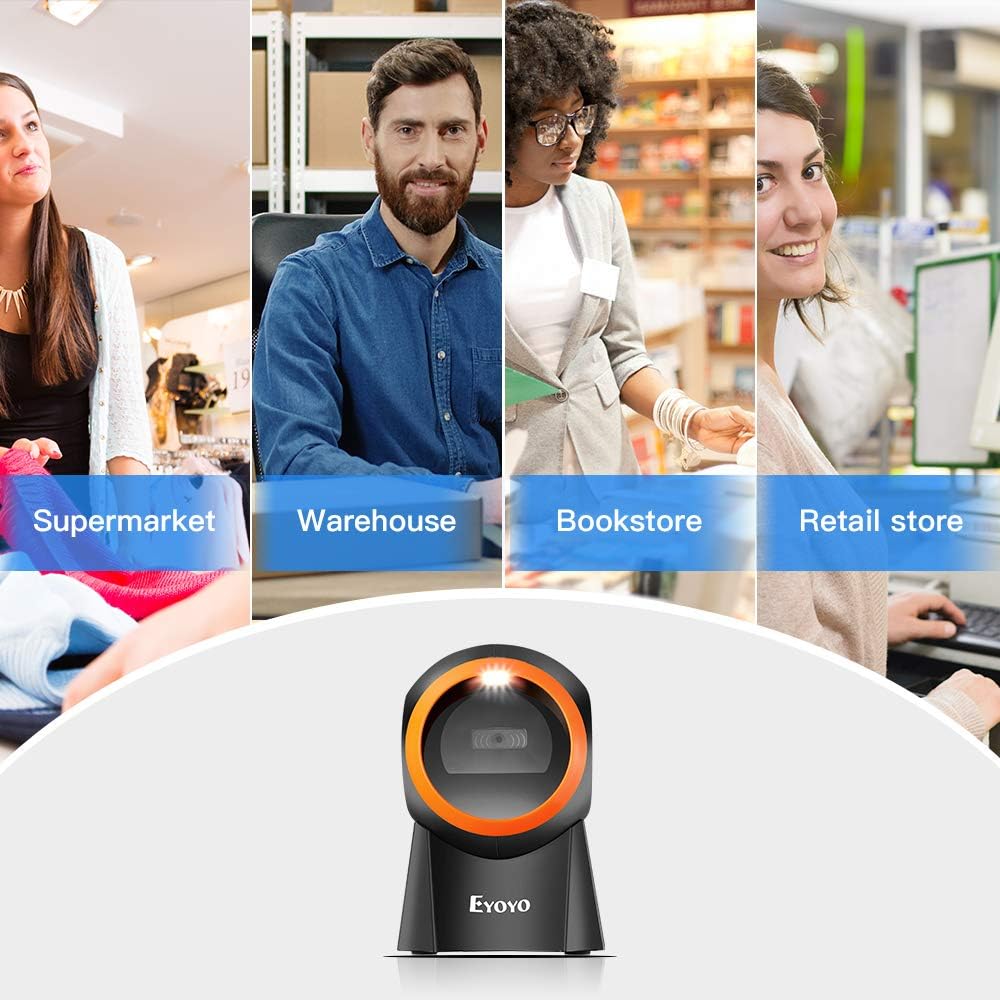
Image 3: Package Contents. This image displays the Eyoyo desktop scanner, a USB cable, and the instruction manual, illustrating what is included in the box.
2.2 Connecting the Scanner
- Connect one end of the provided USB cable to the USB port on the back of the Eyoyo EY-8800 scanner.
- Connect the other end of the USB cable to an available USB port on your computer (PC, laptop, or tablet).
- The scanner will automatically power on and install necessary generic drivers. A successful connection is usually indicated by a beep and/or an indicator light.

Image 4: Plug and Play Setup. This image demonstrates connecting the USB cable from the scanner to a laptop, illustrating the simple plug-and-play installation process.
The scanner is compatible with Windows XP, 7, 8, 10, Mac OS, and Linux operating systems.
3. Operating Instructions
The EY-8800 is a hands-free desktop scanner designed for ease of use.
3.1 Hands-free Scanning
- Place the scanner on a flat surface, such as a desk or counter.
- Position the barcode within the scanner's field of view. The scanner will automatically detect and read the barcode.
- This hands-free operation allows you to handle items without needing to pick up the scanner, improving efficiency for scanning heavy or large objects.

Image 5: Hands-free Barcode Scanning. This image shows the scanner on a counter next to a package, demonstrating how users can scan items without holding the device. It also shows incorrect scanning methods (holding item to scanner, holding scanner to item) with red crosses.
3.2 Supported Barcode Symbologies
The scanner supports a wide range of 1D and 2D barcode types:
- 1D Barcodes: UPC/EAN, UPC-A, UPC-E, Code39, ISBN, Interleaved 2 of 5, Code93, Code 128, Codabar.
- 2D Barcodes: PDF417, QR Code, Data Matrix, Maxicode.

Image 6: Supported Barcode Types. This image illustrates various 1D and 2D barcode symbologies that the scanner can decode, including QR Code, Data Matrix, Maxicode, PDF417, Code 93, EAN13, Code 128, UPC-E, and UPC-A.
3.3 Screen Barcode Scanning
The EY-8800 can scan barcodes directly from digital displays, including mobile phones, tablets, and computer monitors.
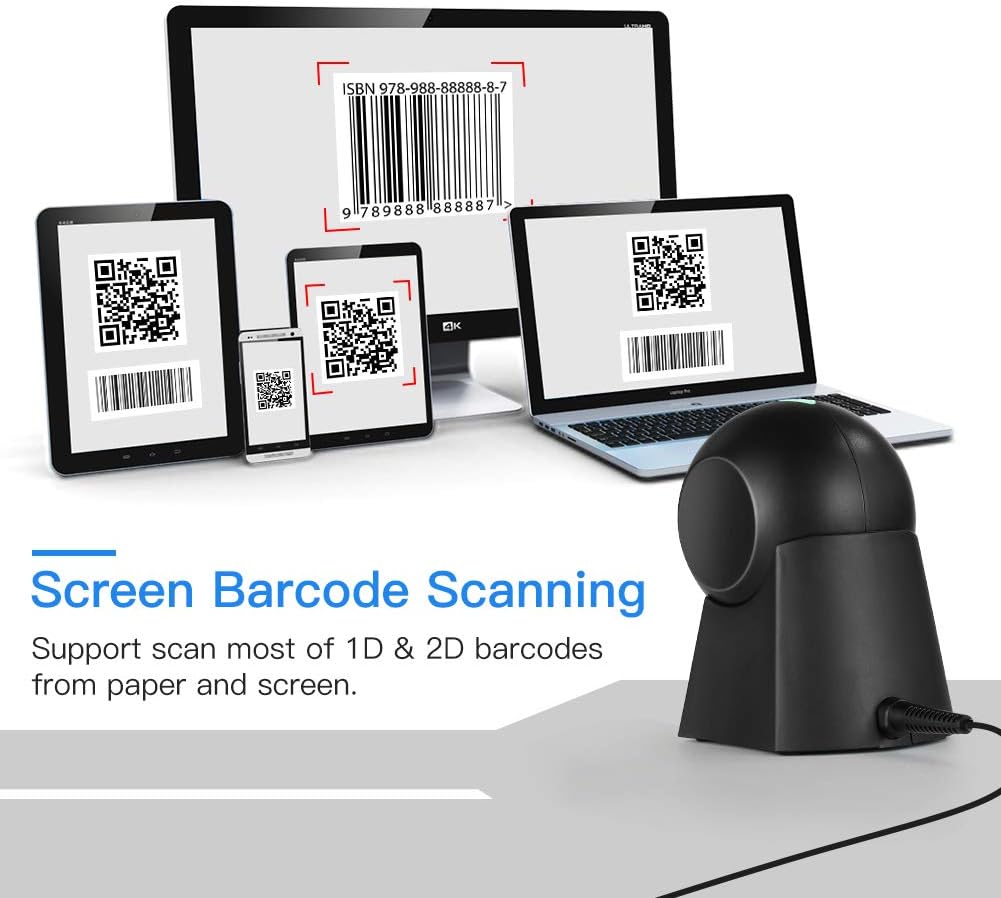
Image 7: Screen Barcode Scanning. This image shows the scanner successfully reading barcodes displayed on a desktop monitor, laptop, tablet, and smartphone, demonstrating its capability to scan from various screen types.
3.4 Adjustable Angle
The scanner features a 15° adjustable head, allowing you to set the most convenient scanning angle for your specific needs and workspace.
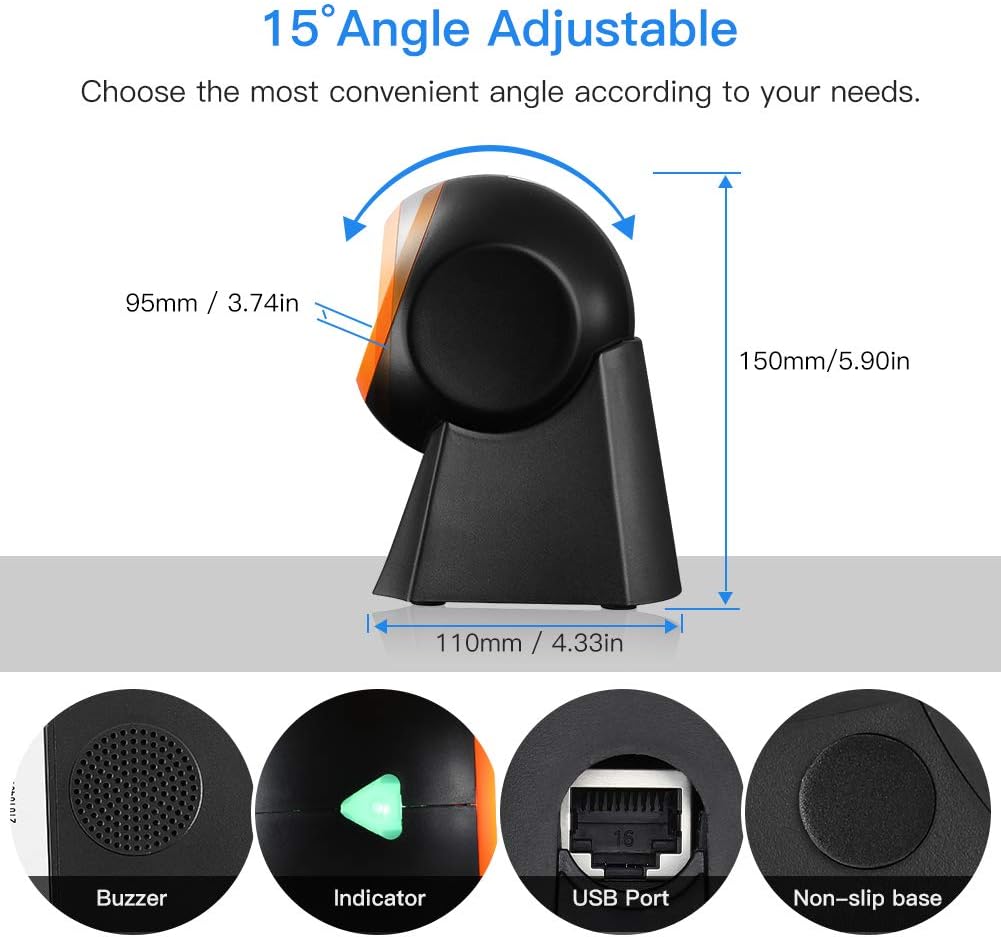
Image 8: Adjustable Angle and Components. This image highlights the 15° adjustable scanning angle and points out key components: Buzzer, Indicator light, USB Port, and Non-slip base.
4. Specifications
| Feature | Detail |
|---|---|
| Brand | Eyoyo |
| Model Number | EY-8800 |
| Connectivity Technology | USB |
| Compatible Operating Systems | Windows XP/7/8/10, Mac OS, Linux |
| Compatible Devices | Desktop computer, Laptop, Tablet |
| Scan Rate | 1 second |
| Product Dimensions | 12.5P x 15l x 9H centimeters |
| Operating Voltage | 5 Volts |
| Real Viewing Angle | 30 degrees |
| Power Source | Cable Electric |
5. Maintenance
To ensure optimal performance and longevity of your Eyoyo EY-8800 scanner, follow these maintenance guidelines:
- Cleaning: Regularly clean the scanning window with a soft, lint-free cloth. For stubborn smudges, slightly dampen the cloth with water or a mild, non-abrasive cleaner. Avoid harsh chemicals or abrasive materials that could scratch the window.
- Storage: When not in use, store the scanner in a clean, dry environment away from direct sunlight and extreme temperatures.
- Cable Care: Avoid bending or twisting the USB cable excessively. Ensure the cable is not pinched or placed under heavy objects to prevent damage.
- Environmental Conditions: Operate the scanner within recommended temperature and humidity ranges to prevent damage to internal components.
6. Troubleshooting
If you encounter issues with your Eyoyo EY-8800 scanner, refer to the following common problems and solutions:
- Scanner Not Responding:
- Ensure the USB cable is securely connected to both the scanner and the computer.
- Try connecting the scanner to a different USB port on your computer.
- Restart your computer.
- Verify that the scanner's indicator light is on. If not, check the USB connection again.
- Barcode Not Scanning:
- Ensure the barcode is clean, undamaged, and clearly visible.
- Adjust the distance and angle of the barcode relative to the scanner's window.
- Check if the barcode symbology is supported by the scanner (refer to Section 3.2).
- For screen barcodes, ensure the screen brightness is adequate and there is no glare.
- Incorrect Data Output:
- Verify that your computer's keyboard layout matches the expected output. For specific keyboard layouts (e.g., French, German), you may need to scan configuration barcodes provided in the full manual or contact support.
- Ensure no other input devices are interfering.
- Scanner Freezes or Becomes Unresponsive:
- Disconnect and reconnect the USB cable to reset the scanner.
- If the issue persists, contact customer support for further assistance.
7. Warranty and Support
Eyoyo is committed to providing high-quality products and customer satisfaction.
- Manufacturer's Warranty: The Eyoyo EY-8800 scanner comes with a 2-year manufacturer's warranty.
- Technical Support: Eyoyo offers lifetime technical support for all its products.
- For any technical issues, questions, or warranty claims, please contact Eyoyo customer service. Refer to the contact information provided in the product packaging or on the official Eyoyo website.


